
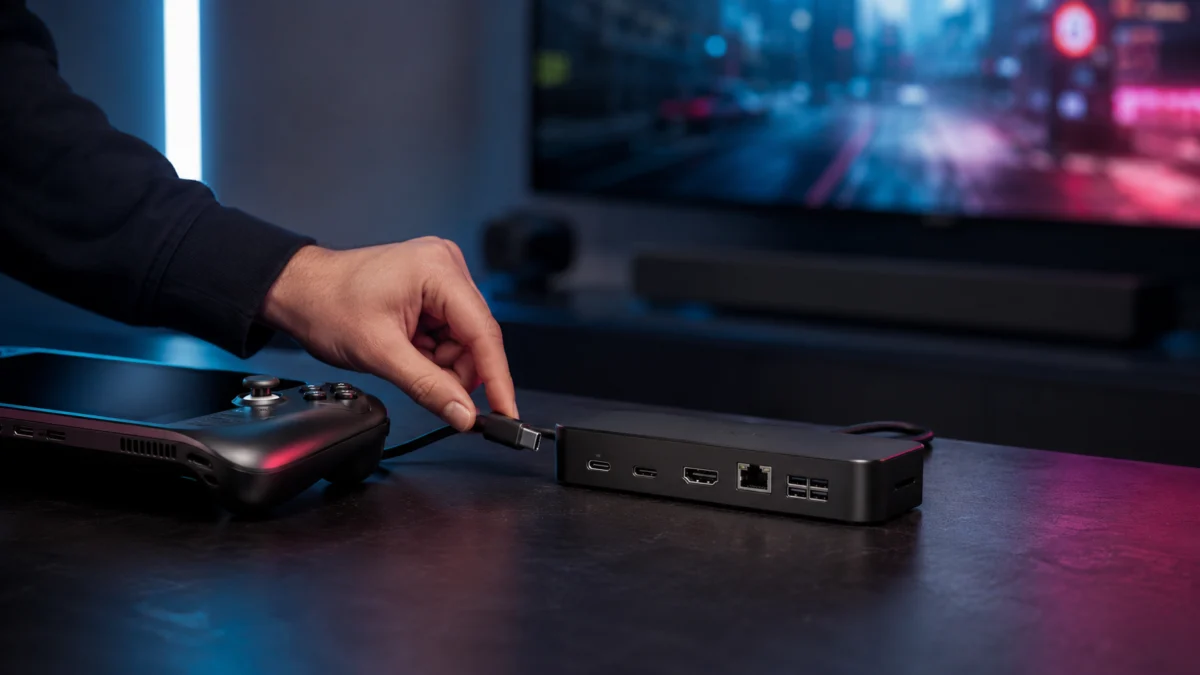
If you want to connect your Steam Deck or ROG Ally to a TV with 4K@120Hz and VRR support, the JSAUX HB1201S covers the most ground at a reasonable price — HDMI 2.1, DisplayPort 1.4, Gigabit Ethernet, and 85W passthrough charging in one unit. On a tighter budget, the UGREEN 75126 delivers HDMI 2.1 and 4K@120Hz for significantly less. Heading out? The Genki Covert Dock 3 packs a 65W GaN charger directly into the dock body — no separate power brick needed. Before buying, keep in mind that 4K@120Hz output depends on your TV model, HDMI cable quality, and SteamOS display settings, not the dock alone. The explainer near the bottom of this guide covers exactly what HDMI 2.1, VRR, LFC, and PD charging mean for handheld gaming setups.
This article contains affiliate links. If you purchase through our links, we may earn a commission at no extra cost to you.
Quick Picks — Best Steam Deck Docks with HDMI 2.1
Jump to the section that matches your setup:
- Best Overall: JSAUX HB1201S (12-in-1 RGB)
- Best Budget HDMI 2.1: UGREEN 75126 (6-in-1)
- Best Portable Travel Dock: Genki Covert Dock 3
- Best for TV Setup + 2.5GbE Ethernet: BenQ beCreatus GR10
- Best Official-Style Alternative: JSAUX HB0801S (8-in-1 RGB)
- Best for ROG Ally and Legion Go
- Official Valve Dock vs. Third-Party
- What HDMI 2.1, 4K@120Hz, VRR, LFC, and PD Actually Mean
- Common Buying Mistakes (Including One Dock to Avoid)
Quick Comparison
| Dock | Price Range | HDMI | Max Video Output | PD Passthrough | Ethernet | Best For |
|---|---|---|---|---|---|---|
| JSAUX HB1201S | $$–$$$ | 2.1 + DP 1.4 | 4K@120Hz, VRR, HDR, ALLM | 85W | Gigabit | Best overall / ROG Ally |
| UGREEN 75126 | $–$$ | 2.1 | 4K@120Hz, VRR, FreeSync | 85W | Gigabit | Best budget |
| Genki Covert Dock 3 | $$ | 2.1 | 4K@120Hz, VRR, HDR | 65W (built-in GaN) | None | Travel / portable |
| BenQ beCreatus GR10 | $$$$ | 2.1 | 4K@120Hz / 8K@60Hz, VRR | 85W | 2.5GbE | Premium TV setup |
| JSAUX HB0801S | $$ | 2.1 | 4K@120Hz, VRR, HDR, ALLM | 85W | Gigabit | Official-style alternative |
| Anker A83S1 | $ | 2.0 | 4K@60Hz | 85W | Gigabit | Budget (no 4K120 needed) |
| Baseus GamerX 6-in-1 | $–$$ | 2.0 | 4K@60Hz | 85W | Gigabit | Case-friendly angle stand |
Price tiers reflect approximate ranges at time of research. Check current prices via the product links below. $ = under ~$40 / $$ = ~$40–$80 / $$$ = ~$80–$100 / $$$$ = over ~$100.
What to Check Before Buying a Steam Deck Dock
The four specs that actually determine whether a dock works well for your setup are: the HDMI version (2.0 caps at 4K@60Hz; 2.1 enables 4K@120Hz and VRR), the PD passthrough wattage (most good docks pass 85W of a 100W input to your device), Ethernet speed (Gigabit vs. 2.5GbE), and whether the dock physically fits your device — especially if you use a protective case.
- HDMI version: HDMI 2.1 is required for 4K@120Hz and VRR. HDMI 2.0 docks max out at 4K@60Hz.
- PD passthrough: Most 100W-input docks deliver 85W to your device. The dock uses the remaining ~15W for its own operation. This matters for the ROG Ally’s 30W Turbo mode — see the ROG Ally section below.
- Ethernet speed: Every dock in this guide with Ethernet offers Gigabit (1000Mbps) except the BenQ GR10, which includes 2.5GbE (2500Mbps).
- Physical fit: Slot-style docks (JSAUX, UGREEN) may not accommodate thick TPU or hard-shell cases. If you use a case, a rear-support stand design like the Baseus GamerX may fit better.
What Buyers Commonly Report: Community Findings
Before buying any dock, these are the recurring issues confirmed across multiple community threads. None of these affect every user or every setup, but they’re worth checking against your specific TV, device, and use case before purchasing.
HDMI Handshake Failures at 4K@120Hz and VRR
The most frequently reported issue involves blackouts or signal instability when enabling 4K@120Hz and VRR on specific TVs — particularly LG OLED models (CX, C1, C2) and certain Samsung televisions. Multiple users on r/SteamDeck documented this behavior in detail after testing several docks under identical conditions.
Related discussion on r/SteamDeck
According to multiple reports on r/SteamDeck, some users experienced repeated signal drops when using HDMI 2.1 docks with LG OLED TVs — requiring cable re-seating or display settings adjustments to stabilize output. This doesn’t affect all setups; users with PC gaming monitors connected via DisplayPort reported far fewer issues. If you have an LG OLED or Samsung TV as your primary display, this is worth researching before committing to a dock purchase.
ROG Ally HDMI Disconnection Loop
ROG Ally users have reported intermittent HDMI signal drops — where the display goes dark and reconnects in roughly ten-second cycles — when using certain HDMI 2.1 docks including the JSAUX HB1201S. This appears related to resolution and refresh rate settings, or insufficient PD power delivery in some configurations.
Related discussion on r/ROGAlly
Case Fit Issues with Slot-Style Docks
Several community members noted that docks with a fixed cradle-style slot — including JSAUX and UGREEN designs — don’t accommodate Steam Decks wearing thicker TPU or rigid cases. The device needs to be removed from the case before docking. JSAUX’s official documentation also notes that the ROG Ally X fits the HB1201S only without a case. If you keep a case on your device regularly, a rear-support dock design may be more practical.
Cable Matters 201310: VRR Confirmed Non-Functional
The Cable Matters 201310 is labeled HDMI 2.1 and supports 4K@120Hz output, but multiple community members reported that VRR fails to engage regardless of settings. According to user reports, Cable Matters support confirmed that VRR is non-functional in this model due to firmware limitations. This is a useful reminder that “HDMI 2.1” labeling does not automatically guarantee full VRR support.
Best Overall Steam Deck Dock: JSAUX HB1201S (12-in-1 RGB)
The JSAUX HB1201S is the most capable mid-range dock for Steam Deck and handheld gaming PCs because it combines HDMI 2.1, a DisplayPort 1.4 output, 85W PD passthrough, and Gigabit Ethernet in a single unit — a combination no other dock under $100 matches.
Key Specs
- HDMI: 2.1 — 4K@120Hz, VRR, HDR, ALLM, QFT
- DisplayPort: 1.4 — 4K@120Hz, 5K@60Hz, 8K@30Hz
- PD: 100W input / 85W passthrough output
- Ethernet: Gigabit (1000Mbps)
- USB-A: 3.2 Gen 2 (10Gbps) × 2, USB-A 2.0 × 1
- USB-C: 3.2 Gen 2 (10Gbps) × 1
- Card reader: SD + TF (microSD) — not simultaneous
- Compatible devices: Steam Deck, Steam Deck OLED, ROG Ally, Legion Go
The standout feature here is the DisplayPort 1.4 output. Because SteamOS outputs video via DisplayPort Alt Mode over USB-C, connecting to a PC gaming monitor via DP bypasses the active HDMI conversion process entirely — which is the root cause of most TV handshake problems. If you’re using a PC gaming monitor rather than a consumer TV, the DP port alone makes the HB1201S worth the price premium over any HDMI-only dock in this price range.
The HDMI 2.1 output supports VRR, HDR, ALLM, and QFT according to JSAUX’s official specifications. Per JSAUX’s published guidance, a PD-capable power adapter must be connected to the dock for stable video output and charging. The dock accepts up to 100W input and delivers up to 85W to the connected device; the remaining ~15W powers the dock itself.
One real-world limitation: JSAUX notes officially that the ROG Ally X fits the dock’s cradle only without a protective case. Users wearing thicker cases on standard ROG Ally or Steam Deck models have also reported fit issues in community discussions.
Check on Amazon
/
Official site
✅ Buy if…
- You want the most complete feature set: HDMI 2.1, DP 1.4, Ethernet, and 85W charging in one dock
- You connect to a PC gaming monitor — the DP 1.4 port avoids the active HDMI conversion issues common with consumer TVs
- You use a ROG Ally or Legion Go and need 85W passthrough charging (with a separate 100W charger — see the ROG Ally section)
- You need an SD card reader alongside your dock
❌ Don’t buy if…
- You keep your Steam Deck or ROG Ally in a case — the slot-style cradle may not fit with a protective case on
- You have an LG OLED TV (CX/C1/C2) or Samsung TV and haven’t confirmed HDMI handshake compatibility — check community reports for your specific TV model first
- Budget is the primary constraint — the UGREEN 75126 offers HDMI 2.1 at a significantly lower price
Best Budget HDMI 2.1 Dock: UGREEN 75126 (6-in-1)
For most Steam Deck owners who primarily want TV output with 4K@120Hz, Ethernet, and reliable charging, the UGREEN 75126 delivers all three at significantly less than the JSAUX HB1201S — making it the clearest value pick in this category.
Key Specs
- HDMI: 2.1 — 4K@120Hz, VRR, FreeSync, G-Sync
- PD: 100W input / 85W passthrough output
- Ethernet: Gigabit (1000Mbps)
- USB-A: 3.0 (5Gbps) × 2
- USB-C: 3.0 (5Gbps) × 1
- Stand: Foldable aluminum alloy + PC/ABS — compact when folded
- Compatible devices: Steam Deck, Steam Deck OLED, ROG Ally, ROG Ally X, Legion Go (per official specs)
UGREEN’s official specifications confirm HDMI 2.1 support with 4K@120Hz, FreeSync, and G-Sync compatibility. The 75126 is notable for being one of the few budget docks with official ROG Ally X compatibility listed in its spec sheet. The foldable stand also makes it more portable than similarly priced competitors, and it’s frequently discounted on Amazon — often dropping significantly during sale events according to pricing history documented by tech media.
What you give up versus the HB1201S: no DisplayPort 1.4 port, no SD card reader, USB data speeds max out at 5Gbps rather than 10Gbps, and the included USB-C cable is reported by some users to be shorter than ideal. If you connect exclusively to a TV rather than a PC monitor, the absence of a DP port isn’t a meaningful trade-off.
Check on Amazon
/
Official site
✅ Buy if…
- You want HDMI 2.1 and 4K@120Hz without paying full price for the HB1201S — this is the clearest budget path to VRR support
- You connect primarily to a TV (not a PC monitor) and don’t need a DisplayPort output
- You use a ROG Ally or ROG Ally X — UGREEN officially lists both as compatible
- You want something compact enough to travel with occasionally
❌ Don’t buy if…
- You need 10Gbps USB data speeds for fast external storage — USB ports here max at 5Gbps
- You need an SD card reader built into the dock
- You connect to a PC gaming monitor and want to use DisplayPort directly
Best Portable Travel Dock: Genki Covert Dock 3
The Genki Covert Dock 3 is the only dock in this guide with a GaN charger built directly into the unit — it plugs straight into a wall outlet, with no separate power adapter, no extra cable, and no power brick to pack. For travel, that distinction is significant.
Key Specs
- HDMI: 2.1 — 4K@120Hz, VRR, HDR
- Power: 65W GaN built-in (plug-in-wall design)
- USB-A: 3.1 × 1
- Ethernet: None
- Compatible devices: Steam Deck, ROG Ally, smartphones, Switch-family devices
Most docks require you to carry the dock unit, a power adapter, and the USB-C cable connecting them. The Covert Dock 3 eliminates the power adapter entirely by integrating a 65W GaN charger into the dock body itself. You plug the dock into the wall directly, and run a single USB-C cable from the dock to your Steam Deck. According to Genki’s official specifications, it supports 4K@120Hz, VRR, and HDR output via HDMI 2.1.
The trade-offs are real: there’s only one USB-A port, which means you can connect a controller or a keyboard — but not both without a separate hub. There’s no Ethernet port. And the dock placement is dictated by where your wall outlet is relative to your TV, which can be awkward depending on room layout. For a home TV setup with multiple USB devices and a wired connection, the HB1201S or UGREEN 75126 make more sense. The Covert Dock 3 is specifically optimized for the traveler who needs a compact, complete solution for hotel rooms and temporary setups.
Community discussions have noted Genki’s positioning around Switch 2 compatibility. However, as of this writing, Nintendo has not published full hardware specifications for Switch 2. We recommend treating broad compatibility claims for Switch 2 as anticipated rather than confirmed until official documentation is available.
✅ Buy if…
- You travel frequently and want the smallest possible kit — one dock, one USB-C cable, no separate charger
- Hotel room and temporary setups are your primary use case
- You only need to connect one USB peripheral at a time
- You don’t need wired Ethernet
❌ Don’t buy if…
- You need to connect multiple USB devices simultaneously (controllers, keyboard, USB storage)
- Gigabit Ethernet for gaming or downloads is important to you
- You’re setting up a permanent home TV station — the HB1201S or UGREEN 75126 offer more for home use
- Your outlet placement is far from your TV — the plug-in-wall design constrains cable routing
Best for TV Setup and 2.5GbE Ethernet: BenQ beCreatus GR10
The BenQ beCreatus GR10 is the only dock in this guide that uses USB4 (40Gbps) as its host connection and includes 2.5 Gigabit Ethernet — making it the most stable option for 4K@120Hz output and the fastest wired networking available in any handheld dock covered here.
Key Specs
- HDMI: 2.1 — 4K@120Hz, 8K@60Hz, 1080p@360Hz, VRR
- Host connection: USB4 (40Gbps)
- PD: 100W input / 85W passthrough output
- Ethernet: 2.5GbE (2500Mbps)
- USB-A: 10Gbps × 2
- USB-C: 10Gbps × 1
- Included: No AC adapter — requires separate USB4 cable and power adapter
The GR10’s use of USB4 as its host connection provides substantially more bandwidth than standard USB-C docks, and according to community verification reports, it produces the most stable 4K@120Hz and VRR output of any dock tested — including on LG OLED TVs where other docks frequently encounter handshake failures. According to multiple reports on r/SteamDeck, users found the GR10 achieved reliable 4K120/VRR on LG OLED TVs with minimal reconnection issues compared to competing docks.
Related discussion on r/SteamDeck
The 2.5GbE port is a meaningful differentiator if you use Steam Remote Play, cloud gaming services, or regularly download large game files. Standard Gigabit Ethernet maxes at 1000Mbps; 2.5GbE operates at 2500Mbps, which becomes relevant when your router and ISP connection can support it.
The significant caveat is price: the GR10 costs roughly double the JSAUX HB1201S, and it does not include an AC adapter. You’ll need a separate USB4 cable and a high-wattage power adapter to use it at full capability. For most users, the JSAUX HB1201S offers excellent performance at a more practical price. The GR10 is the right choice for users who specifically have an LG OLED TV, want the most stable output available, and value 2.5GbE networking.
Check on Amazon
/
Official site
✅ Buy if…
- You have an LG OLED TV and have experienced HDMI handshake issues with other docks — the GR10 has the most consistent community-reported compatibility
- 2.5GbE wired networking matters for your setup (cloud gaming, Remote Play, large downloads)
- You want the widest possible bandwidth headroom and are willing to pay for it
❌ Don’t buy if…
- Budget is a concern — the GR10 is by far the most expensive option here
- You haven’t confirmed that your router supports 2.5GbE (the extra speed only helps if your network can match it)
- You don’t specifically need 2.5GbE or premium TV compatibility — the JSAUX HB1201S provides comparable HDMI 2.1 performance for much less
- You need a dock that includes a power adapter in the box
Best Official-Style Alternative: JSAUX HB0801S (8-in-1 RGB)
If you like the clean stand-and-slot design of Valve’s official dock but want HDMI 2.1 instead of 2.0, the JSAUX HB0801S offers the same core upgrade — 4K@120Hz, VRR, and 85W passthrough — at a price that undercuts the official Valve dock while outperforming it on video output specs.
Key Specs
- HDMI: 2.1 — 4K@120Hz, VRR, HDR, ALLM
- PD: 100W input / 85W passthrough output
- Ethernet: Gigabit (1000Mbps)
- USB-A: 3.2 Gen 2 (10Gbps) × 2
- USB-C: 3.2 Gen 2 (10Gbps) × 1
- Note: No DisplayPort 1.4, no SD/TF card reader (these are present on the HB1201S)
Think of the HB0801S as a focused version of the HB1201S: same HDMI 2.1 chip, same 85W PD passthrough, same Gigabit Ethernet and USB 3.2 Gen 2 ports — but without the DP 1.4 port, SD card slot, and the extra USB-A 2.0 port that the 12-in-1 model includes. For users who connect to a TV rather than a PC monitor and don’t need a card reader, those omissions aren’t meaningful losses. If you occasionally connect to a PC gaming monitor and want the option of DisplayPort, spend the extra for the HB1201S instead.
✅ Buy if…
- You want HDMI 2.1 performance between the UGREEN budget pick and the full HB1201S
- You connect exclusively to a TV and don’t need DisplayPort
- You prefer a simpler, cleaner port selection without extras you won’t use
❌ Don’t buy if…
- You connect to a PC monitor and want a DisplayPort 1.4 option — choose the HB1201S instead
- You need an SD card reader built into the dock
- The price difference between the HB0801S and HB1201S is small enough that the extra features of the 12-in-1 are worth it to you
Powering the ROG Ally and Legion Go: The 100W Charger Requirement
For ROG Ally and Legion Go users, the JSAUX HB1201S is the recommended dock in this guide — but it requires a 100W charger (sold separately) to unlock the Ally’s full performance.
Here’s why this matters: the ROG Ally’s 30W Turbo mode requires approximately 65W of sustained power delivery to the device. But every dock in this guide uses ~15W of a 100W input for its own operation, delivering 85W to the connected device. If you use Asus’s included 65W charger with a dock, only around 50W reaches the Ally — not enough to sustain Turbo mode. With a separate 100W GaN charger plugged into the dock, 85W reaches the device, which is sufficient for full performance.
The practical takeaway: if you’re buying a dock for ROG Ally or Legion Go and intend to use it at full performance, budget for a 100W GaN charger in addition to the dock. This applies to any dock in this guide that accepts 100W PD input, not just the JSAUX models.
UGREEN officially lists ROG Ally and ROG Ally X as compatible devices for the 75126. Anker explicitly states that the ROG Ally X is not compatible with the A83S1 due to physical size differences. JSAUX notes that the ROG Ally X fits the HB1201S cradle only without a protective case.
Check on Amazon
/
Official site
✅ Buy if (ROG Ally / Legion Go)…
- You pair the dock with a 100W GaN charger — 85W passthrough is sufficient for Turbo mode
- You use the JSAUX HB1201S or UGREEN 75126, both of which officially support ROG Ally
- You need HDMI 2.1 output at 4K@120Hz from your Windows handheld to a TV or monitor
❌ Don’t buy if (ROG Ally / Legion Go)…
- You plan to use the included 65W Asus charger with the dock — only ~50W reaches the device, which is not enough for Turbo mode
- You use an ROG Ally X with the Anker A83S1 — Anker officially lists it as physically incompatible
- You use a protective case and haven’t confirmed dock fit for your specific case thickness
Official Valve Dock vs. Third-Party: Which Should You Choose?
The Valve official Steam Deck Docking Station is a solid, well-supported product — but its HDMI 2.0 spec limits output to 4K@60Hz, which means no 4K@120Hz and no VRR. Every third-party HDMI 2.1 dock in this guide outperforms it on video output specifications while typically costing the same or less.
The main argument for the official dock is ecosystem peace of mind: Valve-built hardware, guaranteed Steam Deck compatibility (including OLED), and a clean, simple design. If 4K@60Hz is sufficient for your TV and you want zero compatibility uncertainty, it’s a legitimate choice. But for most users who want to take advantage of modern TVs with VRR and 120Hz panels, the JSAUX HB1201S or UGREEN 75126 are straightforward upgrades.
✅ Choose the official Valve dock if…
- You want guaranteed Valve-supported compatibility with no third-party variables
- 4K@60Hz is sufficient — your TV doesn’t support 120Hz or VRR
- Simplicity and first-party support matter more than video spec headroom
❌ Choose a third-party HDMI 2.1 dock if…
- Your TV supports 120Hz or VRR and you want to use those features
- You need more ports — Ethernet, multiple USB-A, card reader, or DisplayPort
- You also use a ROG Ally or Legion Go and want one dock for multiple devices
HDMI 2.1, 4K@120Hz, VRR, LFC, and PD Charging: What Actually Matters
Most Steam Deck dock confusion comes from a small number of misunderstood specs. Here’s what each one actually means for your setup.
Why Linux and HDMI 2.1 Are Complicated
SteamOS runs on Linux, and Linux’s open-source graphics drivers cannot natively output HDMI 2.1 signals due to licensing restrictions from the HDMI Forum. Instead, the Steam Deck outputs video via DisplayPort 1.4 Alt Mode over USB-C, and the dock’s internal chip converts that signal to HDMI 2.1 — a process called active conversion. This conversion step is the root cause of most TV handshake problems, including the blackouts and VRR instability reported with LG OLED and Samsung TVs. When you connect to a PC gaming monitor with a dock that has a native DisplayPort 1.4 output (like the JSAUX HB1201S), the active conversion is bypassed entirely — which is why monitor users typically report fewer compatibility issues than TV users.
Does the Steam Deck Actually Run Games at 4K@120fps?
No — not with modern 3D games. The Steam Deck’s APU does not have the rendering power to run current titles at 4K resolution and 120fps simultaneously. The real benefits of a 4K@120Hz setup with a Steam Deck are:
- SteamOS UI clarity: The desktop and game library display sharply at 4K.
- Integer scaling for retro games: 4K resolution allows pixel-perfect scaling of older games without blurring.
- LFC (Low Framerate Compensation): When a game runs at 40fps on a 120Hz display with VRR active, the TV shows each frame three times — 40 × 3 = 120 — in perfectly even intervals. This eliminates the judder (uneven frame pacing) that makes 40fps feel rough on a 60Hz display. The result is smoother motion without requiring more processing power from the device.
PD Passthrough: The 15W Tax
Every dock that accepts 100W PD input and advertises 85W output is operating the same way: the dock itself consumes roughly 15W for its own circuitry and connected USB peripherals, passing the remaining 85W to your device. This is normal behavior, and 85W is sufficient for Steam Deck operation including gaming. For ROG Ally Turbo mode, see the ROG Ally section above.
Common Buying Mistakes — Including One Dock to Avoid
One Dock to Skip: iVANKY
The iVANKY 8-in-1 dock claims 4K@120Hz output and 100W PD charging. We recommend skipping it. The product has received an “F” rating from Fakespot, a tool that analyzes Amazon review authenticity, indicating a high likelihood of manipulated reviews. More critically, multiple user reports on r/ROGAlly and r/ROGAllyX document persistent hardware failures — complete HDMI blackouts and charging failures — under real-world conditions.
Related discussion on r/ROGAllyX
According to multiple reports on r/ROGAllyX, users documented complete HDMI output failure and inability to charge the device with iVANKY dock models, despite the product’s spec claims. Given both the review authenticity concerns and the volume of substantive failure reports, this dock is not a suitable purchase recommendation.
Other Common Mistakes
- Assuming HDMI 2.1 means VRR always works: The Cable Matters 201310 illustrates this well — it’s labeled HDMI 2.1 and supports 4K@120Hz, but VRR doesn’t function per manufacturer confirmation. Always check community-tested VRR compatibility for your specific TV model before purchasing.
- Using a 65W charger with your dock for ROG Ally: As covered in the ROG Ally section, a 65W charger leaves only ~50W reaching the device after dock consumption — not enough for Turbo mode. You need a 100W charger.
- Buying an HDMI 2.0 dock when you have a 120Hz TV: HDMI 2.0 caps at 4K@60Hz. If your TV supports 120Hz, an HDMI 2.0 dock wastes that capability entirely. The UGREEN 75126 adds HDMI 2.1 for a minimal price premium over HDMI 2.0 alternatives.
- Ignoring cable quality: Cheap HDMI cables are a leading cause of 4K@120Hz instability. Use a certified Ultra High Speed HDMI cable (48Gbps rated) if you’re targeting 4K@120Hz or VRR.
- Not accounting for case thickness: Slot-style docks require the device to fit into a physical cradle. If you use a case, check community fit reports before buying. Rear-support designs like the Baseus GamerX are more forgiving of varied device thicknesses.
For reference, the Baseus GamerX 6-in-1 and Anker A83S1 are reasonable HDMI 2.0 options if 4K@60Hz is sufficient and either case compatibility or brand reliability is your priority. The Baseus’s adjustable angle stand helps with case fit. The Anker comes with an 18-month warranty and strong brand reliability — though it officially does not support the ROG Ally X due to physical size incompatibility.
Baseus: Check on Amazon
/
Anker: Check on Amazon
/
Anker official site
For a practical comparison of VRR behavior across docks tested on real TV setups, the following video documents real-world third-party testing:
How We Researched
This guide is based on manufacturer official specifications from JSAUX, UGREEN, BenQ, Genki, Anker, and Baseus published on their respective product pages; a Deep Research report that aggregated community findings from r/SteamDeck, r/ROGAlly, and r/ROGAllyX confirmed across multiple posts and threads; and coverage from Tom’s Guide, Rock Paper Shotgun, and IGN used for competitive context only. We have not conducted hands-on lab testing. All performance figures reflect manufacturer claims or community-reported results confirmed across multiple sources. Single-user reports have not been treated as product-wide verdicts.
Steam Deck HDMI 2.1 Dock FAQ
Do you actually need an HDMI 2.1 dock for the Steam Deck?
It depends on your display. If you connect to a 1080p TV or only need 4K@60Hz, an HDMI 2.0 dock is enough. HDMI 2.1 matters when your TV supports 120Hz or VRR, or when you also use a handheld PC like the ROG Ally or Legion Go and want headroom for those features.
Can the Steam Deck output 4K@120Hz through a dock?
An HDMI 2.1 dock can carry a 4K@120Hz signal, but whether it works depends on your TV model, HDMI cable quality, and SteamOS display settings — not the dock alone. Note that the Steam Deck’s hardware does not render modern 3D games at 4K@120fps; the practical benefits are sharper UI, pixel-perfect scaling for retro titles, and smoother motion through LFC.
Does VRR work with every HDMI 2.1 dock?
No. An “HDMI 2.1” label does not automatically guarantee working VRR. For example, the Cable Matters 201310 supports 4K@120Hz but, according to user reports citing manufacturer confirmation, its VRR is non-functional. VRR depends on the full chain — device, OS, dock, cable, and TV — so check community reports for your specific TV before buying.
What is the difference between HDMI 2.0 and HDMI 2.1 docks?
HDMI 2.0 caps at 4K@60Hz, while HDMI 2.1 enables 4K@120Hz and VRR. If your TV supports 120Hz or VRR, an HDMI 2.1 dock is worth the small price premium. If your display tops out at 4K@60Hz, an HDMI 2.0 dock such as the Anker A83S1 or Baseus GamerX is sufficient.
Final Verdict: Which Steam Deck Dock Should You Buy?
For most Steam Deck owners setting up a TV gaming station, the JSAUX HB1201S is the clearest recommendation: it’s the only dock in this price range that combines HDMI 2.1, DisplayPort 1.4, Gigabit Ethernet, and 85W PD passthrough. The DP 1.4 port is a genuine differentiator for PC monitor users who want to sidestep the active HDMI conversion issues that cause most TV compatibility problems.
If your budget is tighter, the UGREEN 75126 delivers HDMI 2.1 and 4K@120Hz at a significantly lower price with officially confirmed ROG Ally X support. For travel, nothing else matches the Genki Covert Dock 3’s built-in GaN charger design. If you have an LG OLED TV and have already experienced HDMI handshake instability, the BenQ GR10 is the most stable option with the added bonus of 2.5GbE — though the price is substantially higher and you’ll need to supply your own AC adapter.
Whatever you choose: pair your dock with a certified Ultra High Speed HDMI cable for 4K@120Hz setups, use a 100W GaN charger if you’re running an ROG Ally in Turbo mode, and verify your specific TV model’s VRR compatibility in community discussions before assuming it will work out of the box.









Comments