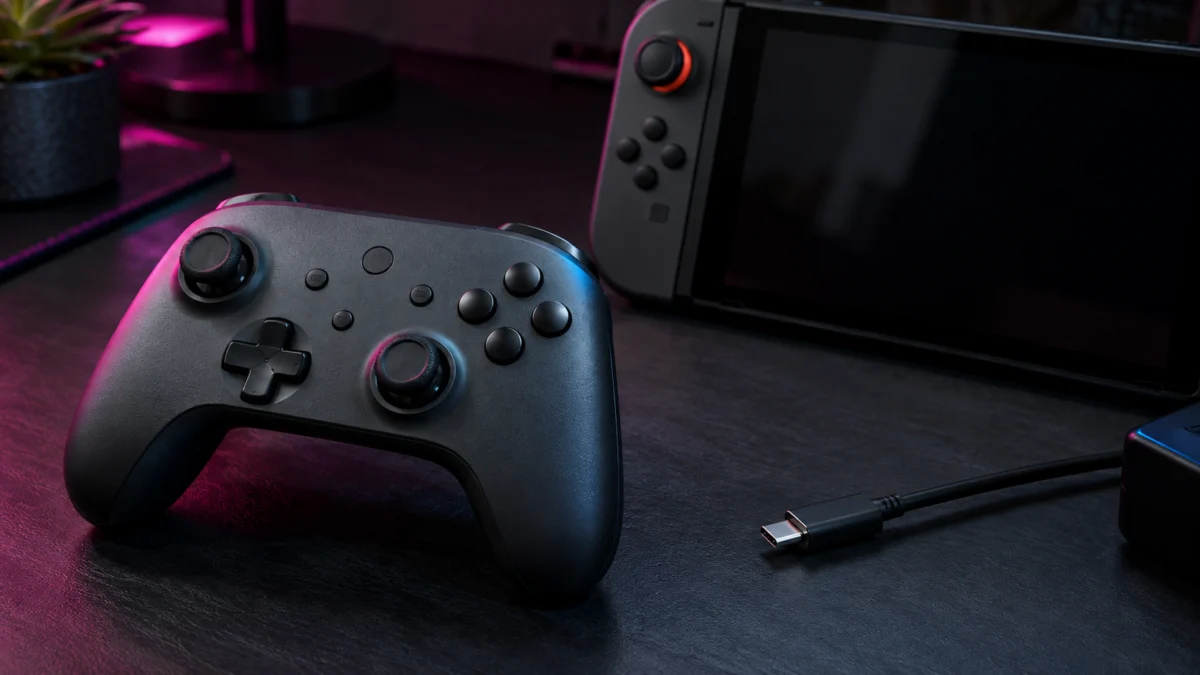
If your 8BitDo Ultimate 2C Bluetooth Controller does not appear in Change Grip/Order on a Nintendo Switch 2, check its firmware before repeating the pairing process. The controller shipped with factory firmware v1.00, and 8BitDo added Switch 2 support in v1.01. A unit still on v1.00 lacks Switch 2 support and will not appear until it is updated.
The update cannot be installed from the console. You need a Windows or macOS computer, a USB cable that carries data, and 8BitDo’s official software. Once the controller is on v1.01 or later and the console is on system version 20.1.1 or later, proceed with the pairing steps below.
Fixory may earn a commission from qualifying purchases made through links in this article. That does not affect which fixes we recommend or the order we recommend them in.
Start Here: The Order That Actually Works
Work through these checks in order. Model identification and firmware come first, because a controller still on factory firmware will never appear on a Switch 2, however many times you re-pair it. USB testing comes last, because by then its result tells you exactly which side the fault is on.
- Confirm you have the Ultimate 2C Bluetooth model.
- Confirm the Switch 2 is on system version 20.1.1 or later.
- Update the controller to firmware v1.01 or later from a computer.
- Pair it again from Change Grip/Order.
- If it paired before, treat the reconnect failure separately.
- Test the controller over USB to isolate the fault.
Do not try button-combo resets, unofficial firmware, or firmware downgrades. None of those are documented by 8BitDo for this controller, and a failed flash is harder to recover from than a pairing problem.
Confirm You Have the Ultimate 2C Bluetooth, Not Another 2C
8BitDo sells several controllers with nearly identical names, and each one runs its own firmware line. Updating the wrong entry in the software either does nothing or leaves you convinced your controller has no Switch 2 support when it does. Check the box and the manual before you download anything.
| Model | Connection | Switch 2 in the official firmware changelog |
|---|---|---|
| Ultimate 2C Bluetooth Controller | Bluetooth and wired USB | Added in controller firmware v1.01 |
| Ultimate 2C Wireless Controller | 2.4GHz receiver | No Switch 2 entry listed |
| Ultimate 2C Wired Controller | Wired USB only | No Switch 2 entry listed |
| Ultimate 2 Bluetooth Controller | Bluetooth | Separate firmware line; Switch 2 added at v1.04 |
Two quick tells: the Bluetooth model has no USB receiver dongle in the box, and its firmware version reads v1.00 or v1.01 rather than v1.09 or v2.01. A version number that does not fit the 2C Bluetooth line means you have selected the wrong device.
Check Your Switch 2 System Version
8BitDo lists the console requirement as Switch 2 system version 20.1.1 or later. Check the version before you blame the controller, and restart the console after any update.
Go to System Settings, scroll to System, then select System Update. The console checks for an update and downloads one if it exists. If it is already current, restart the console before trying the controller again; simply opening System Settings does not restart it.
Source: 8BitDo Ultimate 2C Bluetooth Controller product page
Update the Controller to Firmware v1.01 or Later
Firmware v1.01 is the release in which 8BitDo added Switch 2 support to this controller. Everything before it, including the factory v1.00 that units shipped with, has no Switch 2 support at all. You install it with 8BitDo Ultimate Software V2 on a computer, not from the console itself.
The fix takes 7 steps.
- Charge the controller before you start to reduce the chance of the update being interrupted.
- Download 8BitDo Ultimate Software V2 from 8BitDo’s official page. It requires Windows 10 (1903) or above, or macOS 13.0 and above — requirements that are not the same as the older 8BitDo Firmware Updater’s.
- Install and open the software, then connect the controller to the computer with a USB cable that carries data. Many spare cables are charge-only and will leave the controller invisible to the software.
- If the software does not recognize the controller, 8BitDo documents a specific recovery for this model: turn the controller off, press and hold the L1 + R1 buttons, and connect it via USB while holding them.
- Confirm the software identifies the device as the Ultimate 2C Bluetooth Controller. If it names a different model, stop and re-check which controller you have.
- Run the firmware update and leave the cable connected until it reports completion. Do not power the controller off or unplug it partway.
- Disconnect, restart the controller, and pair it again from the console.
If the update behaves strangely rather than failing outright, check that your copy of the software is current. 8BitDo’s changelog records fixes for abnormal firmware-update behavior on this specific controller, so an outdated Ultimate Software V2 is a real cause rather than a theoretical one.
Source: 8BitDo firmware support and changelog
Software and requirements: 8BitDo Ultimate Software V2
Pair It Again from Change Grip/Order
With the console updated and the controller on v1.01 or later, pairing follows the standard Switch 2 route. From the HOME Menu, select Controllers, then Change Grip/Order, and hold the Pair button for 3 seconds until the Status LED starts blinking rapidly while that screen is open. The console will not pair a controller while it is asleep.
Two things block this step even when the versions are right. A phone, tablet, or PC that is still connected will hold the Bluetooth link, so switch Bluetooth off on anything else nearby. And a single attempt is not conclusive: if the controller powers on but nothing appears on screen, power it fully off, reopen Change Grip/Order, and try again.
Console reference: Nintendo Switch 2 controller pairing FAQ
Controller instructions: 8BitDo Ultimate 2C Bluetooth Controller manual
If It Paired Before but Won’t Reconnect
A controller that used to work and now will not is a different problem from one that never paired. The firmware and version checks above are already satisfied in this case, so skip them. What you are looking for instead is a flat battery, a stale pairing record on the console, or a controller that is not actually powering on.
Charge it for at least half an hour on a known-good cable first, then restart both the console and the controller. If it still does not come back, clear the console’s stored pairings from System Settings, then Controllers & Accessories, then Disconnect Controllers, and pair it again. That clears every wireless controller, so expect to re-pair your Joy-Con 2 as well.
Test the Controller over USB
The USB test is the fastest way to find out whether you have a wireless problem or a dead controller. On Switch 2, go to System Settings, then Controllers & Accessories, then turn on Nintendo Switch Pro Controller Wired Communication. Connect the controller with a data-capable USB cable and see whether it responds.
One naming trap is worth flagging: 8BitDo’s FAQ for this controller describes the setting as living under “Controllers and Sensors”. That is the Nintendo Switch label. On Switch 2 the same setting sits under Controllers & Accessories, so the FAQ wording will send you looking for a menu that is not there.
- Works over USB, not over Bluetooth: the wired path is working. Recheck the firmware version and pairing steps; if those are correct, the remaining fault is specific to the Bluetooth side.
- Fails over USB as well: try a different cable and a different USB port first, then confirm the firmware update actually completed. If it fails on multiple cables and ports, treat it as a hardware case.
Some spare charging cables carry power but no data. A cable that charges the controller but never makes it appear in Ultimate Software V2 may be charge-only, so confirm with another known data cable before treating the controller as faulty.
Console reference: Nintendo Switch 2 wired-controller settings
Source: 8BitDo Ultimate 2C Bluetooth Controller FAQ
If your cable turns out to be charge-only, use a USB-A-to-USB-C cable that explicitly supports data transfer.

Please check the Amazon product page for the latest price and availability.
Wake-from-Sleep Is a Different Problem
If the controller connects normally during play but cannot wake the console from sleep, treat wake behavior as a separate feature rather than the same connection failure. For this controller, Switch 2 wake support is not documented in the official material we checked.
The official product page describes the feature as shaking to wake up Switch 1, and does not name Switch 2. The changelog comparison is telling: the Ultimate 2 Bluetooth and the Pro 3 both received a firmware release that explicitly added shake-to-wake on Switch 2, while the Ultimate 2C Bluetooth changelog has no equivalent entry.
The practical takeaway: press the console’s power button, then confirm the controller reconnects once the console is awake. If it reconnects reliably after the console is on, the basic connection path is working; the lack of documented wake support alone does not show a pairing failure.
Official scope references: Ultimate 2C Bluetooth product page and 8BitDo firmware changelogs
When to Contact 8BitDo or Replace the Controller
Support and replacement become the sensible next step only after the free fixes are exhausted. The pattern that points to a hardware fault is a controller that stays invisible everywhere — not just to the console, but to the update software on a computer as well, across more than one cable.
Contact 8BitDo support, or start a return or exchange, when all of the following are true:
- You have confirmed the model is the Ultimate 2C Bluetooth Controller.
- The Switch 2 is on system version 20.1.1 or later.
- The controller is on firmware v1.01 or later, or it cannot be updated because the software never sees it.
- It is unrecognized over both Bluetooth and USB, on more than one cable and more than one USB port.
If you are still inside the retailer’s return window, compare its exchange option with 8BitDo support. Check your purchase date and the applicable return terms before choosing either route.

Please check the Amazon product page for the latest price and availability.
How We Researched
This article is based on 8BitDo’s official product page, official support pages and firmware changelogs, the official FAQ and software documentation for this controller, and Nintendo’s official support documentation for Switch 2 controller pairing and wired communication. We have not conducted hands-on lab testing. Firmware version numbers, system version requirements, and menu paths are taken from those official sources and are identified as such in the text. Where a behavior is not documented for this specific model, we say so rather than inferring it from a similarly named product.
Frequently Asked Questions
Does the Ultimate 2C Bluetooth work with Switch 2?
Yes, with two conditions. 8BitDo lists the controller as compatible with Switch 2 on system version 20.1.1 or later, and Switch 2 support was added to the controller by firmware, not built into the units that originally shipped. Out of the box, an older unit may need the update first.
Which firmware version adds Switch 2 support?
Firmware v1.01. 8BitDo’s changelog for the Ultimate 2C Bluetooth Controller lists v1.00 as factory firmware and v1.01 as the release that added Switch 2 support. Check the current version on the official support page before updating, since later releases may have followed.
Why does it work over USB but not over Bluetooth?
Because wired operation does not depend on the Switch 2 pairing path. If the controller responds over USB with wired communication enabled, the wired path and data connection are working. Recheck firmware and pairing first; if both are correct, investigate a Bluetooth-specific fault.
Is the Ultimate 2C Wireless the same controller?
No. The Ultimate 2C Wireless is a different product with a different connection method and its own separate firmware line, and 8BitDo’s changelog for it lists no Switch 2 support entry. The Ultimate 2C Wired is a third, separate product. Confirm which one you own before applying any firmware.
The Short Version
The order matters more than any individual step. Confirm the model, get the Switch 2 to system version 20.1.1 or later, update the controller to v1.01 or later with Ultimate Software V2, and only then pair it from Change Grip/Order. If it still does not appear, the USB test narrows the problem to the wired or wireless path. Keep pairing failures and wake-from-sleep behavior separate — they are not the same fault.