Firmware updates for the Razer Wolverine V3 Pro (RZ06-0520) run in two separate stages: the HyperSpeed Wireless Dongle first, then the controller itself over USB. The correct fix depends on which stage stopped. Before anything else, confirm your controller is the RZ06-0520 and that you downloaded the updater built for that exact model.
Quick fix checklist
- Confirm the part number is RZ06-0520, not RZ06-0521 (Tournament Edition) or RZ06-05540 (V3 Pro 8K PC).
- Download the updater from Razer’s RZ06-0520 page. Updaters are not interchangeable between Wolverine models.
- Run it on a Windows PC. Razer lists Windows 11 64-bit or higher as the PC system requirement.
- Use the included USB-C to USB-A cable.
- Update the dongle first, then the controller. These are two separate Update operations.
Fixory may earn a commission from qualifying purchases made through links in this article. Every fix below is free, and product links appear only where a paid option is the remaining step.
Confirm You Have the RZ06-0520 and the Matching Firmware Updater
Razer publishes a separate firmware updater for each Wolverine model, and they are not interchangeable. The standard wireless Wolverine V3 Pro is RZ06-0520. The Tournament Edition is RZ06-0521, and the PC-focused V3 Pro 8K is RZ06-05540. Running another model’s updater means the tool is not aimed at your hardware at all.
| Model | Part number | Connection | Firmware updater |
|---|---|---|---|
| Wolverine V3 Pro (standard) | RZ06-0520 | Wireless dongle and wired USB-C to USB-A | Dedicated RZ06-0520 updater, covered here |
| Wolverine V3 Tournament Edition | RZ06-0521 | Wired only | Separate RZ06-0521 updater |
| Wolverine V3 Pro 8K PC | RZ06-05540 | Wireless and wired, PC-focused | Separate updater |
| Wolverine V3 TE 8K PC | RZ06-05550 | Wired, PC | Separate updater |
The part number is on the label on the underside of the controller. One thing that trips people up: US retail listings often show a longer manufacturer part number such as RZ06-05200100-R3U1. That maps back to the RZ06-0520 base model, so a longer string on a receipt does not mean a different controller.
Why the Update Button Greys Out: Documented Requirements vs. Unconfirmed Causes
Razer does not list the conditions that grey out the Update button in the RZ06-0520 updater article or the RZ06-0520 support FAQ. What those pages do specify is the connection state required at each stage. The practical approach is to satisfy those documented states rather than guess at the button’s internal logic.
| Factor | What Razer documents | How to treat it |
|---|---|---|
| Wrong model updater | A separate updater per model | Check first. Not named as a grey-out cause, but the tool is not targeting your hardware |
| Connection state and order | Whether the dongle is plugged in, whether the controller is connected, and that the dongle is selected first | Follow each prompt in order. Do not set everything up in advance or skip to the controller stage |
| Controller mode | Xbox mode via Function + Menu + X, at the dongle stage | Use it there. Not a general remedy for a greyed button |
| Cable type | PC connection instructions name the included USB-C to USB-A cable | Use that cable. A charge-only cable cannot carry the data a firmware write needs |
| Updater prerequisites | The updater closes running Razer applications itself and triggers a User Account Control prompt | Approve the prompt and let it close the apps. Do not kill processes or remove drivers by hand |
One limit worth stating plainly: we reached that conclusion from Razer’s RZ06-0520 updater article, the RZ06-0520 support FAQ, and the Wolverine V3 Pro product page. Razer publishes a large support library and we did not read all of it. This is a statement about the pages we checked, not a claim that no Razer document anywhere addresses grey-out conditions.
If you are working through a similar stall on a different controller, our guide to a wired Scuf Valor Pro firmware update getting stuck uses the same stage-by-stage diagnosis.
Stage 1: Update the HyperSpeed Wireless Dongle
The dongle is the first target, not the controller. Razer’s standalone updater has you select the HyperSpeed Wireless Dongle, confirm it is unplugged, plug it in when prompted, power on the controller, and switch to Xbox mode before the Update button does anything useful. The fix takes 7 steps.
- If you are on a laptop, plug it into a wall outlet rather than running on battery. Save your work and close open programs.
- Download the RZ06-0520 updater onto a Windows PC and run it. Approve the User Account Control prompt, then click NEXT. The updater closes running Razer applications on its own.
- At the device selection screen, choose the HyperSpeed Wireless Dongle, then click NEXT.
- Confirm the dongle is unplugged from the PC, then click NEXT.
- Plug the dongle into the PC and click NEXT.
- Long-press the Xbox button to power on the controller, then press Function + Menu + X to enter Xbox mode.
- Click UPDATE and let it finish. Do not unplug the dongle or power off the controller partway through.
If Update is still greyed out here, the updater has not reached a state it accepts. Work backwards through steps 3 to 6 rather than reaching for a workaround. Check whether the dongle was already plugged in before the prompt, then follow the updater’s unplug-then-plug sequence exactly.
On version numbers: at the time of writing, Razer’s RZ06-0520 updater page lists package version v2.04.00_r1, released 12 March 2026, with “General bug fixes” as the change note. Take the current version from that page. Keep that package version separate from the firmware number your controller reports in the Razer Controller app. Razer does not state the two share a numbering scheme, so a mismatch is not evidence of failure.
Stage 2: Update the Controller After the Dongle Firmware Finishes
A successful dongle update does not mean the controller has been updated. Razer’s flow moves on to a second, separate Update operation over USB. Before it runs, the updater asks you to confirm the controller is connected to neither the dongle nor a cable, then to connect it by cable. The fix takes 4 steps.
- When the dongle stage reports success, click NEXT.
- Confirm the controller is connected to neither the wireless dongle nor a USB cable.
- Connect the controller to the PC with the USB cable, then click NEXT.
- Click UPDATE, wait for it to complete, then click NEXT and EXIT.
The two official routes word this stage differently, and the difference is worth keeping straight. In the standalone updater, Razer asks you to confirm the controller is not connected to the dongle; it does not tell you to pull the dongle out of the PC at that step. In the Razer Controller Setup for Xbox route, Razer does say to unplug the dongle and connect the controller by USB cable. Follow the wording of whichever route you are actually in.
Some users report arriving here and finding the Update button still greyed out, having assumed the dongle update covered both devices. Treat the controller stage as a fresh operation with its own connection requirements.
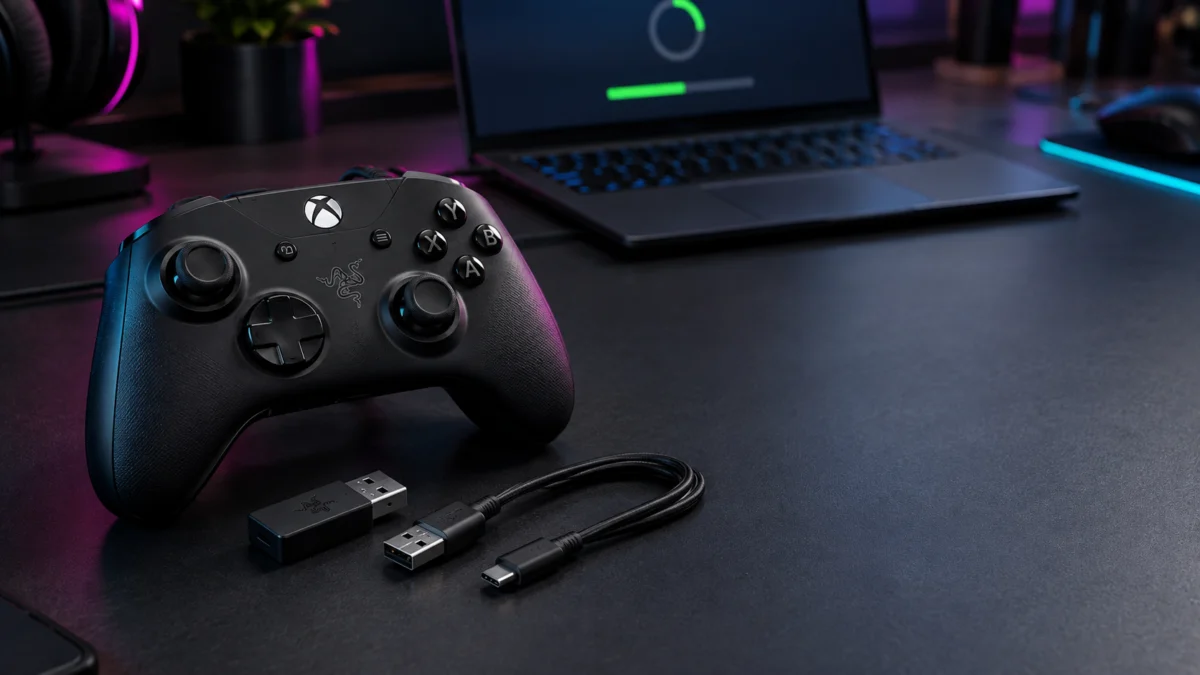
On cables: Razer’s PC connection instructions name the included USB-C to USB-A cable, so that is the one to use. A replacement needs to be USB-A male to USB-C male and rated for data, not charging only, because a charge-only cable cannot enumerate the controller for a firmware write. Razer does not certify third-party cables for this, so treat any substitute as a workaround rather than an equivalent.
![Cable Matters [USB-IF Certified] 10Gbps Gen 2 USBA to USB C Cable, 3.3ft](https://m.media-amazon.com/images/I/41ZLmdwkjhL._SL500_.jpg)
Please check the Amazon product page for the latest price and availability.
If the Controller Is Not Detected After the Update
Work out which connection is broken before doing anything else. If the controller works over USB but not wirelessly, that is a pairing or mode problem with documented official routes. If neither connection works, or the update stopped partway through, stop troubleshooting and move to Razer Support rather than attempting a recovery yourself.
Wired works, wireless does not
Start with the normal reconnection Razer documents for this controller: press and hold the Xbox button for about four seconds to start a wireless connection. If that does not restore it, Razer lists a Razer Controller Pairing Utility in the RZ06-0520 support and downloads page. That model-specific official tool is the right next step, ahead of any driver removal.
Xbox Mode and PC Mode, and Why Razer Uses Two Names for Them
Razer’s RZ06-0520 support FAQ calls Function + Menu + X a switch to Xbox mode, and Function + Menu + A a switch to PC mode. Razer’s Wolverine V3 Pro product page calls the same two shortcuts Standard Mode and PC Tournament Mode, the latter enabling a 1000 Hz polling rate on a wired PC connection.
The shortcut pair does double duty. It selects which platform the controller presents itself to, and on PC it also toggles the higher polling rate. The V3 Pro runs at 250 Hz on wireless and on Xbox, so the mode you are sitting in affects reporting frequency as well as detection.
If your PC cannot see the controller after an update, first check which mode is selected. Function + Menu + A is the documented way to switch it to PC mode, and it is worth checking before concluding the update broke something.
What this does not mean: pressing Function + Menu + A is not a remedy for a greyed-out Update button. Razer’s updater specifies Xbox mode at the dongle stage and specifies no mode switch for the controller stage. Do not add one to the update procedure.
If your controller connects but keeps dropping out during play on Xbox, rather than failing to appear at all, that is a separate problem. Our guide to the Wolverine V3 Pro disconnecting on Xbox covers that pattern.
What Not to Try
Several fixes circulating in forums are not part of Razer’s published RZ06-0520 procedure, and some carry real risk. Interrupting a firmware write or stripping drivers out mid-recovery can leave the controller unresponsive. None of the following appears in the material we checked.
- Running an installer file extracted into a Windows temp folder by hand.
- Deleting Razer controller or wireless drivers in Device Manager as an opening move. Reading what it reports is fine; removing drivers is not.
- Unofficial firmware images, force-flash tools, or registry edits. If the updater reports the controller is already on the latest version while it misbehaves, contact Support rather than forcing an older build back on.
- Repeatedly re-running Update after a mid-write failure. Stop and contact Support rather than starting another attempt.
- Using the Tournament Edition (RZ06-0521) or V3 Pro 8K PC (RZ06-05540) updater on an RZ06-0520.
When to Contact Razer Support Instead
Before escalating, try a different USB port and a different Windows PC if you have one. Neither is a documented recovery step, but both narrow the problem down. If a second machine does not see the controller either, or the update failed partway and the controller is unresponsive, the next step is a warranty assessment rather than another firmware attempt.
Razer Support asks for specific details in these cases, so gather them first.
- Whether the controller responds over USB, wirelessly, or neither.
- The firmware version shown in the Razer Controller app, if it still appears there.
- The exact error, and the percentage at which the update stopped.
- Whether you were using the original Razer cable.
- The serial number and proof of purchase.
Razer lists warranty coverage of up to one year on the Wolverine V3 Pro, so check your purchase date before assuming a replacement is on you. If Support confirms a hardware fault and your controller falls outside that coverage, a replacement becomes the remaining option. It belongs at the end of this process rather than the start: every check above is free, and the two-stage update sequence should be checked before replacement.

Please check the Amazon product page for the latest price and availability.
How We Researched
This article draws on Razer’s official Wolverine V3 Pro product page, Razer’s RZ06-0520 firmware updater article and support FAQ, a research report compiled from those sources alongside Razer Insider and Reddit threads, and responses posted by Razer Support staff in Razer Insider. We have not conducted hands-on lab testing.
The update sequence, mode shortcuts, cable specification, Windows requirement, and polling rates are attributed to Razer’s own documentation. Where a behaviour was reported only by users, it is identified as a community report. Firmware versions change, so confirm the current release on Razer’s RZ06-0520 page. Statements about what Razer does not document are limited to the pages named above; we did not read every support article, manual, or download page Razer publishes.
FAQ
Do I need a PC to update the Razer Wolverine V3 Pro?
Not necessarily. Razer’s RZ06-0520 support FAQ says the Razer Controller Setup for Xbox app can be used on a PC or a console, and prompts you when newer firmware is available. The standalone updater covered here is a Windows PC download. Some users were told in the past that updates were PC-only, which does not match Razer’s current FAQ.
Is the dongle firmware the same as the controller firmware?
They are handled as two separate stages in Razer’s own flow, and completing the dongle stage does not update the controller. Razer does not state that the two always carry matching version numbers, so do not assume one figure covers both devices, or read a difference between them as proof that something went wrong.
What does “General bug fixes” actually cover?
At the time of writing, that was the entire published change note for the package listed on Razer’s RZ06-0520 updater page. Razer does not break it into individual items, so any claim that a particular update resolved stick drift, disconnects, or input lag is not something you can verify from Razer’s release notes.
Conclusion
RZ06-0520 update failures can be sorted into three stages. Before the dongle update, the fix is confirming the model and following the unplug-then-plug prompt sequence in order. After the dongle update, the fix is treating the controller as a second, separate target connected by USB.
After both stages complete, the split is between wireless-only failure, where the four-second reconnect and the official pairing utility apply, and total failure, where Razer Support and a warranty check are the right call. The unofficial recovery methods circulating online sit outside Razer’s documented process, and running one on a controller that has already failed a firmware write is not a risk worth taking.