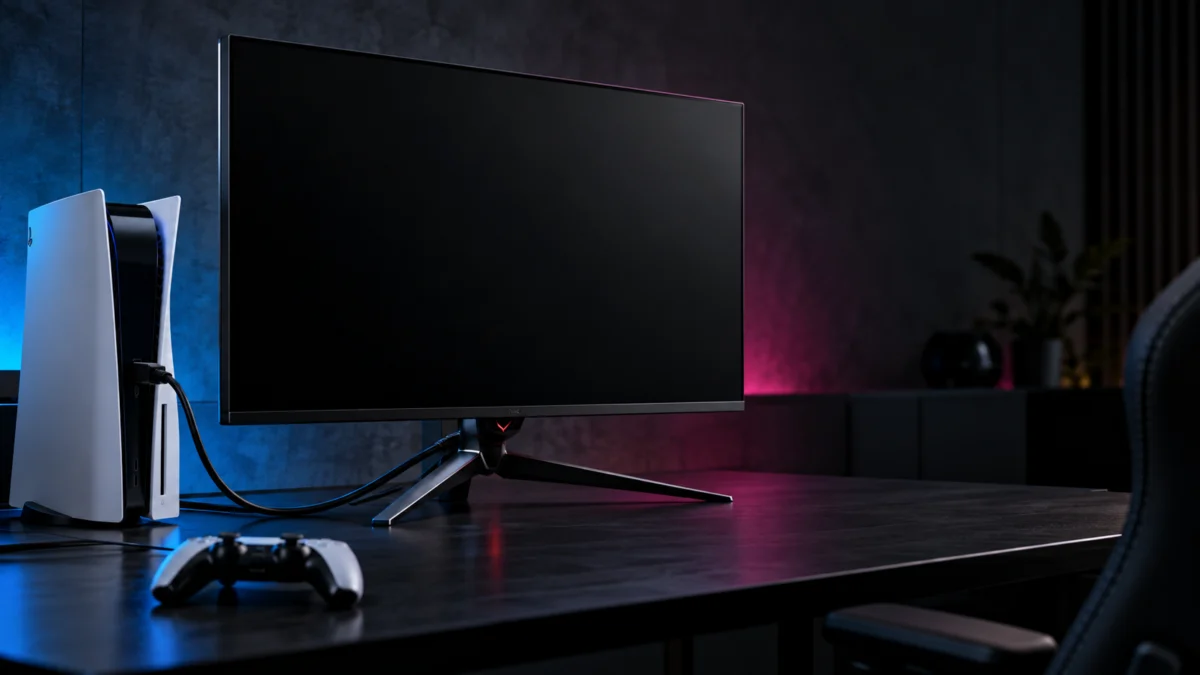
If your ASUS ROG Swift OLED PG32UCDM shows “NO SIGNAL” or stays black while your PS5 is on, start with the monitor’s Input Select menu, then connect the PS5 directly to HDMI-1 or HDMI-2 with no capture card, switch, or soundbar in between. You can narrow down the signal path with free swaps before you buy anything: a known-good cable, the other HDMI port, and another screen for the PS5.
The first observation that matters is whether the monitor’s own on-screen display (OSD) menu still opens. If it does, the panel is responding and the fault is somewhere in the signal path. If even the OSD is missing, first check the monitor power connection and another outlet; if the menu still does not appear, ask ASUS for help before buying a cable. This guide covers the original PG32UCDM and is based on ASUS’s PG32UCDM Series manual and PlayStation’s official PS5 support pages. Other PG32UCDM-named variants have separate manuals, so confirm your model name first.
Source: ASUS PG32UCDM Series user manual (PDF).
Quick checklist before you start:
- An amber power LED means the monitor is in standby or has no signal; red means it is on.
- Input Select is set to the HDMI port the PS5 is actually plugged into.
- The PS5 is connected directly to the monitor, with nothing in between.
- You have tried the other HDMI port and a cable that works with another device.
- You have tried the PS5 on another TV or monitor.
Which “No Signal” State Are You Seeing?
A PG32UCDM “no signal” complaint can present in three useful states: a NO SIGNAL message with an amber power LED, a completely black screen where even the OSD menu will not open, or a picture that drops to black mid-game. Each points to a different part of the chain, so identify yours before changing anything.
| What you see | What it points to | Where to go |
|---|---|---|
| “NO SIGNAL” message, amber LED, OSD opens normally | The monitor is on but not receiving a usable signal on the selected input | Input Select, then cable, port, and PS5 checks |
| Picture works when the PS5 is plugged in directly, but not through a capture card, switch, or soundbar | The intermediate device or the way it passes the signal on | The intermediate-device section |
| Screen stays black and the OSD never appears, even though the LED is lit | A possible monitor-side fault that cable swaps cannot reach | The ASUS and PlayStation support section |
| Picture works, then goes black during play and returns after turning the monitor off and on | A separate intermittent issue, not a startup signal problem | The FAQ at the end of this guide |
How Do You Point the PG32UCDM at the PS5’s HDMI Input?
Open the OSD with the five-way navigation button, go to Input Select, and choose HDMI-1 or HDMI-2 to match the port your PS5 cable is plugged into. The PG32UCDM has two HDMI inputs, and when Auto Input Detection is enabled, the monitor selects whichever port was most recently connected rather than the one you expect.
The fix takes 4 steps.
- Turn the monitor on. According to the ASUS manual, the Close button and the navigation button also wake the monitor when it is in standby or showing “NO SIGNAL.”
- Press the five-way navigation button to open the OSD menu.
- Move to Input Select and choose HDMI-1 or HDMI-2 to match the labeled port on the back of the monitor where the PS5 cable is connected.
- Press the PS button on your controller to wake the PS5, then wait for the picture to appear.
By default, the Close button also works as the Input Select shortcut. If a PC shares the monitor, selecting the PS5’s HDMI port manually avoids confusion from Auto Input Detection.
Does Another Cable, Port, or a Full Power Reset Bring the Picture Back?
PlayStation’s own no-image checklist is to reseat the HDMI cable at both ends, try a different HDMI cable and a different HDMI port, and then fully power down the PS5 and the screen, unplug them, and wait 20 minutes before reconnecting. Change one thing at a time.
Source: PlayStation PS5 picture and sound troubleshooting.
The fix takes 4 steps.
- Unplug the HDMI cable from both the PS5 and the monitor, check the connectors for bent pins as the ASUS troubleshooting table suggests, and plug both ends back in firmly.
- Move the cable to the PG32UCDM’s other HDMI port, then change Input Select to match.
- Swap in a cable that is currently working with another device. PlayStation recommends the HDMI 2.1 cable included with the PS5, so use that one if you are not already.
- Turn off the PS5 and the monitor completely, disconnect their power, wait 20 minutes, reconnect, and turn everything back on. ASUS says to disconnect the monitor by unplugging the power cord from the outlet, not the adapter from the monitor.
If the picture returns only with the other cable, the original cable is the likely suspect. If it returns only on the other port, note which port fails for ASUS support. If nothing changes, test the PS5.
Is the PS5 Actually Sending a Picture?
Connect the PS5 to a different TV or monitor with the same cable. If that screen shows a picture, the PS5 can output video in that setup, so return to the PG32UCDM input and connection path. If no screen shows a picture, check the PS5 output path with PlayStation’s Safe Mode or repair diagnostics.
ASUS’s troubleshooting table recommends the same other-monitor test. If the PS5 fails on every screen, try PlayStation’s Safe Mode.
Source: PlayStation Safe Mode instructions.
The fix takes 3 steps.
- Turn off the PS5 by holding the power button for three seconds, and wait for the power indicator to stop blinking.
- Press and hold the power button again, and release it after the second beep, which sounds about seven seconds after the first.
- Connect the controller with a USB cable and press the PS button.
If the Safe Mode menu appears on the PG32UCDM or another screen, select Change Video Output, then Change Resolution or Change HDCP Mode. PlayStation lists these options as helpful when troubleshooting blank screens. Avoid Reset PS5 and Reset PS5 (Reinstall System Software) for this problem: both delete all user data. If the Safe Mode menu never appears on any screen, use PlayStation Repairs.
Does the Signal Drop Only With a Capture Card or Switch in Between?
If the PS5 shows a picture when plugged straight into the PG32UCDM but reports NO SIGNAL when routed through a capture card, HDMI switch, or soundbar, the direct PS5-to-monitor path works. Check the intermediate device and how it passes the signal on before replacing the monitor or console.
PlayStation’s support page advises connecting the PS5 directly and disconnecting sound bars, home theater systems, and capture devices.
One PG32UCDM owner on the ASUS ROG forum described exactly this pattern with an Ezcap360 capture card: NO SIGNAL through the capture card, a normal picture when connected directly, and the same capture setup working on a different monitor. The owner said firmware updates did not change it, and the thread shows no resolution. This is a single report, not proof that every capture card fails with this monitor.
Source: PG32UCDM and Ezcap360 user report on the ASUS ROG forum.
- Check the intermediate device’s own passthrough settings and firmware using its manufacturer’s documentation.
- Test the intermediate device with another display to see whether the problem follows the device or the monitor.
- Try the intermediate device’s output on the PG32UCDM’s other HDMI port.
If you use an Elgato 4K X specifically, our Elgato 4K X no-signal guide covers that capture card’s passthrough checks.
When Is a Replacement HDMI Cable Actually Worth Buying?
Buy a new HDMI cable only when the swap test proves the old one is at fault: the picture returns with a known-good cable and fails again with the original, or your cable is damaged, missing, or too short. A cable working on another screen alone does not prove that it works throughout this signal path. If the OSD itself is missing, check monitor power and the outlet before buying a signal cable.
PlayStation recommends the HDMI 2.1 cable included with the PS5 to get the most out of the console’s high-performance features, and notes that the PS5 supports 4K 120Hz output. If you do need a replacement, look for a cable sold as a certified Ultra High Speed HDMI cable, and check the certification label before buying. Our guide to certified replacement HDMI cables for PS5 compares options and explains how to verify the label.
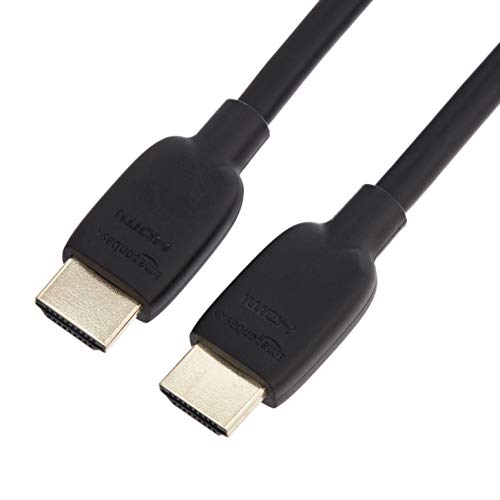
Please check the Amazon product page for the latest price and availability.
If you are replacing the HDMI cable that came in the PG32UCDM box, the ASUS manual says to contact ASUS customer service when you need to replace the power cord or connection cables.
When Should You Contact ASUS or PlayStation Support?
If the PG32UCDM shows no OSD menu, check its power connection and a different outlet, then contact ASUS if the menu remains absent. Contact ASUS as well if no source displays on any input after cable and port swaps. Contact PlayStation when the PS5 shows no picture on any screen, including Safe Mode. Before contacting either, note the checks you already completed so support does not repeat them.
A missing OSD points first to the monitor’s own power or display behavior rather than the PS5 HDMI signal. In one ROG forum thread, a PG32UCDM owner using a PS5 Pro and a MacBook Pro reported a black screen with no OSD, while the connected devices still detected the monitor. An ASUS customer service agent replied with three checks: the power cable and a different outlet, different signal cables or input ports, and another source device. If those did not help, the agent recommended an ASUS service center. That owner later returned the monitor.
Source: PG32UCDM no-OSD user report and ASUS agent response.
Check your monitor firmware as well. PlayStation’s checklist says to make sure the screen has the latest firmware, and ASUS publishes PG32UCDM firmware under the BIOS & FIRMWARE section of its support page. The ASUS manual notes that the USB cable can be used for firmware updates. A firmware update is a reasonable check, not a guaranteed fix for a no-signal problem.
Source: ASUS PG32UCDM support and firmware downloads.
Do not open the monitor yourself. The ASUS manual warns of dangerous high voltages inside, and unauthorized repair or modification is excluded from warranty service.
How We Researched
This article is based on ASUS’s PG32UCDM Series user manual, ASUS’s PG32UCDM support page, PlayStation’s official support pages for PS5 picture issues and Safe Mode, and user reports and ASUS customer service replies on the ASUS ROG forum. We have not conducted hands-on lab testing. Community reports are identified as individual cases and are not treated as product-wide faults.
FAQ
Why does the OSD open but the screen still says NO SIGNAL?
If the OSD opens, the PG32UCDM is powered and responding, but it is not receiving a usable signal on the selected input. Check that Input Select matches the PS5’s HDMI port, then reseat or swap the cable, try the other HDMI port, and test the PS5 on another screen.
The picture came back after a restart. Is the problem fixed?
It may be, but note which step brought it back, such as the 20-minute power reset, a different port, or a different cable. If the no-signal state returns, repeat the checks one change at a time. A pattern tied to one cable or one port tells you what to replace or report.
My PG32UCDM goes black in the middle of a game. Is that the same problem?
No. That is an intermittent black screen during play, reported in a long ROG forum thread, including by one PS5 owner. An ASUS customer service agent there said the panel has a built-in protection mechanism that may switch the screen to black, and that turning the monitor off and on can restore it; persistent cases go to a service center.
Source: PG32UCDM intermittent black-screen thread and ASUS agent response.
Conclusion
When a PG32UCDM shows NO SIGNAL with a PS5, trace where the signal stops before buying new hardware. Select the correct HDMI input, connect the PS5 directly, swap one cable or port at a time, and test the PS5 on another screen. Buy a replacement cable only when a known-good cable proves the original is faulty, or when yours is damaged, missing, or too short. If the OSD itself never appears, check the monitor power and another outlet, then contact ASUS if it remains absent.