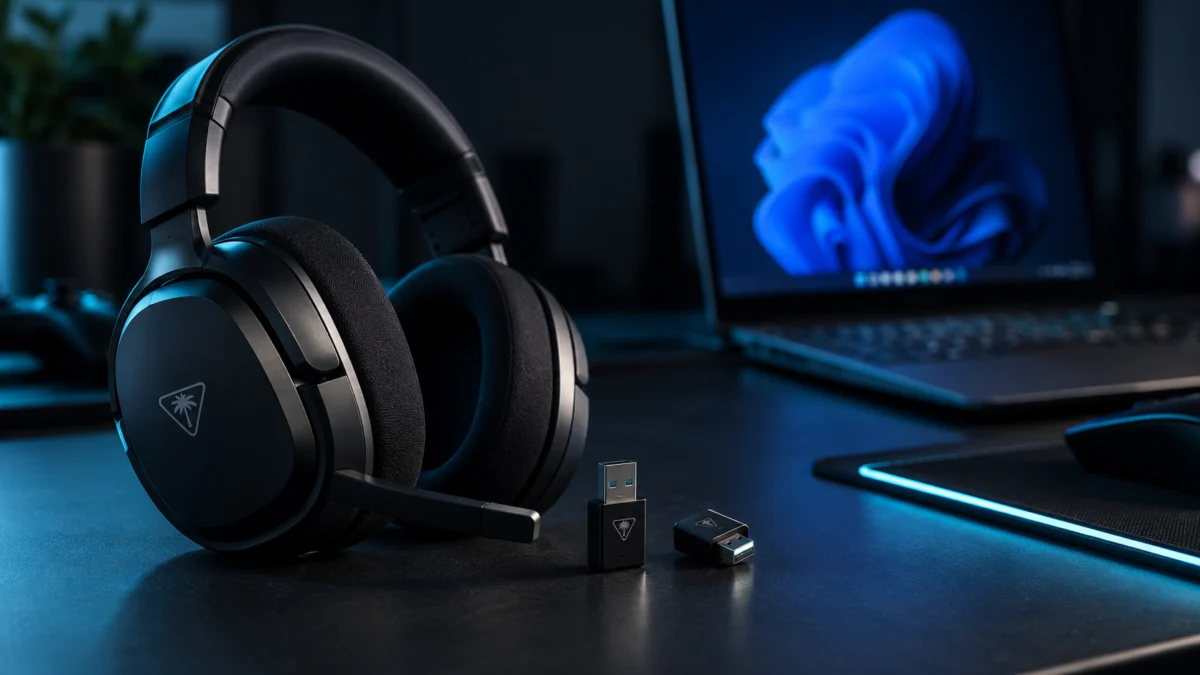
If Swarm II shows no headset, no transmitter, or only one of the two, check the transmitter LED before anything else. A transmitter whose LED is blinking green is not paired to the headset, so check pairing before attempting the firmware update. Also distinguish an audio-routing issue from app detection: on the Xbox version, the transmitter labelled XBOX does not carry audio to a Windows PC — only the one labelled USB does. The checks below separate four failures that look identical in the app: Windows not seeing the transmitter, Windows seeing it while Swarm II does not, only the headset missing, and only one transmitter missing.
Start With These Five Checks
Start with five checks when Swarm II does not detect the device on Windows: the transmitter LED colour, the label printed on the transmitter you plugged in, whether that transmitter sits in a direct USB port, whether the headset is powered on with enough battery, and whether you opened the desktop version of Swarm II.
- Note the colour of each transmitter LED, and whether it is steady or blinking.
- Read the label on the transmitter you plugged into the PC — XBOX or USB.
- Move it to a port on the computer itself, not a hub, dock, or monitor passthrough.
- Power the headset on and charge it to at least 25%; Turtle Beach’s update procedures require that level.
- Open the desktop version of Swarm II. The mobile app connects over Bluetooth and will not diagnose a transmitter problem.
Why Swarm II Does Not Detect the Headset or Transmitter
Detection failures on this headset are not one fault. Possible areas to check include pairing with that transmitter, a transmitter from a different version, a USB hub in the connection path, or an interrupted firmware update.
Turtle Beach documents the transmitter LED colours for this model, so the LED can help you choose the next check.
See the official PC-version setup guide for CrossPlay and transmitter status.
| Transmitter LED | What it means | Where to go next |
|---|---|---|
| Blinking green | Headset is in wireless mode but not paired to that transmitter | Re-pair that transmitter |
| Solid green | That transmitter is active, mic flipped forward (unmuted) | Check USB and firmware if detection still fails |
| Red (mic muted) | That transmitter is active, mic flipped back (muted) | Check USB and firmware if detection still fails |
| Solid amber | That transmitter is on standby; the other is active | Normal for the transmitter you are not using |
| Nothing lit | Check whether the transmitter is receiving power and seated properly | Fix the USB side first |
Turtle Beach also publishes a support article covering this exact symptom pair — Swarm II failing to detect the headset or transmitter, and a firmware update that never reaches 100%.
See Turtle Beach’s Swarm II detection and update troubleshooting guide.
Confirm Your Version and Which Transmitter You Plugged In
The Stealth 700 Gen 3 is sold as separate PC, PlayStation and Xbox versions, and Turtle Beach states that their transmitters are not interchangeable even when the headset and transmitter share a colour. Identifying your version first prevents hours of troubleshooting against hardware that can never pair.
| Version | What is in the box | What works on a Windows PC |
|---|---|---|
| PC version | Two USB wireless transmitters | One goes to the PC; the second is documented for a PlayStation console or a secondary PC |
| PlayStation version | Two USB wireless transmitters | One goes to the PlayStation; the second is documented for a PC |
| Xbox version | One XBOX-labelled and one USB-labelled transmitter | Only the USB-labelled transmitter carries PC audio. Turtle Beach states the XBOX-labelled one can be used with a Windows PC for Swarm II customization, but not for audio |
A Gen 3 Xbox headset will not work with a Gen 3 PC or PlayStation transmitter, and matching colours do not make them compatible. If you bought a used replacement transmitter, or there are two of these headsets in the house, check that first.
Check the official replacement transmitter compatibility list.
Fix the USB Side Before You Reinstall Swarm II
Reinstalling Swarm II is not the first move. Turtle Beach’s own procedures require the transmitter to go directly into a USB port on the computer, with no USB hub, docking station, or similar device in the path. Sort the physical connection out before you touch the software.
- Use a port on the PC chassis or motherboard back panel. Front-panel ports sometimes share a controller with other devices.
- Take hubs, docks, and monitor or keyboard passthrough ports out of the path entirely, even ones that work for other devices.
- Try a port on a different controller. If Windows reacts differently between ports, note that difference for further troubleshooting.
- Free up two ports for Recovery and the PC-version firmware procedure. The Xbox-version firmware procedure instead uses one transmitter at a time, as explained below.
Re-Pair the Headset With Each Transmitter
A transmitter LED that blinks green means the headset is in wireless mode but is not paired to that transmitter. Resolve that pairing state before attempting a firmware update. Pair each of your two transmitters separately.
The fix takes 4 steps.
- Power the headset on and connect the transmitter being checked directly to the PC, following the official instructions for your version.
- Press the CrossPlay button on the right earcup, just above the Bluetooth volume dial, to make each transmitter active in turn. The LEDs change colour to show which is now active.
- Any transmitter showing a blinking green LED is unpaired. Use the pairing instructions linked from Turtle Beach’s detection guide for your version before going further.
- Confirm the result: the active transmitter shows green with the mic unmuted or red with the mic muted, and the standby transmitter shows amber.
Both transmitters must be connected and powered for CrossPlay switching to work, and switching does not power on the platform at the other end.
Update the Firmware the Way Your Version Requires
This is where the procedures diverge. The dedicated PC-version walkthrough instructs you to plug both transmitters into separate USB ports and pair both before updating. On the Xbox version, Turtle Beach instructs the opposite: update one transmitter at a time, with the other disconnected entirely.
| Requirement | PC version | Xbox version |
|---|---|---|
| Transmitters connected during the update | Both, in separate USB ports | One only — the other not connected to any device |
| Pairing state required first | Paired to both transmitters | Paired to the connected transmitter |
| Repeat pass needed | No | Yes — run it again for the second transmitter |
| Headset battery | At least 25% | At least 25% |
The fix takes 5 steps.
- Charge the headset to at least 25%. Turtle Beach’s instructions say not to proceed below that level.
- Open the desktop version of Swarm II for Windows.
- Connect the transmitters the way your version requires, using the table above, with no hub in the path.
- Start the update, then leave everything alone. Do not disconnect a transmitter, power the headset off, or lock the computer screen — including after a progress bar already shows 100%, because the full update is not finished until the completion notice appears.
- On the Xbox version only, repeat the process with the second transmitter once the first has finished.
If you own the PlayStation version, follow Turtle Beach’s firmware article for that version rather than assuming the PC or Xbox sequence applies.
Follow the official PC-version firmware walkthrough.
Follow the official Xbox-version desktop firmware walkthrough.
If the Update Does Not Finish, Run Recovery in Swarm II
Recovery is a further software troubleshooting step. It runs only in the desktop version of Swarm II, completely uninstalls and reinstalls the headset firmware, and clears the pairing memory of the headset and both transmitters. Choose RECOVER, not Reset. They are separate options with different outcomes.
The fix takes 5 steps.
- Plug both transmitters directly into separate USB ports on the Windows PC. No hub, dock, or similar device.
- Power the headset on and read the LEDs. Blinking green means pair that transmitter first.
- In Swarm II for Windows, click the Device Manager icon near the lower left of the window.
- Under Connected Devices, find your headset model, click the triple-dot icon beside it, and click RECOVER.
- Let the process run to the end, then pair the headset to both transmitters again, since Recovery clears pairing memory.
Follow Turtle Beach’s Recovery instructions, using the steps specifically marked for Stealth 700 Gen 3.
“Bluetooth Connected” Is Not “Wireless Connected”
The Stealth 700 Gen 3 runs 2.4GHz wireless and Bluetooth at the same time, so a headset playing phone audio can still be unpaired from every transmitter.
Two details follow from that. This model cannot be paired to a PlayStation console over Bluetooth at all — that connection has to go through a transmitter. And the desktop Swarm II app is the one that talks to the transmitters, so a headset appearing in the mobile app does not by itself confirm a working 2.4GHz connection.
What Users Are Reporting
Community reports cluster around three patterns rather than one universal fault. These are user accounts, not manufacturer statements, and they do not appear to affect every setup. Treat them as a prompt to check your own configuration rather than a verdict on the product.
- One thread describes the headset and a transmitter flashing green without connecting.
- Another thread describes one transmitter working while the other stays silent, even though Bluetooth still works.
- In the latter thread, the user reported that re-pairing helped after an update.
These observations are community reports, not official troubleshooting instructions. Where a community pattern and an official instruction disagree, follow the official instruction.
Community reference: Stealth 700 Gen 3 not connecting.
Community reference: One transmitter not working after an update.
Repair, Return, or Replace
If Recovery finishes and one transmitter or the headset still never appears, contact support for further diagnosis. Check your warranty status and the retailer’s return window before spending anything, because coverage and available remedies depend on those terms.
- Test the transmitter on a second computer. If it fails on both machines, include that result when contacting support.
- Check the purchase date against the retailer’s return window and the warranty period stated in your product documentation.
- Contact Turtle Beach support with your version, the transmitter labels, the LED behaviour, and whether Recovery completed.
- Check return and warranty eligibility before deciding to buy replacement hardware.
One rule governs the purchase: the replacement has to match the version you already own, because the transmitters are not interchangeable across the PC, PlayStation, and Xbox variants. Check Turtle Beach’s compatibility documentation for the right part for your version and colour rather than a marketplace listing that only says “Stealth 700 Gen 3”. The headset sits in the premium tier, so replacing a working one because a transmitter failed is rarely the right call.
Fixory may earn a commission from purchases made through links in this section, at no additional cost to you.
The listing below is the PlayStation version in White (PS5/PS4/PC), sold as a complete headset set. It is not the dedicated PC version, the Xbox version, or a standalone replacement transmitter.

Please check the Amazon product page for the latest price and availability.
How We Researched
This article is based on Turtle Beach’s official support documentation for the Stealth 700 Gen 3 — the version-specific setup and firmware articles, the Recovery process article, and the replacement transmitter compatibility documentation — together with community reports where the same pattern appeared across more than one thread. We have not conducted hands-on lab testing. Procedures, LED meanings, and connection requirements are attributed to official documentation; anything described as a user experience is identified as a community report.
Frequently Asked Questions
Can I use the XBOX-labelled transmitter on my Windows PC?
Not for audio. Turtle Beach’s compatibility documentation states that on the Xbox version, the XBOX-labelled transmitter is for Xbox consoles only, and the USB-labelled one is for Windows PCs and PlayStation consoles. The XBOX-labelled transmitter can be connected to a PC for Swarm II customization, which is why it may appear in the app while producing no sound.
Do both transmitters need to be plugged in to update the firmware?
It depends on your version, and the answers are opposite. The dedicated PC-version walkthrough uses both transmitters connected to separate USB ports and paired to the headset. The Xbox version requires exactly one connected, with the other disconnected from every device, and the process repeated for the second transmitter.
Will Recovery erase my pairing?
Yes. Recovery uninstalls and reinstalls the headset firmware and clears the pairing memory of the headset and its transmitters, so you will need to pair them again afterwards. That is why it belongs after the USB, pairing, and firmware checks.
Conclusion
Start troubleshooting “Stealth 700 Gen 3 not detected” on Windows by checking three things: a transmitter that is not paired, a transmitter from a different version, or a USB path running through a hub. Read the LED, confirm your version and transmitter, fix the USB connection, then re-pair and update using the procedure for your version. If Recovery completes but the device still never appears, contact support and check warranty and return options before replacing hardware.