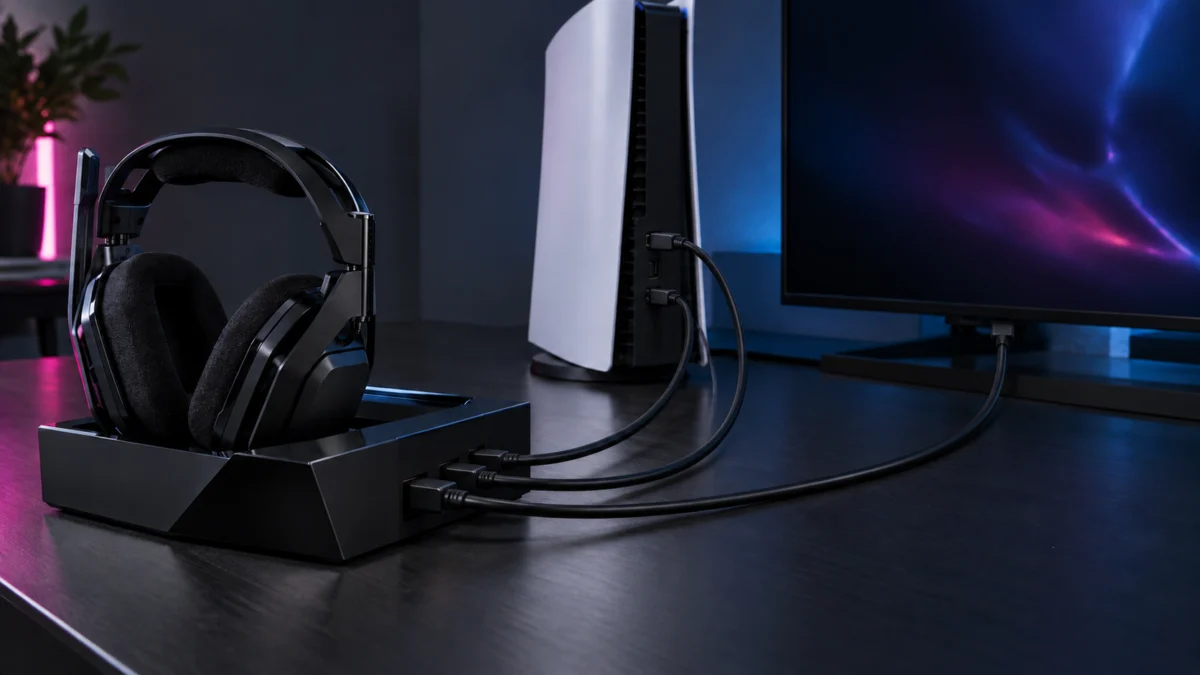
If your ASTRO A50 X has no sound on PS5, check the audio routing before assuming the hardware has failed. In the setup Logitech recommends, the A50 X does not behave like an ordinary USB headset. Game audio reaches the headset over HDMI, and voice chat reaches it over USB, as two separate paths through the base station. When one path is missing or the PS5 is pointed at the wrong output, you get silence on one side of the mix or both.
Start with the four values Logitech documents for PlayStation. In Settings → Sound → Audio Output, set Output Device to USB Headset (A50 X), enable Switch Output Device Automatically, set HDMI Device Type to TV, and in the Headphones section set Output to Headphones to Voice Chat Audio. If those are already correct, the problem is on the cable side, and the checks below narrow it down by symptom.
Quick Fix Checklist
Start with five checks: dock the headset and power it on, confirm HDMI and USB both sit in the PS port pair, confirm the base station has its dedicated power adapter, then set Output Device to USB Headset (A50 X) and Output to Headphones to Voice Chat Audio.
- Place the headset in the base station dock and switch it on before changing any settings.
- Confirm the HDMI cable and the USB cable from the PS5 are in the same pair of ports, both labelled “PS” on the rear of the base station.
- Confirm the supplied USB Combo (Y) Cable and power adapter are connected to the USB-C port labelled 5V DC and outlined in red. The base station will not function without dedicated external power.
- Confirm a second HDMI cable runs from the base station’s HDMI Out to an HDMI input on your TV or monitor.
- Match all four PS5 audio output values listed above.
Why the A50 X Can Lose Sound on PS5
In Logitech’s recommended PS5 setup, the A50 X receives game audio over HDMI and voice chat over USB. Those are two separate paths through the base station. When only one path is connected or configured correctly, you hear one side of the mix and not the other.
This is also why the port pairing matters. Logitech states that both cables must be plugged into the same pair of ports for each platform, or Game/Voice balancing will not work. A USB cable in the PC port with an HDMI cable in the PS port is a valid physical connection that still produces a broken mix.
Use the table below to decide which path to check first.
| Symptom | What to check first | Section |
|---|---|---|
| No game audio and no chat audio | Base station power, and whether both cables are in the PS port pair | Check the HDMI and USB Path |
| Chat audio works, game audio missing | The HDMI leg from PS5 to base station, and HDMI Device Type | PS5 Audio Output Settings |
| Game audio works, chat audio missing | The USB leg, Output Device, and Output to Headphones | PS5 Audio Output Settings |
| Nothing reaches the TV or monitor at all | The HDMI Out cable, and anything sitting between the base station and the TV | Check the HDMI and USB Path |
| Audio changes after a restart or input switch | Dock state, PLAYSYNC switching, and HDMI-CEC behaviour | Symptom-Specific Checks |
| Game/Voice balancer does nothing | Whether the PS5 is connected by USB only | Symptom-Specific Checks |
Step-by-Step Fix: PS5 Audio Output Settings
The fix takes six steps. Dock the headset and power it on before you begin, then work through Settings → Sound → Audio Output and match each value to the configuration Logitech documents for PlayStation. The docked-and-powered-on state is the first step in the official sequence, not an optional detail.
- Place the A50 X headset in the base station dock and switch it on.
- On the PS5, open Settings → Sound → Audio Output.
- Set Output Device to USB Headset (A50 X), and make sure Switch Output Device Automatically is enabled.
- Set HDMI Device Type to TV.
- Scroll down to the Headphones section and set Output to Headphones to Voice Chat Audio.
- Scroll to the bottom and set Audio Format (Priority) to Linear PCM, then under Microphone confirm A50 X is selected.
If you want to enable 3D Audio for TV Speakers, Logitech notes that you should leave Apply Measurement Results to 3D Audio turned off. Also remember that the headset’s volume wheel is managed internally and does not sync with the PS5’s own volume, so a silent headset with a correct PS5 setting is worth re-checking at the ear cup.
Check the HDMI and USB Path
If the settings are already correct, check the physical signal path next. The A50 X needs its HDMI and USB cables in the same PS port pair, its own power adapter attached, and a direct path to the console and TV. Logitech does not recommend putting a switch or receiver in between.
Three things are worth checking in order:
- Power. If the base station’s indicator lights flash red and white, Logitech advises checking that the power adapter is USB Power Delivery certified and that the supplied Y-Cable is in use.
- What sits in the chain. Logitech does not recommend connecting the A50 X to an HDMI switch, a signal repeater, an AV receiver, or a soundbar. The base station is meant to sit directly between the console and the display. If you run a soundbar or external speakers from your TV’s HDMI ARC/eARC port, Logitech recommends connecting the base station to a different HDMI 2.1 input instead.
- Cable rating. HDMI cables are not included with the A50 X, and connecting one console through the base station to a TV takes a minimum of two HDMI cables plus one USB cable. A lower-specification cable will not block video and audio outright, but Logitech states that HDMI 2.1 features such as Variable Refresh Rate need cables certified for HDMI 2.1 Ultra High Speed or rated for 48Gbps.
That 48Gbps figure is a bandwidth ceiling, not a sound-quality rating. It matters because the base station’s HDMI ports run at 40Gbps and pass VRR and Auto Low Latency Mode through to your display, and an older cable can force the chain to fall back in ways that show up as picture or handshake problems rather than an obvious cable fault. Swapping in a known-good certified cable is the fastest way to rule the HDMI leg in or out.
If you need to replace one, our guide to HDMI 2.1 cables for PS5 and Xbox covers what the certification actually changes and which lengths suit a base station sitting between the console and the TV.
Fixory earns commission from qualifying purchases made through links on this page. This does not affect which products we cover or what we say about them.

Please check the Amazon product page for the latest price and availability.
Symptom-Specific Checks and Edge Cases
Some A50 X behaviour that looks broken is documented. USB-only PlayStation connections disable game and voice balancing by design, audio moves between the headset and TV depending on whether the headset is docked, and HDMI-CEC behaviour varies by television manufacturer and device type.
The Game/Voice balancer does nothing
If you connected the PS5 to the base station with USB alone and ran HDMI straight from the console to the TV, this is expected. Logitech documents that in USB-only mode the PlayStation mixes game audio and voice chat into a single USB audio signal, the A50 X balancer controls will not function, and the signal is limited to the PlayStation’s maximum of 16bit/48kHz. Adding the HDMI leg into the PS port pair restores separate paths and returns balancing.
Sound moves to the TV, or back to the headset, on its own
This is the intended behaviour. When the headset is docked and powered off, PlayStation audio passes through the base station to your TV or speakers. When the headset is undocked and powered on, audio is routed automatically to the headset. You can power the headset off at any time while it is undocked to send sound back to the TV.
The screen goes dark or a console wakes up when switching inputs
Pressing the PLAYSYNC button switches both audio and video, and Logitech notes the display may go dark momentarily during the change. Switching inputs can also wake systems that are in sleep mode. If that is unwanted, Logitech suggests toggling or disabling the sleep or HDMI-CEC features where your equipment offers them.
Odd handshake behaviour with your TV
The base station passes HDMI-CEC commands from source to destination, but Logitech states that CEC implementation varies considerably between manufacturers and device types, so behaviour differences and interoperability problems are possible and compatibility cannot be guaranteed. Where a TV misbehaves, the documented approach is to experiment with individual CEC features if your set exposes them, or to disable CEC entirely.
Still no sound after all of this
At that point you have ruled out the documented configuration and the documented cabling requirements, which makes a hardware or warranty question the next step rather than another setting change. Check your purchase date and warranty position with Logitech support before buying anything to replace it.
How We Researched
This article is based on Logitech’s official A50 X setup guide and Logitech’s official support material for the A50 X. We have not conducted hands-on lab testing. Every PS5 menu value, port requirement, power requirement and cable specification above is taken from that official documentation, and we have not included community reports for this issue because we could not confirm a recurring pattern across multiple threads at the time of writing.
Logitech A50 X Setup Guide (PDF)
Logitech Support: Setting up A50 X with Xbox Series X|S, PS5 & PC
FAQ
Why can I hear voice chat but no game audio on my A50 X?
In the recommended setup, voice chat reaches the headset over USB and game audio reaches it over HDMI. Hearing only chat points at the HDMI leg: confirm an HDMI cable runs from the PS5 into the PS-labelled HDMI input on the base station, that a second cable runs from HDMI Out to your TV, and that HDMI Device Type is set to TV.
Do I need both HDMI and USB connected for the A50 X to work on PS5?
Logitech’s recommended setup uses both, and states that the A50 X works best with PlayStation when both HDMI and USB connections are used. USB-only operation is supported as an advanced alternative, but on PlayStation it disables the Game/Voice balancer and limits the signal to 16bit/48kHz.
Should Output to Headphones be set to All Audio on PS5?
Logitech’s documented value for the A50 X is Voice Chat Audio, not All Audio. That setting exists because the base station is already receiving game audio over HDMI, so the USB path only needs to carry chat.
Conclusion
Treat no sound on the A50 X as a routing problem before treating it as a fault. Match the six PS5 settings above, confirm HDMI and USB share the PS port pair, confirm dedicated power, and take anything that is not the console, the base station or the TV out of the HDMI chain. Following that sequence lets you rule out the documented configuration causes before contacting support.