
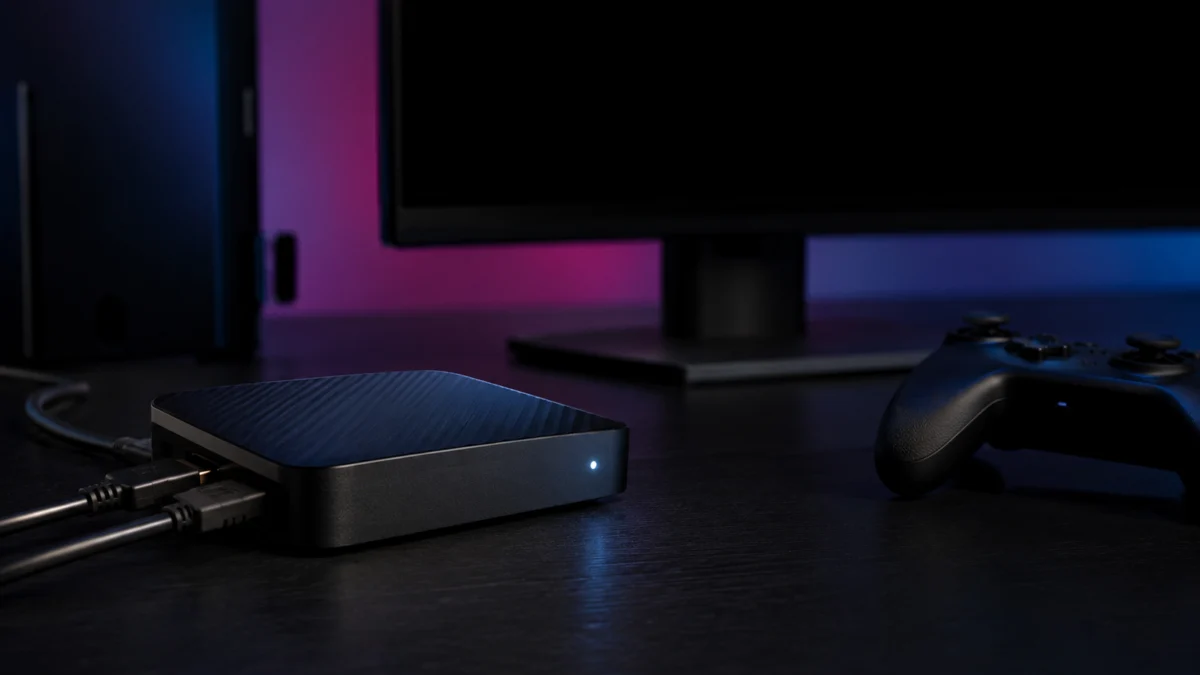
If your Elgato Game Capture 4K X shows no signal, check the status LED first. Elgato’s status LED guide documents four states: orange means a USB 2.0 connection, white means USB 3.x with no input signal detected, blue means USB 3.x with a signal detected, and purple means a firmware update is running. Pair that colour with whether your passthrough display still shows the game, and you can tell within a minute whether the fault sits in the USB link, the HDMI input, or the capture format. Disabling HDCP is relevant only to the PlayStation branch, so start with the LED and passthrough result instead.
Where Is the Signal Failing? A 60-Second Diagnosis
Read two things together: the 4K X status LED, and whether your passthrough display still shows the game. Orange points to the USB link. White points to the HDMI input. Blue with a working passthrough but a black capture window points to format or software. Purple means leave it alone.
Quick Fix Checklist
Run these five checks before deeper troubleshooting. Each one either clears a whole layer or tells you which section to jump to. None requires buying anything, and the steps are reversible when the LED is not purple, so start here before replacing hardware.
- Note the LED colour and whether the passthrough display shows the game.
- Confirm the console is in HDMI In and the display is in HDMI Out.
- On PlayStation 5, confirm HDCP is turned off.
- If the LED is not purple, reseat both HDMI cables and the USB-C cable at both ends.
- Close other apps that could hold the capture device, then reopen your capture software.
This table maps what you observe to the layer that is failing. Work the matching section rather than running every fix in order.
| LED | Passthrough display | What it means | Where to go |
|---|---|---|---|
| Orange | Usually works | Connected at USB 2.0. Capture cannot run. | USB section |
| White | Black | USB 3.x is fine, but no usable HDMI input detected. | HDMI input section |
| White | Works | Input reaches the display but the card is not locking on. | Format section |
| Blue | Works | Signal detected. The failure is downstream. | Format, then software |
| Purple | Any | Firmware update in progress. | Wait. Do not unplug. |
Purple matters most: Elgato states it means a firmware update is running and that you must not disconnect the 4K X. Skip every reset instruction below until the light changes.
Check the Signal Path, HDMI Ports, and HDCP
A white LED with a dead passthrough display means the 4K X is not receiving usable HDMI input. Work through port assignment, HDCP, cable seating, and cable quality in that order. These are the cheapest checks to reverse, and Elgato’s own no-signal guidance treats them as a single input-acquisition layer.
Start with port assignment, the mistake that produces a perfect black screen with no error message. The console goes in HDMI In, the display in HDMI Out; reversing them gives you nothing on either screen.
Disable HDCP on PlayStation 5
HDCP blocks capture and recording outright. Elgato’s PlayStation 5 setup guide states that if HDCP is enabled when you connect the capture card, the image will be black, and that HDCP must be disabled before a PlayStation 5 can be captured. This is a documented cause of a black capture window on PS5.
The fix takes 3 steps.
- Connect the PlayStation 5 straight to your display over HDMI, without the 4K X in the chain. This detour is not optional, because HDCP may be blocking the very menu you need to reach.
- Open Settings → System and turn off Enable HDCP.
- Reconnect the PlayStation 5 to the HDMI In port on the 4K X.
Cross-Test the HDMI Cables
Cable faults can produce black screens and flicker rather than error messages, so substitution is the clearest practical test. Elgato notes that cables not seated properly at either end can stop the card acquiring the signal, and that slower cables can cause black video or flickering on demanding formats.
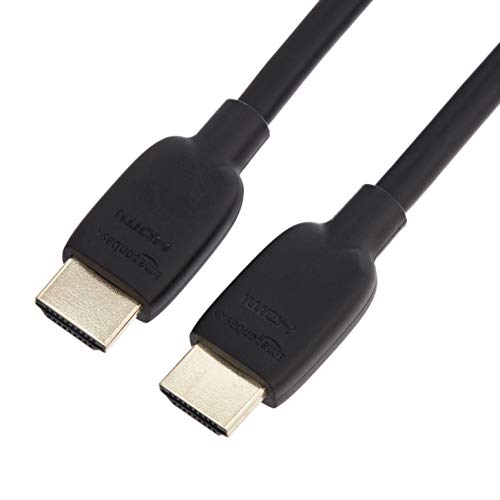
Reseat both cables firmly, then swap in the cable from the 4K X box, one link at a time. Elgato specifies that signals such as 4K60 HDR, 1440p144Hz and 1080p240Hz need a Premium High Speed cable rated for 18Gbps, and advises against HDMI 2.0 runs over six feet. The 4K X uses HDMI 2.1 and ships with an 8K-rated cable, so an old unlabelled cable is a genuine suspect. Buy a replacement only if swapping restores the picture.
Fixory earns a commission from qualifying purchases made through links in this article, at no extra cost to you.
Please check the Amazon product page for the latest price and availability.
See our certified HDMI 2.1 cable guide for more options.
Test Resolution, Refresh Rate, VRR, HDR, and DSC
If the passthrough display works but capture stays black, the input format is the prime suspect. Elgato states that a capture device receiving an unsupported resolution or frame rate may show a no-signal message. Lower the resolution, turn off VRR and 120Hz output, try HDR off. Treat each change as a test.
Console Settings to Test
Following Elgato’s console-side troubleshooting sequence, change one setting at a time and restart the game after each change. If a setting restores the picture, you have identified the format the chain could not carry, which is different from finding a setting you must leave off permanently.
- PlayStation 5: open Settings → Screen and Video → Video Output. Set VRR to off, set Enable 120 Hz Output to off, then lower Resolution to 1080p.
- Xbox Series X|S: open Profile & system → Settings → General → TV & display options. Uncheck Allow Variable Refresh Rate, set 60Hz, and lower the resolution to 1080p.
- Nintendo Switch 2: Elgato’s general Switch 2 troubleshooting article suggests toggling HDR, setting a manual TV resolution instead of Automatic, toggling 120Hz output, turning off Match TV Power State and Auto Low-Latency Mode, and setting TV Sound to Stereo, since 5.1 surround does not work with Elgato capture devices. Connect via the dock’s HDMI port.
When Passthrough Works but Capture Is Black
This combination has a documented cause that generic checklists miss. Elgato states that the 4K X cannot capture video signals using Display Stream Compression, and that if passthrough works while the captured video is black, DSC may be active. The suggested response is a lower resolution or frame rate.
Elgato’s example: monitors may use DSC to reach 4K144Hz, while 4K120Hz does not. If your display runs at its highest advertised mode and the capture window is black while the screen looks perfect, stepping down one tier is a targeted test. This branch applies only when passthrough works; if both screens are black, return to the HDMI input section.
Fix USB Connection and Capture Software Conflicts
An orange LED means the 4K X negotiated USB 2.0, which cannot carry capture. Move it to a USB 3.2 port, use the bundled USB-C cable, and reduce the load on nearby ports. If the LED is blue, the format checks above have passed, and software still shows black, another app may be holding the device.
The 4K X technical specifications list USB 3.2 Gen 2 at 10Gbps and a bundled 150cm C-to-C cable. That 10Gbps link unlocks the full capture range; Elgato documents that 5Gbps still works, with fewer resolution, frame rate and codec combinations available. A 5Gbps port is a constraint, not a fault. Do not judge a port by its plastic insert colour; check the manufacturer’s port diagram.
The fix takes 4 steps.
- Reconnect using the USB-C cable from the box. Elgato warns that generic USB-C cables, especially phone cables, are often USB 2.0 charging cables and cause communication problems.
- Unplug the device and plug it back in, then check whether the LED colour changed.
- Try a different USB 3.x port. Elgato notes multiple ports can share one controller, so a neighbouring port may behave differently.
- Disconnect other high-bandwidth USB devices, such as external drives and webcams.
If the LED stays orange throughout and the bundled cable is missing or damaged, a correctly specified replacement is the next reasonable purchase. Check the stated data specification, not the connector shape.
![[USB-IF Certified] Cable Matters 10Gbps Gen 2 USB C Cable, 3.3ft/1m, Black | [4K@60Hz Video, 100W Charging, 10Gbps Data Transfer] USB C to USB C Gen 2 Cable](https://m.media-amazon.com/images/I/41l5Pi6z9NL._SL500_.jpg)
Please check the Amazon product page for the latest price and availability.
Free the Device From Other Software
Elgato documents that some capture devices can be accessed by one application at a time, and that the first program to claim the device is the only one that receives video. Opening a second capture app while the first holds the device produces this exact symptom: a black window, no error.
Close every program that might hold the device, including OBS Studio, XSplit, Streamlabs, Windows Camera, Slack, Zoom and Teams, then reopen your capture software. Elgato adds that the error can appear when absent, so restart the app, and that a full reboot is sometimes needed. Because Multi App support varies by model, use one capture application at a time during this test.
Use Isolation Tests to Decide Whether the 4K X Is Faulty
Before concluding the hardware has failed, change one variable at a time: HDMI cable, USB cable, USB port, computer, source console, capture application. Hardware failure is the right conclusion only after the four layers above are excluded and the symptom follows the 4K X across every substitution.
Elgato’s documented reset: unplug the device from the computer and the video source, wait a minute, reconnect. Never while the LED is purple. One widely repeated instruction does not apply here at all — Elgato’s cold-boot procedure for a pending firmware update is written specifically for its PCIe cards. The 4K X is a USB device, so that step is not part of its path.
The strongest evidence for a hardware fault is a symptom that travels. If the 4K X shows no signal on a second computer, with a different console, cables and capture app, everything else is excluded. Contact Elgato support with those results rather than opening the device, and check your warranty terms first.

Please check the Amazon product page for the latest price and availability.
Compare replacements in our capture card guide for PS5, Xbox and Switch 2.
Frequently Asked Questions
These four questions cover the branches readers most often get wrong: the passthrough-versus-capture split, whether the video settings you changed are permanent, Switch 2 compatibility, and which Elgato capture application to run. Each answer stays within the documentation cited above.
Why does my PS5 look fine on the TV but black in the capture app?
Two documented causes fit this pattern. HDCP can block capture, so check that first on PlayStation 5. If HDCP is already off, Elgato names Display Stream Compression as a cause of working passthrough with black capture, and suggests lowering the resolution or frame rate.
Do I have to leave VRR and 120 Hz turned off permanently?
Not necessarily. Elgato presents these as steps to try when a display flickers or shows no signal, which makes them diagnostic tests. Once a setting identifies the cause, re-enable it only if every device and cable in the signal chain supports that mode; otherwise, keep a compatible capture setting.
Does the Elgato 4K X work with Nintendo Switch 2?
Elgato publishes a Switch 2 troubleshooting article covering video and audio issues across its capture devices, with detailed console-side settings. The 4K X technical specifications page we checked lists Nintendo Switch among supported sources without naming Switch 2, so confirm current compatibility with Elgato before buying for that console specifically.
Should I use 4K Capture Utility or Elgato Studio?
Elgato has stated that Elgato Studio is replacing 4K Capture Utility, and several 4K Capture Utility support articles now carry a Legacy status banner. Elgato also documents a recording failure in 4K Capture Utility with NVIDIA drivers 591.44 and newer, recommending Elgato Studio, OBS or other third-party software instead.
That NVIDIA issue is a recording failure, not a no-signal cause. If your preview is black, it is not the explanation; if only recording fails, Elgato’s alternative is a driver rollback.
How We Researched
This article is based on Elgato’s own support documentation. We opened and read ten Elgato pages directly, covering 4K X setup, status LEDs, technical specifications, supported resolutions, no-signal troubleshooting, signal flicker, USB communication, device-in-use errors, Switch 2, and the NVIDIA driver notice.
We did not conduct hands-on testing. Legacy pages were used only for console-side or connection-side procedures; 4K X-specific pages support the card’s capabilities. Five user-report threads were reviewed, but no repeated cause or fix met our sourcing standard, so none are included.
Conclusion
The fastest route through a 4K X no-signal problem is to stop treating it as one problem. Read the LED, check whether the passthrough display shows the game, and let that pair send you to the USB, HDMI input, or format layer before changing anything else.
Orange means USB. White with a dead passthrough means HDMI input, and HDCP is the first check on PS5. Blue with a working passthrough and a black capture window points at format, where DSC is one documented possibility. Blame the hardware only after the symptom follows the 4K X onto different cables, ports, computers and consoles.








