If your Nighthawk 5G M7 (MH7150) still broadcasts Wi-Fi but shows no Verizon service, no internet, or a mobile broadband error, NETGEAR has documented a known connectivity issue on the Verizon network. The affected versions are 01.19 and 01.26, and the device cannot recover over cellular data. The official fix is a factory reset followed by a firmware update over Wi-Fi, and both parts are required.
Check your version numbers before you reset anything. A factory reset disconnects every device, clears your settings, and forces you to pair the M7 again. If your M7 is not on an affected version, the reset will not help, and a Verizon-side activation or plan issue is more likely.
Quick checklist before you start:
- Record the Firmware Version and Software Version from the NETGEAR app, not the M7’s screen.
- Confirm the rear label reads MH7150 and check the SKU suffix.
- Decide whether the Wi-Fi works, the cellular registration works, or neither.
- Verify your device and plan with Verizon before resetting.
- Charge the M7 above 20 percent, or the update will not install.
Check Your M7’s Model, SKU, and Version Numbers First
NETGEAR’s known Verizon issue applies to M7 units running the affected versions 01.19 and 01.26. Open the NETGEAR app and go to Settings, then Router, then Router information. Record the Firmware Version and the Software Version. If neither matches an affected value, a factory reset will not resolve your problem.
The M7 reports several version numbers, and they are not interchangeable. The device’s own screen shows only the Software Version, while the app’s Router information page lists five fields, including both Firmware and Software Version. NETGEAR does not say which field the affected values map to, so record both. See NETGEAR’s Verizon recovery article for the current procedure.
| What to record | Where to find it |
|---|---|
| Firmware Version | App: Settings → Router → Router information |
| Software Version | Same page, or the device screen |
| Model number and SKU | Rear product label |
| IMEI 1 and IMEI 2 | Device screen, or web UI → Settings → Status → Account |
The same values appear in a browser at mywebui.net or 192.168.10.1, under Settings → Status → Device. That address can differ if Wi-Fi offloading is active.
Why the SKU suffix matters
The U.S. model is the MH7150-100PAS. According to NETGEAR’s band tables, that SKU supports LTE bands including B13 and B71, and 5G bands including n13, n48, n70, and n71. The -100EUS and -100APS variants sold for other regions do not list those bands.
Non-U.S. SKUs omit several Verizon-relevant bands and are not the U.S.-certified MH7150-100PAS model. If you bought an imported unit, confirm the suffix before assuming a firmware fault. The official M7 product page lists the current carrier support statement.
Find Out Where the Connection Actually Stops
Connecting to the M7’s Wi-Fi and the M7 connecting to Verizon are two separate stages. Work out which is failing before changing anything. A laptop joining the hotspot proves only that the local Wi-Fi radio works. It says nothing about whether the M7 registered on the cellular network or is passing traffic.
| Stage | Working looks like | A failure points to |
|---|---|---|
| 1. Your device to the M7 | Devices join the hotspot and get an IP | Local Wi-Fi settings |
| 2. The M7 to Verizon | Carrier name, signal bars, and network indicator appear | SIM state, activation, plan status, or the known firmware issue |
| 3. The M7 to the internet | Connected devices load pages normally | Data exhaustion, APN mismatch, temporary network fault |
Match the on-screen message to the stage
The M7 shows specific error text, and each message narrows the cause considerably. Reading the exact wording saves guesswork, because several of these messages point at your account rather than at the hardware. NETGEAR documents the full list in the MH7110/MH7150 user manual.
- Mobile Data isn’t available right now. Open the app and confirm the SIM is set up. A stage 2 problem.
- SIM Error, Check SIM, or SIM Not Installed. Reseat the SIM. If it persists, the manual advises contacting your carrier; the SIM may need replacing.
- SIM Locked or SIM Blocked. Enter the PIN or PUK in the app. Do not guess. Three wrong PIN entries block the SIM; ten failed PUK attempts disable it permanently.
- Data Exhausted, Plan Expired, or Not started. These are account states, not device faults. Nothing on the M7 fixes them.
- Connection error, code ESM #33. The manual calls this a temporary network failure; try again later or contact your provider.
Two conditions that imitate a carrier problem
Before blaming Verizon, rule out two behaviors that look like network faults but are not. Both are documented in NETGEAR’s own manual, both can be resolved without touching your SIM or your account, and both are easy to miss because the symptom appears on the cellular side of the device.
The first is heat. The M7 is designed for 0°C to 35°C. At its second thermal level, 4G drops to a single band and 5G stops entirely; at the third, it shuts down. A unit left in a hot car looks like it lost Verizon coverage.
The second is Wi-Fi offloading, enabled by default. When offloading, the M7 routes data through a local Wi-Fi network instead of cellular. Your devices stay online while the cellular side sits idle, hiding a genuine registration failure until you leave that network.
Rule Out a Verizon Activation Problem Before You Reset Anything
NETGEAR currently lists the U.S. M7 as certified for Verizon, and Verizon includes it in its approved-device showcase. Individual activation can still depend on the exact SKU, IMEI, account, and data plan, so verify your device through Verizon before resetting it. A reset cannot fix an unprovisioned account.
Run Verizon’s IMEI compatibility checker with the IMEI on your M7’s rear label and device information screen. The M7 reports two identifiers, IMEI 1 and IMEI 2, so note both.
If the result comes back as incompatible, treat it as a question, not an answer. Do not conclude your hardware failed, and do not assume the portal is wrong. Ask Verizon to confirm your exact SKU, the IMEI you supplied, whether your plan supports a hotspot, and whether the line was fully activated.
Do not attempt unsupported workarounds. Use only the APN your carrier specifies. Contract terms, plan eligibility, and activation are managed by Verizon, so confirm them directly.
A note on carrier eSIM profiles
According to multiple reports in NETGEAR’s official community, some non-Verizon carrier eSIM profiles have shown provider-specific installation or PIN problems on the M7. These include a Plus Poland installation report and a separate Wind3 PIN report. These reports do not involve Verizon, and at least one involves a non-U.S. SKU, so they should not be read as a Verizon eSIM verdict.
Apply NETGEAR’s Verizon Fix: Factory Reset, Then Update Over Wi-Fi
NETGEAR’s fix requires both a factory reset and a firmware update delivered over Wi-Fi. Completing only one does not resolve the issue, because an affected M7 cannot pull the update over cellular data. Install the NETGEAR app on an iOS or Android device before you begin.
Before you start. A factory reset disconnects every device and returns settings to their defaults, so you will pair the M7 again afterwards. Installed eSIMs are not deleted. You need a working Wi-Fi network with internet access, and the battery must be above 20 percent.
The fix takes 9 steps.
- Record your current Firmware Version and Software Version.
- Charge above 20 percent.
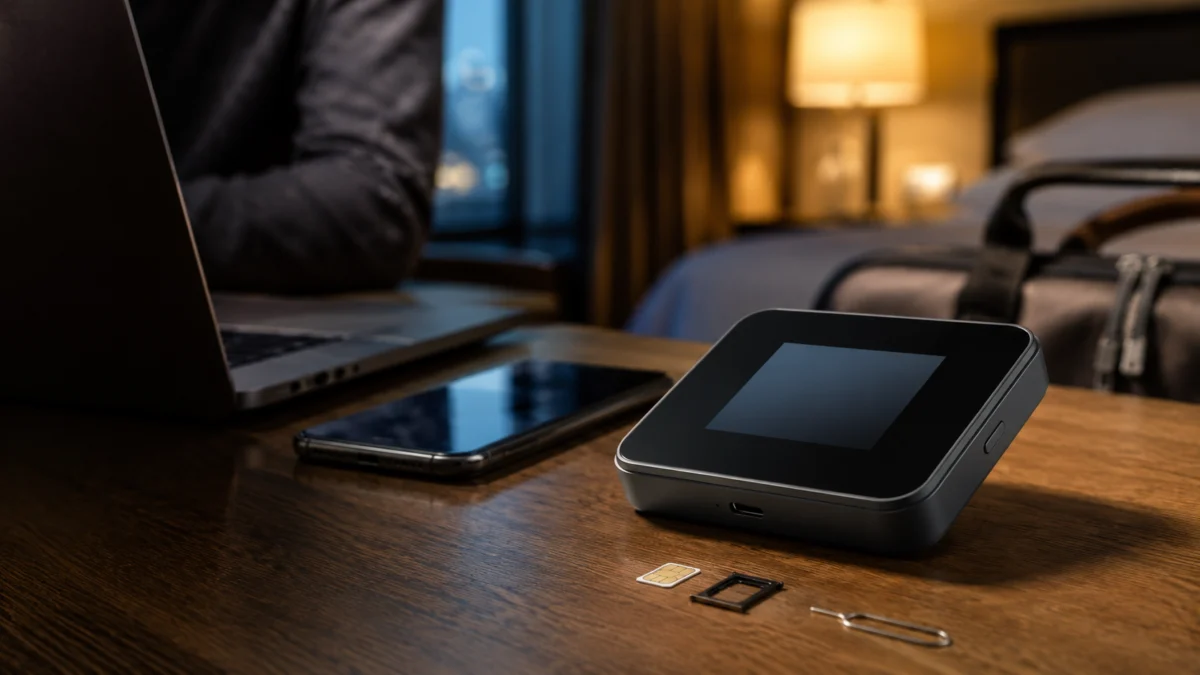
- With the supplied tool, press the hole on the SIM card tray on the right side to eject it, then remove the physical SIM.
- Reinsert the empty tray. Do not reset with the SIM installed.
- Press and hold the Reset button on the left side until the reset message appears, then release. This is a separate opening from the SIM tray hole.
- In the app, swipe left on the Nighthawk 5G M7 in your device list and tap Delete.
- Tap Add New Device, scan the QR code on the M7’s screen, and join the hotspot’s Wi-Fi. Note the admin password shown, then continue.
- On the Ways to get your hotspot online screen, tap Connect to Wi-Fi Network and join a working network.
- Let the M7 install the update and reboot. Reinsert the SIM only after it finishes.
If a step looks different, follow NETGEAR’s current published procedure and the Nighthawk 5G M7 Quick Start Guide.
Verify the New Versions, Then Decide Who to Contact
After the update completes, open Router information in the NETGEAR app again. NETGEAR’s recovery article specifies two values to confirm: a Firmware Version of XXXXXX_12.00.65.00 or later, and a Software Version of 02.16 or later. Check both fields, not just one.
Once the versions match, reinsert the SIM and watch the home screen. A carrier name, signal indicator, and network type mean the M7 has registered. If it registers but pages still will not load, you are back at stage 3, which is usually a plan question for Verizon.
Who to contact, and what to bring
If the M7 still will not connect after a verified update, the next step depends on which stage is failing. Bringing the right details to the right party shortens the process considerably, so gather your model, SKU, both IMEIs, and your confirmed version numbers before you make contact.
| What you are seeing | Who to contact | What to bring |
|---|---|---|
| Versions will not update, or the reset fails | NETGEAR support | Model, SKU, both version numbers, proof of purchase |
| Registration fails with an activated SIM | Verizon | IMEI 1 and IMEI 2, account number, plan name |
| The compatibility check rejects your IMEI | Verizon | Exact SKU suffix and both IMEIs |
| The unit is an imported non-U.S. SKU | Your retailer | Order record and rear label photo |
If you need a replacement, or were sold a non-U.S. variant, buy by SKU rather than product name. The M7 sits in the premium tier, so confirm the suffix before ordering.
If a cellular hotspot is not the right tool for how you travel, a travel router is a different category. It shares an existing connection such as hotel Wi-Fi rather than carrying its own cellular plan, so it cannot replace the M7 where no network exists. You can compare Wi-Fi 7 travel routers for hotel, Ethernet, and VPN use.
Frequently Asked Questions
Three questions come up repeatedly around the M7’s Verizon behavior, and each has a documented answer rather than a guess. Where the answer depends on your account, your SKU, or your model number, we say so rather than generalizing from one configuration to every setup.
Will a factory reset delete my NETGEAR eSIM?
No. NETGEAR’s user manual states in three separate places that a factory reset restores default settings but does not remove installed eSIMs. Your connected devices will be disconnected and must rejoin afterwards, and your admin password and Wi-Fi settings return to their defaults.
Why does Verizon’s compatibility check say my M7 is not compatible?
A rejected result can reflect the SKU you own, the IMEI you entered, your plan type, or the activation state of the line, rather than a hardware fault. Contact Verizon with both IMEIs and your exact SKU suffix and ask which of those four factors applies to your account.
Does this issue affect the Nighthawk M7 Pro?
The recovery article we followed identifies the Nighthawk 5G M7, model MH7150. The M7 Pro is a different product with a different model number, so do not apply MH7150 version values to it. Check NETGEAR’s support material for your own model number.
How We Researched
This article is based on NETGEAR’s support article for the Verizon connectivity issue, the official Nighthawk M7 user manual covering the MH7110 and MH7150, the official MH7150 product page, and reports posted in NETGEAR’s official community. We have not conducted hands-on lab testing.
Version numbers, error messages, band tables, reset behavior, and menu paths come from NETGEAR’s documentation. Community reports are identified as such and not treated as product-wide verdicts. While checking the product page we found an older carrier-certification notice still present further down; we relied on the current statement near the top and on Verizon’s own device listing.
Conclusion
The most useful thing you can do with an M7 that will not connect on Verizon is resist the urge to reset it first. The official recovery procedure is narrow. It repairs one documented condition on affected versions 01.19 and 01.26, and running it blindly costs you your settings while telling you nothing about the cause.
Work in order. Read both version fields, confirm your SKU on the rear label, decide which stage is failing, and verify your device and plan with Verizon. Only if your versions match the affected values should you run the reset and Wi-Fi update together.
If the versions update cleanly and Verizon confirms the line is active but the M7 still will not register, you have ruled out the documented software cause and can escalate to NETGEAR with evidence. This article is not a substitute for advice from NETGEAR or Verizon about your account or contract.