
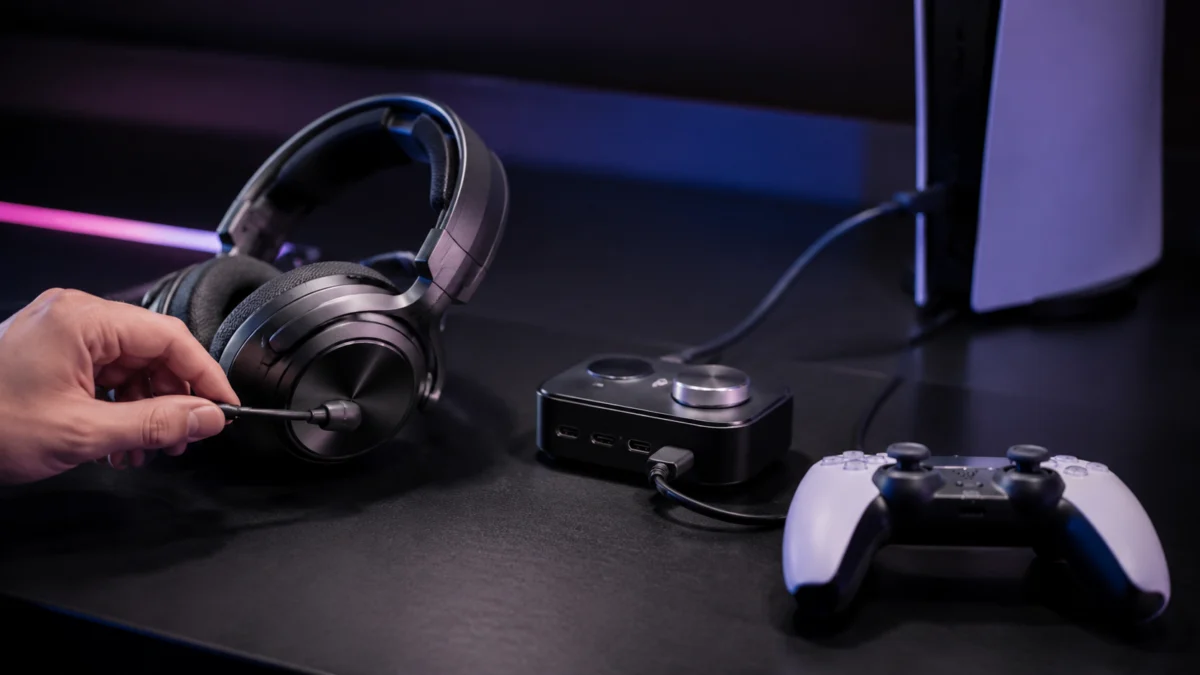
If your Arctis Nova Elite plays game audio on PS5 but nobody can hear you, find out where your voice stops before you change any hardware. Start with sidetone, the setting that plays your own voice back into the headset. If you can hear yourself, the microphone is live and the problem sits between the headset and the console. If you cannot, check the two mute behaviours on the headset first: the mute button silences both microphones at once, and retracting the boom mic mutes it and hands over to the on-ear mic.
From there, the PS5’s own microphone level meter tells you whether the console is receiving anything at all. Moving your PS5 cable to a different GameHub port is worth trying, but treat it as a way to narrow down the cause rather than as a fix.
Find Where the Mic Signal Stops: Sidetone, PS5 Input Meter, or Voice Chat
Your voice passes three checkpoints before a teammate hears it: the headset itself, the PS5 input meter, and the chat session. Sidetone tells you whether the microphone is capturing anything before the console is involved at all. Find the first checkpoint that fails, because every checkpoint before it has already passed.
| What you are seeing | Stage that has failed | Where to go next |
|---|---|---|
| Sidetone is turned up but you cannot hear your own voice | Headset: mute state or microphone selection | Mute, boom position, and input device |
| You can hear yourself, but the PS5 input meter never moves | Console: input device, GameHub port, or a second connected system | Input device first, then port isolation |
| The PS5 input meter moves, but nobody hears you | Chat: routing or an automatic mute at chat start | Party chat and game chat settings |
| Nothing responds on any connected system | Firmware, pairing, or hardware | Firmware, power cycle, and reset |
Run the quick checks below first. Each one takes seconds and each one rules out a common cause.
- Press the mute button on the headset once and speak again. SteelSeries documents that it mutes both microphones at the same time, so one press can silence a mic you assumed was live.
- Slide the boom mic fully out of the earcup and speak. Retracting it mutes the boom mic and switches the headset to the on-ear mic, which changes how you sound.
- Check the MUTE button on the DualSense controller. Sony documents that pressing it mutes your mic and turns off sound output to all speakers, and that the button blinks while it is active.
- Raise sidetone and listen for your own voice, using SteelSeries Engine on a PC or the Companion App on a phone.
- Open the PS5 mic settings and watch the input meter while you speak into the boom mic.
Check Sidetone, Mute, Boom-to-On-Ear Switching, and the PS5 Input Device
Two headset controls can stop microphone input on the Nova Elite. The mute button silences both microphones at once, and retracting the boom mic mutes it while switching over to the on-ear mic. On the console side, the PS5 needs the headset selected as its input device before its meter will move.
Sidetone is the check that separates those two situations. SteelSeries describes sidetone as hearing your own voice in the headset, and lists it among the microphone settings you can adjust for the Nova Elite in SteelSeries Engine on PC or in the Companion App on mobile. That mobile route matters if you own a PS5 and no Windows PC, because it is a way to reach these settings without a desktop app. Hearing yourself confirms the microphone is live and not muted. It does not confirm that the signal is reaching the console, which is what the next check is for.
SteelSeries states that changes made on the GameHub or in GG Engine are saved to the headset’s onboard memory and reflected across both. It also confirms that equalizer presets applied in GG Engine or the Companion App keep working when GG is not running. Because the page discusses equalizer presets rather than sidetone persistence specifically, use the Companion App to set and test sidetone directly before returning to the PS5.
The PS5 side has its own switches, and the input meter is the fastest way to read them. If the meter moves while you speak, the console is receiving audio and the problem lies downstream in chat. If it does not move, nothing is arriving from the GameHub yet.
The fix takes 6 steps.
- Extend the boom mic fully and confirm the headset is not muted, so you are checking the primary microphone rather than the on-ear mic.
- Press the PS button to open the control center, then select Mic.
- Open Input Device and select the SteelSeries device rather than the controller or an HDMI display. The same settings are also reachable through Settings → Sound → Microphone.
- Open Adjust Microphone Level and speak normally. Sony’s instruction is to set the level so your input volume sits in the Good range.
- If the meter stays flat, retract the boom mic, speak again, and watch whether the on-ear mic registers instead. A meter that responds to one microphone but not the other points at the headset rather than the console.
- Check Microphone Status When Logged In. Set to Mute, your mic is off immediately after you log in, which looks identical to a broken microphone.
PS5 also carries its own Sidetone Volume setting under Settings → Sound → Audio Output, which sets how loud your voice is heard through the headset. Sony notes that it is not available for every headset, so if it does not appear or does nothing, use the SteelSeries sidetone setting instead.
One thing to confirm before going further: that you are troubleshooting the right product. The Nova Elite, the Nova Pro Omni, and the Nova Pro Wireless all use a base station with multiple USB ports, and their port assignments and menus are not identical. Steps written for one do not reliably transfer to another.
Isolate the GameHub Port, the Second System, and Boot Order
SteelSeries lists PS5 support on all three GameHub USB ports, so moving your PS5 cable to USB 1 is a way to narrow down the cause rather than a documented fix. Change one variable at a time, write down what changed, and put the cable back if nothing improves.
| Port | Devices SteelSeries lists | Works with Sonar | Notes |
|---|---|---|---|
| USB 1 | PC, PS4, PS5, Switch (TV Mode), Mac | Yes | Documented as the only port compatible with Sonar in SteelSeries GG |
| USB 2 | PC, PS4, PS5, Switch (TV Mode), Mac | No | Intended for a second connected system |
| USB 3 | Xbox, PC, PS4, PS5, Switch (TV Mode), Mac | No | Documented as the only port compatible with Xbox |
| Line Out | External speakers or stream setups | No | Analog routing and mixing only |
That table carries a trade-off worth reading before you move anything. USB 1 is the only port that works with Sonar, so if your PC currently occupies USB 1 and you hand that port to the PS5, you keep PS5 audio but lose Sonar on the PC. Nothing in the official port list marks USB 1 as the required PS5 port, and all three USB ports carry PS5 in SteelSeries’ own documentation. Move the cable to see whether the symptom follows the port, then decide deliberately where it lives.
According to two community reports, some Nova Elite users have seen PS5 microphone input disappear until the GameHub’s PS5 USB connection was unplugged and reconnected. One report involved startup with the boom mic retracted and another connected system; the other report involved a PC on USB 1 and a PS5 on USB 2. These are setup-specific observations, not proof of a product-wide defect, so use them only as clues when testing boot order and second-system connections.
The variables below are the ones worth separating. Change one, retest with the boom mic extended, and restore it before moving on to the next.
| Variable to change | What to do | What it rules out |
|---|---|---|
| GameHub port | Move the PS5 cable to a different USB port on the GameHub | A fault specific to one port or one cable |
| Second connected system | Unplug every system except the PS5 | Interaction between two simultaneously connected sources |
| Bluetooth | Disconnect the phone or tablet paired to the headset | A Bluetooth device holding the microphone |
| Boot order | Power the GameHub and headset up first, then start the PS5 | The console enumerating the audio device before it is ready |
| Boom mic position | Repeat each check with the boom mic extended, then retracted | A fault confined to one of the two microphones |
The fix takes 5 steps.
- Unplug every system from the GameHub except the PS5, then recheck the input meter. Fewer connections make the result easier to read.
- Move the PS5 cable to a different GameHub USB port, recheck, and note whether the symptom follows the port or stays with the console.
- Swap in another known-good USB-C cable and recheck, so a damaged cable is not mistaken for a port fault.
- Disconnect any Bluetooth device paired to the headset and recheck, since the headset can carry Bluetooth and 2.4GHz audio at the same time.
- Power the GameHub and headset on before starting the PS5, and repeat the input meter check after a full console restart.
Keep a short note of which combination produced which result. If you end up contacting support, that list is the difference between a slow back-and-forth and a useful first reply.
If a separate Nova Pro Omni on the same desk is missing from Sonar or Engine on Windows, that is a different model with a different symptom, and the checks here do not apply to it. Our guide to the Nova Pro Omni not showing in Sonar or Engine covers that case separately.
Check Firmware, Then Power-Cycle and Reset the GameHub Last
Firmware updates run only through the Windows version of SteelSeries GG, so a PS5-only setup has no way to apply one. Check firmware if you have access to a Windows PC, then power-cycle the signal path, and reset the GameHub only after the earlier checks have all failed.
The firmware limitation is worth stating plainly, because it changes what is realistic for console-only owners. SteelSeries documents that updates are delivered through the SteelSeries GG desktop app for Windows. There is no console-side update path, so if you own only a PS5, firmware is not something you can rule in or out yourself.
The fix takes 4 steps.
- On a Windows PC, download and install SteelSeries GG from the official download page, then open it.
- Connect the GameHub to that PC and power on the headset so it links to the GameHub.
- Open the Engine app inside SteelSeries GG and find the device card for your headset.
- If an update banner appears on the device card, click it and follow the instructions. If no banner appears, the firmware is already current, and you can stop here.
Reset comes last for a practical reason. SteelSeries describes this procedure as bringing your Nova Elite settings back to default, and settings adjusted in Engine or on the GameHub live in the headset’s onboard memory. Note down any custom EQ, sidetone, and microphone levels before you start, so you can put them back afterwards.
The fix takes 3 steps.
- Reset the GameHub. Press and hold the media button, the large wheel on the GameHub, then go to System Settings → Reset → Yes and follow the on-screen instructions.
- Re-pair the headset. On the GameHub, go to Wireless → 2.4G → Pair, pressing the wheel to move between steps. When Pair appears with a white background, press the wheel again for the pairing instructions. Turn the headset off, then press and hold its power button for at least six seconds, or until you hear a beep.
- Power-cycle everything. Unplug all connections from the GameHub, remove the batteries from both the headset and the GameHub, and leave everything unplugged for at least two hours before reconnecting and checking again.
Separate Party Chat From Game Chat, and Decide When to Contact Support
If the PS5 input meter moves but nobody hears you, the problem sits in chat routing rather than in the headset. Confirm whether you are speaking into party chat or game chat, and check whether your mic is set to switch itself to mute whenever a voice chat starts.
PS5 treats party chat and game chat as separate destinations, and a working microphone can still be routed to the one your teammates are not in. Sony also provides a setting that deliberately mutes your mic at the start of a voice chat or broadcast, which produces exactly the symptom people describe as a broken headset.
The fix takes 4 steps.
- Press the PS button to open the control center and select Game Base, then select your party from the list.
- Use the drop-down menu on the voice chat card to switch between party chat and game chat, and confirm which one your teammates are using.
- Adjust the balance slider on the voice chat card if you can hear others but suspect your own level is wrong.
- Open the mic settings and check Microphone Status When Starting Voice Chat or Broadcast. Set to Switch to Mute, your mic turns off automatically at the start of every chat. Don’t Change keeps whatever state your mic was already in.
Some results do point at hardware. If the microphone fails on a second system connected to the same GameHub, if the input meter stays flat with both microphones after a documented reset and re-pair, or if the GameHub behaves inconsistently across ports and cables, gather your notes and contact SteelSeries support. Check the warranty terms and your retailer’s return window before starting a return, since an exchange inside the retailer’s window is often faster than a support claim.
AD / Sponsored: the link below is an affiliate link. As an Amazon Associate we earn from qualifying purchases, at no additional cost to you. It is here to confirm the exact model and regional variant, or to repurchase the same headset once a return window has closed. It is not a fix for the problem above.
Frequently Asked Questions
Four questions come up repeatedly around this symptom, and each one changes what you should try next. Two concern how the headset and the console can disagree, one concerns firmware on a console-only setup, and one concerns what a reset costs you.
Why can I hear myself through sidetone while the PS5 input meter stays flat?
Because they show different stages. Sidetone routes mic input back into your own headset, so hearing yourself only confirms the microphone is live and unmuted. The PS5 meter moves once the console has the headset selected as its input device. Check Input Device and Adjust Microphone Level next.
Does my mic still work when the boom mic is retracted?
Yes, unless the headset is muted. SteelSeries states that retracting the boom mic mutes it and switches the headset to the on-ear mic, so audio should still reach the console. The mute button is the exception, because it mutes both microphones at the same time regardless of boom position.
Can I update the firmware using only my PS5?
No. SteelSeries delivers firmware updates through the SteelSeries GG desktop app for Windows, and there is no console-side equivalent. If you have no access to a Windows PC, treat firmware as an unknown and work through the settings, port, and chat checks instead.
Will resetting the GameHub delete my settings?
SteelSeries describes the reset as bringing your Nova Elite settings back to default, and settings changed in Engine or on the GameHub are held in the headset’s onboard memory. Write down custom EQ, sidetone, and microphone levels before you start so you can restore them afterwards.
How We Researched
This article is based on SteelSeries’ official support articles for the Arctis Nova Elite, the official Arctis Nova Elite product page, and PlayStation’s official support documentation for PS5 audio, microphone, and voice chat settings. We have not conducted hands-on lab testing.
Two distinctions are worth stating. Menu paths, port assignments, microphone behaviour, and the timings in the reset procedure come from that official documentation. The isolation sequence — changing one variable at a time, unplugging a second system, disconnecting Bluetooth, and changing boot order — is our own editorial method for narrowing down a cause, not a procedure published by SteelSeries or Sony.
Two independent community reports described PS5 microphone input failing until the GameHub’s PS5 USB connection was reconnected, although their startup conditions and connected systems differed. We cite those reports as environment-specific observations, not proof of a product-wide defect. For port guidance, we followed SteelSeries’ official list: all three USB ports support PS5, while USB 1 is the only port compatible with Sonar.
Conclusion
Work through this in order and the last steps often become unnecessary. Identify which of the three checkpoints your voice fails at, clear the two mute behaviours on the headset, then confirm the PS5 input device and microphone level. Only after that should you start changing ports, and only one variable at a time.
The order matters because a reset does not change which input device the PS5 has selected, and moving a cable does not undo an automatic mute at the start of a voice chat. Work through the settings path first, then the connection path, then consider hardware.








