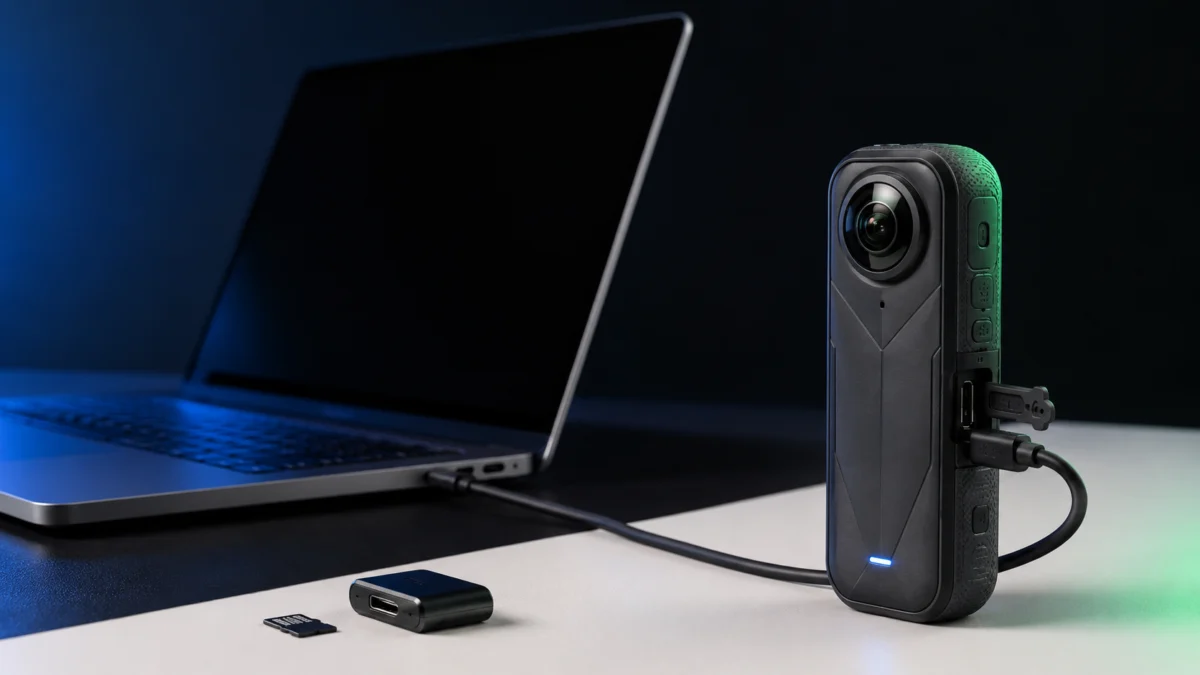
If your Insta360 X5 shows no USB mode screen when you plug it into a PC, start here: power the camera on, connect it directly to the computer with a USB-C cable that carries data, and watch the camera screen. Insta360 documents that X5 and X4 Air display a mode selection page automatically, where you tap Switch USB Mode to expose the camera as a drive. If nothing appears, restart the camera and reconnect before changing anything else.
One thing to know before going further: if Windows shows “USB device not recognized” but you can still open and copy your files, Insta360 states this is normal and not a fault. The four failure states below look alike from the outside but call for different fixes, so identify yours first.
Identify the Exact X5 USB Failure State
Start by identifying which of four states your X5 is in: no mode selection page, page shown but no drive, a warning with readable files, or a connection that keeps dropping. Insta360 documents each state separately, and the correct next step differs for every one of them.
| What you observe | What it usually points to | Where to go next |
|---|---|---|
| Camera charges, but no mode selection page appears | Camera not powered on, connection not direct, or a charge-only cable | Restore the direct connection first |
| Mode selection page appears, but no camera folder shows on the PC | Mode not confirmed, hub in the path, card outside the supported specification, or a Windows-side detection problem | Cable, port, and card checks |
| “USB device not recognized”, but your files open normally | The camera restarts as it enters USB or U-Disk Mode and briefly drops off the bus | No action required, per Insta360 |
| “USB device not recognized” and the files cannot be read | An unresolved connection fault | Full check sequence, then Insta360 support |
Confirm these four things first. They clear the most common causes in a couple of minutes:
- The camera is powered on before and during the connection.
- The cable runs straight into the computer, with no hub, dock, or extension in the path.
- The cable is a data cable, not a charge-only cable.
- A microSD card is inserted and meets the specification covered below.
One note on ordering. Insta360’s support page lists a firmware update as its first step, but the documented computer-based update requires you to connect the camera and select File Transfer in USB Mode: exactly what is failing. If your camera is not mounting at all, update through the Insta360 app instead, and do it after the connection checks below.
Restore File Transfer Mode and Connect the X5 Directly
Rebuild the connection to its simplest form: X5 powered on, connected straight to the computer with a USB-C cable, no hub in between. Insta360 states that X5 and X4 Air show a mode selection page automatically, where you tap Switch USB Mode to expose the camera as a drive.
The fix takes 5 steps.
- Power the X5 on and leave it on. Do not connect it while it is off.
- Open the USB port cover and connect the USB-C cable directly to a port on the computer itself.
- Watch the camera screen. When the mode selection page appears, tap Switch USB Mode.
- If no page appears, disconnect, restart the camera, and reconnect. Insta360’s X4 guidance sets a five-second expectation for the USB Mode page before restarting, which is a useful benchmark here.
- Open File Explorer and look for the camera as a removable drive, then open the DCIM folder.
Why the Mode Name on Your Screen May Not Match the Guide You Read
Insta360’s own documentation refers to this single X5 operation by three different names, which is a common reason people conclude the option is missing. If your screen shows one of these labels rather than the one a guide told you to find, you are in the right place.
| Insta360 document | What it tells X5 owners to select |
|---|---|
| X Series: Camera Connection Issues with Computer | Switch USB Mode |
| Insta360 Studio: Import Media | U-Disk Mode |
| X5 Firmware Update | File Transfer in USB Mode |
If Insta360 Studio Is the App That Cannot See the Camera
Studio has its own detection setting, so the camera can mount in Windows and still be invisible inside the application. Insta360 documents the toggle and the expected behavior, which differs depending on whether Studio is already running when you connect the camera.
- Open Menu → Settings → User Preference → Other and confirm Enable external storage device detection is on. Insta360 notes it is enabled by default.
- With Studio running, connecting the camera should raise an import window offering “Import all” or manual selection.
- With Studio closed, the computer should see the camera as a drive you can copy from directly.
- On Windows PCs, Insta360 states that Bluetooth and wireless import are not supported, so a working cable path is required.
Test the Data Cable, USB-C Port, Hub, and Windows Detection
Insta360’s own test for a bad cable is simple: connect a phone to the same computer with that cable. If the phone is not recognized either, the cable is likely faulty. If the phone works, move on to ports, hubs, and Windows device errors instead.
The fix takes 5 steps.
- Unplug and replug the cable a few times, reconnecting the camera each time. Insta360 lists this first.
- Connect a phone to the same computer with the same cable. If the phone is not recognized either, replace the cable and retest. If the phone works normally, the cable is probably not your problem.
- Remove any multi-port hub, dock, or extension. Insta360 recommends connecting the camera directly.
- Try a different Type-C port on the computer, then a different computer if you have one available.
- If Windows raises “USB device not recognized” and the files are unreadable, open Device Manager, find the entry marked with a yellow exclamation point, right-click it, select Properties, and read the error code shown under Device status. Microsoft’s USB-C troubleshooting page maps each code to a fix.
Microsoft attributes its “Use different USB port” notification to devices connected through an external hub or dock, or to a port that does not support the required features. That matches Insta360’s advice to connect directly, and it is a useful confirmation when a dock is part of your setup.
Fixory is a participant in affiliate programs. If you buy through links in this article, we may earn a commission at no additional cost to you.
If step 2 above identified the cable as the fault, a replacement needs to be a data cable rated for file transfer, not a charge-only cable. Insta360 recommends using an Insta360 USB cable for this connection.
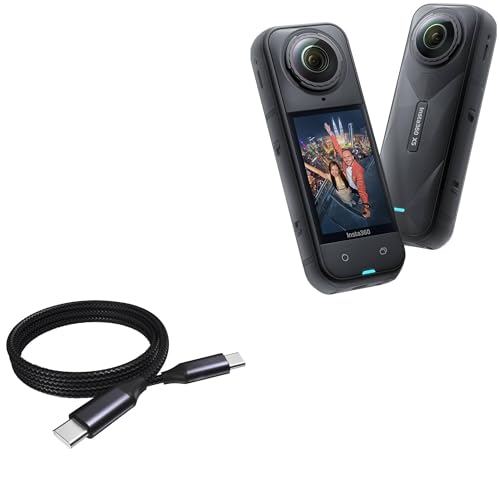
Please check the Amazon product page for the latest price and availability.
Check the microSD Card and Firmware Without Risking Your Footage
X5 officially supports exFAT microSD cards rated UHS-I V30 or higher, up to 1TB. UHS-II and UHS-III cards and anything above 1TB are not compatible. Check your card against the official tested list before you consider formatting, and update firmware through the app if USB is still unreliable.
Insta360 publishes the cards it has tested with the X5. A card missing from this list is not necessarily faulty, but it has not been verified for this camera.
| Card | Capacities listed | Speed class |
|---|---|---|
| Insta360 MicroSD V30 A1 | 64GB, 128GB | U3, A1, V30 |
| SanDisk Extreme V30 A1 | 128GB | V30 |
| SanDisk Extreme Pro V30 A1 | 64GB | V30 |
| SanDisk Extreme V30 A2 | 64GB to 1TB | U3, A2, V30 |
| SanDisk Extreme Pro V30 A2 | 64GB to 1TB | U3, A2, V30 |
| Lexar 1066x microSD UHS-I SILVER Series | 64GB to 512GB | V30 |
If Windows sees the camera but no drive letter appears, check the volume in Disk Management before blaming the card. Right-click it and look for Change Drive Letter and Paths. Microsoft documents that when this option is missing or greyed out, the volume cannot receive a letter: it is unallocated, it is a partition Windows treats as inaccessible, or you lack the required permissions. Use this screen to read the state and assign a letter only. Do not initialize or format a card holding footage you have not backed up.
For firmware, order matters. Insta360’s computer-based update assumes the camera already mounts, so use it only once file transfer works.
The fix takes 4 steps.
- Confirm the X5 has at least 20% battery, which Insta360 requires before any update.
- If USB is still failing, update through the Insta360 app: keep the camera close to the phone, keep the app in the foreground, and use a stable network.
- For the computer route, connect the camera, select File Transfer in USB Mode, download the current firmware from the official Insta360 site, and copy Insta360X5FW.bin to the root of the X5 without renaming it.
- Disconnect the camera. Insta360 states it powers off automatically, the indicator lights flash blue slowly, and it restarts on its own once the update completes.
You may see claims that a particular firmware version causes this problem. In the official material we checked, Insta360 does not attribute USB mode failures to any specific firmware version, and we have not confirmed such a link. Treat “it started after an update” as a timeline, not a diagnosis.
If your card falls outside the supported specification, a compliant replacement is the fix. Match the official tested list rather than buying on headline speed figures.

Please check the Amazon product page for the latest price and availability.

Please check the Amazon product page for the latest price and availability.
Collect Logs, Contact Support, or Use a Temporary Transfer Path
If none of the earlier checks restore the connection, Insta360’s documented last resorts are a factory reset or a card format, both only after backing up your files, then its repair service. A card reader lets you move footage off the camera while the USB problem stays unresolved.
The fix takes 4 steps.
- Back up everything you can reach, by any working method, including the Insta360 app over Wi-Fi or a card reader.
- Perform a factory reset on the camera, then reconnect and check. Insta360 lists this after the backup.
- If the problem persists, format the memory card and reconnect. This erases the card, which is why it comes after the backup, not before.
- If it still fails, apply for Insta360’s repair service. Have your firmware version, camera serial, Windows version, and the exact symptom from the table above ready.
Separately from fixing the connection, you can get your footage off the camera today: pulling the microSD card and reading it in a card reader bypasses the camera’s USB path entirely. This is a transfer workaround, not a repair. It leaves the USB problem in place, and you will still need a working connection to update firmware from a computer later.
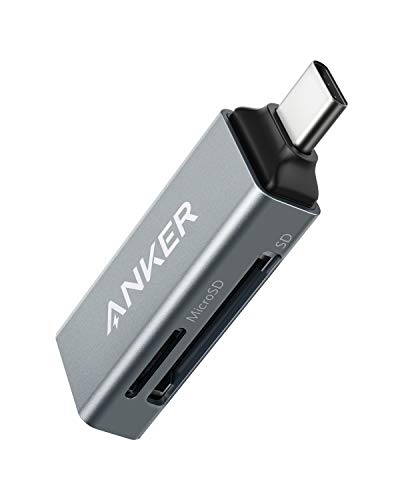
Please check the Amazon product page for the latest price and availability.

Please check the Amazon product page for the latest price and availability.
How We Researched
This article is based on manufacturer documentation and official support materials: Insta360’s X5 pages on computer connection problems, the “USB device not recognized” error, file storage and card compatibility, firmware updates, and Insta360 Studio media import, plus Microsoft’s guidance on USB-C problems and drive letters in Windows. We have not conducted hands-on lab testing. Card lists, specifications, and procedures are attributed to those sources. We looked for community reports but could not confirm the same pattern across multiple independent threads, so none are cited here.
Frequently Asked Questions
Does “USB device not recognized” mean my X5 is broken?
Not always. Insta360 explains that the camera restarts when it enters USB or U-Disk Mode, briefly dropping off the bus and triggering the warning. If your files still open normally, the company states the connection is fine. If the files are unreadable, contact Insta360 support.
Does the X5 need a special cable for file transfer?
It needs a cable that carries data, not only power. Insta360 recommends using an Insta360 USB cable and suggests testing your current one by connecting a phone with it. A charge-only cable carries no data, which produces exactly the symptom of a camera that charges but never mounts.
Should I format the microSD card to fix this?
Formatting is the last step in Insta360’s own sequence, not the first, and the company specifies backing up important files before you do it. Formatting erases your footage and will not help if the real problem is the cable, the port, a hub, or Windows.
Conclusion
Work the states in order rather than guessing at causes. Identify which of the four symptoms you have, rebuild the simplest connection with the camera powered on and no hub in the path, use Insta360’s phone test to rule the cable in or out, then check the card against the official specification and tested model list.
Keep your footage ahead of the troubleshooting throughout. A factory reset and a card format both appear in Insta360’s sequence, and both come after a backup for a reason. If you reach the end without a working connection, a card reader gets your files to safety while Insta360’s repair service handles the camera.