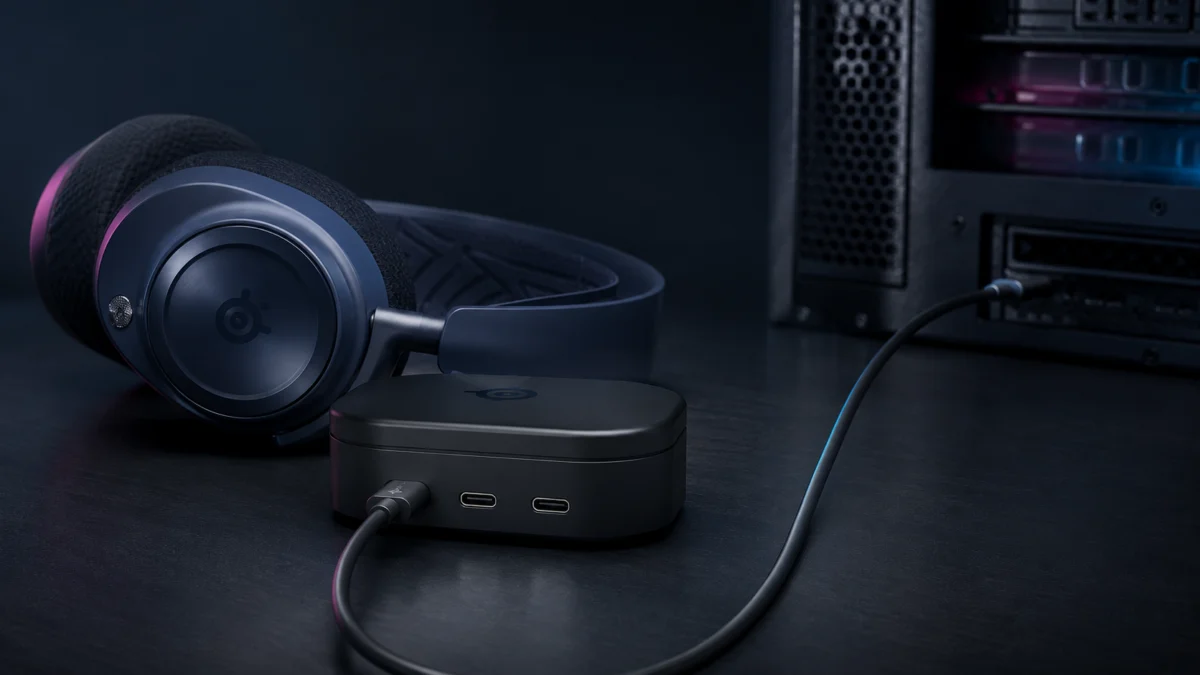
If your Arctis Nova Pro Omni plays sound but never appears in SteelSeries GG, the first thing to verify is the cable running from your PC to the GameHub. SteelSeries states that GG and Sonar are supported only on the GameHub’s USB 1 port. Audio still passes through USB 2 and USB 3, which is why the headset can sound normal while Engine and Sonar show nothing.
Check that first. If the cable is already in USB 1, the remaining causes fall into a short list: the connection path between the GameHub and your PC, the conditions Sonar itself has to meet on your operating system, and — last, not first — a reset of the GameHub and headset.
Quick Fix: Connect the GameHub to Your PC Through USB 1
Move the USB-C cable that runs from your PC to the port labelled USB 1 on the back of the GameHub. SteelSeries confirms this is the port required for Engine and Sonar recognition. USB 2 and USB 3 carry audio but not software control.
- Trace the cable physically from your PC and confirm which port it ends in. The three USB-C ports sit close together and are easy to mix up.
- Leave console cables where they are. USB 2 is for a second system and USB 3 is the Xbox port.
- Plug the PC end into a port on the back of the PC rather than a hub, dock, or monitor passthrough.
- Restart SteelSeries GG after moving the cable, then check Engine first and Sonar second.
- If the GameHub screen is completely dark, start with power and cabling checks before changing software settings.
Identify What Is Missing: GameHub, Engine, Sonar, or Headset Audio
Four different failures all get described as “not showing up.” The GameHub may be dark, Engine may list nothing, Sonar may refuse a headset that Engine already shows, or the GameHub may work while the headset itself stays silent. Each one points somewhere different, so identify yours before changing settings.
| What you are seeing | Where to check first | Where to go next |
|---|---|---|
| GameHub screen is dark and Windows shows no new device | Start with the USB power and cable path | Port, cable, and direct connection checks |
| Audio plays through the headset, but Engine and Sonar both list nothing | Check whether the PC cable is in USB 2 or USB 3 | The USB 1 fix above |
| Engine lists the headset, but Sonar will not use it | Check Sonar’s operating system, local traffic, and virtual devices | Software and firmware conditions |
| GameHub is recognised, but no sound reaches the headset | Check the 2.4GHz link and headset battery | Reset and re-pair |
| The screen is stuck on a firmware update message | Use the documented full power cycle | The power-cycle procedure in the reset section |
Check the GameHub Port, USB Cable, and Direct PC Connection
The three USB ports are not interchangeable. SteelSeries assigns USB 1 to PC, PS4, PS5, Switch in TV mode and Mac, and identifies it as the only port compatible with Sonar. USB 3 is the only port that works with Xbox. Line In and Line Out are analog and carry no software connection.
| Port | Devices SteelSeries lists | Works with Engine and Sonar | Notes |
|---|---|---|---|
| USB 1 | PC, PS4, PS5, Switch (TV mode), Mac | Yes — required | Documented as the only port compatible with Sonar in SteelSeries GG |
| USB 2 | PC, PS4, PS5, Switch (TV mode), Mac | No | Intended for a second system; audio only |
| USB 3 / Xbox | Xbox, PC, PS4, PS5, Switch (TV mode), Mac | No | The only Xbox-compatible port; set to Xbox by default and switchable to PC in the OLED menu |
| Line In / Line Out | Analog sources, external speakers, stream setups | No | Analog routing only |
Two details in the official product guide explain behaviour that looks like a fault. USB 1 audio is mixed with either USB 2 or USB 3 audio, with USB 3 selected by default and the choice changed from the OLED menu, which is also what the SourceMix control adjusts. Separately, Windows sound properties may need to be set to 24-bit/96 kHz before you get full audio resolution. Neither of these affects whether GG can see the device, but both change what you hear once it can.
Once the cable is in USB 1, check the path it takes to the PC. SteelSeries’ setup guidance for GG-supported USB devices is to use a rear USB 3.0 or 2.0 port directly on the motherboard rather than any internal or external hub, so that drivers load correctly and the device receives adequate power. On a laptop, if the device powers on and off intermittently, moving to a port on a different side of the chassis is the documented next step. Two USB-C to USB-A cables ship in the box, so swapping in the second one is a quick way to rule out a damaged cable.
Restart SteelSeries GG and Check Software or Firmware Conditions
If the cable is in USB 1 and the device still will not appear, check what Sonar requires before reinstalling anything. Sonar runs only on Windows 10 or newer and is absent from the Mac build of GG, so some setups will never list the headset in Sonar no matter how the hardware is wired.
The fix takes 5 steps.
- Confirm your operating system version. SteelSeries states that Sonar is compatible only with Windows 10 or higher, so an older Windows build will not show the headset in Sonar even when Engine works.
- On a Mac, stop here as far as Sonar is concerned. GG Engine supports macOS 11 or higher, while the official Sonar page lists Windows 10 or higher. Engine and the GameHub’s own menu remain available.
- Close SteelSeries GG completely, then reopen it with administrator rights by right-clicking the shortcut and choosing Run as administrator. Check Engine first, then Sonar.
- Check VPN and firewall software. SteelSeries advises verifying whether any VPNs or additional firewalls are active, adding GG to the exception list, and temporarily removing an active VPN and restarting the PC before trying Sonar again.
- Download the current version of SteelSeries GG from the official download page and install it, then restart the PC and check both modules once more.
There is a related failure worth separating out. If Engine shows the headset but Windows has no SteelSeries virtual playback devices, Sonar has nothing to route through. SteelSeries’ guidance for missing virtual devices is to launch GG with administrator rights, install the current version from the official site, update the device drivers, and restart the PC before checking again.
One thing to skip: forum instructions that involve editing the Windows registry to remap USB device identifiers, or installing unsigned third-party audio drivers. None of SteelSeries’ documented steps require either, and both carry a real risk of leaving the system in a worse state than the one you started with.
Reset the GameHub, Re-Pair the Headset, and Decide When to Contact Support
Reset last, not first. The GameHub resets from its own OLED menu, which matters here: Engine’s factory reset requires the headset to appear in Engine first, so that route is unavailable for the exact detection problem you are trying to solve. Work through the three procedures below in order.
The fix takes 3 steps.
- Reset the GameHub. Press and hold the main wheel on the GameHub to open the menu, go to System Settings, then Reset, select Yes, and follow the on-screen instructions.
- Re-pair the headset. On the GameHub, go to Wireless, then 2.4G, then Pair, pressing the main wheel to confirm each selection. When Pair is highlighted, press the wheel again to bring up the pairing instructions. Turn the headset off, then press and hold its power button until you hear a beep. SteelSeries’ reset guide gives at least six seconds while the printed product guide gives four, so hold until the tone sounds rather than counting.
- Power cycle the whole system. Disconnect every cable from the GameHub, remove the batteries from both the headset and the GameHub, and leave the devices powered off for at least two hours. Then reconnect the cables, reinsert the batteries, power on, and test the connection. Use this documented full power cycle if the screen is frozen during a firmware update.
If Engine does list the headset and you want a clean slate, there is a software path as well: open SteelSeries GG, go to Engine, select the headset, open the Settings tab, and click Reset under the Factory Reset section.
Some symptoms make a hardware fault more plausible. If the GameHub stays dark on more than one PC and with both bundled cables, if repeated power cycles never get the screen past a firmware update message, or if Windows keeps returning a hardware error on that port, contact SteelSeries support or use the retailer’s return process. Check the warranty terms and return window for your purchase before starting a return authorisation, since an exchange inside the retailer’s window may be faster.

Please check the Amazon product page for the latest price and availability.
If you decide to replace the headset with a lower-cost wireless model instead, our roundup of budget-tier wireless gaming headsets covers options that connect through a USB-C dongle with no base station to configure.
Frequently Asked Questions
Four questions come up around this problem, and the answers change what you should try next. Two concern why sound and software behave differently, one concerns Mac users specifically, and one concerns what to protect before resetting. All four are answered from SteelSeries’ own documentation below.
Why does the Nova Pro Omni play audio but not appear in SteelSeries GG?
Because audio and software control do not travel over the same ports. SteelSeries supports GG and Sonar on USB 1 only, while USB 2 and USB 3 still pass audio to the headset. A cable in the wrong port can therefore produce normal sound alongside an empty device list.
Can I use Sonar with the Nova Pro Omni on a Mac?
No. SteelSeries lists Sonar for Windows 10 or higher, while GG Engine supports macOS 11 or higher. On a Mac you can configure the headset through Engine, the GameHub’s OLED menu, or the Arctis Companion App over Bluetooth instead.
Does resetting the GameHub delete my EQ settings?
SteelSeries confirms that settings changed in Engine or on the GameHub are saved to the headset’s onboard memory and reflected in both places. Its reset guide does not explicitly list which presets are removed, so note down any custom EQ settings before resetting rather than assuming they will remain.
Do I need SteelSeries GG running to use the headset?
No. Presets applied in Engine or the Companion App are stored on the device and keep working with GG closed, and the GameHub’s menu covers volume, EQ, noise control and source mixing. That lets you keep using the headset’s core controls on a console or second PC while you work through a Sonar problem.
How We Researched
This article is based on SteelSeries’ official support articles for the Arctis Nova Pro Omni, the official Product Information Guide for the product, and SteelSeries’ own documentation for GG and Sonar. We have not conducted hands-on lab testing, and every port assignment, menu path and timing figure above is attributed to official documentation.
Two editorial decisions are worth stating. We excluded troubleshooting steps written for the Arctis Nova Pro Wireless and the Arctis Nova Elite, whose base stations use a different port layout, so nothing here is carried over from another model. And where two official documents disagree — the reset guide gives at least six seconds for pairing while the printed guide gives four — both figures appear above rather than one being chosen silently. We did not find Nova Pro Omni-specific user reports confirmed across multiple threads, so none are cited.
Conclusion
Work in this order and you may not need the last step. Confirm the PC cable sits in USB 1, identify which stage is actually failing, check the connection path to the motherboard, then check Sonar’s operating system and security-software conditions. Only after all of that should you reset the GameHub and re-pair.
The reason the order matters is that a reset does not change which port the cable is in, and Engine’s own factory reset is unavailable when Engine cannot see the headset. Fix the connection path first, then recheck Engine and Sonar.