If your Meta Quest 3 Elite Strap with Battery isn’t charging the headset, isn’t being recognized, or disappears from the battery display after a few seconds, the most likely causes are a loose USB-C connection, a low strap battery that needs separate charging first, a dock prioritization behavior that is actually working as designed, or — in the case of early launch-batch units — a firmware defect that only Meta Support can resolve. Start with the reset and reconnect steps below before assuming the strap is broken. If the strap connects briefly and then vanishes, or if you received a replacement that has the same problem, the guidance in this article will help you decide what to try next and when to escalate to Meta Support.
- Quick Answer: Why Your Elite Strap Battery Isn’t Charging
- Read the LED First
- Fix 1: Reset the Strap and Reconnect
- Fix 2: Charge Separately, Then Together
- Fix 3: Check Your Charger, Cable, and Power Output
- Fix 4: Strap Connects for a Few Seconds, Then Disappears
- Understanding the 70% Charging Behavior
- When to Contact Meta Support
- Should You Consider a Third-Party Battery Strap?
- Frequently Asked Questions
Quick Answer: Why Your Quest 3 Elite Strap Battery Isn’t Charging
Most Elite Strap charging problems fall into one of three categories: a connection or low-battery issue you can fix yourself in a few minutes, a dock-prioritization behavior that is working as designed but looks like a bug, or a firmware defect in early launch-batch units that requires a replacement from Meta Support. Knowing which category applies to you saves time and prevents unnecessary returns.
Here is the fastest way to triage your situation:
- The strap shows up briefly then disappears → Start with Fix 1 (reset and reconnect). Check the LED state first.
- The headset stops charging at around 70% when using the dock → This is likely normal dock behavior. See the 70% section before assuming something is wrong.
- The strap charges itself but the headset battery is still draining during use → Try Fix 2 first. If no improvement after separate charging, contact Meta Support.
- The strap is not recognized at all and the LED shows blinking alternating colors → This is an error state. Go directly to Fix 1 for the reset procedure.
- You have already received a replacement and the same problem persists → Go to When to Contact Meta Support.
Read the LED First: What the Elite Strap Battery Light Is Telling You
Before trying any fix, check the LED indicator on the back of the Elite Strap with Battery. The LED gives you direct information about the strap’s current state. Pressing the button once activates the LED display. Misreading the LED is one of the most common reasons users assume the strap is broken when it is actually in a recoverable state.
Here is what each LED state means according to Meta’s official guidance:
| LED State | What It Means | What to Do |
|---|---|---|
| Solid white or steady color | Normal — strap is charged and functioning | Proceed to reconnect steps if headset still not recognizing it |
| Blinking single color | Charging in progress | Wait for charging to complete before connecting to headset |
| Blinking alternating colors | Error state | Perform a hard reset: hold the button for more than 12 seconds |
| No LED at all | Battery is critically low | Charge the strap alone for at least 1 hour before connecting to the headset |
Before You Start: Make sure the Elite Strap is charged to at least some level before connecting it to the headset. A strap with a critically low battery (no LED) will not be recognized correctly even if the physical connection is good. Charge the strap alone first if you see no LED response.
Fix 1: Reset the Strap and Reconnect It to the Headset
The first thing to try when the Elite Strap is not recognized or is showing an error LED is a hard reset combined with a clean reconnection. This resolves many recognition and brief-connect issues, particularly when the strap LED is showing blinking alternating colors or the headset briefly shows the extended battery notification and then loses it.
Follow these steps in order:
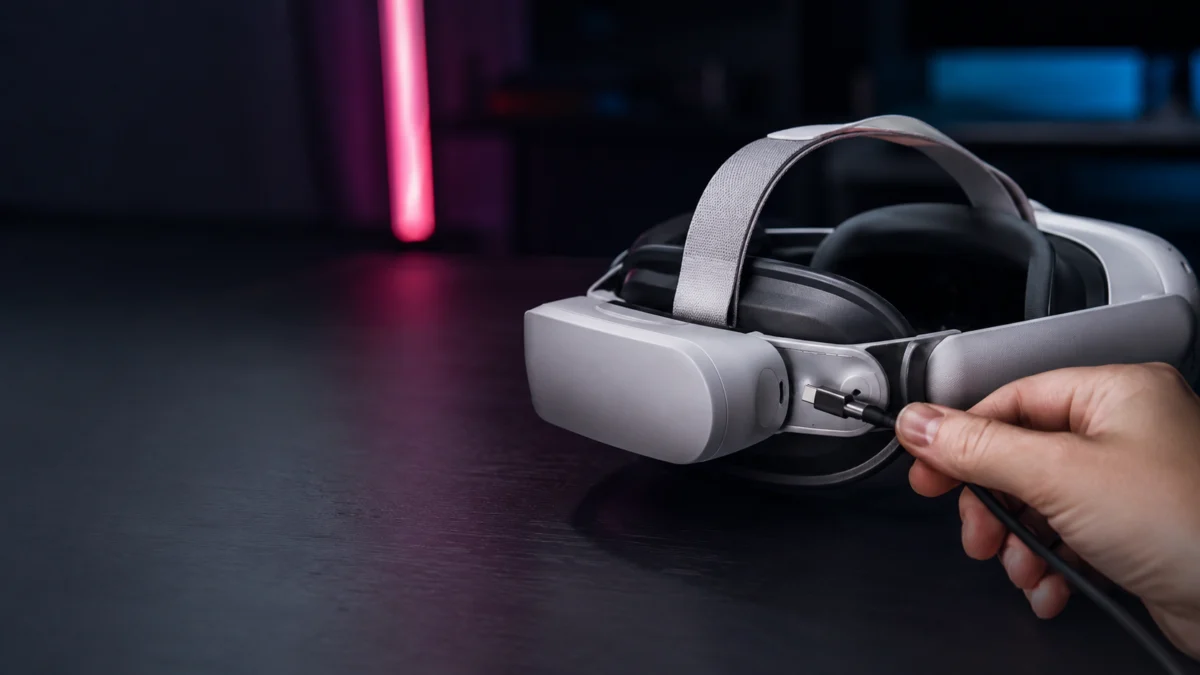
- Unplug the Elite Strap from the headset — disconnect the USB-C cable that runs between the strap and the back of the Quest 3.
- Power off the Quest 3 headset completely — hold the power button and select Power Off. Wait at least 30 seconds.
- Reset the Elite Strap — with the strap disconnected from the headset, hold the button on the back of the Elite Strap for more than 12 seconds. The LED should respond and then go off. This performs a hard reset on the strap’s internal state.
- Check the LED after the reset — press the button once. If the LED shows a normal state (solid or single-color blink), the strap battery has charge. If there is no LED, charge the strap alone for at least 1 hour before proceeding.
- Power the Quest 3 back on — press and hold the power button until the headset boots up fully.
- Reconnect the Elite Strap — plug the USB-C cable from the strap back into the headset port. Make sure the connection is fully seated.
- Check the headset battery display — in the Quest 3 interface, the battery section should now show both the headset battery and the Elite Strap battery percentage. If it appears briefly and disappears again, see Fix 4.
Check the USB-C port: Inspect both ends of the USB-C connection — the port on the headset and the connector on the strap cable — for dust, lint, or debris. A partially blocked port can cause intermittent recognition. Use a dry toothpick or a can of compressed air to gently clear the port before reconnecting.
Fix 2: Charge the Elite Strap and Headset Separately, Then Together
If the strap charges itself but doesn’t appear to be passing power to the headset, charging the two components separately before reconnecting them is the recommended next step. This approach rules out a low-strap-battery false start, which is a common source of confusion when both devices are connected from a discharged state.
- Disconnect the Elite Strap from the headset completely.
- Charge the Elite Strap alone — connect it to a wall charger using the USB-C cable. Use a charger capable of at least 18W output. Let it charge until the LED indicates a full or near-full state.
- Charge the Quest 3 headset separately — connect the headset directly to a wall charger via its front USB-C port. Let it charge to at least 80–100%.
- Once both are charged, reconnect the Elite Strap to the headset while the headset is powered on.
- Verify in the headset display that both battery percentages are now visible and that the strap is listed as connected.
After both components have been fully charged and reconnected, put the headset on and use it normally. The Elite Strap should now maintain or top up the headset battery during use. If the headset battery is still draining steadily and the strap percentage is not decreasing at all, this points to the strap not passing power — which may require Meta Support contact rather than additional cable or software troubleshooting.
Fix 3: Check Your Charger, Cable, and Power Delivery Output
A charger that doesn’t meet the Elite Strap’s power requirements can cause incomplete charging behavior. The Quest 3 and Elite Strap with Battery are designed to work with a charger that supports at least 18W of output. A low-output USB-C charger or a low-quality cable can result in slow charging, incomplete charging, or the strap appearing unresponsive.
Check the following:
- Charger output: Use a USB-C charger rated at 18W or higher. The charger included with the Quest 3 headset meets this requirement. Generic 5W or 10W chargers may not be sufficient.
- Cable quality: Use the USB-C cable that came with the strap or a known good USB-C cable rated for data and power delivery. Cables without proper PD support can cause charging to fail silently.
- Try a different cable and charger: If you have another USB-C charger (such as a phone or laptop charger rated at 18W or above), try that combination and observe whether the strap charges correctly.
- If using the charging dock: See the 70% section for important information about how the dock distributes power between the headset and the strap. The dock behavior is commonly mistaken for a charging failure.
Fix 4: The Strap Connects for a Few Seconds, Then Disappears
The “connects briefly then disappears” pattern is one of the most widely reported symptoms for the Quest 3 Elite Strap with Battery. In this state, the headset shows the extended battery notification for approximately one to five seconds after the strap is connected, then it disappears and only the headset battery percentage remains. This is distinct from the strap not being recognized at all.
This symptom has been acknowledged by Meta in their Community Forums. Multiple users across the Meta Community and Reddit have reported this exact behavior. The causes can include:
- The strap being in an error state (LED showing blinking alternating colors) — resolved by the 12-second button reset in Fix 1.
- The strap battery being critically low — the strap may connect and immediately drop off because it cannot sustain the connection at near-zero charge. Charge the strap alone for at least 1 hour first.
- A firmware defect present in early launch-batch units (October 2023) — in these cases, no amount of reconnection or reset resolves the symptom, and Meta Support replacement is the only path forward.
To determine which cause applies to your unit:
- Complete the reset procedure in Fix 1 and the separate-charge procedure in Fix 2.
- After the strap is fully charged and the headset is on, reconnect and observe. If it connects stably for more than 30 seconds and the percentage holds, the issue was likely a low battery or error state.
- If the disconnect-after-a-few-seconds pattern persists after the strap is fully charged and has been reset, and if the same pattern continues after you have tried a different cable and charger, this is consistent with the firmware defect. Contact Meta Support and reference the charging recognition issue.
Note on replacements: Some users who received replacement units reported that the same disconnect pattern reappeared. Meta acknowledged in late 2023 that some replacement units also carried the firmware defect because the corrected firmware was applied during manufacturing of a new production run, not applied retroactively to existing replacement stock. If a replacement unit shows the same symptom, contact Meta Support again and note the replacement history.
Understanding the 70% Charging Behavior
The “headset stuck at around 70% while using the dock” complaint is common and often turns out to be normal dock behavior rather than a hardware fault. When the Quest 3 and the Elite Strap with Battery are both connected to the charging dock, the dock prioritizes charging the headset. The Elite Strap does not receive power from the dock until the headset has reached a full charge.
According to Meta’s official guidance, users should wait at least 2 hours after placing the headset in the dock before expecting the Elite Strap to begin charging through the dock connection. If the headset is at 70% and you check the strap, the strap may not yet be receiving dock power — the system is still topping up the headset first. This is by design and is not a sign of a broken strap.
However, there is a separate “70%” pattern associated with the early firmware defect. In affected early-batch units, the firmware caused the strap to stop passing charge to the headset at a certain point during a session — not necessarily exactly 70%, but users often noticed the headset stabilizing or declining despite the strap appearing to have charge remaining. This is different from the dock-prioritization behavior because it occurs during active use with the strap directly connected to the headset, not in a dock charging scenario.
To tell the two apart:
- If the headset is in the dock and reads around 70% → wait a full 2 hours. If the headset eventually reaches 100% and the strap then begins charging, the dock prioritization behavior is working as intended.
- If the headset is in active use with the strap connected directly, and the headset battery is slowly declining despite the strap showing a charge → this is consistent with the firmware defect and warrants a Meta Support contact.
When to Contact Meta Support for Replacement or RMA
Some Elite Strap charging issues cannot be resolved through user-side troubleshooting. If you have worked through all of the fixes above and the problem persists, contacting Meta Support is the appropriate next step. Meta handles Elite Strap replacements on a case-by-case basis.
Contact Meta Support if any of the following apply after completing Fixes 1 through 3:
- The strap connects for a few seconds and then disappears, and this persists after a full reset, separate charging, and cable change.
- The strap charges itself but the headset battery continues to drain during use, consistently, after both have been fully charged separately.
- The LED shows blinking alternating colors and the problem does not clear after the 12-second hard reset.
- You received a replacement unit and the same symptom appeared again.
- The strap has never worked since unboxing.
Warranty coverage, replacement eligibility, and RMA options depend on your country, purchase date, and where you purchased the accessory. Meta Support can confirm what applies to your situation. Do not assume that a replacement is guaranteed or that an out-of-warranty unit qualifies for a free replacement — contact Meta Support directly to find out.
Meta Quest Help Center
/
Contact Meta Support
You can reach Meta Support through the Help section of the Meta Quest mobile app or through Meta’s official support website. When contacting support, describe the specific symptom (not-recognized, connects briefly, strap charges but headset drains, etc.) and mention any replacement history so the support team has the full context.
Should You Consider a Third-Party Battery Strap?
If your Elite Strap is past warranty, you have already been through a replacement, or you want a larger battery capacity than the official accessory provides, a third-party battery strap compatible with the Quest 3 or Quest 3S is worth considering. The most discussed options in the Quest 3 community — BOBOVR and Kiwi Design — offer confirmed Quest 3 / Quest 3S compatibility and charge through direct USB-C input to the strap rather than relying on dock-sync behavior, which makes the charging process more predictable.
Before purchasing a third-party strap, verify:
- Quest 3 or Quest 3S compatibility — confirm the product page explicitly lists your headset model. Some straps are Quest 2 compatible only.
- Charging input requirements — check whether the strap supports 18W charging input, which matches the Quest 3’s maximum charging rate.
- Pass-through charging behavior — some third-party straps charge both the strap and headset simultaneously; others charge the strap first and then the headset. Check the product description or user reviews for clarification.
Check BOBOVR S3 Pro on Amazon
/
Check KIWI design K4 Duo on Amazon
Frequently Asked Questions
Why does the Elite Strap battery show as connected in the headset but then disappear?
This is the “connects for a few seconds and disappears” pattern. It can be caused by a low strap battery (charge it alone for at least 1 hour), an error state (reset by holding the button for more than 12 seconds), or the firmware defect present in early launch-batch units. If the problem persists after the reset and separate charging steps, contact Meta Support.
Can I fix the Elite Strap firmware issue myself?
No. Meta confirmed that the firmware on the Elite Strap with Battery cannot be updated by the end user — it can only be applied during the manufacturing process. If your unit has the firmware defect, the only resolution is a replacement from Meta Support.
Why does the Quest 3 only charge to about 70% in the charging dock?
When both the headset and Elite Strap are in the dock, the dock prioritizes charging the headset first. The strap does not begin receiving dock power until the headset is fully charged. Wait at least 2 hours. If the headset eventually reaches 100% and the strap then begins charging, the dock is working as designed. If the headset never reaches full charge despite extended dock time, contact Meta Support.
Does the Elite Strap with Battery charge the Quest 3 while you are using it?
Yes, when functioning correctly, the Elite Strap passes power to the headset through the USB-C connection during use, extending total session time. If the headset battery is still declining during an active session despite the strap being connected and charged, this indicates the strap is not passing power — try Fix 1 and Fix 2, and contact Meta Support if the problem persists.
Is the Quest 3 Elite Strap with Battery compatible with Quest 3S?
Meta has confirmed the Elite Strap with Battery is compatible with both the Quest 3 and Quest 3S. Verify compatibility on the product page when purchasing.
Can I use the Elite Strap while it is charging from a wall adapter?
Yes, you can use the Quest 3 while the Elite Strap is connected to the headset and the strap is connected to a wall charger via USB-C. The strap will charge itself and pass power to the headset simultaneously in this configuration, depending on the charger output. A charger rated at 18W or above is recommended.
What should I do if my replacement Elite Strap has the same problem?
Contact Meta Support again and note your replacement history. Meta has acknowledged that some replacement units shipped before the corrected firmware production run also carried the firmware defect. A second replacement from the current production batch is typically the resolution path. Support eligibility depends on your purchase date, country, and warranty status.
How We Researched
This article is based on Meta’s official public statements — including statements made to Road to VR and confirmed by TechRadar and Tom’s Guide in November 2023 regarding the firmware defect and sales pause — as well as the official troubleshooting guidance posted by Meta in the Meta Community Forums, specifically in the “[Resolved] – Quest 3 Elite Strap with Battery only connects for a few seconds” thread. The LED state table, the hard reset procedure (hold button for more than 12 seconds), and the dock prioritization behavior (headset charges first; wait at least 2 hours) are drawn directly from that official community response.
User symptom patterns referenced in this article — including the “connects briefly then disappears” behavior and the “replacement still had the same problem” reports — are based on multiple posts across the Meta Community Forums thread cited above and are consistent with Meta’s own confirmed statements. We have not conducted hands-on testing of the Elite Strap with Battery. Any replacement, warranty, or RMA guidance in this article reflects Meta’s stated policy as of late 2023 and may have changed — confirm your specific situation directly with Meta Support.
Meta Community reference thread
TechRadar report on the sales pause
For information on other Meta Quest 3 accessory and connectivity issues, see our related guides on this site.
Quest 3 Link Cable keeps disconnecting guide
Conclusion
Most Quest 3 Elite Strap charging problems can be narrowed down quickly by reading the LED state and running through the reset and separate-charging steps. If the strap connects for a few seconds and disappears, the LED shows blinking alternating colors, or the strap charges itself without passing power to the headset, the 12-second hard reset and a fresh reconnect after separate charging resolve the issue in many cases. The “stuck at 70%” behavior in the charging dock is often the dock’s designed prioritization working correctly — give it at least 2 hours.
If the problem persists after completing all the fixes in this article, or if you have already received a replacement that exhibits the same symptoms, contact Meta Support with your replacement history. For users who are past warranty or who want a larger battery capacity than the official strap provides, confirmed-compatible third-party battery straps from BOBOVR and Kiwi Design are the most discussed alternatives in the Quest 3 community.

Please check the Amazon product page for the latest price and availability.