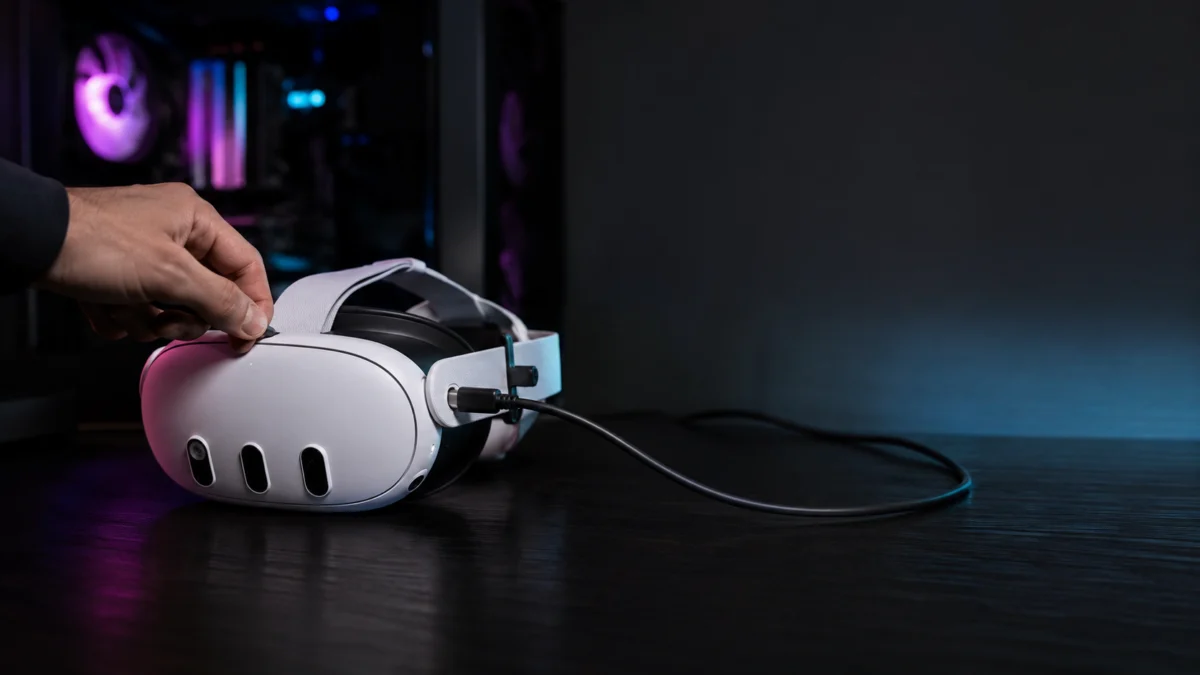
If your Meta Quest 3 or Quest 3S Link Cable keeps disconnecting — with repeated USB connection sounds from your PC, a charging loop that never stabilizes, or a headset your PC won’t recognize — the most likely causes are Windows USB power management settings, a conflict between Air Link and the wired connection, your headset’s Do Not Disturb mode blocking the USB permission prompt, or an incorrect connection sequence with a power-injection cable. In some cases, a slight physical looseness in the Quest 3’s USB-C port causes disconnects every time you move your head. Start with the Windows USB settings and the Quest’s Do Not Disturb toggle before assuming the cable is defective. When Quest Link keeps dropping, the fastest approach is to triage four areas in order — software (Windows and Quest settings), power delivery, the USB port, and only last the cable itself — since most cases trace back to software or power rather than a faulty cable. This guide walks through each cause in order, from software fixes you can apply in minutes to hardware upgrades worth considering only after the free options are exhausted.
Quick Answer: What to Check First When Your Quest Link Cable Keeps Disconnecting
The fastest path through this problem is to work through three layers in order: Windows power settings, Quest headset settings, and the physical connection itself. Most disconnection issues resolve in the first two layers without touching any hardware or replacing any cables.
- On your PC, open Power Options → Change advanced power settings and set USB selective suspend to Disabled.
- Open Device Manager → Universal Serial Bus controllers and uncheck “Allow the computer to turn off this device to save power” on every USB Root Hub listed.
- On the Quest, open Quick Settings and confirm Do Not Disturb is off.
- On the Quest, confirm Air Link is turned off in the settings.
- Fully power off and cold boot the Quest (not just sleep — hold the power button and select Power Off).
- Plug into a USB 3.x port on the motherboard rear panel — not a front panel port or USB hub.
- If you use a power-injection cable, follow the correct three-step connection sequence covered in Fix 4 below.
- If the Meta Quest PC App fails to recognize the headset, run a clean reinstall with full AppData cache deletion.
Match Your Symptom: Quick Diagnosis for Quest Link Disconnects
Quest Link disconnects fall into four areas — the cable, the USB port, power delivery, and software (Windows or Quest settings). Find the symptom closest to yours below to see the most likely cause and which fix to start with. In most cases the cause is software or power, not a broken cable. Air Link (wireless) issues are kept separate from Link Cable (wired) issues so the two don’t get confused.
| Symptom | Most likely cause | Start here |
|---|---|---|
| Disconnects a few minutes into a session | Windows USB Selective Suspend or per-hub power gating cutting the port | Fix 1 |
| Rapid connect/disconnect USB sounds (a loop) | Power-injection cable PD negotiation conflict, or an under-powered port | Fix 4, then Fix 1 |
| PC plays the USB sound but the Quest app never shows the headset | Do Not Disturb hiding the USB prompt, or stale Meta Quest PC App cache | Fix 3, then Fix 2 |
| Headset charges but there is no Link / no data | Air Link is on, so the cable is treated as a charging source only | Fix 3 |
| Stable on Air Link, but not on the cable | USB hardware, driver, or port — not Quest firmware | Fix 1, plus the diagnostic table below |
| Drops when you move your head or touch the connector | Physical looseness in the Quest 3’s USB-C port | Fix 5 |
| Disconnects started right after a firmware / PTC update | Public Test Channel firmware change conflicting with the cable | Fix 3 |
Why Meta Quest Link Cables Disconnect: Four Root Causes
Quest Link disconnects are rarely caused by a single broken cable. According to official documentation and multiple community forum reports, four technical layers — often acting together — account for the overwhelming majority of cases. Identifying which layer applies to your setup is what makes the difference between a five-minute fix and hours of guesswork.
- Power mismatch: Quest 3 consumes between 10 W and 18 W or more during active PCVR sessions. Most standard USB-A ports on motherboards output around 5 W — well below what the headset demands — causing voltage drops that destabilize the data link and force the USB controller to reset.
- Windows USB power management: Windows 11 uses USB Selective Suspend and per-hub power gating to reduce energy use aggressively. These features frequently misread Quest 3’s intermittent data patterns during scene transitions as idle activity and cut the port’s power mid-session.
- Quest-side setting conflicts: Air Link being active, Do Not Disturb blocking the USB access prompt, or a stale USB controller state from a previous sleep session can each prevent the PC from recognizing the headset — even when the hardware connection is physically fine.
- Power-injection cable PD negotiation conflict: Third-party power-injection cables route external USB-PD charging power alongside data traffic through a single cable. If the external power source is connected before the data link is fully established, the Quest’s USB interface receives competing negotiation signals and resets repeatedly — which is the source of the rapid connect/disconnect sounds on the PC.
A fifth factor — physical looseness in the Quest 3’s USB-C port — is covered separately in Fix 5, as it calls for a different approach than the software and settings fixes above.
Fix 1 – Windows USB Power Settings: Disable Selective Suspend and Hub Sleep
Disabling Windows’ USB power management is the single most effective first step for most users. USB Selective Suspend is enabled by default on all Windows 11 power plans and is among the most frequently confirmed causes of mid-session Quest Link dropouts. Both the global power plan setting and the per-hub Device Manager setting must be changed — changing only one often leaves the other active.
Step 1: Disable USB Selective Suspend in Power Options
- Open the Start menu, search for Power Options, and open it.
- Click Change plan settings next to your active power plan, then click Change advanced power settings.
- Expand USB settings → USB selective suspend setting.
- Set both On battery and Plugged in to Disabled.
- Click Apply, then OK.
Step 2: Disable Power Gating on All USB Root Hubs
Windows manages power independently at the hub driver level. Multiple community reports confirm that Quest 3 can cause other USB devices — including mice and keyboards — to disconnect simultaneously when the headset’s power demand peaks and the controller redistributes resources across the shared bus.
- Right-click the Start button and select Device Manager.
- Expand Universal Serial Bus controllers.
- For every item labeled USB Root Hub or Generic USB Hub:
- Right-click → Properties → Power Management tab.
- Uncheck “Allow the computer to turn off this device to save power.”
- Click OK.
- Repeat until every hub in the list has been updated.
Step 3: Use the Right Port
Where you plug the cable matters as much as the settings you change. Front panel USB ports connect to the motherboard through long internal extension cables and are prone to signal loss and voltage drop. Use a port on the motherboard rear I/O panel with a blue or red insert, or one marked SS (SuperSpeed) — these are USB 3.0 or higher and support the 5 Gbps throughput Quest 3 requires. A USB-C port rated for 3.2 Gen 2 or Thunderbolt provides better power delivery and is the preferred option where available.
Do not use a bus-powered USB hub. Sharing a single controller’s bandwidth and power budget across multiple devices causes the controller to fall back to USB 2.0 speeds — a directly confirmed trigger for connection loops.
Fix 2 – Meta Quest PC App: When a Clean Reinstall Is Necessary
If the headset is not recognized in the Meta Quest PC App despite correct USB and port settings, the app’s internal cache is likely the cause. A standard uninstall through Windows Settings leaves behind hidden profile data in AppData folders and registry entries that carry the same pairing failure into the new installation. Fully clearing this data before reinstalling is what resolves the issue — not the reinstall itself.
Quick Workaround to Try First
Before running a full reinstall, some users have resolved persistent pairing errors by deleting only the devices.json file inside C:\Users\<Username>\AppData\Local\Oculus, then restarting the OculusVR Runtime Service from the Windows Services panel (services.msc). If this resolves the issue, no further steps are needed.
Full Clean Reinstall Procedure
- Disconnect the Quest from your PC and temporarily disable your internet connection to prevent background sync interference.
- Restart Windows in Safe Mode to stop background Oculus services and release locked files.
- Uninstall the Meta Quest PC App via Settings → Apps.
- In File Explorer, enable Show hidden items, then manually delete all of the following folders if they exist:
C:\Program Files\OculusC:\Users\<Username>\AppData\Local\OculusC:\Users\<Username>\AppData\LocalLow\OculusC:\Users\<Username>\AppData\Roaming\OculusC:\OculusSetup-DownloadCache
- Re-enable internet, restart Windows in normal mode, and download a fresh installer from Meta’s official setup page.
Fix 3 – Quest-Side Settings: Do Not Disturb, Air Link, Cold Boot, and PTC
Three Quest headset settings account for a large share of cases where the PC detects a USB device but the Meta Quest App never shows the headset as connected. Each check takes under a minute, and at least one of these is the root cause more often than any hardware issue.
Do Not Disturb Hides the USB Permission Prompt
When Do Not Disturb is enabled on the Quest, all system-level notifications are suppressed — including the “Allow USB data access?” prompt the headset must display before the PC can establish a data connection. The PC detects a connected device and plays the USB sound, but the Quest never completes the handshake because the prompt never appears.
- While wearing the headset, open Quick Settings by looking up and pressing the Menu button, or by swiping down in the home environment.
- Tap the bell icon to disable Do Not Disturb.
- Unplug the USB-C cable and plug it back in.
- Watch for the “USB detected” notification banner at the top of the headset view and tap it quickly — it disappears within a few seconds.
Air Link and Link Cable Cannot Be Active at the Same Time
If Air Link is turned on in the Quest settings, plugging in a USB cable will not start a wired PCVR session. The system treats the cable as a charging source only and continues waiting for a wireless connection. Before connecting the cable, go to Quick Settings → Air Link and toggle it off.
Cold Boot the Headset Before Connecting
Bringing the Quest out of sleep mode can leave its internal USB controller in a state that prevents a clean handshake with the PC. Hold the power button, select Power Off — not Sleep or Restart — wait 30 seconds, then power the headset back on before plugging in the cable.
If Disconnects Started After a Firmware Update: Leave the PTC
Community reports show a recurring pattern where Quest firmware updates on the Public Test Channel — with activity noted around v77 and v79 update windows — triggered connection loops with third-party power-injection cables that had previously been stable. Not every user on the same firmware version is affected, and some reported that a subsequent silent background build resolved the issue without any action. If your disconnects started immediately after a PTC update, open the Meta Quest PC App, navigate to Beta → Public Test Channel, switch it off, and restart the headset.
Fix 4 – Power-Injection Link Cables: Why Connection Order Is Everything
Power-injection cables add a secondary port for an external USB-PD charger alongside the standard PC data connection. When external power reaches the cable’s internal controller before the Quest’s data link to the PC is fully established, the headset’s USB interface receives conflicting negotiation signals and resets in a loop. The repeated USB connection sounds your PC makes are the audible result of this reset cycle. The fix is following a strict three-step sequence every time you connect.
The Correct Connection Sequence
- Connect the PC end of the cable (USB-A or USB-C) to a rear panel port on your motherboard. The external PD charger should not be connected yet — leave the injection port empty.
- Connect the headset end (USB-C) to the Quest. Wait until the Meta Quest PC App shows the device as connected and the Link session is active.
- Only after the data link is fully confirmed: connect the external PD charging cable to the cable’s injection port.
When ending a session: Disconnect the PD charger first, then unplug the PC cable. Reversing the shutdown order on the next session is one of the most common reasons the loop returns.
A note on battery behavior: Even with a correctly connected power-injection cable, Quest 3 may not charge to full capacity during PCVR play — the headset’s power draw under load often exceeds what a charger can fully offset. The realistic outcome is maintaining a stable battery level or slowing drain, not rapid charging.
Fix 5 – Physical Port Looseness on Quest 3 (and How to Stabilize It)
Quest 3’s USB-C port has a slight mechanical gap with certain cable connectors — including Meta’s own Link Cable — that allows the plug to shift slightly when you move your head or when the cable’s weight pulls on the port. This is not a cable defect and has been reported with first-party and third-party cables alike. The fix is mechanical, not software-based.
Low-Cost Physical Fixes
- L-shaped USB-C adapter: A small right-angle USB-C adapter between the cable and the Quest port typically creates a tighter mechanical fit than a straight connector. It also redirects the cable away from the port at a 90-degree angle, reducing the leverage from the cable’s weight.
- Velcro strap or cable clip: Secure the cable to the side or rear of your head strap using the included velcro strap or a dedicated cable management clip. When the cable is anchored to the strap, head movement no longer transfers mechanical stress to the port.
- Flip the USB-C connector 180 degrees: Because USB-C is reversible, rotating the connector changes which internal pins make contact with the port. Some users report noticeably tighter engagement and stable multi-hour sessions after flipping — worth trying before purchasing any adapter.
How to Tell Whether the Problem Is the Cable, the PC, or the Quest
If the fixes above have not resolved the issue, the table below helps isolate which component is the source before investing in new hardware. Work through the tests in order — the most actionable results come from the first three rows.
| Test | What it tells you |
|---|---|
| Try a different rear-panel USB 3.x port on the same PC | Stable on a different port → original port has a power or bandwidth limitation |
| Try a different cable (basic data cable, no power injection) | Stable with a different cable → the original cable is the problem |
| Connect the Quest to a different PC | Stable on another PC → motherboard, USB controller, or Windows settings on the original PC |
| Remove the external PD charger from a power-injection cable | Stable without PD → power negotiation conflict between the charger, cable, and Quest |
| Switch to Air Link on the same PC and router | Stable wirelessly → USB hardware or driver issue, not a Quest firmware problem |
| Test on a Thunderbolt 4 or USB-C 3.2 Gen 2 port | Stable on the higher-spec port → original port cannot supply sufficient power |
| Lightly touch the cable connector at the Quest end while connected | Disconnects when touched → physical port looseness; try an L-shaped adapter first |
When to Upgrade Hardware or Switch to Wireless PCVR
After working through the software fixes and running the diagnostic tests, if the connection remains unstable, the underlying constraint is most likely the PC’s USB power delivery capacity or a worn cable. Two hardware paths are worth considering, depending on whether you want to stay wired or move to wireless entirely.
PCIe USB Expansion Card (Recommended for Staying Wired)
A PCIe USB 3.2 expansion card with a dedicated SATA power connector draws power directly from the PC’s power supply unit rather than from the motherboard’s USB power budget. This bypasses the motherboard’s per-port power ceiling entirely, providing stable delivery regardless of what else is connected to the system. This upgrade is most appropriate when the diagnostic table above points to a power delivery limitation on the original port.
Active Optical Link Cable
Meta’s official Link Cable uses an active optical cable (AOC) design — a fiber optic core that maintains signal integrity and full 5 Gbps bandwidth across the full 5-meter length while remaining notably lighter than copper alternatives. If you are using a short or budget copper cable and have eliminated PC settings as the cause, upgrading to an AOC-based option removes cable quality as a variable entirely.
Wireless PCVR via Air Link, Steam Link, or Virtual Desktop
For users whose play space is in the same room as the router and whose PC connects to the router by Ethernet, switching to wireless PCVR removes USB port limitations, cable wear, and Windows USB driver behavior as variables. Under the right network conditions, wireless PCVR can match wired quality while eliminating physical cable management entirely.
Reliable wireless PCVR requires:
- PC connected to the router via wired Ethernet (gigabit or faster)
- Router and Quest in the same room with no walls between them
- A 5 GHz or 6 GHz band with low congestion, ideally dedicated to the headset
- A router supporting Wi-Fi 6E or Wi-Fi 7 for sufficient bandwidth and latency headroom
Frequently Asked Questions
Why does Oculus Link keep disconnecting?
Quest Link (still widely searched as Oculus Link) disconnects usually come down to four areas: a power mismatch, since Quest 3 can draw well above what a standard USB-A port supplies; Windows USB power management cutting the port mid-session; Quest-side settings such as Air Link or Do Not Disturb blocking the connection; or a power-injection cable’s charging negotiation resetting the link. Work through Fix 1 (Windows USB settings) and Fix 3 (Quest settings) first, since software and power account for most cases.
Why does my Meta Quest Link cable disconnect?
A disconnecting cable is rarely a broken cable. Repeated connect/disconnect sounds most often come from Windows USB Selective Suspend, an under-powered or front-panel port, or a power-injection cable that received charging power before the data link was established. Disable USB Selective Suspend (Fix 1) and follow the correct three-step connection sequence (Fix 4) before replacing the cable.
Is it the cable or the USB port?
To isolate it, try a different rear-panel USB 3.x port with the same cable, then try a different basic data cable on the same port. If it stabilizes on a different port, the original port has a power or bandwidth limit; if it stabilizes with a different cable, the cable is the issue. The diagnostic table above lists the full test sequence.
Should I use Air Link instead of the cable?
Air Link is a reasonable alternative if your PC connects to the router by wired Ethernet and the Quest is in the same room on a low-congestion 5 GHz or 6 GHz band, ideally with a Wi-Fi 6E or Wi-Fi 7 router. Under those conditions, wireless PCVR can remove USB port and cable variables entirely. If those conditions aren’t met, fixing the wired connection is usually the more reliable option.
For an overview of wired and wireless accessories for Quest 3 and Quest 3S, see our related accessories guide.