If your HOTAS Warthog Dual Throttles is not detected on a Windows 10 or 11 PC, start with two free checks: plug it directly into a USB port on the PC, then see whether it appears in the Windows Game Controllers panel (joy.cpl). Next, reinstall the current official Warthog driver package. Use Thrustmaster’s bootloader wake-up method only when Windows does not detect the throttle at all and no LEDs light up on the unit.
If Windows lists the throttle, test its axes and buttons in the Properties window before anything else. Controls that respond there but not in a game point to game assignments or a T.A.R.G.E.T profile. Controls that do not respond there call for a driver reinstall and then Thrustmaster support. This guide covers only the standalone Dual Throttles; the Warthog Flight Stick and other Warthog-family bases are out of scope.
Quick Fix Checklist: Which Symptom Do You Have?
Match your symptom before you change anything. Three observations decide the branch: whether the throttle’s LEDs light up, whether Windows lists it in Game Controllers, and whether its controls respond in Properties. Only the combination of no LEDs and no Windows detection points to the wake-up method. Every other symptom stays with USB, driver, profile or support checks.
| Symptom | What it tells you | What to do |
|---|---|---|
| No LEDs and not listed in Game Controllers, even on a direct USB port | The PC does not detect the throttle at all | Reinstall the driver package, then use the official wake-up method |
| LEDs on, but not listed in Game Controllers | Not the case the wake-up method is written for | Try another direct port, reinstall the driver package, then contact support |
| Listed in Game Controllers, but axes or buttons do not respond in Properties | Windows detects the device, but the controls are not reporting as expected | Reinstall the driver package, then contact support if the controls still fail |
| Controls respond in Properties, but the game ignores them | The throttle works at the Windows level | Assign axes in the game and check your T.A.R.G.E.T profile |
| T.A.R.G.E.T does not mark the throttle as CONNECTED | T.A.R.G.E.T is not seeing the device; this symptom alone does not identify the cause | Close T.A.R.G.E.T, connect the throttle and relaunch; contact support if it persists |
| Wake-up shows blank fields or fails | The recovery did not complete on that port or PC | Repeat on another USB port or computer, then contact support |
Which Warthog Throttle Does This Guide Cover?
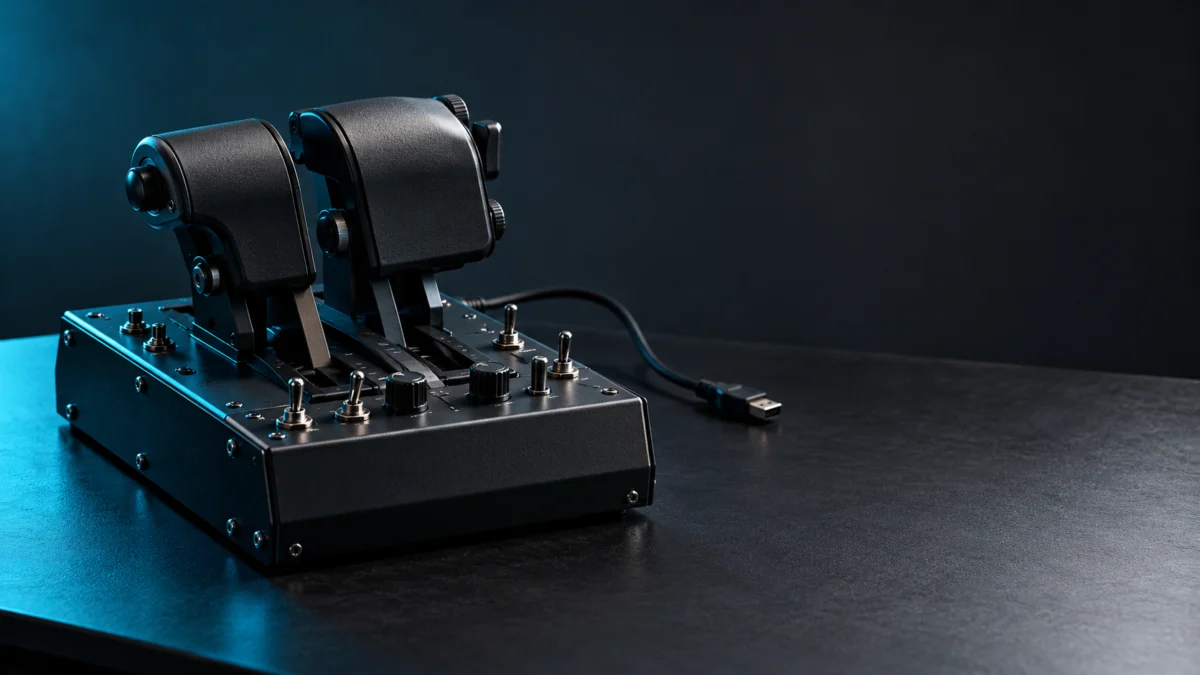
This guide covers the HOTAS Warthog Dual Throttles, Thrustmaster product number 2960739, sold as a standalone throttle for PC. Its official support page supplies the drivers and the throttle-specific wake-up document used below. Do not apply these steps to the Warthog Flight Stick, which has its own firmware number and its own version of the wake-up procedure.
The current driver package on the support page, 2026_TMHW_1 for Windows 11 and 10, lists three devices with different firmware versions:
| Device in the package notes | Firmware listed |
|---|---|
| HOTAS Warthog Dual Throttles | V23 |
| HOTAS Warthog Flight Stick | V12 |
| TPR Rudder | V1.15 |
V12 is the stick’s number. If you see it in a forum post or another guide, it does not describe the throttle.
The official product page describes a control panel with five programmable LEDs. Because those LEDs are programmable, do not treat LED state alone as proof of a dead unit. Pair it with the Windows check in the next section.
How Do You Check USB and Windows Recognition First?
Connect the throttle directly to a USB port on the PC, without a USB hub or extension, then open the Game Controllers panel with joy.cpl. If the throttle is listed, Windows detects it and the wake-up method does not apply; test its controls in Properties next. If it is missing, move on to the driver reinstall.
- Remove any USB hub, extension or other connection extension between the throttle and the PC.
- Plug the throttle into a USB port on the PC itself. On a desktop, Thrustmaster recommends a port on the back of the case.
- Press the Windows and R keys together, type joy.cpl, and click OK.
- In the Game Controllers window, look for the product’s name. If it is there, select it and click Properties, then move each throttle and press several buttons to see whether they register.
- Note whether any LEDs on the throttle light up. You need this for the branch decision.
A listing in Game Controllers shows only that Windows detects the throttle. It does not rule out a fault in individual axes or buttons, which is why the Properties test matters.
The direct-port advice comes from Thrustmaster’s throttle recovery document. Removing hubs first means any later result reflects the throttle and the PC, not the extension.
How Do You Reinstall the Official Warthog Driver Package?
Download the current HOTAS Warthog driver package from the Dual Throttles support page, let it remove the previous drivers, restart, then run the installer and connect the throttle only when asked. At the time of writing, the listed package is 2026_TMHW_1 for Windows 11 and 10.
The reinstall takes 5 steps.
- Uninstall the previous version through Control Panel > Programs > Uninstall a program by removing HOTAS Warthog drivers. Alternatively, let the new package remove the previous drivers for you when you launch it.
- Restart your PC.
- Download the package from the Drivers section of the HOTAS Warthog Dual Throttles support page and save it to a folder you can find again.
- Double-click the installer (.exe). When Windows Security warnings appear, click Install.
- When the installer asks you to connect the HOTAS Warthog, connect it, then click Next to complete the installation.
After the reinstall, run the joy.cpl check and the Properties test again. The package release notes then point to a firmware update for the Warthog components, and the support page lists a separate Firmware update procedure document for that. Follow the official document if you update. Do not use the Firmware Updater as a fix for game bindings on a throttle whose controls already work in Properties.
When Should You Use the Bootloader Wake-Up Method?
Use the wake-up method only when two conditions are both true: Windows does not detect the Dual Throttles at all, and no LEDs light up on the unit. If the throttle appears in Game Controllers or its LEDs come on, the official document does not apply. Stay on the driver, profile and support branches instead.
Check these prerequisites from the official HOTAS Warthog Dual Throttles wake-up method (Bootloader) PDF, updated February 2024:
- The PC runs Windows 10 or later.
- The latest HOTAS Warthog driver package is installed, and you restarted afterward.
- You will use a USB port directly on the PC, with no hub or extension.
- Do not connect the throttle until the procedure tells you to.
- You are using the Dual Throttles version. Thrustmaster publishes a separate Flight Stick version in that product’s FAQ.
The PDF does not list hardware revisions or a target firmware number, and Thrustmaster presents it as a procedure to try. It is not guaranteed to recover every unit.
How Do You Run the Dual Throttles Wake-Up Method?
Thrustmaster’s wake-up method connects the throttle while two specific buttons are held, which puts it in Boot mode for the Firmware Updater. The procedure takes 8 steps. Keep the throttle unplugged until step 3, check the Updater fields before clicking OK, and never disconnect the throttle while the firmware is loading.
- Confirm the latest “Package drivers – Hotas Warthog” is installed, then restart your computer.
- Simultaneously press and hold the Autopilot Engage/Disengage and Landing Gear Horn Silence buttons. Page 4 of the official PDF shows where they are.
- While still holding both buttons, connect the throttle directly to a USB port on the PC. Wait about 3 seconds, then release both buttons.
- Click the Windows search field on the taskbar, type Firmware Update, and launch the app.
- In the Thrustmaster – Firmware Updater window, confirm the Device field shows the throttle in [Boot] mode and the Firmware field shows the version to be applied. If either field is blank, start over from step 1 on another USB port (a rear port on a desktop) or on a different computer.
- Click OK to carry out the firmware update.
- Wait for the firmware to load. Do not disconnect the throttle from the USB port. The app then reports whether the procedure worked; per the official document, the throttle’s LEDs light up again when it does. Click OK, then close the Firmware Updater.
- Press Windows and R, type joy.cpl, and click OK. Select your product’s name and click Properties to test it.
If the procedure fails, repeat it from the beginning on another USB port or a different computer. If the problem persists, contact Thrustmaster technical support. The document says the team will provide other solutions.
Throttle Detected but Not Working in Games or T.A.R.G.E.T?
A throttle listed in Game Controllers is detected, so the wake-up method does not apply, but detection alone does not prove every control works. Test its axes and buttons in Properties first. If they respond there and only a game ignores them, check game assignments and your T.A.R.G.E.T profile. If they do not respond there, reinstall the driver package and contact support.
When a T.A.R.G.E.T profile runs, the game sees a virtual device, and you must assign its axes in the game the first time you play.
- Connect the throttle before starting T.A.R.G.E.T. The configuration screen marks a connected device as CONNECTED. If it is not marked as connected, close T.A.R.G.E.T, connect the devices, and launch T.A.R.G.E.T again. Contact support if it still is not seen.
- To run a profile, select it in the GUI, click RUN, and wait until the TEST TOOLS buttons turn orange before starting the game.
- On first play, assign the axes of the virtual device in the game. Ready-made profiles may include a PDF that shows the in-game menus.
- When you finish, close the game and click STOP PROFILE.
Thrustmaster’s T.A.R.G.E.T import and run guide (KB 1854) covers these steps. The Games settings section of the Dual Throttles support page lists T.A.R.G.E.T profiles and mapping examples for specific games.
If you reinstall T.A.R.G.E.T itself, the release notes for v3.0.26.505_rev1 say to unplug all T.A.R.G.E.T-compatible controllers first. Plug each one back in when prompted to reboot. For axes that respond unevenly after calibration, the support page also lists an FAQ on resetting the Windows calibration.
When Should You Contact Support or Replace the Throttle?
Contact Thrustmaster support before buying anything if the throttle stays undetected or its controls fail in Properties after the checks that match your symptom. The wake-up method belongs in those checks only when Windows cannot detect the throttle at all and no LEDs light up. The support page lists warranty information and a contact option for this product.
Buy a replacement Dual Throttles if:
- Support and warranty options do not resolve the problem, and you decide to replace the unit.
- You want the same controls back, including independent control of two engines with a lock to join both throttles.
The same standalone unit is listed on Amazon US as the HOTAS Warthog Dual Throttle Flight Quadrant Add-On.

Please check the Amazon product page for the latest price and availability.
Thrustmaster’s US eShop listed SKU 2960739 above $300 and in stock when we checked on October 19, 2026, which puts it in the premium tier. Check the current price and stock before ordering.
Do not buy if:
- The axes and buttons respond in the Properties test and only a game ignores them. That points to assignment or profile setup, not hardware replacement.
- Your Flight Stick works and you are considering the full HOTAS Warthog set only to fix the throttle.
The TWCS Throttle is a lower-priced Thrustmaster option, listed under $150 and out of stock when we checked on the same date. It uses a single throttle on a slide rail, so it does not replace the Warthog’s dual engine controls. Treat it as price context, not a drop-in substitute.
How We Researched
This article is based on Thrustmaster’s official HOTAS Warthog Dual Throttles support page, the February 2024 Dual Throttles wake-up method PDF, the T.A.R.G.E.T knowledge base article KB 1854, and Thrustmaster’s US eShop product pages, checked on October 19, 2026. The Amazon US listing was used only to confirm the product identity. We have not conducted hands-on lab testing, and this article does not draw on community reports.
FAQ
Can I use the Dual Throttles wake-up method on the Warthog Flight Stick?
Use the Flight Stick’s own procedure instead. The PDF in this guide is written for the Dual Throttles, and Thrustmaster says a separate Flight Stick version is available in that product’s FAQ on its support site.
Should I run the Firmware Updater if the throttle works in Windows but not in my game?
No. The wake-up method applies only when the PC does not detect the throttle at all and no LEDs light up. A throttle whose controls respond in Properties but not in a game needs in-game axis assignment or T.A.R.G.E.T profile checks.
Which firmware version belongs to the Dual Throttles?
The 2026_TMHW_1 driver package notes list the Dual Throttles at firmware V23. V12 in the same notes belongs to the Flight Stick.
Conclusion
For an undetected HOTAS Warthog Dual Throttles, test it on a direct USB port with joy.cpl, then reinstall the official driver package. Move to the bootloader wake-up method only when the throttle shows no LEDs and Windows cannot see it at all. If Windows lists it, test the controls in Properties: working controls point to game assignments and T.A.R.G.E.T, while failing controls point to support. Contact Thrustmaster support before you consider a replacement.