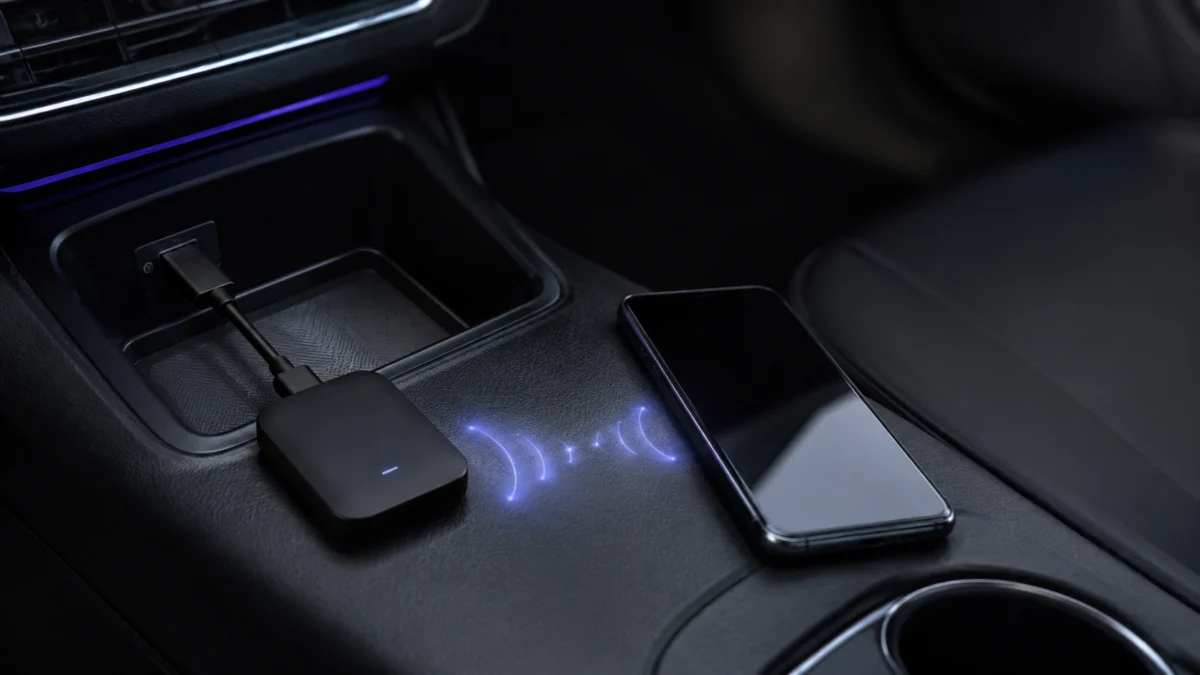
If your AAWireless TWO keeps disconnecting from Android Auto, the most likely causes are a broken Bluetooth or Wi-Fi pairing, a corrupted Android Auto cache, an underpowered or faulty USB cable, or a congested Wi-Fi channel in the car. Start by using the built-in Troubleshooter in the AAWireless Companion App, then work through re-pairing, cache clearing, USB power, and channel settings before assuming a hardware fault. This guide walks through each fix in order, covers what the LED colors actually mean, and explains what to do when dropouts happen only during calls or at specific locations.
Quick Answer: Why AAWireless TWO Keeps Disconnecting
AAWireless TWO uses Bluetooth to pass Wi-Fi credentials to your phone during initial pairing. After that handoff, the connection switches entirely to Wi-Fi — a solid blue LED confirms both links are active and Android Auto is running. When either the Bluetooth background process or the Wi-Fi stream breaks, Android Auto drops. The most productive first steps are: open the Companion App Troubleshooter, re-pair from scratch, clear the Android Auto app cache, check whether your car’s USB port delivers stable power, and change the adapter’s Wi-Fi channel if interference is a factor.
⚡ Before You Start
Make sure the AAWireless Companion App is installed and updated on your phone. The app includes a built-in Troubleshooter that covers most common disconnect causes. Download it from Google Play before working through the steps below.
Check the LED Status First: What Solid Blue, Blinking Blue, and Blinking Green Mean
The LED on your AAWireless TWO tells you exactly where in the connection process things have stalled. Identifying the LED state before trying any fix saves time, because a blinking green light and a solid blue light that suddenly drops need completely different responses.
| LED State | What It Means | What to Do |
|---|---|---|
| Solid green | Device is booting (should complete within a few seconds) | Wait. If it stays green indefinitely, unplug and replug the adapter. |
| Blinking blue | Phone is connected via Bluetooth and Wi-Fi; waiting for Android Auto head unit | Check the USB cable connection and car USB port. Try a different cable. |
| Solid blue | Fully connected — Bluetooth, Wi-Fi, and Android Auto are all active | If the head unit still drops or shows only briefly, see Fix 2 (cache) and Fix 4 (Wi-Fi channel). |
| No LED / off | No power | Check USB cable, USB port power output, and try a different port or wall adapter. |
📌 Note on “Solid Blue but Disconnected”
Some users report that the adapter shows solid blue while the car’s head unit displays a disconnection or reconnect prompt. According to the AAWireless connection model, solid blue means both Bluetooth and Wi-Fi are active on the adapter’s side. If the head unit still drops at that point, the issue is most likely with the Android Auto session itself — not the physical link. Fix 2 (clearing Android Auto cache) and Fix 4 (Wi-Fi channel) address this specific scenario.
Fix 1: Re-Pair AAWireless to Rebuild the Bluetooth and Wi-Fi Connection
The fastest way to resolve most AAWireless TWO disconnect issues is to delete the existing pairing entirely and re-pair as if setting up for the first time. A partial or corrupted pairing — where Bluetooth is listed on your phone but Wi-Fi credentials were not properly exchanged — is the most common cause of reconnect loops.
Follow these steps based on what you see in your phone’s Bluetooth settings:
If AAWireless Bluetooth is not visible at all:
- Reboot your phone.
- Unplug the AAWireless TWO from the car USB port, wait 10 seconds, then replug it.
- Once the LED finishes booting, open Bluetooth on your phone and pair as normal.
If AAWireless Bluetooth is visible but not connecting:
- Toggle Bluetooth off and back on on your phone.
- In your phone’s Bluetooth settings, find the “AAWireless-XXXX” device and tap Forget.
- Restart both your phone and your car’s infotainment system.
- Pair the adapter again from scratch.
If the AAWireless Wi-Fi SSID is not visible on your phone:
- Reset the AAWireless dongle (hold the multifunctional button until the LED resets, or unplug and replug).
- Re-pair from the beginning — Bluetooth first, then allow the app to push Wi-Fi credentials automatically.
📌 How the Connection Works
AAWireless TWO establishes a Bluetooth connection with your phone first, passes the adapter’s Wi-Fi credentials over that Bluetooth link, then drops Bluetooth for Wi-Fi. After that, the adapter runs on Wi-Fi only — but Android Auto itself still requires a background Bluetooth connection to stay active. If either link breaks, Android Auto drops. This is by design, not a defect.
Fix 2: Clear Android Auto Cache and Forget the AAWireless Wi-Fi Network
If re-pairing Bluetooth does not stop the disconnects, the next step is to clear the Android Auto app cache on your phone and remove the AAWireless Wi-Fi network from your phone’s saved networks. Stale cached data from Android Auto can cause it to attempt connections with incorrect session information, which shows up as a reconnect loop even when the adapter itself is working correctly.
Clear the Android Auto cache:
- On your phone, go to Settings → Apps.
- Find Android Auto and tap it.
- Tap Storage, then tap Clear Cache.
- Repeat this for the AAWireless app and Google Play Services if the problem persists.
Forget the AAWireless Wi-Fi network:
- On your phone, go to Settings → Wi-Fi (or Network & Internet → Wi-Fi).
- Find the network named AAWireless-XXXX in your saved networks.
- Tap Forget (or the trash / remove icon).
- Re-pair the adapter — the Companion App will push the Wi-Fi credentials again automatically.
📌 Why This Helps
When you “forget” the AAWireless Wi-Fi network on your phone, you force the adapter to complete a full credential handshake the next time it connects. This clears any mismatch between the saved network profile and the adapter’s current state — a common cause of the reconnect loop.
Fix 3: Check the USB Cable, Car USB Power, and Standby Settings
An underpowered USB connection is one of the most frequently overlooked causes of AAWireless TWO dropouts. If the car’s USB port does not deliver stable power — especially ports that cycle power with the ignition — the adapter can lose its connection mid-drive or fail to reconnect reliably after the car is started.
Check the USB cable:
- Use the USB-C to USB-A cable included with the adapter, or a cable that explicitly supports data transfer (not a charge-only cable).
- Inspect the cable for physical damage and try a different cable if possible.
- Avoid USB extension cables or hubs — connect the adapter directly to the car’s USB port.
Check the car USB port:
- Confirm you are using the Android Auto-enabled USB port, not a charging-only port. These are sometimes labeled differently in the car’s manual.
- If the car has multiple USB ports, try the other Android Auto-compatible port.
Configure Auto Standby or Manual Standby:
If your car’s USB port remains powered after the engine is off, the AAWireless TWO may try to reconnect to your phone while the car is parked. This can cause issues the next time you drive. Two settings in the Companion App address this:
- Auto Standby — Automatically disconnects the adapter when the car is not in use. To enable: open the AAWireless Companion App and toggle Auto Standby on. (Auto Standby is supported on AAWireless TWO.)
- Manual Standby — Lets you manually put the adapter into idle mode using the multifunctional button. To enable: open the Companion App → Settings → Button Configuration → enable Manual Standby. Press the button to activate standby mode before leaving the car.
📌 Always-On USB Ports
Some vehicles keep USB ports powered even when the ignition is off. If your AAWireless TWO reconnects to your phone while the car is parked, enabling Auto Standby or Manual Standby is the recommended fix. Check your car’s manual to confirm whether its USB ports are always-on.
Fix 4: Change the Wi-Fi Channel or Enable Audio Stutter Fix for Dropouts and Interference
If the physical connection is stable but Android Auto still drops intermittently — especially during audio playback or in specific environments — the cause is likely Wi-Fi channel congestion or interference. The AAWireless Companion App provides two settings that directly address this.
Change the Wi-Fi channel:
- Open the AAWireless Companion App.
- Navigate to Settings → Wi-Fi Settings (exact path may vary by app version).
- Select a different Wi-Fi channel. If the adapter is using a channel that overlaps with your home router or nearby networks, switching to a less congested channel can stabilize the connection.
- Reconnect after changing the channel and test on a drive.
Enable Audio Stutter Fix:
- Open the AAWireless Companion App.
- Find the Audio Stutter Fix option in the settings.
- Enable it, reconnect, and test during playback.
📌 When to Try This Fix
Wi-Fi channel interference is most likely if: dropouts happen in the same locations consistently, audio stutters without a full disconnect, or the problem appeared after a changed environment introduced new wireless signals nearby. It is less likely to be the cause if the adapter disconnects immediately on startup or never gets past the blinking LED stage.
⚠️ VPN Note
If you use a VPN on your phone, it may interfere with the AAWireless Wi-Fi connection or prevent firmware updates from completing. Try disabling the VPN while using Android Auto, or add the AAWireless network to your VPN’s exclusion list in the VPN app settings.
Fix 5: What to Do If It Disconnects During Calls or at Specific Locations
Two less obvious disconnect patterns — drops during phone calls and drops at specific points on a regular route — point to different underlying causes and are worth addressing separately.
If it disconnects during calls:
Android Auto requires both Wi-Fi and an active Bluetooth connection to handle phone calls. During a call, the phone briefly redirects audio routing through Bluetooth, which can disrupt the Android Auto session if Bluetooth stability is marginal. Steps to try:
- Re-pair Bluetooth from scratch (Fix 1) to ensure the Bluetooth link is clean.
- Disable battery optimization for the Android Auto app and the AAWireless app. On Samsung phones, go to Settings → Battery → Battery Usage → Android Auto → Unrestricted. On stock Android: Settings → Apps → Android Auto → Battery → Unrestricted.
- Test with a different phone if possible. Multiple community reports indicate that certain phone models have specific Bluetooth or Android Auto compatibility issues that persist across adapter resets and do not affect other phones on the same car and adapter setup.
If it disconnects at specific locations:
Location-specific dropouts point toward Wi-Fi interference from external sources — parking structures, urban areas with dense wireless traffic, or specific road segments — rather than an adapter hardware problem. The connection would be solid on most of the route but fail at predictable spots. Steps to try:
- Change the Wi-Fi channel in the Companion App (Fix 4). A channel less likely to overlap with surrounding signals can reduce location-specific interference.
- Note whether the drops correlate with mobile data signal loss in the same area. According to community reports, Android Auto’s background data processes can affect session stability when data signal is weak, independently of the adapter’s Wi-Fi link.
📌 Environment vs. Hardware
If the same adapter and phone combination works correctly in one location but fails at a specific location or on a specific road, the cause is environment-specific rather than a defective unit. Hardware replacement will not fix interference-driven dropouts.
When to Contact AAWireless Support or Consider a Replacement Adapter
If all five fixes above have not resolved the disconnects, the two remaining paths are contacting AAWireless support directly or evaluating whether a different adapter better matches your phone and car combination.
Contact AAWireless support when:
- The LED does not reach solid blue even after re-pairing and a factory reset of the adapter.
- The adapter disconnects on multiple phones across multiple cars.
- A firmware update repeatedly fails even after switching power sources and disabling VPN.
- The issue started immediately after a Companion App or firmware update and re-pairing has not resolved it.
AAWireless support can be reached at [email protected]. Provide your firmware version (visible in the Companion App), your phone model, Android version, and a description of the LED state when the disconnect occurs.
Consider an alternative adapter if:
- Your phone model has confirmed, unresolved compatibility issues with AAWireless TWO that are reported by multiple users and not yet addressed in a firmware update.
- Your head unit does not appear on the Google Android Auto compatibility list and you are experiencing consistent connection failures.
Alternative Android Auto wireless adapters worth considering include the Motorola MA1 (made for Google, plug-and-play, no companion app required) and several CarlinKit models that support Android Auto. Compatibility with your specific phone and head unit should be verified before purchasing.
Check on Amazon / Official site

Please check the Amazon product page for the latest price and availability.
FAQ: AAWireless TWO Disconnects, Solid Blue, and Reconnect Loops
Why does my AAWireless TWO show solid blue but Android Auto still disconnects?
Solid blue means the adapter has established both Bluetooth and Wi-Fi connections with your phone. If the head unit drops Android Auto while the adapter shows solid blue, the session failure is happening at the Android Auto app layer rather than the hardware link. Clear the Android Auto cache (Fix 2) and try changing the Wi-Fi channel (Fix 4) before assuming a hardware problem.
Why does AAWireless TWO reconnect to my phone when the car is off?
This happens when your car’s USB port remains powered after the engine is off. Enable Auto Standby in the Companion App to prevent the adapter from reconnecting while the car is parked. This setting is supported on the AAWireless TWO.
What does blinking blue on AAWireless TWO mean?
Blinking blue indicates the adapter is connected to your phone via Bluetooth and Wi-Fi but has not yet established an Android Auto session with the head unit. The most common causes are a loose USB cable, an underpowered USB port, or a head unit that has not yet recognized the Android Auto signal. Check the cable and USB port, then try restarting the head unit.
Can a VPN cause AAWireless TWO to disconnect?
Yes. VPN software on your phone can interfere with the local Wi-Fi network that AAWireless TWO creates between the adapter and your phone. Disable your VPN while using Android Auto, or add the AAWireless Wi-Fi network to your VPN’s exclusion list.
Does AAWireless TWO support CarPlay?
No. AAWireless TWO is compatible only with wired Android Auto setups. For wireless CarPlay, AAWireless offers a separate product, the AAWireless TWO+.
What Android version does AAWireless TWO require?
AAWireless TWO requires Android 11 or higher. The car must also support wired Android Auto and appear on Google’s official Android Auto compatibility list.
Official AAWireless TWO compatibility information
How We Researched
This article is based on the official AAWireless troubleshooting documentation and product information pages published at aawireless.io, which describe the adapter’s Bluetooth and Wi-Fi connection architecture, LED status codes, and recommended fixes for connectivity issues. We also reviewed community reports from XDA Forums and Samsung Community threads where multiple users described similar disconnect patterns — including solid blue dropouts, reconnect loops after firmware updates, location-specific drops, and call-related disconnections. Real user reports are noted as community-sourced and are not presented as product-wide verdicts. We have not conducted hands-on testing of the AAWireless TWO. Any compatibility claims are based on official documentation and community reports confirmed across multiple sources.