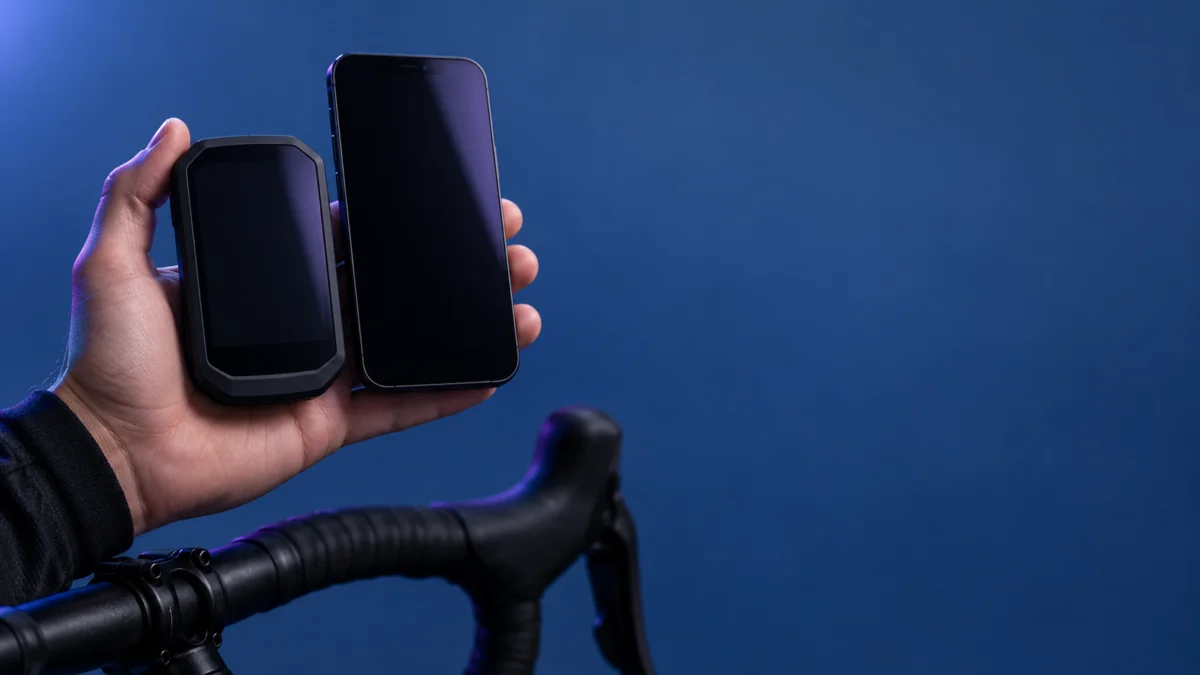
If your Garmin Edge 1050 is not connecting to your iPhone, pair it from the Garmin Connect app, not from the iPhone’s Bluetooth menu. Garmin specifies app-based pairing for the Edge’s connected features. If you recently switched iPhones, the Edge may also still be holding on to the old phone, so check that association before trying again.
This guide is for Edge 1050 owners on iPhone who can’t register the bike computer, can’t reconnect after a phone change, or see a connection but no synced rides. It separates three outcomes: pairing never completes, pairing completes but uploads still fail, and a fault Garmin confirms on the device itself. Every step below is free and avoids a factory reset, deleting rides, or deleting your Garmin account.
Quick Fix Checklist
- Restart both the iPhone and the Edge 1050.
- Update Garmin Connect and confirm it is allowed to use Bluetooth on your iPhone.
- Keep the iPhone close to the Edge while pairing.
- Start pairing from Garmin Connect, not from iPhone Settings.
- After a phone change, forget the old phone on the Edge so Pair Smartphone becomes available.
- If Garmin’s pairing message appeared but rides still don’t upload, stop re-pairing and contact Garmin Support.
Is It a Pairing Failure or a Sync-Only Failure?
It is a pairing failure if the Edge 1050 never finishes pairing through Garmin Connect or the Pair Smartphone option is missing. It is a sync-only failure if pairing already completed but rides or data still don’t reach Garmin Connect. Use the official pairing checks below for the first case; if pairing already succeeded, report the remaining sync symptom to Garmin.
An Edge listed in the iPhone’s Bluetooth settings is not proof of a working Garmin Connect session. Use this table to match what you see:
| What you see | What to check | What to do |
|---|---|---|
| Pair Smartphone is missing from the Edge’s Phone menu | Check whether the Edge still remembers a previous phone | Forget the old phone on the Edge, then pair again |
| New iPhone, and the Edge still seems tied to the old one | Check the device record in Garmin Connect on the old phone | Remove the Edge from Garmin Connect on the old phone first |
| The Edge appears in iPhone Bluetooth settings, but Garmin Connect features don’t work | Check whether pairing was completed through Garmin Connect | Remove it from the app and Bluetooth settings, then pair through Garmin Connect |
| Garmin Connect can’t find the Edge during Add Device | Review distance, app version, app permission, and restart both devices | Run the four pre-checks below, then retry |
| The pairing success message appeared, but rides don’t upload | Sync-only problem; pairing itself worked | Don’t keep re-pairing; see the verification and support sections |
What Should You Check Before Re-Pairing?
Start with four free checks before removing anything: restart both devices, update Garmin Connect, confirm the app has Bluetooth access on your iPhone, and keep the phone close to the Edge. These come from Garmin’s Edge 1050 troubleshooting page and Apple’s Bluetooth privacy documentation, and none of them deletes data.
The checks take 4 steps.
- Restart both devices. Garmin’s Edge 1050 troubleshooting page recommends restarting the phone and bike computer.
- Update the app. Install the latest available Garmin Connect version.
- Allow Bluetooth for Garmin Connect. According to Apple’s Bluetooth privacy support page, iOS 13 and later require an app to request Bluetooth access. If you tapped Don’t Allow at that prompt, you can change the choice later:
- Go to Settings.
- Tap Privacy & Security.
- Tap Bluetooth.
Then make sure Garmin Connect is allowed to use Bluetooth.
- Close the distance. Garmin specifies a maximum separation of 10 m (33 ft.) for this check.
Note: Apple’s page covers iPhone app permissions in general, not the Edge 1050 specifically. A denied permission is one thing to rule out, not a confirmed cause for every failed pairing.
How Do You Pair the Edge 1050 Through Garmin Connect?
Start pairing from the Garmin Connect app on your iPhone, then put the Edge 1050 into pairing mode from its Phone menu if needed. Garmin documents both sides: Garmin Devices > Add Device in the app, and Phone > Pair Smartphone on the Edge. Don’t start from the iPhone’s Bluetooth settings.
The fix takes 3 steps.
- On your iPhone, open Garmin Connect, go to Garmin Devices, and choose Add Device. That app menu starts the device-registration process.
- If the Edge isn’t already waiting to pair, put it into pairing mode manually: swipe down from the home screen to view the status widget, and choose Phone > Pair Smartphone. If that option isn’t there, go to the re-pairing section below.
- Keep both screens open and follow the prompts in Garmin Connect until pairing finishes.
Garmin’s Edge 1050 pairing page gives the expected result: look for the pairing-complete message and automatic synchronization with the phone.
How Do You Re-Pair After a New iPhone or a Stale Pairing?
Clear the old association on all three sides, then pair again through Garmin Connect. That means removing the Edge from Garmin Connect on any phone you are retiring, removing it from the current app and iPhone Bluetooth settings, and forgetting the old phone on the Edge so Pair Smartphone appears.
Use this only when pairing itself fails. If Garmin’s success message already appeared and only uploads fail, skip to the next section instead.
The fix takes 4 steps.
- Old iPhone (if you still have it): If you are retiring that phone, remove the Edge’s record from its Garmin Connect app.
- Current iPhone: Remove the Edge from the current Garmin Connect device list and from the iPhone’s saved Bluetooth devices before another pairing attempt.
- On the Edge 1050: swipe down from the home screen, open Phone, select the name of the previously paired phone, and choose the option to forget it. The manual says clearing that saved phone makes the pairing option available again.
- Pair again using the three steps in the previous section, starting from Garmin Connect.
The pairing and troubleshooting steps in Garmin’s Edge 1050 manual don’t include a factory reset, so there’s no reason to start there.
How Do You Know the Connection Is Actually Fixed?
The connection is fixed when Garmin’s pairing success message appears and the Edge 1050 syncs with Garmin Connect, not when the iPhone merely lists the Edge under Bluetooth. Check the outcome against Garmin’s documented result before riding, and change your approach if pairing succeeds but uploads still fail.
| Outcome | What it means | Next step |
|---|---|---|
| Success message appears and the Edge syncs | Pairing matches Garmin’s documented result | Done; record a short ride to confirm it uploads |
| Pairing never completes after the pre-checks and re-pairing | The documented phone-side steps didn’t resolve it | Contact Garmin Support |
| Success message appeared, but rides don’t upload | Sync-only failure | Stop re-pairing; contact Garmin Support |
A separate procedure for uploads that fail after successful pairing is not documented in the two Edge 1050 manual pages we checked. Repeatedly forgetting and re-adding the Edge isn’t a documented fix for that case. Before contacting Garmin, note whether the success message appeared, whether the Edge is listed in Garmin Connect, and your iPhone model and iOS version.
When Should You Contact Garmin or Consider a Replacement?
Contact Garmin Support once the free steps above fail or pairing works but uploads don’t. Ask what support or repair options apply to your unit. Consider replacing the Edge 1050 only if Garmin confirms a device fault that support or repair can’t reasonably resolve and you still want this premium-tier bike computer.
Do not assume a replacement will resolve an iPhone permission, app, or saved-pairing problem. Have Garmin identify the fault before spending money.
Buy a replacement if:
- Garmin has confirmed a fault in your Edge 1050, and support or repair isn’t a reasonable option.
- You want to keep the Edge 1050 rather than switch to a different bike computer.
Don’t buy a replacement if:
- You haven’t finished the pre-checks and re-pairing steps.
- The Edge pairs successfully and only uploads fail.
- Garmin hasn’t yet reviewed the problem or quoted a repair.
If a replacement is the right call, the Amazon.com listing for the same model is titled “Garmin Edge® 1050, Premium Cycling Computer”. Check the current price, seller, and return terms on the listing before you buy. Fixory may earn a commission if you buy through this product card, at no extra cost to you.

Please check the Amazon product page for the latest price and availability.
How We Researched
This article is based on Garmin’s official Edge 1050 manual pages for phone pairing and phone-connection troubleshooting (version dated September 2026) and Apple’s support documentation on iPhone Bluetooth app permissions. We used the Amazon.com listing only to confirm the product identity. We have not conducted hands-on testing with an Edge 1050 or iPhone. We saw community discussions of Edge 1050 and iPhone connection problems, but we did not rely on them for any cause or fix in this guide.
FAQ
Why is Pair Smartphone missing on my Edge 1050?
Check for a remembered phone in the Edge’s Phone menu. Garmin documents forgetting the saved phone before the Pair Smartphone option becomes available; this is a check to make, not a diagnosis of every missing-menu case.
Can I pair the Edge 1050 from my iPhone’s Bluetooth settings?
Not for connected features. Garmin says to pair through the Garmin Connect app instead. If you already paired from iPhone Settings, remove the Edge there and in the app, then pair again from Garmin Connect.
Will a new Edge 1050 fix a sync problem?
Not if the cause is on the phone or app side. Contact Garmin Support first, and consider a replacement only after Garmin confirms a device fault.
The Bottom Line
Pair the Edge 1050 through Garmin Connect, not iPhone Settings. If it won’t pair, run the four free checks, then clear the old phone on every side and pair again. Once Garmin’s success message has appeared, stop re-pairing: an upload-only problem goes to Garmin Support. Consider a replacement only after Garmin confirms the device itself is at fault.