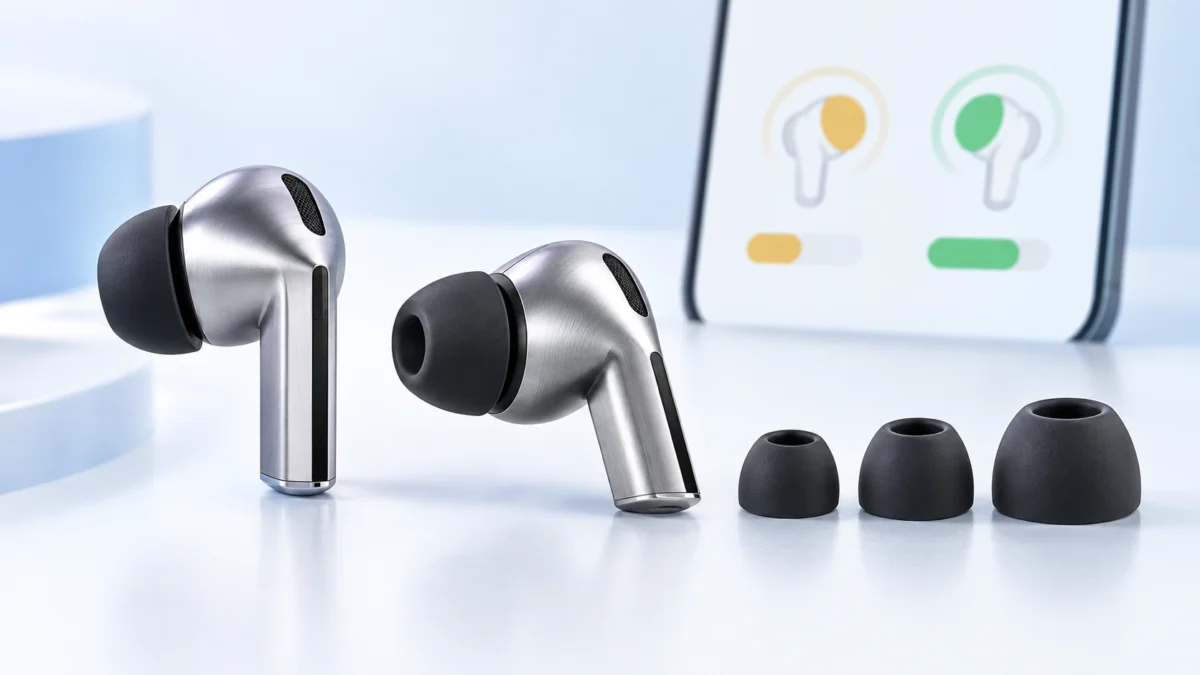
If your Galaxy Buds3 Pro keep returning Poor fit in the Earbud fit test, start by checking how each bud is seated before assuming the ear tip size is wrong. Samsung’s documented sequence points first to the blade angle and whether the ear tip is pushed far enough onto the nozzle to click into place.
The test scores each ear separately. A Poor fit on the right side tells you nothing about the left, and ending up with one official tip size in one ear and a different size in the other is a legitimate result, not a workaround.
A result that alternates between Good fit and Poor fit minutes apart, with nothing changed in between, does not by itself show that an earbud is faulty. Work through the seating and cleaning steps below before you replace tips or start a return.
Quick Fix Checklist
Four checks resolve most Poor fit results on Buds3 Pro: the correct bud in the correct ear, the blade angled toward your mouth, the ear tip clicked fully onto the nozzle, and both buds reading In ear before you tap Start. Fix one side at a time, because each ear is scored independently.
- L and R: direction marks on the bottom of each bud, facing you.
- Blade angle: bottom microphone pointing toward your mouth, not straight down.
- Tip seating: the tip clicks onto the nozzle. A half-seated tip leaks even in the correct size.
- Detection: both sides read In ear, not Not in ear, before you tap Start.
Samsung support: How to wear your Galaxy Buds3, Buds3 Pro, or Buds3 FE
What a “Poor fit” Result Actually Means
Samsung describes the test as using audio signals and sensors to judge whether each earbud is seated correctly and whether the ear tips provide an adequate seal. The official description covers seating and seal quality; it does not say that the test diagnoses the driver, battery, or other hardware inside the bud.
That distinction matters because a genuine seal issue is still worth correcting even if the buds seem usable. A Poor fit reading describes the fit at one moment; it is not, by itself, a verdict on the product.
Samsung’s own guidance treats a Poor fit as a positioning problem first: remove both earbuds, reinsert them securely, try a different size only if the fit is still poor, and repeat the test.
Samsung support: What is the Earbud Fit Test for the Buds3 Pro?
Why the Result Flips Between Runs
According to multiple community reports, some users see the result alternate between Good fit and Poor fit within a single session without changing tips. The test measures a physical seal, so anything that shifts that seal between runs — bud rotation, a partially seated tip, or debris on the tip — can change the result.
In one Samsung Community thread, a user reported one bud passing while the other failed, then a passing pair failing again minutes later. Two other contributors described the same alternation, and twelve people marked it as their own problem.
| What you notice | Possible cause to check | What to do |
|---|---|---|
| Passes, then fails minutes later on the same side | The bud has rotated out of position after insertion | Re-set the blade angle, then re-test without touching the bud |
| One side always fails, the other always passes | One side may need a different tip size, or the tip may be seated differently | Treat each ear separately and sweep the official sizes on the failing side only |
| Fails on both sides regardless of size | Tips not clicked onto the nozzle, or debris on the tip or nozzle | Remove both tips, clean, and reattach until each clicks |
| Screen shows Not in ear for one bud | The proximity sensor is not registering the bud as worn | Remove and reinsert that bud; if the detection sound is still absent, switch the tip |
| Largest official tip still leaks audibly | The supplied tips may not be creating a stable seal on that side | Finish the steps below, then consider replacement tips |
Samsung Community: Buds 3 Pro – fit test
Step-by-Step Fix
The fix takes 8 steps. Work through them in order on one ear at a time, and re-run the test after each change so you know which step moved the result. Steps 1 to 5 cost nothing and resolve most cases; steps 6 to 8 deal with the sizing and software causes that remain.
- Confirm each bud is in the correct ear. Check the direction marks on the bottom of the buds. Insert the R bud into your right ear with the R facing you, and the L bud into your left ear with the L facing you.
- Set the blade angle. Angle the blade so the bottom microphone points toward your mouth rather than straight down, then rotate the bud forwards and backwards until the fit settles. Do not press hard — Samsung warns against excessive pressure when inserting the earbuds.
- Re-seat the ear tip until it clicks. Hold the body of the bud, invert the tip, and pull it off without using your fingernails. Align the earbud speaker with the groove inside the tip and push until it clicks. If the tip catches in the gap on the earbud exterior, remove it and try again.
- Clean the tips and the nozzles. Wipe the ear tips and earbuds to remove dirt or debris that can sit between the tip and your canal. Do not use alcohol, acetone, or other organic solvents, which can damage the buds.
- Open the fit test and confirm both buds read In ear. Samsung documents two routes. One is Settings → the name of your buds near the top → Sound quality and effects → Earbud fit test; on software older than One UI 8.0, those settings sit in the Galaxy Wearable app instead. The other is Settings → Connections → Bluetooth → the Settings gear next to your buds → Sound quality and effects → Earbud fit test, and if Sound quality and effects is missing there, tap Setup your earbuds first to install the plugin. Both buds must show In ear before you tap Start.
- Sweep the three official sizes on the failing ear only. Buds3 Pro ship with three tip sizes. Change the size on the side that fails, leave the passing side alone, and re-test. Different sizes across your two ears can be a reasonable result when each side passes reliably.
- Update the earbud firmware. Samsung notes that updates can introduce changes to Earbud Fit Test behavior, so run any pending Buds3 Pro firmware update before you conclude that a size is wrong.
- Re-test three times and record which side fails. For this guide, use three runs without adjusting anything as a practical consistency check, not as a Samsung diagnostic threshold. If the same side fails all three, treat the result as consistent for troubleshooting; if it varies between runs, treat the seal as unstable.
Samsung support: Perform an earbud fit test with your Galaxy Buds
Samsung support: How to change the tips on your Galaxy Buds3 Pro or Buds3 FE
When the Largest Official Ear Tip Still Fails
If all three official sizes fail on the same side after the seating, cleaning, and firmware steps are done, the supplied tips may not be creating a stable seal on that side. Replacement tips with additional silicone flanges are one reported remedy, though community reports also include users for whom they changed nothing.
Multi-flange tips add extra silicone ribs along the stem, giving the canal more than one contact ring to close against. One contributor in the thread above reported that a multi-flange set resolved the same alternating-result problem for them. That is one user’s experience, not a general outcome, and the same style of tip has been reported to change nothing for others.
Disclosure: Fixory participates in affiliate programs, and we may earn a commission from qualifying purchases made through links in this section. This does not change what we recommend or how we rank options.

Please check the Amazon product page for the latest price and availability.
Check that any replacement set is listed for Buds3 Pro specifically. Samsung states that Buds3 Pro and Buds3 FE tips are not interchangeable even though the changing procedure is the same, so a set sold for the FE will not fit the Pro nozzle correctly.
Verification, Edge Cases, and When to Contact Samsung
For this guide, treat the problem as solved when both sides return Good fit on three consecutive runs. That is a practical consistency check, not a Samsung diagnostic threshold. Samsung does not specify a retry count that indicates a hardware fault in the official material we checked; in one confirmed community response, a Samsung Community Manager directed a user with continued trouble to submit an error report through the Wearables app.
To file one, open the Wearables app and go to Menu → Settings icon → Contact Us → Error Reports. This is the path a Samsung Community Manager gave to a user who could not complete the fit test after following the official wearing guide.
Two edge cases are worth knowing. The Earbud fit test exists on Buds3 Pro but not on the standard Galaxy Buds3, which are open-type buds with no tips and therefore no seal to measure. And an improper fit can stop features such as calling through the earbuds from working, so a persistent Poor fit is worth resolving even if music sounds fine to you.
One safety note. Samsung instructs users to stop using the earbuds immediately and consult a doctor if they experience ear pain or skin irritation, and never to wear the buds without tips attached. Forcing a larger tip deeper to pass the test is not a fix. If no size seals without discomfort, Samsung’s own guidance is to seek advice suited to your ear anatomy.
FAQ
Does the standard Galaxy Buds3 have an Earbud fit test?
No. Samsung’s support material states that the Earbud fit test is available for the Buds3 Pro and not for the Buds3, which are open-type buds with no ear tips and therefore no seal to measure.
Can I use different ear tip sizes on my left and right ears?
Different sizes can be appropriate because the test evaluates each earbud independently. If medium passes reliably on the left and large passes reliably on the right without discomfort, that combination is a practical setup for your ears.
Can I use Galaxy Buds3 FE tips on my Buds3 Pro?
No. Samsung states that Buds3 Pro and Buds3 FE tips are not interchangeable, even though the procedure for changing them is identical. Check the model listed on any replacement set before buying.
Does a failed fit test mean my Buds3 Pro are defective?
Not on its own. The test reports whether the tip is sealing at that moment, so a result that changes between runs can reflect an unstable seal and does not by itself prove broken hardware. If one side fails consistently after every step above, submit an error report through the Wearables app and let Samsung assess it.
How We Researched
This article is based on Samsung’s official support documentation and on reports posted by users in Samsung’s own community forums. We have not conducted hands-on lab testing and do not own the product.
We opened four official Samsung support pages directly: the Buds3 Pro wearing guide, the Earbud fit test procedure page, the ear tip changing guide, and Samsung Gulf’s Earbud Fit Test FAQ. Every procedure, UI path, and compatibility statement above comes from those pages, and where two official pages describe different routes to the same setting we have given both rather than choosing one.
The recurring user pattern comes from a confirmed Samsung Community thread in which several contributors reported the same behaviour. We have not treated any single post as a product-wide verdict, and where a remedy was reported by one user only, we have said so.
Conclusion
A Poor fit result on Galaxy Buds3 Pro is a seal measurement, not a hardware verdict. Start with the blade angle and whether the tip has clicked fully onto the nozzle before replacing anything. Work each ear separately, re-test after every change, and use different official sizes if that produces a stable, comfortable fit on both sides.
If one side still fails three runs in a row after clean tips and current firmware, treat the supplied tips as not producing a stable seal on that side and consider replacement tips. If the problem persists, one documented escalation route from a Samsung Community Manager is an error report through the Wearables app. Stop adjusting at that point rather than pushing the buds harder into your ears.