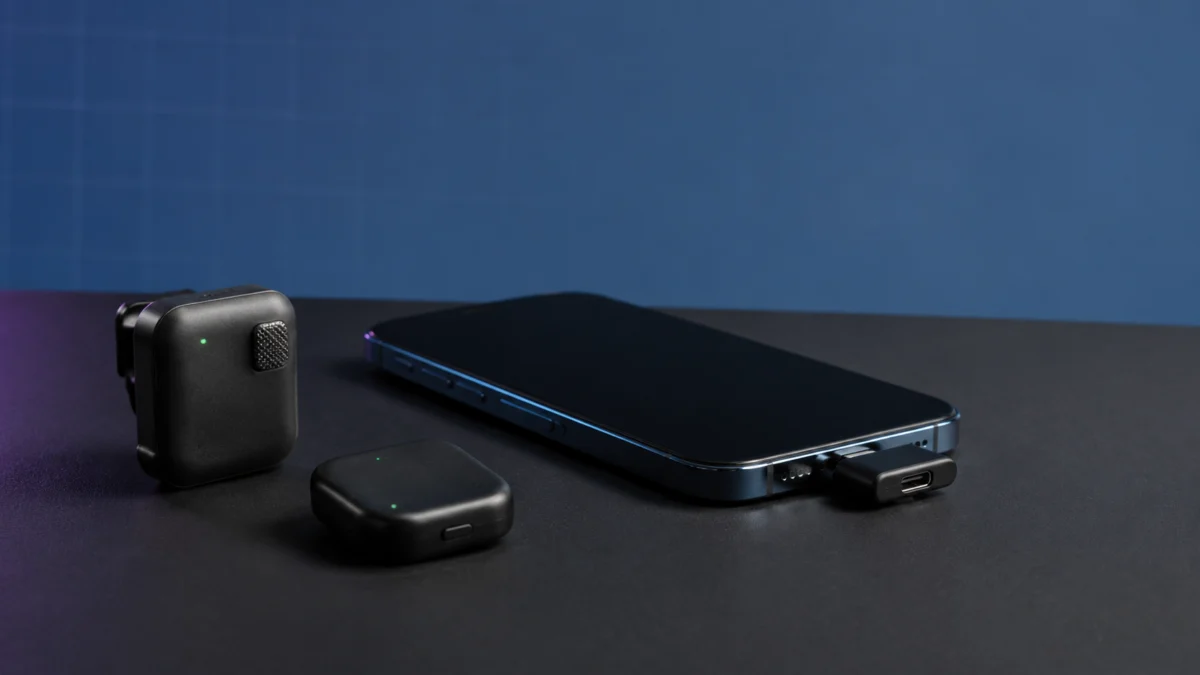
If your DJI Mic Mini records no audio on an iPhone, the cause depends on which connection path you are using, and the two paths fail differently. DJI states that the iPhone’s built-in Camera app does not accept audio from a DJI Mic Mini transmitter connected directly over Bluetooth. If the built-in Camera app is what you need, the wired receiver path is the appropriate route, and further Bluetooth troubleshooting will not help. On the receiver path, DJI’s first listed item is not hardware: recording is unavailable while the DJI Mimo app is connected, and Mimo reconnects if you reopen it.
Quick Fix Checklist
- Identify your path: receiver plus adapter, or transmitter paired directly over Bluetooth.
- Disconnect the device inside DJI Mimo and close the app before recording.
- On the receiver path, check that the receiver’s top status LED stays solid rather than blinking.
- Reseat the adapter fully, and remove a thick case blocking full contact.
- On the Bluetooth path, test inside an app DJI lists as compatible on iOS.
- Update firmware over Bluetooth; on iOS, DJI does not support updating through the adapter.
Start Here: Receiver Path or Direct Bluetooth?
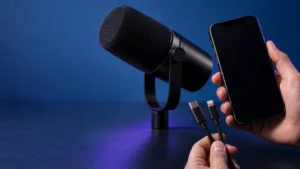
Two connection paths exist, and they fail for different reasons. The receiver path plugs the DJI Mic Mini receiver into your iPhone through a Type-C or Lightning adapter. The direct Bluetooth path pairs the transmitter itself to the phone, and whether an app accepts that audio varies by app.
Name your path before your symptom. A step that fixes one path does nothing on the other.
| Receiver path | Direct Bluetooth path | |
|---|---|---|
| What connects to the iPhone | Receiver, via Type-C or Lightning adapter | Transmitter, paired in iOS Bluetooth settings |
| Built-in Camera app | Appropriate route for the stock Camera app | DJI states it does not accept this audio |
| Firmware updates on iOS | Not supported through the adapter | Supported over Bluetooth in DJI Mimo |
| Typical failure | Silent clip, or the iPhone using its own microphone | Shows as connected, but the app records nothing |
Confirm Which Microphone Your iPhone Is Actually Recording
Before changing settings, confirm which microphone your iPhone is actually recording. On the receiver path, DJI documents a waveform test in your phone’s voice recorder followed by muting the transmitter. On the direct Bluetooth path, run the same check inside an app DJI lists as compatible on iOS.
A silent clip and one recorded by the iPhone’s own microphone look identical in a file browser. The test below applies to the receiver path.
The identification test takes 4 steps.
- Attach the receiver with the adapter, power on the transmitter and receiver, and make sure DJI Mimo is disconnected and closed.
- Open Voice Memos, start recording, then tap or blow near the transmitter’s microphone and watch the waveform for a response.
- Mute the transmitter and speak again, following DJI’s own verification step.
- Read the result. If the waveform drops when the transmitter is muted, the external microphone is the source. If it keeps responding, the iPhone’s built-in microphone is the source.
The status LEDs give a second, independent read. DJI’s user manual documents these states.
| Indicator | State | Meaning |
|---|---|---|
| Transmitter system status LED | Solid green | Linked with the receiver |
| Transmitter system status LED | Blinks green slowly | Not linked with the receiver |
| Transmitter system status LED | Solid blue | Linked with a Bluetooth device |
| Receiver status LED | Blinks green or cyan slowly | No audio recording device linked |
Fix Receiver and Adapter Issues on USB-C and Lightning iPhones
On the receiver path, DJI’s first listed check is software, not hardware: recording is unavailable while the DJI Mimo app is connected. After that come the receiver status LED, adapter seating, phone case interference, and adapter model. Hardware replacement is the last thing to consider, not the first.
DJI states that the Mic Mini cannot record while connected to Mimo, and that reopening the app reconnects it automatically. One disconnect at the start of a session is not enough if you tap back in later.
The receiver-path fix takes 6 steps.
- Open DJI Mimo, disconnect the device inside the app, then close it. Do not reopen it while recording.
- Check the LED on top of the receiver. DJI states it stays solid when properly connected, and that blinking suggests the adapter is not fully inserted.
- Reseat the adapter into the receiver’s expansion port so no gap remains.
- Remove a thick or raised phone case, which DJI lists as a cause of poor adapter seating.
- Confirm you are using the Mic Mini’s own adapter. DJI states its Type-C and Lightning adapters are not interchangeable with those for DJI Mic, DJI Mic 2, or DJI Pocket 2.
- Leave the receiver’s USB-C port empty while recording. The Mic Mini does not support real-time monitoring, and connected headphones can introduce electrical noise.
DJI’s beginner’s guide recommends a short test recording after each change above.
Lightning iPhones and Adapter Model Differences
Lightning iPhones need an adapter DJI sells separately. The official product page lists the DJI Mic Mini Mobile Phone Adapter (Lightning) as suitable for the iPhone 14 series and earlier, compatible with the DJI Mic Mini and Mic Mini 2S receivers, and not compatible with DJI Mic or DJI Mic 2.
One further distinction matters before you buy. DJI also sells the DJI Mic Series Mobile Receiver, which connects through its own built-in USB-C plug. On a Lightning iPhone it needs the DJI Mic Series Mobile Receiver Adapter (USB-C to Lightning), a different part from the Mic Mini Mobile Phone Adapter (Lightning). The two are not substitutes.
Check compatibility on the DJI Store
Fixory may earn a commission from qualifying purchases made through links in this article, at no additional cost to you.

Please check the Amazon product page for the latest price and availability.
Check Bluetooth, the Camera App, and Third-Party App Compatibility
A Bluetooth entry showing as connected does not guarantee that an app will use the transmitter as its recording input. DJI states that the iPhone’s built-in Camera app does not accept audio from a DJI Mic Mini transmitter connected directly over Bluetooth, and support is decided app by app.
This is where troubleshooting usually goes wrong. The transmitter pairs, the LED turns solid blue, and iOS lists it under connected devices, but each signal describes the pairing, not which input an app will select. DJI’s framing is that recording depends on the phone and the app.
| App | Function | iOS | Android |
|---|---|---|---|
| Protake | Video filming | Supported | Supported |
| Blackmagic Cam | Video filming | Supported | Not supported |
| Filmic Pro | Video filming | Not supported | Supported |
| YouTube | Live streaming | Supported | Not supported |
| Live streaming | Not supported | Not supported |
Filmic Pro appears in DJI’s general support guidance as an example app, but the product-specific compatibility list marks it as not supported on iOS. Where the two disagree we follow the compatibility list, so on iPhone we start with Protake or Blackmagic Cam.
The built-in Camera app does not appear in the compatibility list we checked. We have not reviewed every page of DJI’s documentation, so this describes only the material we examined.
DJI also publishes a mobile phone compatibility list. In the version we checked, Apple entries run from the iPhone 14 through the iPhone 17 Pro Max, plus the iPhone 16e. Older iPhones are not listed, which is not the same as DJI declaring them incompatible.
What Users Report About the Native Camera App
According to multiple posts in one hardware-forum thread, some users found the transmitter paired and usable for calls while the phone’s camera app and voice recorder still captured nothing from it. Two separate members in that thread pointed to third-party camera apps rather than the stock app.
Update Firmware, Re-Link the Mic, and Decide What Needs Replacing
On iOS, DJI supports firmware updates over Bluetooth only, not through the Type-C or Lightning adapter. Disconnect the adapter, update the transmitter and receiver separately in DJI Mimo, then re-link them. Only after that does replacing an adapter or adding a receiver become a reasonable next step.
The firmware and re-link sequence takes 4 steps.
- Disconnect the adapter from your iPhone. Check the DJI Mic Mini downloads page for current materials; DJI states that on iOS devices, Mic Mini firmware updates are supported over Bluetooth only.
- Pair the transmitter: hold its linking button for two seconds, then select the DJI Mic Mini entry in your iPhone’s Bluetooth settings. Each transmitter has its own Bluetooth name.
- Update the receiver on its own. With it powered off, hold the power button for six seconds until the indicator blinks, then connect in DJI Mimo. DJI notes this mode is iOS-only and allows settings and updates, not recording.
- Re-link the transmitter and receiver in the charging case, or by holding the linking button on each until linking completes. Then disconnect Mimo before recording.
If nothing records after all of the above, the question is which part is missing, not broken.
| Situation | What it usually means | Reasonable next step |
|---|---|---|
| Transmitter only, and you need the built-in Camera app | No supported path exists for that combination | Add a receiver |
| Receiver works on another phone but not yours | Possible adapter, case, or port-contact issue | Reseat, remove the case, or replace the adapter |
| Receiver LED never goes solid on any phone | Possible hardware fault | Contact DJI Support |
If you own a transmitter only and need the built-in Camera app, check the DJI Mic Series Mobile Receiver first. It supports DJI Mic Mini transmitters and connects through its own USB-C plug, so a USB-C iPhone needs no separate adapter.

Please check the Amazon product page for the latest price and availability.
If a standalone receiver is unavailable, or you prefer a matched set, the DJI Mic Mini bundle with one transmitter and one receiver covers the same need.
How We Researched
This article is based on DJI’s official FAQ, two DJI support articles, the DJI Mic Mini user manual, and DJI’s published compatibility lists, plus one public hardware-forum thread. We have not conducted hands-on lab testing. Compatibility claims are attributed to official documentation or clearly identified community reports.
Where DJI’s general guidance and its product-specific compatibility list disagreed, we followed the product-specific list. Community reports were used only where the same behaviour appeared in more than one post. Absence claims are limited to the pages we opened.
Frequently Asked Questions
These are the questions that come up most often once the connection path is clear. Each answer stays within what DJI’s official documentation confirms for the DJI Mic Mini on iPhone, and none of them assumes a specific iOS version or third-party app version.
Does the DJI Mic Mini work with the iPhone’s built-in Camera app?
Yes, but only through the receiver. DJI states that the iPhone’s built-in Camera app does not accept audio from a DJI Mic Mini transmitter connected directly over Bluetooth. Connect the receiver to your iPhone with the Type-C or Lightning adapter instead of pairing the transmitter.
Why does the transmitter show as connected in Bluetooth but record nothing?
A connected entry in iOS Bluetooth settings does not guarantee that a given app will select the transmitter as its recording input. DJI notes that whether external microphone audio can be recorded depends on the phone and the app, so test inside an app DJI lists as compatible.
Can I play back recordings without unplugging the receiver?
Yes. DJI’s FAQ states that you can play back recorded audio on the phone without removing the receiver. If playback is silent while the receiver is attached, check the receiver’s status LED and the adapter seating before assuming the recording itself captured no audio.
Conclusion
Start by naming your path rather than your symptom. If you need the built-in Camera app, use the receiver with the correct adapter and clear DJI Mimo first. If you are pairing the transmitter over Bluetooth, choose an app DJI lists as compatible on iOS.
The problem feels unfixable because the most visible signal, a Bluetooth entry marked as connected, is not the one that decides whether an app records external audio.
Using a DJI Mic 2 with an Android phone instead? Our Android guide splits the same problem by connection path.