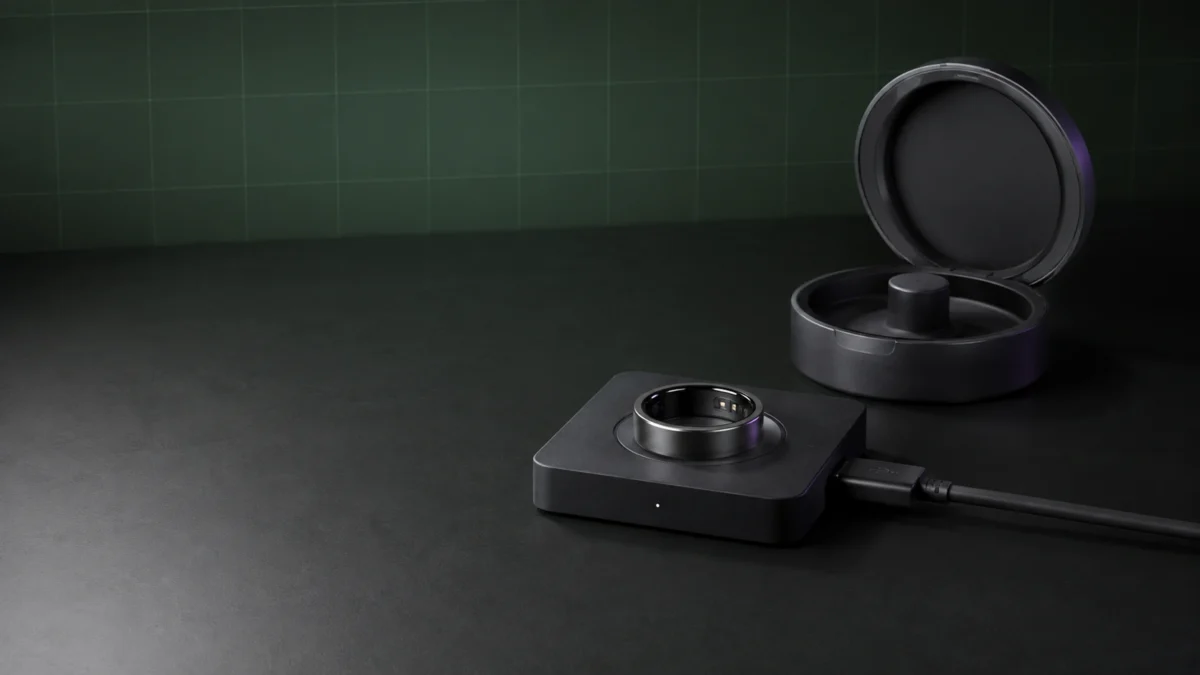
If your Oura Ring 4 will not charge, isolate the charger before you reset anything. With a charging dock, connect it to power with no ring on it and watch the light. With a charging case, try the ring on its dock if one is available. Those checks separate a charger or power-path fault from a ring fault.
Two things shape everything after that. First, whether you are using the Charging Dock or the Charging Case — Oura publishes separate procedures, and the same light colour means different things across them. Second, whether the battery percentage in the Oura App moves once the charger checks out.
A factory reset is not the first move, and for a Ring 4 dock blinking red it is not the documented answer. Stop charging and contact Oura if the ring or charger is hot, swollen, cracked, or deformed, or your finger is painful or discoloured.
Start Here: Are You Using the Charging Dock or the Charging Case?
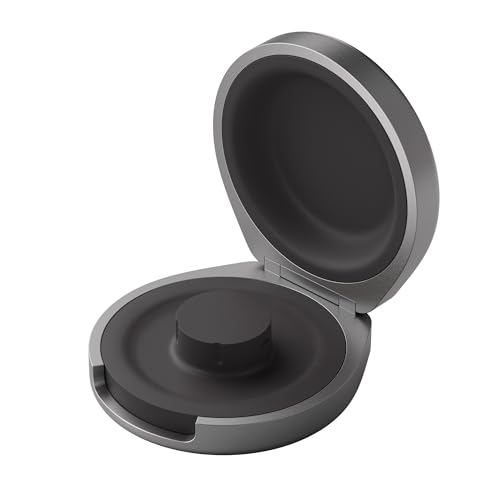
Oura publishes two separate troubleshooting procedures for Oura Ring 4, and they are not interchangeable. The charging dock is a flat square that needs constant power. The charging case is a round, battery-powered case sold separately that also has to be paired to the Oura App over Bluetooth.
- Charging Dock — square, included with the ring, ships with a USB-C to USB-C cable, no battery of its own. Oura documents a full ring charge in roughly 20 to 80 minutes.
- Charging Case — circular, sold separately, holds up to five ring charges, wired USB-C only, and no cable in the box. An unpaired case may stay dark when closed; a powered, empty case showing solid blue is ready to pair. Qi wireless charging is documented for the Ring 5 case, not the Ring 4 case.
Quick Fix Checklist
Run these three checks before anything else. They take a few minutes, require no reset, and they tell you whether the problem sits in the ring, the charger, or the app connection. Work through them in order and write down what each one shows, because Oura support will ask.
The checklist takes 3 steps.
- Identify your charger: square dock, or round case with a lid.
- Take the ring off. Connect the charger to power with no ring on it and note the light: off, white, blue, red, yellow, or green.
- Note the exact battery percentage in the Oura App, leave the ring on the charger for 15 minutes, then check again. Rising or not rising is the answer that matters.
Oura Ring 4 Charging Symptom Matrix
Four inputs narrow the fault down: which charger you are using, whether the ring is on it, what the light does, and whether the battery percentage in the Oura App actually moves. Read them together. A single light colour on its own rarely identifies the failure.
| Charger | Ring on it? | Light | What Oura documents | Next action |
|---|---|---|---|---|
| Dock | No | Off | Charger or power path not delivering | Rotate both cable ends 180°, try another power source, try another cable |
| Dock | No | Blinking yellow or red | Points at the power source | Try a different power source; if unchanged, contact Oura |
| Dock | No | White, then fades | Working as expected | Move on to testing with the ring seated |
| Dock | Yes | White, then fades | Charging connection not confirmed yet | Leave the ring on for two minutes, then try connecting again |
| Dock | Yes | Blinking blue | Ring is not paired, ready to connect over Bluetooth | Complete setup, or re-pair after a factory reset |
| Dock | Yes | Blinking red | Contact support (Ring 4 and Ring 5 docks) | Contact Oura with the steps you tried — do not use the Gen3 reset routine |
| Case | No | Off, plugged in | Case temperature out of range | Move it somewhere cooler and try later |
| Case | No | Off, unplugged | Case battery fully drained | Plug it in; if nothing lights, contact Oura |
| Case | No | Solid blue | Case is not paired to the Oura App | Pair the case before troubleshooting anything else |
| Case | Either | Blinking red | Possible power source problem | Try a different power source or cable |
| Case | Either | Solid red | Hardware issue with the case | Contact Oura |
| Case | Yes | Breathing white | Ring is charging | Confirm the percentage climbs in the app |
| Case | Yes | Solid green | Ring is fully charged | No action needed |
Read the matrix against the app, not instead of it. A wrong-looking light while the percentage climbs means charge is still reaching the ring, whatever the indicator is doing. A frozen percentage on a normal-looking light narrows nothing down on its own — you still have to cross-check the other charger, or the cable and power source, before ruling anything out. Oura’s charging-dock troubleshooting guide provides the dock-specific sequence.
Confirm the Correct Ring 4 Charger, Size, and Seating
Oura Ring chargers are size- and generation-specific. The Oura Ring 4 charging dock and charging case work only with Oura Ring 4 models in titanium and ceramic, and they ship in sizes 4 through 15. A Gen3 dock covers Gen3 and Gen2 rings instead.
Two attributes have to match: the generation and the ring size. A size 9 Ring 4 dock is not a size 11 Ring 4 dock, and neither is a Gen3 dock. This catches people most often after buying a spare or inheriting one.
Seating is the other half. Oura’s instruction for Oura Ring 4 is to align the ring’s dimple with the charger light. In a case, place the ring on the tower with the dimple aligned to the case light, then close the lid. Oura notes a ring may sit more snugly in a case than on a dock by design, so a tight fit is not itself a fault.
On upkeep, follow Oura’s current care guidance and nothing more: rinse the ring with mild soap and water and dry it fully, and wipe the three infrared sensor bumps inside the ring about once a week. Do not improvise with alcohol, abrasives, or metal tools. Charge at room temperature, and never use or store an Oura charger somewhere humid — docks are not water-resistant and are described as indoor use only.
Isolate the USB-C Cable and 5V Power Source
Oura’s dock procedure starts with the ring removed, because that separates a charger fault from a ring fault. If the empty dock lights white and fades, the dock and its power path are working, and the problem lies further down the chain.
The fix takes 5 steps.
- Take the ring off. Connect the charger to a power source with nothing on it.
- If the light does not come on, rotate each end of the USB-C cable 180 degrees and reconnect. Oura lists this for both docks and cases.
- Try a different power source — a USB wall plug, a laptop, or a power brick.
- Try a different USB-C cable. The Ring 4 Charging Case ships without one, so the cable you are using was never supplied with it.
- If the light still does not come on, Oura treats this as a possible charger fault and directs you to contact support or replace the charging set.
On the power supply, Oura states one requirement and no more: the USB charging cord is intended to be supplied by an external 5Vdc supply that complies with the EN 62368-1 standard. There is no documented wattage target and no USB Power Delivery requirement, so a basic compliant adapter is what the specification asks for. Fast-charge bricks are not the fix here. Keep everything dry throughout.
Some links in this article are affiliate links. If you buy through them, Fixory may earn a commission at no extra cost to you.

Please check the Amazon product page for the latest price and availability.
When the App Shows Charging but the Percentage Doesn’t Move
Charging, Bluetooth connection, and the app’s charging animation are three separate things. The battery percentage in the Oura App is what confirms energy is going in. A charging icon that never moves the percentage is a real symptom, but it does not by itself tell you whether the ring, the charger, or the connection is at fault.
The fastest way to place this symptom is Oura’s own cross-check: if you own both chargers, try the ring in the other one. Oura’s reading is that a ring failing on both points at the ring itself. With only one charger, the cable and power swaps above do the same job for the power path.
Separately, according to multiple community reports, some owners describe the app showing a charging indicator while the percentage stays frozen at a low figure — around 9% in one thread and around 4% in another, the second after trying a different cable and base. These are individual accounts, not a measured failure rate, and they do not establish a cause. What they show is that a frozen percentage is a recognised shape of problem worth documenting when you contact Oura.
Before concluding anything, rule out the connection layer:
- Confirm the ring shows as connected in the app, not merely showing an old sync time.
- Sync while the ring sits on the charger, then back up from Settings before you consider any reset.
- Check for pending Oura App and ring firmware updates.
- If you use the charging case, confirm the case itself is paired and on current firmware before judging the ring.
Do not reuse the Gen3 red-light reset steps for Ring 4. Oura’s charging-dock article directs Ring 4 owners to contact support instead.
Charging Case Checks: Pairing, LED Errors, and the Hard Reset
An unpaired Oura Ring 4 charging case may stay dark when closed; when powered, empty, open, and ready to pair, it can show solid blue. Oura publishes a distinct LED error table for cases, and the Ring 4 hard reset uses the lid, not a side button.
Oura’s case procedure assumes four things are already true: the ring is set up and connected to the app, the case is paired and connected to the app, the case is on power, and both ring and case are on current firmware. If any is false, fix that first — the LED behaviour will mislead you otherwise.
The most useful case-specific test is the cross-check: if the ring will not charge in the case, put it on the dock. Oura’s own reading is that failure on both points at the ring itself. To check pairing, open the app, go to My Devices from the menu icon or the battery icon on the Today tab, and tap your charging case. A case that is plugged in, empty, and showing solid blue is telling you it is not paired.
The Ring 4 hard reset is not the Ring 5 procedure. The Ring 5 case has a side button used for pairing and resets; the Ring 4 case does not have one. Try a soft reset from My Devices first, then this.
The hard reset takes 4 steps.
- Plug the charging case into a power source.
- Open and close the lid three times.
- Wait 10 to 20 seconds without touching the lid, leaving the case plugged in.
- Watch for the LED to turn off and back on, which indicates the reset completed. If you did not see it, unplug the case and start again.
Oura notes the charging case does not collect personal data, so resetting the case is not a data-loss decision the way resetting the ring is. See Oura’s charging-case troubleshooting procedure for the case-specific LED table and prerequisites.
When to Reset, Contact Oura Support, or Replace the Charger
A factory reset is not the first move for a charging problem, and for Oura Ring 4 it is not the documented answer to a blinking red dock light either. Oura’s current instruction for that light on a Ring 4 dock is to contact support.
This is the point most commonly got wrong. Oura’s dock article does describe a reset path for a red blinking light, but only for Gen3 docks. For Ring 4 and Ring 5 docks the documented action for the same light is to contact Oura and say what you have already tried. Applying the Gen3 routine to a Ring 4 costs you data without addressing what Oura considers the likely cause.
Escalate to Oura support when any of these is true:
- The empty charger stays dark through a cable swap, a power source swap, and a cable rotation.
- A seated Ring 4 dock blinks red.
- The case LED shows solid red, solid white, or blinking yellow.
- The percentage does not move after a sustained period on a charger that lights normally.
- The ring or charger is unusually hot, cracked, deformed, or otherwise looks damaged.
If you do reach a ring factory reset, understand what it costs. Oura states it erases data stored on the ring itself, while data already synced to your Oura account is unaffected, and you will need to pair the ring again. The documented factory-reset sequence: charge the ring for a few minutes, wait for a sync, back up all data from Settings, take the ring off onto a flat surface, run the reset from My Devices, leave it still for two minutes, then remove it from your phone’s Bluetooth list.
Have this ready when you contact Oura — it shortens the exchange considerably:
- Ring generation and ring size
- Whether you use the dock or the case, and its size
- Exact LED colour and pattern, with and without the ring seated
- Oura App version and ring firmware version
- Battery percentage behaviour, including the figure it sticks at and how long you left it
- Every cable and power source you tested
- Serial number and order or purchase information
If the dock itself is the confirmed fault, a replacement charging set is the straightforward fix — but buy on generation and ring size, and confirm both before ordering. A charging case is a different purchase with a different purpose: a portable spare holding several charges, not a repair for a ring that will not accept charge.

Please check the Amazon product page for the latest price and availability.
Please check the Amazon product page for the latest price and availability.
If Oura’s process ends in a warranty replacement, or the battery has reached the end of a useful life, that is the point at which you may want to compare current smart ring options — not before.
Frequently Asked Questions
These three questions come up most often around Oura Ring 4 charging faults. Each answer follows Oura’s current support documentation rather than general smartwatch advice, because the Ring 4 charging dock, the Ring 4 charging case, and older Gen3 hardware follow different procedures.
What does a blinking red light mean on an Oura Ring 4 charger?
On a dock with no ring on it, a red or yellow blink points at the power source, so try a different one first. With the ring seated on an Oura Ring 4 dock, Oura’s instruction is to contact support and list the steps you have already tried.
Can I charge an Oura Ring 4 on a Gen3 or Ring 5 charger?
No. Oura lists its chargers as size- and generation-specific. Ring 4 docks and cases are documented for Oura Ring 4 titanium and ceramic models only, Gen3 docks cover Gen3 and Gen2, and Ring 5 chargers are listed for Ring 5 models.
Should I factory-reset an Oura Ring 4 that will not charge?
Not as a first step. Oura’s charging dock and charging case procedures for Ring 4 end in contacting support rather than a ring factory reset. A reset also erases data held on the ring itself, so back up in the app before you consider it.
How We Researched
This article is built from Oura’s current support documentation, checked page by page at the time of writing, plus community reports where multiple separate threads described the same behaviour. We have not conducted hands-on lab testing and no figures here come from our own measurements.
The official sources were Oura’s charging dock and charging case troubleshooting articles, the charger usage and specification article, the factory reset article, Product Safety & Use, and the product care page. Oura revises these pages, so verify current wording before acting on anything time-sensitive. Answers from third-party paid advice services were not treated as manufacturer guidance.
Nothing here substitutes for Oura’s own support process, and it does not cover warranty terms, which vary by region and purchase channel.
What to Do Next
Work outward from the charger, not inward from the ring. Test the dock or case empty, read the light against Oura’s chart, then confirm whether the battery percentage in the app moves. Escalate to Oura support when the documented steps run out, and reset only after backing up.
If you remember one thing, make it this: the charger light is a diagnostic input, not a verdict. The same colour means different things depending on which charger you are using and whether the ring is seated — a red blink on an empty dock and a red blink under a seated Ring 4 lead to completely different actions. And if the ring is hot, swollen, cracked, or deformed, or your finger is painful or discoloured, stop troubleshooting and contact Oura or a medical professional as appropriate.