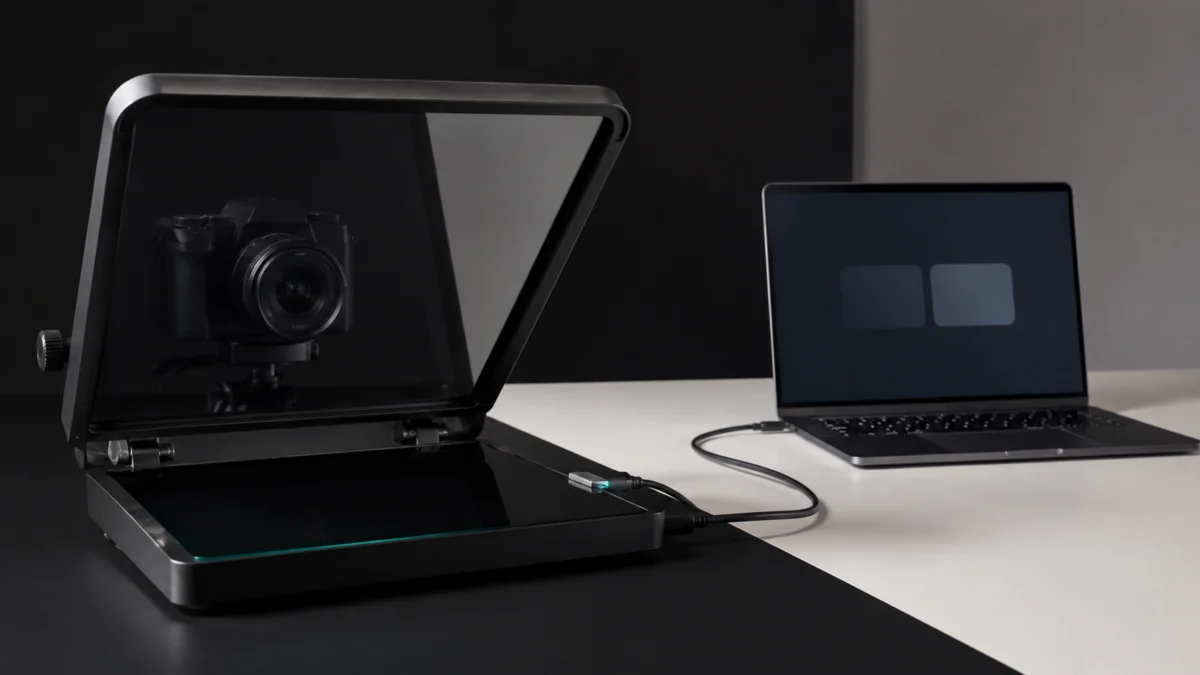
If your Elgato Prompter shows no image on Windows, do not reinstall Camera Hub yet. Open Settings → System → Display first and check whether Windows lists Prompter as a second display. That single check decides everything that follows. If Windows sees a second display, power and basic DisplayLink detection are working, so focus on your Windows display mode or Camera Hub’s content mode. If Windows sees nothing, troubleshoot the cable, USB port, DisplayLink and chipset drivers, and processor compatibility before changing content settings. Elgato’s guidance for this problem is spread across several support pages, and none of them tells you which branch you are on. The sections below put those checks into one diagnostic order, starting with the quickest checks.
Start Here: Does Windows See Prompter as a Second Display?
Open Settings, choose System, then choose Display, and look for a second display block. What Windows reports there separates two failure layers. A listed display means power and basic DisplayLink detection succeeded. No listed display means you should troubleshoot the USB connection, DisplayLink or chipset drivers, and processor compatibility first.
Match your symptom against the table below before changing anything. The right-hand column tells you which section to read next, so you can skip checks that do not apply.
| What you see on Prompter | What Windows Display settings show | Where the fault sits | Go to |
|---|---|---|---|
| Screen completely dark, no backlight at all | No second display listed | Cable, USB port, hub, DisplayLink or chipset driver, or processor compatibility | Sections 2 and 4 |
| Prompter tab in Camera Hub is greyed out, or Camera Hub stays on its launch screen | Second display listed, or set to duplicate | Windows display mode, or a Camera Hub process still running | Section 3 |
| Backlight is on but the screen stays blank or shows the wrong content | Second display listed | DisplayLink driver, or Camera Hub content mode | Sections 4 and 5 |
| Prompter shows your desktop wallpaper and nothing else | Second display listed and extended | Expected behaviour in Display mode until you drag a window across | Section 5 |
Try these four checks before downloading a driver or restarting the computer:
- Set your displays to Extend these displays rather than Duplicate.
- End the Camera Hub process in Task Manager, then launch Camera Hub again.
- Move the USB cable to a different USB 3.0 port directly on the computer.
- In Camera Hub’s Prompter tab, confirm which content mode is selected.
Check Windows Version, Processor, USB 3.0, and Direct Connection
Elgato’s official Prompter system requirements list Windows 11 64-bit, an Intel, AMD, or Apple processor, at least 4GB of RAM, and a USB 3.0 connection. Windows 10 is not listed among the supported operating systems. If your hardware falls outside these requirements, confirm compatibility before assuming that a reinstall will fix the issue.
Three requirement details matter at this layer:
- USB 3.0 is mandatory. Prompter ships with a USB-C to USB-A 3.0 cable measuring 200 cm. A USB-C to USB-C cable is not included, so if you are using your own USB-C cable, confirm it carries data at USB 3.0 speeds rather than being a charge-only cable.
- Connect directly to the computer. Elgato’s first-time setup instructions specify connecting Prompter to your computer with the included USB cable, not through an intermediate hub or dock.
- Windows on ARM is a hard limit for Camera Hub. This is covered separately below.
If you have already swapped ports and the screen is still dark, a data-capable replacement cable is the next inexpensive variable to eliminate.
Sponsored: The USB-A-to-USB-C cable below supports 5Gbps data transfer over 2m and is designed for data-capable USB connections, including DisplayLink-based devices.

Please check the Amazon product page for the latest price and availability.
Snapdragon and Copilot+ PCs: what actually works
Elgato’s official Windows on ARM compatibility table rates Camera Hub as not working, noting that the software installation fails outright. Prompter hardware is rated separately as may work, limited to Display mode. On an ARM machine, an absent Prompter tab is expected behaviour rather than a fault you can repair.
Elgato explains that ARM systems run x86 and x64 applications through the Prism translation layer, but that emulating drivers such as DirectShow is not supported. That is the underlying reason Camera Hub cannot install rather than merely running slowly. Elgato’s own note for this case directs ARM users to install DisplayLink drivers from the official Synaptics site so that Prompter can at least appear as an additional monitor. Reinstalling Camera Hub repeatedly on a Snapdragon PC will not change that compatibility limit.
For broader external-display problems on a Snapdragon X Elite PC, our step-by-step guide to Snapdragon X Elite external monitor flickering covers the display side of the same hardware.
Set Windows to Extend, Then Fully Quit and Relaunch Camera Hub
When Camera Hub stays on its launch screen or the Prompter tab appears greyed out, Elgato’s first-time setup guidance specifies two Windows actions together: set your displays to Extend in Display settings, then shut down Camera Hub from Task Manager and start it again. Completing only one of the two may leave the original state unchanged.
The reason this pair matters is a detail Elgato states explicitly in its setup documentation: on Windows, clicking the X in Camera Hub does not close the software. It keeps running in the background, so use Task Manager when the procedure calls for a full shutdown and relaunch.
The fix takes 5 steps.
- Open Settings → System → Display.
- In the multiple-displays dropdown, select Extend these displays. Elgato notes that systems may default to duplicating your main display when Prompter is first connected.
- Press Ctrl + Shift + Esc to open Task Manager.
- Find Camera Hub in the process list and end the task. Do not rely on the X button in the Camera Hub window.
- Launch Camera Hub again and open the Prompter tab.
Update Camera Hub and the DisplayLink Driver in the Right Order
If the display still refuses to show anything after the settings check, Elgato’s official no-image procedure for Windows moves to software versions. The order matters, because the DisplayLink driver install only takes effect after a restart, and Camera Hub must be fully closed before that restart rather than after it.
The fix takes 7 steps.
- Find the Camera Hub icon in the system tray at the bottom-right of your screen. If it is not visible, click the small upward arrow to reveal hidden icons.
- Right-click the Camera Hub icon and select Check for Updates.
- If Camera Hub is already current, right-click the icon again and select Quit Camera Hub to close it completely.
- Download and install the current DisplayLink driver release for Windows from Synaptics’ official Windows driver page.
- Restart your computer once the driver has installed.
- Launch Camera Hub after the restart and check the Prompter display.
- If the problem persists, install the latest chipset drivers for your system from your computer manufacturer’s or motherboard manufacturer’s website.
Prompter communicates over DisplayLink rather than HDMI or DisplayPort, which is why updating only your graphics driver does not address every failure at this layer. Note also that Synaptics’ Windows page lists both the DisplayLink USB Graphics Software driver and a separate DisplayLink Manager app from the Microsoft Store. Elgato’s step points to the driver.
Also confirm your Camera Hub version. Prompter requires Camera Hub 1.8 or newer, so an older installation carried over from another Elgato device will not expose the Prompter tab.
Check the Content Mode, Then Decide When to Contact Elgato
If Prompter is lit and Windows lists it as an extended display but the screen still looks wrong, the remaining variable is Camera Hub’s content mode. Camera Hub offers three modes for Prompter: Display, Text, and Chat. Each behaves differently, and one of them can look blank when it is working correctly.
Elgato’s Display Mode documentation states that after you select Display, Prompter appears with nothing on it and shows your desktop wallpaper. That blank-looking state is the expected result, not a failure. You then drag any window, application, or game onto Prompter to fill it.
- Display mode — Prompter acts as a second monitor. Nothing appears until you drag a window onto it.
- Text mode — Prompter shows your script from Camera Hub.
- Chat mode — Prompter shows chat content. Twitch is integrated directly with Camera Hub; for other services, use Display mode and drag a chat pop-out window across.
Isolating a hardware fault before you contact support
Two tests help separate a hardware fault from an environment problem. Run them before opening a ticket so you can give Elgato support the results of controlled checks rather than only the original symptom. This also avoids another software reinstall when the same failure follows the hardware to a second qualifying PC.
- Connect Prompter to a different USB 3.0 port on the same computer, bypassing any hub or dock.
- Connect Prompter to a second computer that meets the official system requirements, and see whether the display comes up there.
If Prompter stays dark on both a different port and a different qualifying computer, and Windows never lists it as a display on either, you have isolated the problem to the cable or the unit. At that point, contact Elgato support with those results rather than continuing to reinstall software. Check the official Elgato Prompter product page for current compatibility details, and use Elgato support for warranty or service options before buying a replacement.
Sponsored: If you have confirmed the unit itself is at fault and you are replacing it, the current Amazon listing is below.

Please check the Amazon product page for the latest price and availability.
How We Researched
This article is based on Elgato’s official support documentation and Synaptics’ official driver download page. We read the Prompter support articles covering No Image or Display, First Time Setup, System Requirements, Display Mode, and the Prompter FAQ, plus Elgato’s Windows on ARM compatibility article and the current Synaptics DisplayLink driver listing.
We have not conducted hands-on lab testing. Every procedure and requirement above is attributed to the official documentation it came from. We searched community forums and video sources for recurring Windows-specific reports about this problem and did not find the same issue confirmed across multiple independent posts or threads, so no community reports are cited here. We also reviewed third-party setup videos and did not include one, because the closest match predates current Camera Hub releases and its on-screen interface could not be verified as matching the current version.
Frequently Asked Questions
Does Elgato Prompter work on a Snapdragon or Copilot+ PC?
Partially. Elgato’s official compatibility table rates Prompter hardware as may work, limited to Display mode, while Camera Hub itself is rated as not working because its installation fails on Windows on ARM. That means script scrolling and the Prompter tab are unavailable, and the practical path is installing DisplayLink drivers so Prompter appears as an additional monitor.
Why does Prompter show my desktop wallpaper instead of my script?
That is Display mode working as intended. Elgato’s documentation states that after selecting Display, Prompter appears with nothing on it and shows your desktop wallpaper until you drag a window onto it. If you want a scrolling script instead, switch the content mode from Display to Text in Camera Hub’s Prompter tab.
Does Prompter need its own power supply?
No separate power adapter is used in Elgato’s standard setup. The official product page says the USB-C connection carries power and video and that the cable is included. Connect Prompter directly to a USB 3.0 port; a USB 2.0 port or a charge-only cable does not meet the documented connection requirements.
Conclusion
Elgato’s guidance is spread across several pages, so starting with a Camera Hub reinstall can send you down the wrong path. Anchor your diagnosis to one question instead: does Windows list Prompter as a second display? The answer separates connection and driver failures from settings and content failures before you make any changes.
If it does, check your Windows display mode and Camera Hub’s content mode. If it does not, check the cable, USB port, direct connection, DisplayLink and chipset drivers, and processor architecture. On an ARM-based Windows machine, an absent Prompter tab is documented behaviour, not a fault. Confirm your setup against the manufacturer’s official system requirements before concluding the hardware has failed.