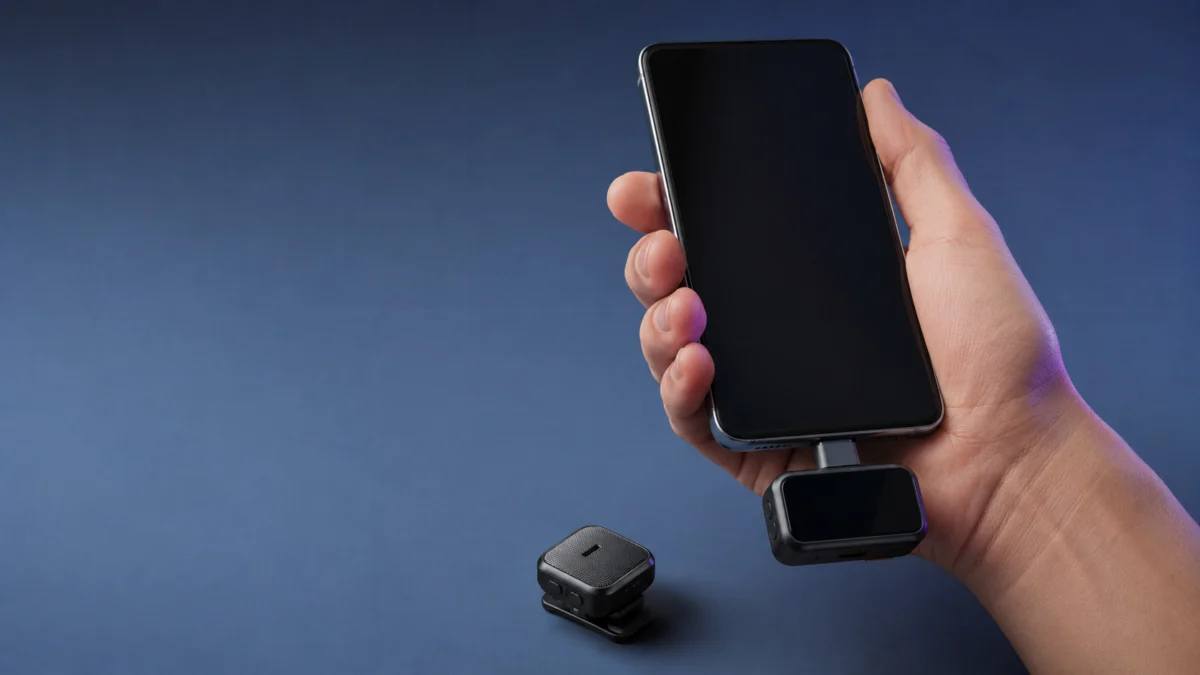
If your DJI Mic 2 records nothing on Android, or the audio in your video clearly comes from the phone instead of the microphone, first establish which of the two connection paths you are using. The receiver with a USB-C adapter and the transmitter’s direct Bluetooth connection are separate signal paths, and almost none of the fixes transfer between them. A Bluetooth entry that reads as connected is not evidence that your recording app is using the transmitter.
Start Here: Identify Your Connection Path, Then Run the Waveform Test
DJI Mic 2 reaches an Android phone two ways: the receiver with a USB-C mobile phone adapter, or the transmitter paired directly over Bluetooth. Identify yours before changing anything, because the checks do not overlap. Then run DJI’s documented test — record, tap the transmitter, mute it, and watch the waveform.
- Confirm your path: a receiver clipped onto a USB-C adapter, or a transmitter listed in your phone’s Bluetooth menu.
- Check the transmitter’s system status LED. Solid green means linked to the receiver; solid blue means linked to a Bluetooth device.
- Look at the receiver screen for the connected-device icon and for movement in the level meter along the bottom.
- Open your phone’s system voice recorder and watch the waveform while tapping the transmitter’s microphone.
- Mute the transmitter mid-recording. If the waveform does not change, your phone is recording from its own microphone.
Sort your symptom first. Complete silence usually means the signal never reached the phone. Audio recorded on the built-in microphone means the app ignored the external input. Very quiet audio points first to gain or mute settings; Low Cut changes the tone below 100 Hz rather than silencing speech.
Where the Signal Can Stop
Audio has to survive five handoffs before it lands in your video file. Each stage has an indicator DJI documents, so you can localize the break instead of guessing. Work down the table in order and stop at the first stage that does not behave as described.
| Stage | What to watch | Where it is shown | If it fails |
|---|---|---|---|
| 1. Transmitter picks up sound | Level meter movement | Bottom of the receiver home screen | Check mute state and transmitter gain |
| 2. Transmitter-to-receiver link | Status LED, signal strength | Transmitter LED, receiver home screen | Re-link via the charging case or Receiver Settings → Link Device |
| 3. Audio inside the receiver | Monitored sound | 3.5 mm monitor port | Recheck monitoring volume, mute, and gain before isolating the receiver or transmitter side |
| 4. Receiver-to-phone handoff | Connected-device icon | Receiver home screen | Reseat the adapter in the expansion port |
| 5. Android OS and app | Waveform reacting to a mute | Your recording app | Test an app that lets you select an audio source |
On the direct Bluetooth path, stages 2 through 4 do not exist. The transmitter talks to the phone by itself, leaving only the transmitter LED and the app-level waveform test as observation points.
See DJI’s connection and recording troubleshooting article.
Receiver and USB-C Checks: Adapter Seating, Connected Icon, and Levels
On the receiver path, four indicators tell you where the signal stops: the adapter seated in the expansion port, the connected-device icon on the receiver screen, the transmitter’s solid green status LED, and level-meter movement when you speak. DJI’s support material treats a missing connected icon as the first thing to fix.
- Slide the USB-C mobile phone adapter fully onto the receiver’s expansion port until it sits flush. DJI’s support article illustrates what an insecurely mounted adapter looks like.
- Plug the assembled receiver into the phone’s USB-C port with the receiver powered on.
- Check the receiver home screen. A connected-device icon should appear; a disconnection icon means the handoff did not complete, so unplug and reconnect.
- Remove any case, dongle, or extension sitting between the adapter and the phone’s port.
- Repeat on a second Android device. Identical behaviour on both makes the phone an unlikely cause.
DJI’s adapters are model-specific: the official FAQ states the Mic 2 USB-C and Lightning adapters are not interchangeable with those supplied for DJI Mic or DJI Pocket 2. A generic USB-C dongle is not a substitute either, since the receiver uses its expansion port rather than an audio jack. Replace the adapter only if it is damaged, missing, or fails on more than one phone.
The receiver also has a dedicated 3.5 mm monitor port, which lets you hear the transmitter feed before it reaches your phone. If you hear yourself there but the phone records nothing, the remaining problem is on the phone side.
- A muted transmitter shows a pulsing red recording status LED, and the receiver replaces the volume bar with a muted indicator.
- Transmitter gain and receiver gain are adjusted separately, both from the receiver’s swipe-down control menu.
- DJI advises reducing gain when the volume bar turns red — audio that is distorted rather than absent.
- Low Cut filters everything at 100 Hz and below. It will not silence a voice, but it changes the character of a recording.
- Monitoring volume is adjustable, so silent headphones do not by themselves prove a dead signal.
Android App Checks: Confirm Which Microphone Your App Actually Uses
Android can detect an external microphone while your recording app still captures the built-in one. DJI’s own test settles it: record with the system voice recorder, tap the transmitter, then mute the transmitter mid-recording. If the waveform keeps moving after the mute, the phone is recording itself.
The Mute Test, Step by Step
This is the single check that separates a hardware problem from an app problem, and it works on both connection paths. The test takes five steps and needs nothing beyond your phone’s built-in voice recorder. Run it before changing any settings or buying any accessory.
- Connect the DJI Mic 2 by your usual method and confirm the transmitter is powered on.
- Open the phone’s system voice recorder and start a recording.
- Blow or tap gently on the transmitter’s built-in microphone while watching the waveform.
- Mute the transmitter, from the receiver’s swipe-up control or the transmitter itself, and keep watching.
- Compare the two moments. A waveform that reacts to the tap and drops on the mute confirms the transmitter is the live input.
If the waveform never reacts, DJI describes this as a possible compatibility issue and directs users to test the same receiver and adapter on another device. If it reacts in the voice recorder but your camera app still records the built-in microphone, the problem is at the app level. The answer there is a recording app that exposes an audio-source setting — also what DJI’s User Manual recommends for Bluetooth video recording.
Direct Bluetooth Mode: What DJI Supports and What It Turns Off
Pairing is not routing. DJI’s support article for the Mic 2 states that when the transmitter is connected by Bluetooth, the phone’s system camera and voice recorder cannot capture audio unless the phone supports the feature, and it names only a short list of Huawei models. For other phones, DJI points to third-party apps.
The models that article currently names are Mate 50 Pro, Mate 50, P60 Pro, P60, P50 Pro, P50, and Nova 9. Read that as DJI’s officially verified set rather than a ruling on every other handset. The User Manual takes the same position more generally: it recommends third-party camera, video chat, conference, or livestreaming apps for Bluetooth video recording, and tells users to confirm the native camera supports Bluetooth audio input before relying on it.
- Power on the transmitter, then press and hold the record button for three seconds. The status LED changes to a slow blue blink.
- Press and hold the linking button for two seconds. The LED blinks blue quickly while the transmitter searches.
- Enable Bluetooth on the phone and select the entry beginning with DJI-MIC2, confirming the pairing request if one appears.
- Check the LED again. Solid blue means pairing completed.
A transmitter whose LED still blinks green was never switched into Bluetooth mode, which is a common reason a phone shows nothing to pair with. If the phone still cannot find it, DJI’s FAQ suggests restarting Bluetooth and linking again. The FAQ also offers a proxy test: if the app cannot record audio from Bluetooth earphones, it will not record from the transmitter either. Bluetooth mode is not feature-equivalent to the receiver.
- Standalone recording to the transmitter’s internal storage is unavailable while it is Bluetooth-connected to a phone.
- Noise reduction on the transmitter is unavailable on the same connection.
- Only one transmitter can connect to a smartphone at a time, so two-person recording over direct Bluetooth is not available.
- The linking button can act as a shutter, but only on phones where the volume button already does the same.
See the official DJI Mic 2 FAQ.
What Android Users Are Reporting
Community reports line up with DJI’s documentation rather than contradicting it. Across multiple threads, Android users have paired a DJI transmitter successfully and still found the stock camera app recording the phone’s built-in microphone. The reported workarounds are third-party apps, or recording audio separately and syncing it afterwards.
In one Samsung community thread, a poster describes a DJI Mic 2 connected directly over Bluetooth on both a Galaxy A54 and a Galaxy A33 5G, with the Samsung camera app declining to use it as the audio source. A reply suggests a third-party camera app with a selectable audio source. The original poster answers that third-party apps do work around it, but cost features such as lens switching, and that recording the audio separately and combining it in post proved simpler.
Read the Samsung Community thread about DJI Mic 2 on Galaxy A54 and A33 5G.
A separate thread on the same Samsung community describes a DJI Bluetooth microphone paired to a Galaxy A52 5G, where the stock camera app offers no external-microphone setting at all. That post does not state the model, so read it as corroboration of the app-level pattern rather than as a Mic 2 report.
Read the Samsung Community thread about the Galaxy A52 5G camera app.
These are individual reports rather than a product-wide verdict, and they do not appear to affect every setup. The first thread also contains a useful contrast: its original poster describes a different USB-C microphone that works normally in the Samsung voice recorder but is unavailable inside the camera app. That is exactly the app-level split the mute test is designed to expose.
If your phone is not on DJI’s short Bluetooth list, the receiver path reduces the app-compatibility question, because it presents itself to Android as a digital audio device. That only matters if you bought a transmitter on its own; if you already own a receiver, nothing here suggests buying another.

Please check the Amazon product page for the latest price and availability.
Firmware, the Compatibility List, and When to Contact DJI
If the path checks pass and audio still fails, three things remain: the firmware version on your receiver and transmitters, whether your phone appears on DJI’s compatibility list, and whether the receiver is recognized on a computer. That last test is DJI’s own way of separating a hardware fault from phone incompatibility.
- Download the firmware package from the official DJI Mic 2 downloads page. The newest version listed there is v04.05.01.11, dated August 2024, for both receiver and transmitters.
- Remove the mobile phone adapter from the receiver before connecting it to a computer.
- Connect one device at a time by USB-C. The receiver must be powered off; the transmitter can be on or off.
- Copy the .bin file into the root directory of the connected device, then disconnect it.
- Let the update run. The transmitter must be powered on to begin, and its status LED blinks red and green alternately throughout.
Firmware versions are shown on the receiver under Settings, alongside the serial number. If a transmitter does not start updating after powering on, DJI advises connecting it to the receiver and disabling Auto Record on the receiver touchscreen before retrying.
Download DJI Mic 2 firmware and manuals from DJI.
DJI also publishes a Mic Series Mobile Phone Compatibility List and points to it first when a receiver is connected but not working. The version we checked, v1.4 dated April 2026, lists Galaxy S22 through S25 for Samsung and Pixel 7 through 9 for Google; Galaxy A-series handsets are not among the Samsung entries. Absence is not incompatibility, but it does leave you without an official baseline, and DJI’s guidance is to retry with a listed device.
The computer test is the cleanest separation available without a second phone. Connect the receiver over USB-C: powered off it appears as a USB drive, powered on as an audio device. If the computer recognizes it normally, DJI attributes the remaining problem to phone incompatibility rather than a faulty receiver. Unresolved cases need the serial number, firmware version, phone model and system version screenshots, and a video of the issue.
Open DJI’s Mic Series Mobile Phone Compatibility List (PDF).
How We Researched
This article is based on DJI’s official FAQ, the DJI Mic 2 User Manual v1.2, DJI’s support article on connection and recording failures, and the official downloads page and Mobile Phone Compatibility List. We have not conducted hands-on lab testing. Community reports are identified as such.
The manual supplied LED states, screen indicators, port functions, pairing steps, and the firmware procedure. Community sources were used only for the pattern described in the Bluetooth section, and no single post has been generalized into a verdict about a phone brand or the product. Model numbers referenced are the DMT02 transmitter and DMR02 receiver.
Frequently Asked Questions
These are the questions that come up most often once the basic path checks are done. Each answer stays within what DJI’s official documentation and confirmed community reports support, and none of them assume a particular Android version, because the menu names differ between manufacturers and OS releases.
Why does my camera app still record from the phone’s microphone when DJI Mic 2 shows as connected over Bluetooth?
Because pairing and audio routing are separate things. DJI’s support article states the phone’s system camera and voice recorder cannot capture transmitter audio over Bluetooth unless the phone supports that feature, and it names only a short list of Huawei models. On other phones, a recording app that lets you select the audio input is the documented route.
Do I need the receiver to use DJI Mic 2 with an Android phone?
Not strictly, since the transmitter pairs over Bluetooth. But the receiver with a USB-C adapter avoids app-level compatibility questions, and it keeps standalone internal recording and noise reduction available — both of which DJI documents as unavailable while the transmitter is Bluetooth-connected to a phone.
Can I use a generic USB-C dongle instead of the DJI mobile phone adapter?
No. The receiver connects through its expansion port using DJI’s own adapter, not through a standard audio jack, so a generic USB-C audio dongle or headphone converter is not a substitute. DJI’s FAQ also confirms the Mic 2 adapters are not interchangeable with those supplied for DJI Mic or DJI Pocket 2.
Conclusion
Silent Android recordings with a DJI Mic 2 typically separate into two paths: a handoff that never completed on the receiver path, or a recording app that ignored the transmitter on the Bluetooth path. Identify the path first, then use the mute test to prove which microphone is live.