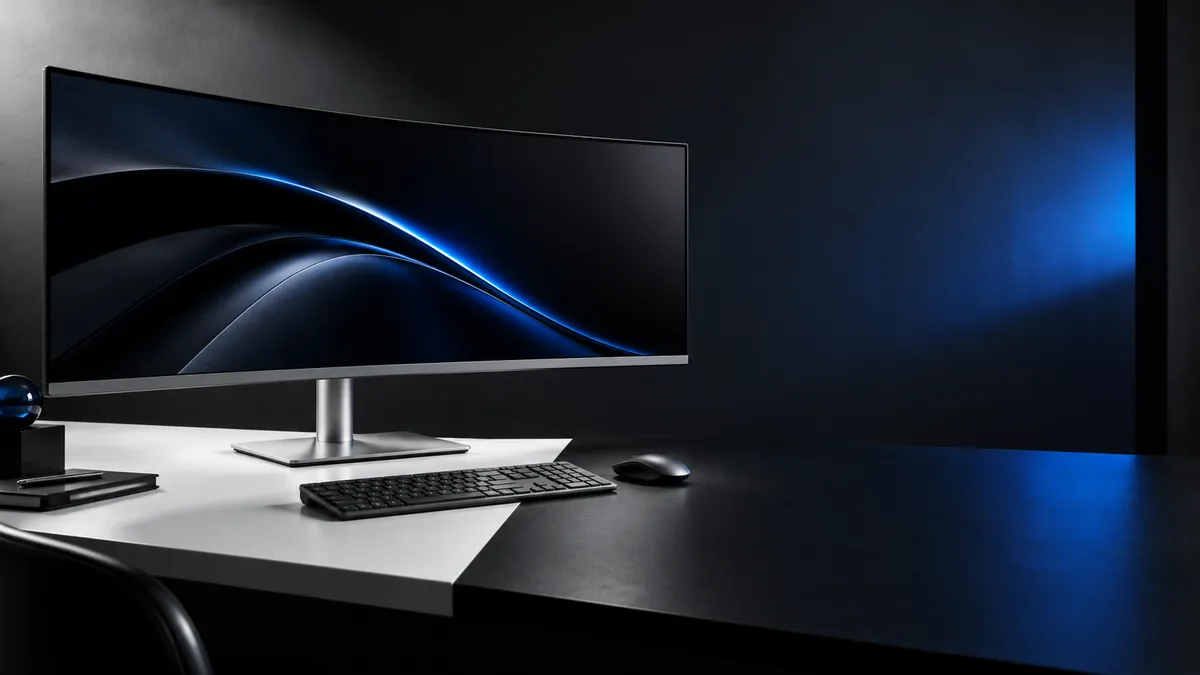
If your Dell UltraSharp U4025QW switches the picture between two computers but the keyboard and mouse stay on one of them, check the USB path before anything else. A working HDMI or DisplayPort picture does not give the monitor a USB data link to that computer. For an HDMI or DP computer, connect the USB-A-to-C cable that came with the monitor to the data-only USB-C upstream port (port 7). Then confirm in the on-screen USB menu that the input is assigned to USB-C. A Thunderbolt computer belongs on the Thunderbolt upstream port (port 6), not on the daisy-chain port (port 5).
This guide is for a two-computer setup: one PC on HDMI or DisplayPort and a second computer on Thunderbolt. It covers the port roles, the menu settings, the Picture-by-Picture USB Switch, and Dell’s own USB troubleshooting steps. It is based on Dell’s documentation, not a hands-on test. None of these steps requires buying a new KVM switch or a new monitor.
Quick checklist before you change anything
Confirm these five points first:
- The keyboard and mouse, or their USB receiver, are plugged into the monitor’s downstream USB ports, not directly into one computer.
- The HDMI or DP computer has the USB-A-to-C cable running to port 7 on the monitor.
- The Thunderbolt computer is plugged into port 6, not port 5.
- In the OSD USB menu, the input that computer uses (HDMI or DP) is assigned to USB-C.
- No USB drive connected through the monitor is copying files or still open on either computer.
Which U4025QW port does what?
The U4025QW has two computer uplinks for keyboard and mouse sharing. Port 6 is the Thunderbolt 4 upstream port and carries both video and data. Port 7 is a data-only USB-C upstream port that gives an HDMI or DP computer its USB link. Port 5 looks similar, but it is a downstream daisy-chain port.
The port numbers below are the labels in the bottom-view diagram of Dell’s U4025QW User’s Guide.
| Port (manual label) | What it is | What it means for keyboard and mouse switching |
|---|---|---|
| 3 | HDMI 2.1 input | Video input. The computer also needs the USB cable to port 7. |
| 4 | DisplayPort input | Video input. The computer also needs the USB cable to port 7. |
| 5 | Thunderbolt 4 downstream (15W) | For daisy chaining to another monitor. Not a computer uplink. |
| 6 | Thunderbolt 4 upstream (Video + Data) | Connect a computer here. Carries video and USB data together. |
| 7 | USB-C upstream (data only) | The USB link for a computer that sends video over HDMI or DP. |
| 8, 9, 11 | USB-A downstream | Plug the shared keyboard, mouse, or wireless receiver in here. |
Port 5 is a Thunderbolt downstream port that Dell describes as used only for daisy chaining to another monitor. It is not a computer uplink.
Dell’s manual says the supplied USB-C to A cable is needed when HDMI or DP video is in use. The manual describes this cable as the link for USB communication between the monitor’s downstream devices and the computer. Dell notes these downstream ports work only after the USB cable from the computer to the monitor is connected.
Check the box before you buy a cable. Dell lists a USB Type-A to USB Type-C Gen 2 cable in the box, along with a Thunderbolt 4 active cable.
How do you fix keyboard and mouse switching on the U4025QW?
Connect each computer through a port that carries USB data, plug the shared keyboard and mouse into the monitor, and assign each HDMI or DP input to the USB-C upstream port in the monitor menu. Finish any USB drive activity first, because Dell warns that changing upstream ports while storage is in use can damage data.
The fix takes 6 steps.
- Finish any USB storage work first. Dell warns that changing USB upstream ports while a computer is using a USB storage device on the monitor can cause data damage or loss. Close open files on any drive connected through the monitor and safely eject it.
- Plug the shared devices into the monitor. Connect the keyboard and mouse, or their USB receiver, to the monitor’s USB-A downstream ports (8, 9 and 11 in the manual).
- Connect the HDMI or DP computer’s USB link. Run the supplied USB-A-to-C cable from a USB-A port on that computer to port 7 on the monitor.
- Check the Thunderbolt computer’s port. Its Thunderbolt cable should be in port 6. If it is in port 5, move it to port 6.
- Check the USB assignment in the OSD. Open the monitor menu and select USB. Dell explains that the USB menu lets you pair a video input with a USB upstream port, so the keyboard and mouse can be used with the active video. The manual’s menu screen shows DP assign to USB-C and HDMI assign to USB-C. Make sure the input your HDMI or DP computer uses is assigned to USB-C. Dell states no additional USB cable is needed for Thunderbolt video.
- Use the built-in guide if the menu is unclear. The same USB menu has Show KVM Setup Guide. Dell describes it as the option to follow when connecting multiple computers to the monitor with one keyboard and mouse.
How do you confirm both computers receive input?
Test each input separately. Switch to the HDMI or DP input, then type and move the pointer on that computer. Next, switch to the Thunderbolt input and repeat. If only one side fails, recheck that side’s cable, its port number, and its line in the USB menu before changing anything else.
Does Video Swap move the keyboard and mouse in PBP mode?
No. In PIP/PBP mode, the picture and the USB routing are separate controls. USB Switch selects which USB upstream source gets the keyboard and mouse in PBP mode. Video Swap swaps the videos between the main window and the sub-window. Both options appear only when PIP/PBP mode is enabled.
Does the Ethernet switch setting affect the keyboard and mouse?
No. Ethernet switching is a separate setting in the USB menu. Its modes are Tie to KVM, Prompt when KVM switches, and Switch Manually. The setting decides whether the monitor’s wired network connection follows a KVM switch. Changing it does not fix keyboard and mouse routing.
When should you use Reset USB?
Use Reset USB only after you have checked the cables and written down your current USB menu values. Reset USB returns every setting in the USB menu to factory defaults, so you will need to set the input assignment again afterward. It is a targeted reset for the USB menu, not a full monitor reset.
What if the keyboard and mouse still don’t switch?
Work through Dell’s USB troubleshooting steps in order. If one computer still gets no keyboard and mouse input afterward, contact Dell support before buying anything. The steps from the manual’s USB troubleshooting table are:
- Check that the display is turned on.
- Reconnect the upstream cable to your computer.
- Reconnect the USB peripherals at the monitor’s downstream ports.
- Turn the monitor off and on again.
- Reboot the computer.
Wireless keyboards and mice that use a USB receiver have a separate entry in Dell’s table. If they respond slowly or only at short range when a USB 3.0 device is plugged in, move the wireless receiver away from USB 3.0 devices and closer to the keyboard and mouse. Check receiver placement before assuming the monitor is faulty.
What if Dell confirms a hardware fault?
Replace the monitor only after Dell support confirms a fault and the warranty route does not resolve it. A missing USB cable or a wrong input assignment is not a reason to buy new hardware. If you still need the same large workspace after a confirmed fault, the same-model listing below is one option.
The U4025QW is a 40-inch class 5K2K (5120 x 2160) curved Thunderbolt hub monitor with a built-in KVM switch, and it sits in a much higher price tier than smaller hub monitors. This listing is for the same Dell U4025QW model. Price, stock, seller and warranty terms can change, so check them on the listing before you buy.

Please check the Amazon product page for the latest price and availability.
If you don’t need 40 inches or 5K2K, Dell’s UltraSharp 27 Thunderbolt Hub Monitor (U2724DE) is noticeably cheaper on Dell’s US store. It is a 27-inch 2560 x 1440 at 120 Hz monitor, and Dell lists KVM features for controlling two PCs with a single keyboard and mouse. It is a smaller, lower-resolution screen, not an equivalent replacement. You can check the full U4025QW specifications on Dell’s U4025QW product page.
An IP KVM solves a different problem: remote BIOS access to a machine you are not sitting at. Our IP KVM guide for home labs only helps if that is your goal. It will not fix local keyboard and mouse routing on this monitor.
How We Researched
This article is based on Dell’s U4025QW User’s Guide (Rev A01). We used the port diagrams, the USB and PIP/PBP menu pages, and the USB troubleshooting table. We also checked the box contents and specifications on Dell’s US product pages for the U4025QW and the U2724DE, and matched the Amazon listing to the exact U4025QW model. We have not conducted hands-on lab testing.
FAQ
Why does the picture switch but not the keyboard and mouse?
On this monitor, a computer on HDMI or DisplayPort needs its own USB connection for the shared keyboard and mouse. Dell’s manual ties that link to the USB-A-to-C cable on port 7. Without it, the video can switch while the keyboard and mouse have no path to that computer.
Can I connect my second laptop to port 5?
No. Port 5 is the Thunderbolt downstream port for daisy chaining another monitor. Connect the computer to port 6, the Thunderbolt upstream port.
Do I need an external KVM switch?
Not for two computers on this monitor. Dell lists a KVM switch among the U4025QW’s built-in devices. Fix the cable, the port, and the USB assignment first.
Will Reset USB erase my picture settings?
No. Dell describes Reset USB as resetting the settings under the USB menu. You will need to set the input assignment again afterward.
Bottom line
When the U4025QW switches the picture but not the keyboard and mouse, check the USB path rather than the video. Connect the supplied USB-A-to-C cable from the HDMI or DP computer to port 7. Keep the Thunderbolt computer on port 6, and assign the input to USB-C in the USB menu. Then test both inputs. If one computer still gets no input, contact Dell support before buying anything.