
Your Snapdragon X Elite laptop is flickering on an external monitor — and rebooting hasn’t fixed it. Swapping the HDMI cable hasn’t fixed it either. That’s because this isn’t a loose-connection problem. It’s a driver and protocol problem specific to Windows 11 on ARM.
The root cause is a mismatch between the Qualcomm Adreno X1-85 GPU’s display drivers and the advanced display protocols — Panel Self Refresh (PSR), Display Stream Compression (DSC), and EDID handshake logic — that external monitors demand. Until the driver stack catches up, these failures produce screen flickering, resolution locks at 640×480, greyed-out monitor icons in Windows Settings, and total signal blackouts depending on how your monitor is connected.
Try These 5 Fixes First
- Update the Qualcomm Adreno driver manually. Windows Update does not deliver the latest Upgradable Graphics Driver build on a reliable schedule. Version 31.0.121.1 or higher contains the EDID fallback fix that resolves the 640×480 resolution lock. → Fix 1
- Disable Panel Self Refresh (PSR). If flickering occurs specifically when moving the mouse, using a digital pen, or switching windows, PSR desynchronization is the likely cause. → Fix 2
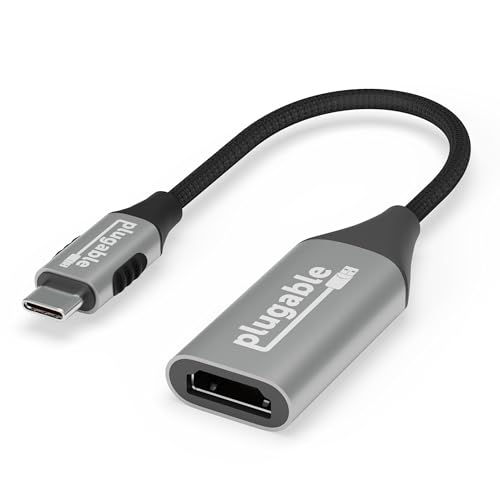
- Switch to a direct USB-C to DisplayPort cable. Active HDMI adapters introduce protocol conversion failures on this platform. A cable rated for DisplayPort 1.4 and 32.4 Gbps is the most stable connection available on Snapdragon X Elite. → Fix 3
- Lower the refresh rate to 60Hz and disable HDR. Reducing bandwidth demand stabilizes connections that flicker at 120Hz or higher, or where DSC negotiation is failing through a dock. → Fix 4
- Apply OEM-specific fixes for your device. Samsung Galaxy Book4 Edge, Lenovo Yoga Slim 7x, Microsoft Surface Pro 11, and Surface Laptop 7 each have documented additional steps. → Fix 5
This guide is based on official Qualcomm driver release notes, Lenovo support bulletins, Samsung community documentation, and verified user reports from r/Surface and r/GalaxyBook.
Quick Fix Checklist
Before running through the full step-by-step procedures below, confirm each of the following. Several users on r/Surface and r/GalaxyBook resolved their flickering at this stage without further action.
- Check your Adreno driver version. Open Device Manager → Display adapters → right-click Qualcomm Adreno GPU → Properties → Driver tab. If the version shown is lower than 31.0.121.1, updating the driver is your first fix.
- Check whether a docking station is involved. If yes, DSC disablement is likely required — especially on Lenovo hardware. See Fix 3 for connection type guidance and Fix 4 for the DSC utility.
- Check for a pending Windows Update. Navigate to Settings → Windows Update. The Windows 11 ARM64 (24H2) cumulative updates include Prism emulation patches. Install all available updates before proceeding.
- Check for third-party display software running in the background. Legacy DisplayLink drivers, OEM monitor calibration tools, or dock management utilities compiled for x86 are a confirmed cause of severe flickering on ARM. Identify and uninstall any that lack a native ARM64 installer.
- Check your cable rating. For direct USB-C to DisplayPort connections, the cable must be explicitly rated for DisplayPort 1.4 and capable of 32.4 Gbps (HBR3). A lower-rated cable produces signal attenuation that mimics a driver failure.
Fix 1: Update the Qualcomm Adreno Driver Manually
If flickering started after a Windows or OEM update, or if the external monitor is locked at 640×480 with settings greyed out, the Adreno driver is the first thing to address. Windows Update does not deliver the latest Qualcomm Upgradable Graphics Driver (UGD) builds on a reliable schedule. Driver version 31.0.121.1 introduced the EDID fallback mechanism that directly resolves the resolution lock. Version 31.0.82.0 was the first to fix PSR-triggered flickering and HDMI handshake failures. Version 31.0.112.0 resolved OpenCL memory access violations causing display corruption in graphics-intensive applications.
- Open a web browser and navigate to the Qualcomm Developer Network Snapdragon Software page.
- Register for a free Qualcomm Developer account to gain authenticated access to the Upgradable Graphics Driver (UGD) repository.
- Download the latest generic driver package for Snapdragon X Series. Confirm the version is 31.0.121.1 or higher — earlier versions lack the critical EDID fallback fix.
- Extract the downloaded ZIP archive to an accessible folder on your local drive.
- Open the Start Menu, type Device Manager, and launch it.
- Expand Display adapters, right-click Qualcomm Adreno GPU, and select Update driver.
- Select Browse my computer for drivers, then choose Let me pick from a list of available drivers on my computer, and click Have Disk…
- Navigate to the extracted Qualcomm folder, select the primary
.inffile, and confirm the installation. The screen will flash briefly as the new driver initializes. - Open the Microsoft Store and search for Snapdragon Control Panel. Install it. This application is the central hub for Adreno GPU management — it delivers automatic notifications for future driver updates (both stable and beta), and provides the PSR toggle required in Fix 2.
- Perform a full system reboot to load the updated display stack into memory.
Fix 2: Disable Panel Self Refresh (PSR)
If the flicker occurs specifically when moving the mouse, using a digital pen, or switching between applications — but the screen is otherwise stable — PSR is the likely cause. Disabling PSR forces the Adreno GPU to continuously transmit pixel data to the monitor, which eliminates the timing mismatch that produces the white flash. Surface Pro 11 users report this specifically during handwriting in the Windows Notes app.
Method A: Via Snapdragon Control Panel (Recommended)
- Open Snapdragon Control Panel from the Start Menu or system tray.
- Navigate to the Power, Display, or Graphics settings tab (the label varies depending on the installed beta version).
- Locate the Panel Self Refresh (PSR) toggle and set it to Disabled.
- The change applies immediately. No reboot is required.
Method B: Via Windows Registry (If PSR toggle is not visible in the Control Panel)
- Press Win + R, type regedit, and press Enter. Accept the UAC prompt.
- Navigate to the following key:
HKEY_LOCAL_MACHINESYSTEMCurrentControlSetControlClass{4d36e968-e325-11ce-bfc1-08002be10318}000
If the display driver is on node0001instead of0000, check that path. - Right-click in the right pane, select New → DWORD (32-bit) Value, and name it PsrDisableInAc.
- Double-click the new value and set its data to 1.
- Close Registry Editor and reboot the system.
Fix 3: Address Your Connection Type
The connection method matters more on Snapdragon X Elite than on comparable Intel or AMD laptops. This platform uses the USB4 specification to tunnel DisplayPort Alternate Mode — not native Intel Thunderbolt silicon. Active HDMI adapters, underpowered cables, and MST dock hubs all introduce failure points that cause flickering independently of the driver version installed.
Direct USB-C to DisplayPort (Most Stable Configuration)
A direct USB-C to DisplayPort cable — with no adapter or hub in between — is the most stable connection method available on this platform. If flickering occurs in this configuration, PSR (Fix 2) or a physically degraded cable is the cause. Confirm the cable is rated for DisplayPort 1.4 and 32.4 Gbps throughput before suspecting a driver issue.
HDMI Adapters and Dongles
Many USB-C to HDMI adapters use active protocol converter chips that translate the DisplayPort signal to HDMI in real time. According to Qualcomm’s UGD v31.0.82.0 release notes, the Adreno GPU has documented failures negotiating the HDMI sleep and resume handshake through these active converters.
- Preferred fix: Bypass the HDMI adapter entirely. Use a direct USB-C to DisplayPort cable if the monitor has a DisplayPort input.
- If HDMI is required: Replace the current adapter with one that is explicitly certified for USB4 bandwidth — not older USB 3.1 or USB-C 3.0 standards. The active translation chip must be capable of the full data throughput to avoid dropping the signal.
Please check the Amazon product page for the latest price and availability.
Docking Stations (Thunderbolt 3/4 and USB4 MST Hubs)
If the monitor flickers when routed through a docking station, the dock’s internal MST hub is failing to decode the DSC-compressed signal from the laptop. Apply the DSC disablement steps in Fix 4 below. Additionally, avoid connecting multiple monitors in a daisy chain — connect each monitor directly to a dedicated USB-C port on the laptop to isolate signal pathways and prevent cascade failures.

Please check the Amazon product page for the latest price and availability.
Fix 4: Clear the Greyed-Out Monitor and Adjust Bandwidth
If the external monitor icon is greyed out and unselectable in Windows display settings, Windows has cached a failed bandwidth negotiation — typically triggered by attempting 120Hz or higher. The steps below clear that cached state. Lowering the refresh rate or disabling HDR reduces bandwidth demand and stabilizes connections on high-resolution monitors where full-rate DSC negotiation is failing through a dock.
Recovering a Greyed-Out or Disabled Monitor
- Disconnect the display cable from the laptop.
- Open Device Manager.
- In the top menu, click View → Show hidden devices.
- Expand the Monitors category. Locate and delete any greyed-out instances of the external display.
- Reconnect the cable. Windows rediscovers the display and initiates a fresh EDID handshake at safe default parameters.
Disabling DSC via Lenovo’s Official Utility (Lenovo Devices)
Lenovo has published an official support bulletin confirming that flickering through Thunderbolt and USB-C docks on ThinkPad, ThinkBook, and Yoga devices is caused by DSC and MST hub incompatibilities. The fix is a dedicated command-line utility.
- Navigate to the Lenovo support portal and download DSC_Control_v5.1.exe.
- Right-click the executable and select Run as administrator.
- Run the tool with the parameter
qfirst to check system applicability. - Run the executable again to disable DSC. This removes the compression layer that causes MST hub desynchronization, restoring a stable connection. The trade-off is a bandwidth reduction — the monitor caps at 4K at 60Hz rather than 4K at 120Hz.
Lowering Refresh Rate and Disabling HDR (Universal Bandwidth Fix)
The official maximum output for a single external display on the Snapdragon X Elite is 4K at 120Hz, according to the Qualcomm Snapdragon X Elite product brief. For monitors that continue to flicker at maximum bandwidth, reducing the load stabilizes the connection.
- Go to Settings → System → Display → Advanced Display.
- Set the refresh rate to 60Hz.
- Return to Settings → System → Display and disable any HDR toggle. Removing the 10-bit color depth requirement reduces bandwidth overhead significantly.
If the monitor’s physical OSD (on-screen display) menu allows you to change the DisplayPort version, set it from 1.4 to 1.2. This caps the connection at 21.60 Gbps and prevents the laptop from attempting DSC or HBR3 negotiations entirely, which removes the root cause of the failure for many dock configurations.
Fix 5: OEM-Specific Steps
Samsung, Lenovo, and Surface devices each have documented causes beyond the general driver and connection issues above. Samsung’s pre-installed monitor drivers conflict with ARM rendering timing. Lenovo ThinkPad and Yoga devices require the DSC_Control utility for stable dock use. Surface devices have a known HDR cursor rendering bug tied to specific beta driver versions.
Samsung Galaxy Book4 Edge
If the screen flickers constantly during normal desktop use:
Samsung’s pre-installed proprietary monitor drivers conflict with the ARM architecture’s rendering timing. Replacing them with Microsoft’s generic driver stops the flickering.
- Open Device Manager.
- Expand Monitors and right-click the Samsung monitor entry.
- Select Update driver → Browse my computer for drivers → Let me pick from a list of available drivers on my computer.
- Select Generic PnP Monitor from the list and confirm the installation.
- Restart the computer.
If USB-C display out has stopped entirely and USB-A ports are also dead:
This is the documented BIOS firmware regression introduced by version P00AKX.060, which severed the internal USB-C alt-mode routing pathways and simultaneously disabled standard USB-A peripheral recognition and the battery sensor. Samsung deployed BIOS version .061 to resolve these failures.
- Open the Samsung Update application.
- Check for and install the latest available BIOS update (version .061 or higher).
- Allow the system to complete the BIOS flash and reboot.
Lenovo Yoga Slim 7x
For dock-based flickering: Follow the DSC_Control_v5.1.exe procedure in Fix 4 above.
For models with a secondary discrete GPU: If the system offers GPU mode switching (such as RTX 3050 models), keep the GPU mode set to the hybrid Optimus mode in the NVIDIA Control Panel. According to verified reports in r/Lenovo, forcing NVIDIA GPU only causes the display engine to flicker severely under thermal load. Do not switch to exclusive discrete GPU mode for external monitor stability.
Additionally, confirm the system BIOS is updated to version JVCN40WW or later via the Lenovo Vantage application. This BIOS update resolves a confirmed bug where the D-Notify power state fails to persist after rebooting, which caused external monitor sleep and wake failures.
Microsoft Surface Pro 11 and Surface Laptop 7
For the 640×480 resolution lock: Install Qualcomm Adreno driver version 31.0.121.1 or higher as described in Fix 1. The EDID fallback mechanism introduced in this version directly resolves the resolution lock documented in multiple r/Surface threads.
For the HDR cursor brightness bug (cursor appears blindingly bright while the rest of the screen is normal): This artifact occurs when early beta drivers from the Qualcomm Developer portal are installed on Surface hardware.
- Open Device Manager → Display adapters, right-click Qualcomm Adreno GPU, and select Properties.
- Go to the Driver tab and click Roll Back Driver if the option is available.
- If the Roll Back option is greyed out, navigate to the Microsoft Download Center and locate the official driver package specifically built for the Surface 7th Edition chassis.
Why Is My Snapdragon X Elite Monitor Flickering?
The flickering symptoms on Snapdragon X Elite devices are not monolithic — they differ depending on your connection method, monitor, and which driver version is currently installed. Understanding the three primary failure layers helps clarify which fix to revisit if the steps above haven’t fully resolved the problem.
Layer 1: GPU Driver Immaturity (The Universal Root Cause)
The Qualcomm Adreno X1-85 GPU drives all display output on Snapdragon X Elite devices. Standard Windows Update delivers Adreno driver packages on a slow cadence that significantly trails behind Qualcomm’s internal bug-fix cycle. The result: most users are running a driver version that has known, documented failures in High Bit Rate 2 (HBR2) signal transmission and EDID handshake polling. According to Qualcomm’s official UGD release notes, it was not until driver version 31.0.121.1 that a robust fallback mechanism for reading display EDID data was introduced — the fix that directly resolves the 640×480 resolution lock reported widely on r/Surface.
Layer 2: Panel Self Refresh (PSR) Desynchronization
PSR is a hardware-level power-saving feature. When your screen content is static, PSR instructs the GPU to stop transmitting frame data and lets the monitor’s internal frame buffer hold the image. This saves power — but on Snapdragon X Elite’s heterogeneous core architecture, the Adreno GPU has documented latency issues exiting the PSR state. The moment you move the mouse, use a digital pen, or switch windows, the GPU must instantly resume sending frame data. The timing mismatch produces the white flash or rapid flicker that many Surface Pro 11 users report specifically during handwriting in the Windows Notes app.
Layer 3: Display Stream Compression (DSC) Negotiation Failures
DSC is a VESA-standardized compression algorithm that allows ultra-high-bandwidth video — such as 4K at 120Hz — to travel through a standard DisplayPort 1.4 cable. Many docking stations use Multi-Stream Transport (MST) hubs internally to split one compressed signal from the laptop into multiple outputs. According to Lenovo’s official support bulletin, the Adreno display driver exhibits severe instability when negotiating DSC handshakes with MST hub chipsets — including the Synaptics and Realtek silicon inside most Lenovo, HP, and Dell business docks. When the hub fails to decompress the signal correctly, the result is flickering or momentary blackouts during docked use.
Identify Your Cause at a Glance
| Symptom | Connection Method | Most Likely Cause |
|---|---|---|
| White flash / flicker on mouse move or pen input | Any | PSR desynchronization |
| Monitor locked at 640×480, settings greyed out | USB-C hub or dock | EDID handshake failure (driver too old) |
| Monitor blacks out when changing to 120Hz or higher | HDMI adapter / active converter | Bandwidth overflow / HBR2 failure |
| Intermittent flicker through a docking station | Thunderbolt 3/4 or USB4 dock | DSC / MST hub negotiation failure |
| “No Signal” + USB-A ports also dead | USB-C (Samsung Galaxy Book4 Edge) | BIOS firmware regression (P00AKX.060) |
| Mouse cursor blindingly bright, screen normal | Direct USB-C | HDR cursor rendering bug (beta driver) |
| UI lag and choppy window dragging despite low CPU/GPU load | Any | Prism x86 emulation layer conflict |
When to Stop Troubleshooting and Contact Support
The vast majority of Snapdragon X Elite display failures are software-rooted — specifically the immaturity of the ARM64 Adreno driver stack, PSR logic bugs, and DSC negotiation failures. These are fixable. However, there is a hard boundary beyond which no driver update, registry edit, or firmware flash will restore stability. The following conditions indicate physical hardware failure and require OEM escalation or an RMA.
- Flickering or color inversion during cold boot (before Windows loads): If the anomaly appears while displaying the manufacturer logo or within the UEFI/BIOS environment, the failure is entirely independent of Windows drivers. This indicates a physical defect in the motherboard’s display routing pathways or a cracked solder joint.
- Persistent “Code 31” error in Device Manager after a clean Windows install: If a clean installation of Windows 11 24H2 followed by a manual sideload of the latest Qualcomm SOC driver packages still results in a continuous “Code 31: This device is not working properly” error on the Adreno GPU, the silicon itself cannot initialize the driver stack due to a manufacturing defect.
- Unusual heat or coil whine from the USB-C port area during monitor connection: If the chassis surrounding the USB-C ports becomes uncomfortably hot, or a high-pitched coil whine is audible from the logic board when a monitor is plugged in, this signals a power delivery and voltage regulation failure on the motherboard.
- Complete USB-C port death (no video and no USB data): If the USB-C ports fail to output video and also fail to recognize basic USB peripherals such as flash drives or wired mice — even after driver resets, generic driver rollbacks, and BIOS flashes — the internal USB4 controller has likely suffered an irreversible electrical fault.
How We Researched
This guide is built on official Qualcomm Upgradable Graphics Driver (UGD) release notes for versions 31.0.82.0, 31.0.112.0, and 31.0.121.1, sourced directly from the Qualcomm Developer Network. Hardware specifications are drawn from the official Qualcomm Snapdragon X Elite product brief. OEM-specific fix procedures are based on Lenovo’s published support bulletin confirming DSC and MST hub incompatibilities (including the DSC_Control_v5.1.exe utility), Samsung’s community documentation of the P00AKX.060 BIOS regression and .061 resolution, and Microsoft’s driver package documentation for Surface 7th Edition devices. User-reported symptom patterns — including the 640×480 resolution lock, the HDR cursor rendering bug, and the Galaxy Book4 Edge USB-A port failure — are corroborated by primary threads from r/Surface, r/GalaxyBook, r/Lenovo, and the Microsoft Q&A community.



Comments