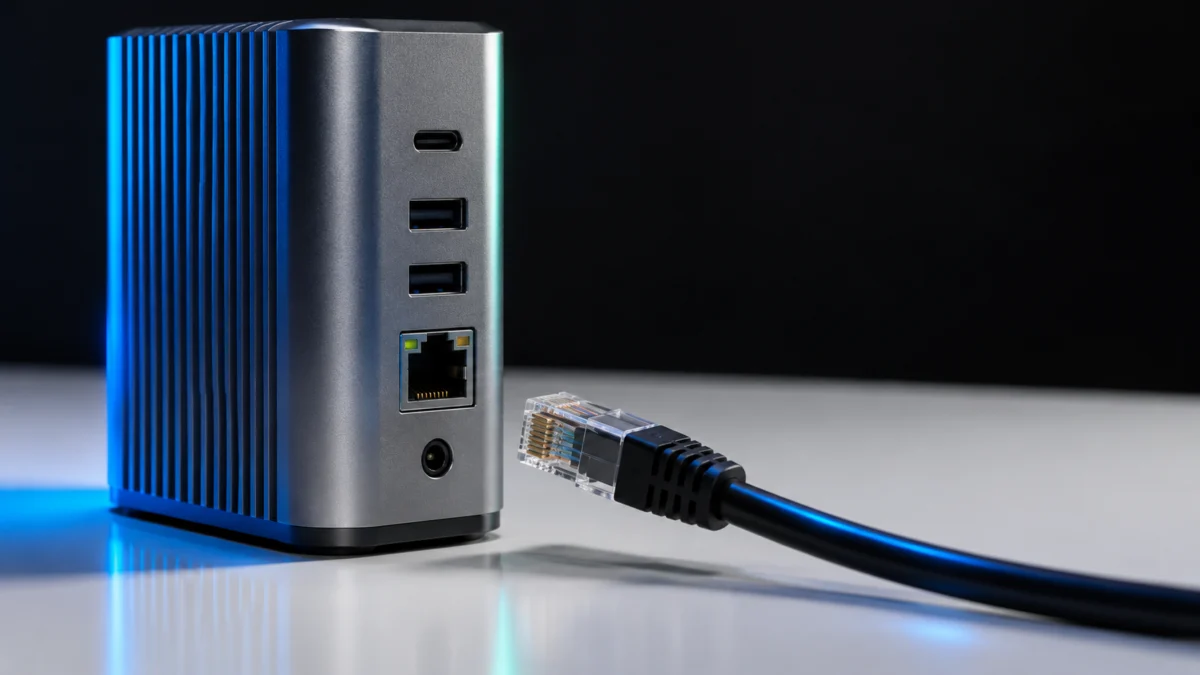
If your CalDigit TS4 Ethernet port is not working on Windows, start by deciding which of two problems you have. If Windows shows no Ethernet controller for the dock at all, check the connection first: CalDigit states that the TS4’s built-in Ethernet needs a Windows PC that supports Thunderbolt or PCIe over USB4. If the controller appears but no traffic passes, move on to the driver for your PC’s architecture, the documented Energy Efficient Ethernet setting, and then the cable and network path.
This guide covers Windows 10 and Windows 11 with the TS4’s built-in 2.5GbE port. The checks follow CalDigit’s own support material and cost nothing. The checks do not require a purchase; the purchase options near the end apply only to specific situations.
Quick Check: Which TS4 Ethernet Problem Do You Have?
Look at the Ethernet controllers Windows lists under Network Setting in Control Panel. If no Ethernet controller associated with the TS4 appears, focus on the host port, Thunderbolt permission and the driver. If the dock’s controller is listed but you still have no connection or traffic, focus on Energy Efficient Ethernet, the cable and the router or switch port.
| What you see in Windows | What to check | Start with |
|---|---|---|
| No Ethernet controller for the dock | Host port without Thunderbolt or PCIe over USB4, Thunderbolt permission not granted, or no driver loaded | Steps 1-3 |
| Dock controller listed, but no traffic | Energy Efficient Ethernet, network cable, router or switch port | Steps 4-5 |
| Still failing after all checks on a compatible PC | Possible dock-side fault | Step 6 (CalDigit support) |
Why Does the TS4 Ethernet Port Need Thunderbolt or PCIe over USB4?
The TS4’s built-in Ethernet depends on PCIe from the host. CalDigit says a Windows PC must support Thunderbolt or PCIe over USB4 for it, and states that USB-C 3.0, 3.1 and 3.2 ports do not support PCIe. A USB4 port alone is not proof: CalDigit tells USB4 owners to ask their PC manufacturer about PCIe support.
| Your PC’s port | Built-in TS4 Ethernet | What to do |
|---|---|---|
| Thunderbolt | Supported host type per CalDigit | Continue with the steps below |
| USB4 with PCIe support confirmed by the PC maker | Supported host type per CalDigit | Continue with the steps below |
| USB4, PCIe support unknown | Not confirmed | Ask the PC manufacturer before changing anything else |
| USB-C 3.0, 3.1 or 3.2 | Not supported (no PCIe over the USB-C port) | Use existing Ethernet or Wi-Fi, or a USB-A Ethernet adapter |
CalDigit’s TS4 product page makes the same point: the built-in LAN works on Thunderbolt hosts and on USB4 hosts that support PCIe, and it directs readers to their USB4 host manufacturer for PCIe support information. The full Windows guidance is on CalDigit’s TS4 and TS3 Plus Ethernet troubleshooting page.
How Do You Fix CalDigit TS4 Ethernet on Windows?
Work from the connection inward: confirm a Thunderbolt or PCIe-capable USB4 port, approve the dock where Intel Thunderbolt software applies, install the TS4 Ethernet driver that matches your PC’s architecture, then test Energy Efficient Ethernet, the cable and the network path. Contact CalDigit support once these checks fail on a compatible PC.
The fix takes 6 steps.
- Confirm the host port. Connect the TS4 to a Thunderbolt port, or to a USB4 port your PC maker confirms supports PCIe. The TS4 ships with a 0.8m Thunderbolt 4 cable, so use that cable for this check rather than an unknown USB-C cable. If your PC only has USB-C 3.x ports, CalDigit does not support the built-in Ethernet on them, so driver changes will not help; skip to the alternatives section.
- Approve the dock on Intel Thunderbolt systems. If your PC uses Intel Thunderbolt and its maker provides the Intel Thunderbolt driver, CalDigit says to make sure that driver is installed and that the TS4 has been given connection permission. Skip this step on AMD or ARM-based PCs unless your PC maker supplies a matching Thunderbolt driver for that exact model.
- Install the correct TS4 Ethernet driver. If the Windows inbox driver did not pick up the dock’s 2.5GbE controller, download the TS4 Ethernet driver from CalDigit’s TS4 support page. Choose the package that matches your computer, as explained in the next section.
- Test Energy Efficient Ethernet if the controller is listed. When the dock’s Ethernet controller appears but traffic does not pass, try CalDigit’s documented Energy Efficient Ethernet change described below, and write down the original value first.
- Compare the cable and network path. Swap in a network cable that works with another device, try a different port on your router or switch, and check whether another computer connects through the same cable and port. If that path fails for other devices too, the problem is upstream of the TS4.
- Contact CalDigit support. If the TS4 still has no working Ethernet on a compatible PC, contact CalDigit with the product name, serial number, and operating system ready.
Skip BIOS or registry changes here. None of the CalDigit material we checked asks Windows users to make them for this issue.
Which TS4 Ethernet Driver Should You Install: Intel-Based or ARM-Based?
CalDigit’s TS4 support page lists two separate Windows Ethernet drivers: one labeled Intel-Based PC for Windows 10 and 11 and one labeled ARM-Based PC for Windows 11. Match both the operating system and processor architecture; ask CalDigit if the labels do not clearly fit your computer. CalDigit has announced that the TS4’s Ethernet port now works with ARM-based Windows computers through these published drivers, so older claims that no ARM driver exists are out of date.
- Download only from the CalDigit TS4 support page, and use the package listed there for your architecture rather than a file or version mentioned in an old forum post.
- If you are not sure whether your PC is ARM-based, check your PC maker’s processor specifications before installing.
- If your PC does not clearly fit either label, for example an AMD-based PC, ask CalDigit support which package applies instead of guessing.
- If you install the ARM driver on a compatible system and the TS4 still does not work as expected, CalDigit’s ARM driver announcement asks you to contact its support team.
Should You Turn Off Energy Efficient Ethernet on the TS4?
Turning off Energy Efficient Ethernet is CalDigit’s documented Windows change for a dock Ethernet controller that Windows recognizes but that does not work properly. Treat it as a diagnostic step, not a guaranteed fix. Note the current value before you change it, and set it back if the connection does not improve.
The change takes 5 steps.
- Go to Network Setting under Control Panel.
- Select the Ethernet controller associated with the TS4.
- Open its Properties, then the Advanced tab.
- Choose Energy Efficient Ethernet from the property list and write down its current value.
- Change the value to Off, apply it, and test the connection again.
If Energy Efficient Ethernet is not in the property list, skip this step. If turning it off makes no difference, restore the value you recorded and continue with the cable and network checks.
What If Your PC Only Has USB-C 3.x or the TS4 Still Fails?
Use a connection you already have first: your PC’s built-in Ethernet port or Wi-Fi. If you need wired Ethernet on a USB-C 3.x PC, CalDigit itself recommends a low-cost USB-A to Ethernet adapter. Replacing the TS4 only makes sense when CalDigit support confirms a hardware fault on a compatible PC and warranty does not cover it.
| CalDigit TS4 | Plugable USB3-E1000 | |
|---|---|---|
| Host connection | Thunderbolt, or USB4 with PCIe support | USB-A, USB 3.0 |
| Ethernet | 1 x 2.5 Gigabit Ethernet | Gigabit, up to 1000 Mbps |
| Other functions | Charging, displays and many extra ports | Ethernet only |
| Windows driver | TS4 support page: Intel-Based PC or ARM-Based PC package | Automatic via Windows Update on Windows 11 and 10 (needs an existing internet connection) |
| Windows on ARM | ARM driver published by CalDigit | Not confirmed in the material we checked |
Option 1: Keep using built-in Ethernet or Wi-Fi
If your computer has its own Ethernet port, or Wi-Fi already meets your needs, keep using it while you troubleshoot or wait for support. Nothing in this guide requires a purchase, and buying hardware will not give a USB-C 3.x port the PCIe support the TS4’s built-in Ethernet needs.
Option 2: Plugable USB3-E1000 for Ethernet only
The Plugable USB3-E1000 is a USB-A, USB 3.0 Gigabit Ethernet adapter. Plugable rates it at speeds up to 1000 Mbps and says Windows 11 and 10 install its driver automatically through Windows Update when you have an existing internet connection such as Wi-Fi. It adds Ethernet only, with no charging, display output or extra ports. Details are on Plugable’s USB3-E1000 product page.
Buy if:
- Your PC has no working built-in Ethernet port and Wi-Fi does not meet your needs.
- Gigabit (1Gbps) Ethernet is enough for you.
- Your PC has a suitable USB-A port for the adapter.
Don’t buy if:
- Wi-Fi or built-in Ethernet already covers your needs.
- You need 2.5GbE or the TS4’s charging, display and dock functions.
- Your PC is ARM-based and you cannot confirm the adapter supports it; the Plugable material we checked does not establish ARM compatibility.
The card below is the Amazon listing for the Plugable USB to Ethernet Adapter, USB 3.0 to Gigabit Ethernet. Availability and pricing can change.

Please check the Amazon product page for the latest price and availability.
Option 3: CalDigit support and warranty first, then a replacement TS4
CalDigit’s TS4 support page lists a 2-year warranty. Whether your dock qualifies depends on CalDigit’s support process and regional terms, so contact CalDigit with the product name, serial number, and operating system before buying anything.
Buy if:
- CalDigit support has confirmed a hardware fault on a compatible Thunderbolt or PCIe-capable USB4 PC.
- Warranty cannot cover a repair or replacement.
- You need the full dock: CalDigit describes the TS4 as offering 18 ports of connectivity, 98W laptop charging, dual display connectivity, and 2.5GbE via a single cable.
Don’t buy if:
- Your PC only has USB-C 3.x ports; a new TS4 has the same PCIe requirement.
- You have not yet worked through the Thunderbolt permission, driver and Energy Efficient Ethernet steps.
- You only need a wired connection and 1Gbps is enough.
A new dock is not a guaranteed fix when the cause has not been identified. The card below is the Amazon listing for the CalDigit TS4 18 Port Thunderbolt 4 Dock; availability and pricing can change.

Please check the Amazon product page for the latest price and availability.
How We Researched
This article is based on CalDigit’s TS4 support page, its TS4 and TS3 Plus Ethernet troubleshooting article, its ARM driver announcement and its TS4 product page, plus Plugable’s USB3-E1000 product page. Amazon listings were used only to identify the exact products shown in the cards. We have not conducted hands-on testing or benchmarks, and Fixory did not measure any speeds or confirm any fix described here.
FAQ
Does a USB4 port guarantee that TS4 Ethernet works?
No. CalDigit supports the built-in Ethernet on USB4 hosts that provide PCIe, and it tells USB4 owners to ask their PC manufacturer about PCIe support. USB-C 3.x ports do not support PCIe, so the built-in Ethernet is not available on them.
Is there a TS4 Ethernet driver for Windows on ARM?
Yes. CalDigit’s TS4 support page lists a Windows 11 Ethernet driver marked ARM-Based PC alongside the Windows 10 and 11 Intel-Based PC driver. Match the operating system as well as the processor, and ask CalDigit if your combination is unclear.
Will turning off Energy Efficient Ethernet fix my TS4?
It can help when Windows already recognizes the dock’s Ethernet controller, but it is a troubleshooting step, not a guaranteed fix. Record the original value and restore it if nothing changes.
Do I need Intel Thunderbolt software on an AMD or ARM PC?
Follow CalDigit’s Intel Thunderbolt driver step only if your PC actually uses Intel Thunderbolt and its maker provides that software. On other platforms, use the drivers your PC maker supplies for that model and ask the maker about PCIe support.
Bottom Line
When TS4 Ethernet is not working on Windows, first check whether the dock’s Ethernet controller appears at all. If it does not, confirm Thunderbolt or PCIe over USB4, approve the dock where Intel Thunderbolt applies, and install the Intel-Based PC or ARM-Based PC driver. If it does appear, test Energy Efficient Ethernet, then the cable and network path. Contact CalDigit support before paying for any hardware.