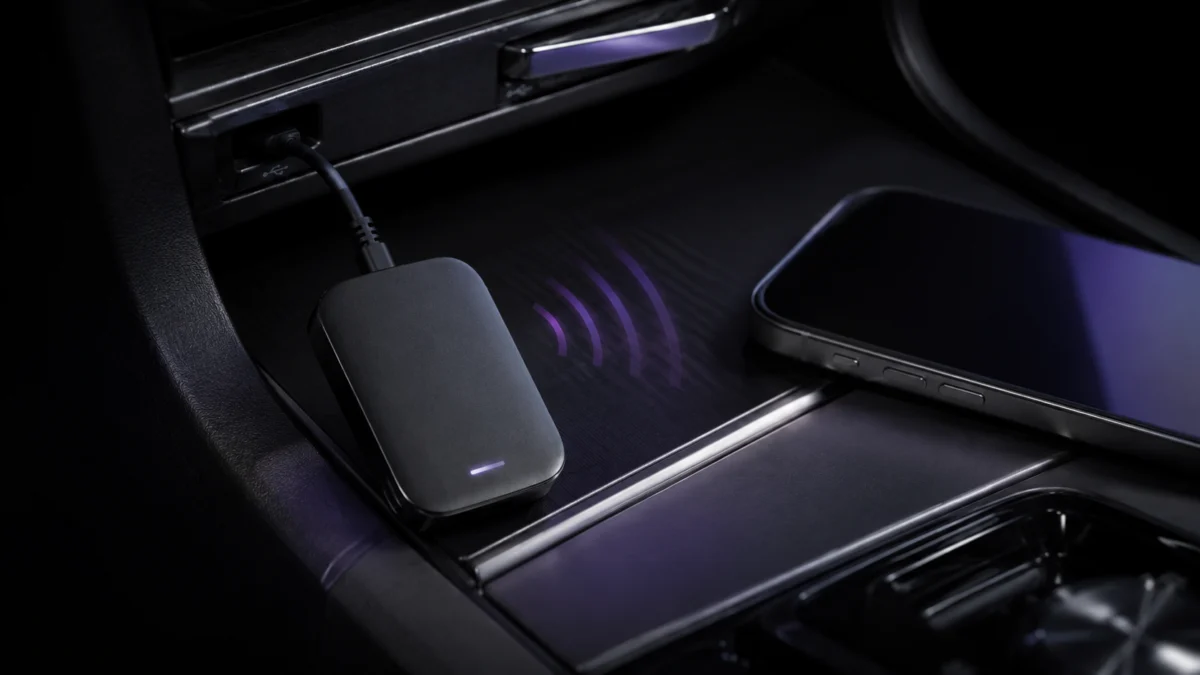
If your CarlinKit wireless CarPlay keeps disconnecting, the problem rarely comes down to just one thing. The most common causes fall into four categories: unstable USB power from your car’s port, a startup timing mismatch between the adapter and your head unit, Wi-Fi channel interference inside the vehicle, and adapter settings that haven’t been configured for your specific setup. Resetting CarPlay on your iPhone is a reasonable first step, but if the dropout keeps coming back, the fix is usually in the adapter’s settings panel at 192.168.50.2 — specifically the Startup Delay, HULink Type, and Wi-Fi channel. This guide walks through each layer in order, so you can identify where the problem actually is before deciding whether a replacement is necessary.
Use the quick reference below to match your symptom to the most likely cause and the section that covers the fix. These rows summarize the causes and settings explained later in this guide — start with the indicated section rather than changing everything at once.
| Symptom | Most likely cause | Where to look first |
|---|---|---|
| Drops a few minutes into the drive, or mid-drive (often worse in urban areas) | Wi-Fi channel interference | Wi-Fi Channel setting (try channel 149) |
| Connects, drops, and asks to reconnect repeatedly (reconnect loop) | HULink Type left on Auto | Set HULink Type explicitly |
| Car starts but CarPlay does not launch; needs a manual reconnect every session | Startup timing mismatch with the head unit | Startup Delay setting |
| Works once, then fails to connect on the next start | HULink re-evaluation and/or startup timing | HULink Type + Startup Delay |
| Audio drops, music cuts in late, or sound is out of sync | Audio buffering, not connection loss | Media Delay setting |
Using a wireless Android Auto adapter such as AAWireless rather than CarlinKit CarPlay? See our wireless Android Auto disconnect guide for the equivalent steps.
What to Try First When CarlinKit Wireless CarPlay Keeps Disconnecting
Before diving into the adapter’s settings panel, run through this sequence in a safe, parked location. These steps address the most common causes of CarlinKit dropouts without requiring any technical configuration. Start with the quickest options and only move to the settings panel if the basic resets don’t hold.
- Toggle iPhone Wi-Fi and Bluetooth off, then back on. Open Control Center, turn both off, wait five seconds, then re-enable them. The adapter will attempt to reconnect automatically.
- Remove CarPlay from your iPhone’s trusted cars list. Go to Settings → General → CarPlay, tap your car’s name, and select “Forget This Car.” Reconnect from scratch by tapping the CarlinKit Bluetooth signal on your car screen.
- Clear the Bluetooth pairing record on iPhone. In Settings → Bluetooth, find the CarlinKit device (listed as “AutoKit” followed by a string of characters), tap the info icon, and select “Forget This Device.”
- Unplug the adapter, wait 10 seconds, and replug it. Allow the adapter to fully restart before your phone tries to reconnect.
- Try a different USB port or a different cable. Underpowered USB ports and low-quality cables are a documented cause of unstable connections. Use the port your car manual designates for data, not just charging.
- Check for a firmware update. Connect your iPhone to the adapter’s Wi-Fi (look for “Autokit_” followed by characters; password: 12345678), open Safari, go to 192.168.50.2, and tap “Check Update.” Firmware updates have resolved auto-connection failures for multiple users across community reports. (CarlinKit dropout FAQ)
If the dropout returns after completing these steps, the next section explains why, and the sections after that show exactly which settings to change.
Why Wireless CarPlay Drops Connection on CarlinKit Adapters
CarlinKit uses Bluetooth only for the initial handshake and Wi-Fi credential exchange. Everything after that runs over Wi-Fi. Dropouts can originate from USB power instability, a startup timing mismatch between the adapter and the head unit, Wi-Fi channel interference, or a HULink setting that forces the adapter to re-evaluate the connection type on every startup.
The four main causes break down as follows:
- USB power instability. If the car’s USB port delivers inconsistent current — particularly during engine startup or when other accessories are drawing power — the adapter can reset mid-session. Some car USB ports are charge-only and deliver lower, less stable voltage than data-rated ports.
- Startup timing mismatch. The adapter begins looking for a phone connection as soon as it receives power. If the car’s infotainment system hasn’t finished booting, the adapter’s connection attempt fails silently. The Startup Delay setting exists specifically to address this by making the adapter wait before it tries to connect.
- Wi-Fi channel interference. In-cabin Wi-Fi interference from other devices — including the phone’s own hotspot, other Bluetooth accessories, and nearby vehicle networks — can destabilize the adapter’s 5 GHz connection. The adapter’s default auto-channel selection doesn’t always choose the cleanest frequency in a dense environment.
- HULink Type set to Auto. When HULink Type is left on automatic, the adapter re-evaluates the connection mode on each startup. On some head units, this re-evaluation process intermittently stalls or selects the wrong mode, triggering a dropout or a manual connection prompt.
Because these causes can overlap, the fix usually involves adjusting more than one setting. The next section covers how to access the settings panel, and the section after that maps each cause to its corresponding change.
How to Access CarlinKit Settings at 192.168.50.2
The 192.168.50.2 panel is a local web interface served by the adapter. It is only reachable when your iPhone is connected to the adapter’s own Wi-Fi — not your home network. The steps below apply to CarlinKit 3.0, 4.0, and 5.0 (2air). Two UI versions exist depending on firmware: a dark blue layout on newer versions, and a plain white layout on older ones.
(CarlinKit 192.168.50.2 settings FAQ)
- Make sure the adapter is plugged in and the car is on (or at least in accessory mode).
- On your iPhone, open Settings → Wi-Fi. Look for a network named “Autokit_” followed by a string of characters. This is the adapter’s local Wi-Fi. Connect to it using the password 12345678.
- Open Safari — Safari tends to be the most reliable browser for accessing local network addresses on iOS — and type 192.168.50.2 in the address bar. The settings panel should load within a few seconds.
- If the page doesn’t load: confirm you are still connected to the adapter’s Wi-Fi and not automatically switched back to your mobile data. iOS sometimes drops a local Wi-Fi connection that has no internet access. Toggle Wi-Fi off and on, reconnect to Autokit_, then try again before switching apps.
Note that the exact names of settings can vary slightly across product generations and firmware versions. If a setting listed below doesn’t appear exactly as written, look for the closest matching label. Settings for the CarlinKit U2W-series (3.0), CP2A (4.0), and 2air (5.0) share the same 192.168.50.2 address and largely the same structure, though some advanced options — including Frame Rate and Bitrate controls — are more consistently present on the 5.0 (2air).
The Best 192.168.50.2 Settings to Reduce CarlinKit Disconnects
For most CarlinKit dropouts, three settings matter most: Startup Delay (set to 1–3 seconds), HULink Type (set explicitly to CarPlay or Android Auto), and Wi-Fi Channel (try channel 149). Change one setting at a time, unplug the adapter to restart it, and test across a few drives before moving to the next.
The settings below are drawn from CarlinKit’s official FAQ pages and authorized reseller support documentation. No single combination works for every car and phone setup, so this table presents each setting with the symptom it addresses and a suggested starting point. Change one setting at a time, restart the adapter, and test before moving to the next.
Official dropout FAQ / Official startup-delay FAQ / CarlinKit 5.0 dropout guide / CarlinKit 5.0 audio guide
| Setting | Symptom it addresses | What to change | Notes |
|---|---|---|---|
| Startup Delay | CarPlay doesn’t connect on startup; requires manual reconnect every session | Set to 1 or 3 (seconds) | Tells the adapter to wait before initiating a connection attempt, giving the head unit time to fully boot. Default is 0. Higher values may be needed on slower infotainment systems. |
| HULink Type | Intermittent dropouts; adapter connects on some starts but not others | Set to CarPlay (for iPhone users) or Android Auto (for Android users) explicitly | Removes the auto-detection step that can stall on some head units. Hyundai users with Android Auto dropouts should try the “Compatible” option instead. |
| Wi-Fi Channel / Band | Connection drops mid-drive, especially in urban areas or when other devices are active | Set to channel 149 | Channel 149 is a 5 GHz channel that tends to experience less interference in most environments. The adapter defaults to automatic channel selection, which can pick a congested channel. |
| Frame Rate + Video Bitrate (CarlinKit 5.0 / 2air) |
Persistent dropouts that don’t respond to HULink Type or channel changes | Option A: Frame Rate 20, Bitrate 2 or 4 Option B: Frame Rate 0, Bitrate 6 |
Reducing transmission load can stabilize the connection in setups where the head unit struggles with higher data rates. Try Option A first. Option B uses a different encoding profile that works better on some vehicles. |
| Media Delay | Audio out of sync with navigation prompts or video; music cuts in late | Default is 1000 ms. Try 1500 ms for audio lag; try 300 ms if audio leads the image. | This setting controls audio buffering, not connection stability. Increasing it reduces perceived lag but adds a small delay before audio starts. Range is 300–2000 ms. |
After making any change, unplug the adapter for 10 seconds to force a full restart, then reconnect. Test across at least two or three separate drive sessions before concluding a setting change has or hasn’t worked — intermittent issues don’t always reproduce on the first attempt.
iPhone and Car-Side Checks Before Replacing the Adapter
If adjusting the 192.168.50.2 settings doesn’t fully resolve the dropout, the problem may be on the iPhone side, the vehicle side, or the physical installation environment. Work through the checks below systematically before concluding the adapter itself is defective or incompatible with your setup.
iPhone-Side Checks
- Forget This Car (CarPlay settings). Settings → General → CarPlay → select the car name → Forget This Car. This clears the CarPlay session record, which can become corrupted after repeated failed connections.
- Remove the CarlinKit Bluetooth device. Settings → Bluetooth → find the AutoKit device → Forget This Device. Reconnect from scratch.
- Confirm Wi-Fi and Bluetooth are both on and unoccupied. CarlinKit relies on both simultaneously. A VPN, Personal Hotspot, or iOS Focus mode that restricts background connectivity can interfere with the adapter’s ability to maintain its Wi-Fi link.
- Check whether a recent iOS update preceded the problem. If disconnections started after a specific iOS update, check CarlinKit’s FAQ and community forums for whether a firmware update addressing that iOS version is available.
- Avoid running heavy navigation apps in high-heat conditions without ventilation. iPhones can reduce performance or drop wireless features when they overheat. This is an edge case, but worth noting if dropouts correlate with long summer drives.
Car-Side Checks
- Try a different USB port. Some vehicles have one data-grade USB port and others rated for charging only. Data ports provide more stable power. Check your car’s manual to identify which port is which.
- Replace the USB cable. Use a short, data-rated cable from a reputable brand. Longer cables and thin charge-only cables introduce resistance that can cause power fluctuations. A right-angle cable can also reduce strain if the adapter sits in an awkward position.
- Plug in after the engine is running, not before. On vehicles where the USB port powers on immediately with the ignition, plugging in before the infotainment system is ready can cause the first connection to fail. Try plugging the adapter in after the home screen has appeared.
- Check for a pending infotainment system update. Some vehicles have separate software updates for the head unit that affect CarPlay behavior. Consult your vehicle’s settings menu or manufacturer app.
Environment and Installation Checks
- Avoid placing the adapter in direct sunlight. Overheating the adapter can cause it to throttle or reset. If the USB port is on the dashboard face rather than in a console cubby, consider repositioning with a short extension cable.
- Avoid USB extension cables unless necessary. Each extension introduces additional resistance. If you’re using an extension to reach a better port, make sure it’s a data-rated cable, not a cheap charge-only extender.
When to Update Firmware, Factory Reset, or Replace the CarlinKit Adapter
Most CarlinKit connection issues are resolved by the settings and checks covered above. When they aren’t, the next decision points are a firmware update, a full factory reset, and — if neither helps — replacing the unit. Here’s how to approach each step and when to move on.
Firmware Update
A firmware update is worth doing before a factory reset, since newer firmware can resolve connection bugs that settings changes alone don’t address. To update, connect to the adapter’s Wi-Fi, go to 192.168.50.2, and tap “Check Update.” If an update is available, install it from that screen. Do not unplug the adapter while the update is in progress — an interrupted update can leave the device in a non-functional state. Note your current settings before updating, as some firmware versions reset settings to default during the process. (CarlinKit settings and update FAQ)
Factory Reset
A factory reset via 192.168.50.2 (the Reset option in the settings panel) clears all connection records and configuration changes without changing the firmware version. This is useful if you’ve tried multiple settings combinations and the device seems to be in an inconsistent state. After resetting, also clear the CarPlay record and Bluetooth record on your iPhone as described in the iPhone-side checks section, and then set up the connection from scratch. Apply the Startup Delay and HULink Type settings before testing again. (CarlinKit reset and reconnect FAQ)
When to Consider Replacing the Adapter
If the adapter has been updated to the latest firmware, factory reset, and reconfigured with the recommended settings — and dropouts still occur consistently — it’s reasonable to conclude the unit has a hardware issue, an incompatibility with your specific vehicle, or a deeper firmware conflict. Before buying a replacement, check the CarlinKit compatibility tool on their official site to confirm your car model is listed. When evaluating alternatives, the next section covers what to look for.
What to Look for If You Need a Different Wireless CarPlay Adapter
If you’ve exhausted the settings options and determined that the CarlinKit adapter isn’t a reliable fit for your specific vehicle and iPhone combination, a replacement may be the right call. Rather than recommending a specific model — compatibility varies significantly by car make, model year, and head unit — here are the criteria that matter most before buying.
- Confirmed compatibility with your car make and model year. Check the product’s compatibility list before purchasing. Generic claims of “works with most cars” are common; specific vehicle lists are more useful.
- Active firmware update support. Wireless CarPlay adapters need firmware updates to maintain compatibility with iOS updates. Look for products that have a documented update history, accessible through the product’s settings interface.
- USB-A or USB-C to match your car’s port. Some newer vehicles have USB-C ports only. Confirm the adapter’s connector type before buying, as not all adapters are available in both formats.
- A compact form factor if heat is a concern. Larger adapters generate more heat, especially in enclosed dashboard ports. A compact or dongle-style form tends to stay cooler in direct-sun positions.
- Sold by a vendor with a clear return policy. Given that compatibility can’t always be confirmed before testing with a specific vehicle, buy from a seller — including Amazon.com — that accepts returns within a reasonable window.
Check CarlinKit 5.0 on Amazon
/
Official CarlinKit 5.0 / 2air page
Check CarlinKit 4.0 on Amazon
/
Official CarlinKit 4.0 / CP2A page
Frequently Asked Questions
Why does wireless CarPlay keep disconnecting on CarlinKit adapters?
Dropouts usually trace back to one of four things: unstable USB power, a startup timing mismatch with the head unit, in-cabin Wi-Fi interference, or HULink Type left on Auto. Because these causes can overlap, the fix often involves adjusting more than one setting in the 192.168.50.2 panel rather than a single change.
Why does my CarlinKit 4.0 keep disconnecting?
The CarlinKit 4.0 (CP2A) uses the same 192.168.50.2 settings panel and the same diagnostic path as the 3.0 and 5.0 (2air) — it shares the same address and largely the same settings structure. Start with Startup Delay and HULink Type, set the Wi-Fi channel, and check for a firmware update before considering a replacement.
Where do I find the CarlinKit settings page?
Connect your iPhone to the adapter’s own Wi-Fi — a network named “Autokit_” followed by a string of characters, password 12345678 — then open Safari and go to 192.168.50.2. The panel only loads while you are connected to the adapter’s Wi-Fi, not your home or mobile network.
How We Researched
This article is based on CarlinKit’s official support FAQ pages (carlinkit.com), documentation from authorized resellers (carlinkitcarplay.com, autokitcarplay.com), and recurring patterns from user reports across product review sites and car-specific community forums. We have not conducted hands-on lab testing. Setting recommendations are drawn directly from official and authorized sources; where the same recommendation appears across multiple independent sources, that is noted. Claims specific to individual vehicle models or firmware versions are attributed to their sources rather than presented as universal.
Conclusion
CarlinKit wireless CarPlay dropouts are frustrating, but most are fixable without replacing the adapter. Start with the basics — reset the CarPlay pairing, check the cable and USB port, and install the latest firmware. If the problem persists, the 192.168.50.2 settings panel gives you direct control over the variables that most commonly cause instability: Startup Delay, HULink Type, and Wi-Fi channel. Work through one change at a time and test across multiple sessions. The combination that works depends on your specific vehicle, head unit, and iPhone, so there’s no single setting that applies universally — but the framework in this guide covers the documented causes and their corresponding fixes.