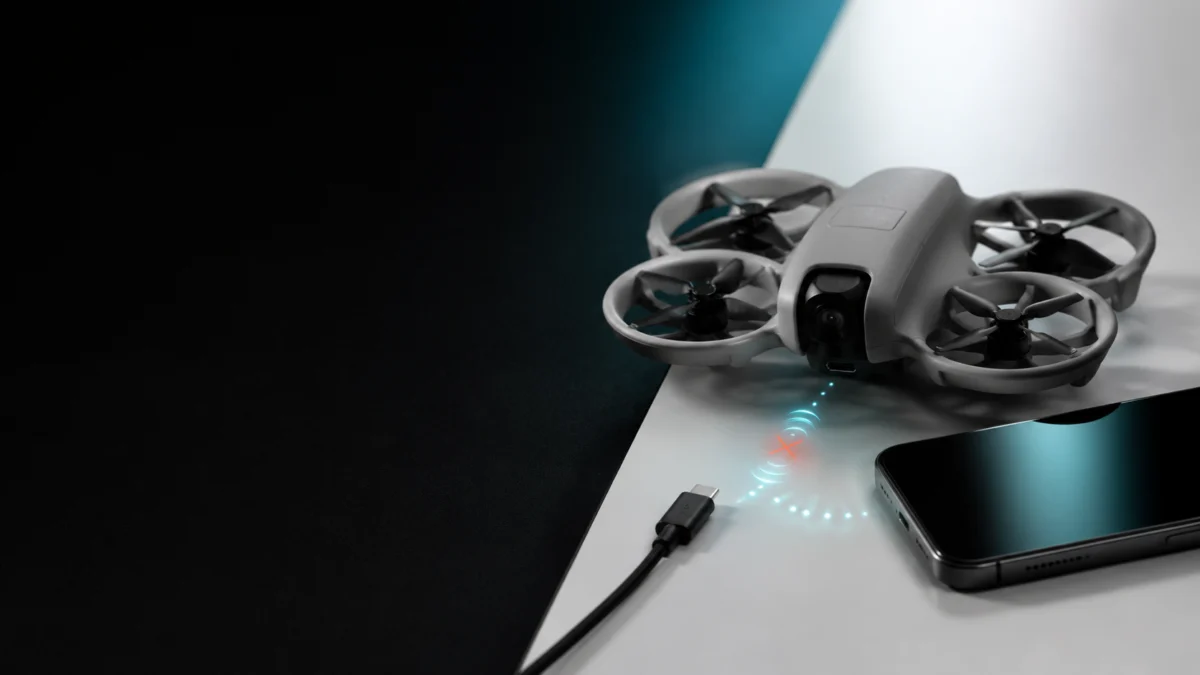
If DJI Neo QuickTransfer is showing “Failed to join Wi-Fi network,” the problem is almost never a hardware defect. The most common causes are an active VPN on your phone, your phone’s automatic Wi-Fi switching, a frequency band mismatch between the drone and your device, or a missing app permission in DJI Fly. Start by disabling your VPN and turning off cellular data, then check DJI Fly’s QuickTransfer Band setting before assuming something is broken. If wireless transfer keeps failing, USB-C cable transfer is a fast and reliable alternative that does not require the drone to be powered on.
Reference: DJI Wi-Fi connection troubleshooting
Reference: DJI QuickTransfer FAQ
Quick Answer: What to Try First When DJI Neo QuickTransfer Won’t Connect
The fastest way to fix a DJI Neo QuickTransfer connection failure is to turn off your VPN, disable cellular data, and make sure DJI Fly has the correct permissions before anything else. If the error persists, switching the QuickTransfer Band to Fixed 2.4 GHz in the DJI Fly app resolves the issue for many users, particularly on Android. If none of that works, plugging DJI Neo directly into your phone or computer via USB-C is the most reliable fallback.
Try these steps in order before digging into more specific settings:
- Disable your VPN completely. Even ad-blocker apps that use a local VPN (such as AdGuard) can block the connection. Turn off any VPN or security filter before opening DJI Fly.
- Turn off cellular data. On both iPhone and Android, active mobile data can cause the phone to abandon DJI Neo’s Wi-Fi. DJI support has confirmed this as a fix. Turn mobile data off temporarily while transferring files.
- Make sure Bluetooth, Wi-Fi, and Location are all on. QuickTransfer first pairs via Bluetooth, then switches to Wi-Fi. All three must be active for the handshake to work.
- Power off any remote controller. If a DJI RC or RC-N3 controller is also powered on, it can occupy DJI Neo’s Wi-Fi, preventing your phone from connecting. Power it off and try again.
- Force-close and reopen DJI Fly. A stale app session can hold a broken Wi-Fi state. Close DJI Fly fully, then reopen it and try QuickTransfer again.
If none of these resolve the error, the sections below walk through iPhone-specific settings, Android-specific settings, the QuickTransfer Band option, and USB-C transfer as a fallback.
Why DJI Neo QuickTransfer Fails to Join the Wi-Fi Network
DJI Neo’s Wi-Fi is a local hotspot with no internet connection. Most phones are designed to automatically drop or avoid Wi-Fi networks that have no internet access, which is why your phone may connect to DJI Neo’s Wi-Fi for a moment and then silently switch back to your home network or mobile data. The “Failed to join Wi-Fi network” error typically reflects this OS-level behavior, not a broken drone.
Here is how QuickTransfer works technically: DJI Neo first pairs with your phone via Bluetooth. Once paired, it broadcasts a Wi-Fi network, and DJI Fly switches your phone to that network to transfer files at speeds of up to 25 MB/s under ideal conditions.
Reference: DJI Neo FAQ
The entire handshake depends on your phone staying connected to a Wi-Fi network that has no internet — something iOS and Android both actively try to prevent.
Common interference sources include:
- VPN or local-VPN ad blockers — these intercept all network traffic and can block DJI Fly from completing the Wi-Fi switch
- Smart network switching (Android) — features like WLAN+, Wi-Fi Assistant, or “Switch to mobile data” automatically drop Wi-Fi networks with no internet
- Frequency band mismatch — some older or budget Android phones only support 2.4 GHz, but DJI Neo may broadcast on 5 GHz by default in certain regions, making it invisible to the phone
- Another device already connected — DJI Neo’s Wi-Fi can only be used by one device at a time. If a second phone, tablet, or a previously connected device is nearby with DJI Fly running or auto-reconnecting, the connection will be blocked
- Outdated firmware or app version — older DJI Fly versions and drone firmware have known connection bugs that updates have addressed
Reference: DJI connection errors guide
Understanding this helps you target the right fix rather than cycling through unrelated settings.
iPhone Checklist: DJI Fly Permissions and Settings to Check First
On iPhone, the most common causes of QuickTransfer failure are a denied Local Network permission for DJI Fly, an active VPN, or the Wi-Fi Assist feature routing traffic back to cellular. Check these settings in order before trying anything more involved. The exact menu names may vary slightly depending on your iOS version.
1. Check Local Network Permission
DJI Fly needs Local Network access to discover and communicate with DJI Neo on the same Wi-Fi segment.
- Go to Settings → Privacy & Security → Local Network.
- Find DJI Fly in the list and confirm the toggle is on.
- If it was off, turn it on, force-close DJI Fly, and try QuickTransfer again.
2. Disable VPN
Go to Settings → VPN & Device Management and confirm no VPN is active. If you use a third-party app with built-in VPN or content filtering (such as 1.1.1.1, AdGuard, or a work profile), turn it off entirely before attempting a transfer.
3. Turn Off Wi-Fi Assist
Wi-Fi Assist automatically uses cellular data when Wi-Fi is poor. Because DJI Neo’s Wi-Fi has no internet, iOS may treat it as “poor” and route traffic back to mobile data mid-transfer.
- Go to Settings → Cellular (or Mobile Data).
- Scroll to the bottom and turn off Wi-Fi Assist.
4. Turn Off Cellular Data Temporarily
If Wi-Fi Assist is already off but the problem continues, go to Settings → Cellular and turn off Cellular Data entirely while running the transfer. You can re-enable it once the download is complete.
5. Try Airplane Mode + Wi-Fi On
A useful workaround reported across multiple user communities: enable Airplane Mode, then manually re-enable Wi-Fi only. This prevents iOS from falling back to cellular and keeps your phone locked to DJI Neo’s network during the transfer.
6. Forget Your Home Wi-Fi Network Temporarily
If your home or workplace Wi-Fi is auto-joining aggressively, iOS may keep reconnecting to it instead of staying on DJI Neo’s network. Note that this is a temporary measure — you will need to re-enter your home Wi-Fi password afterward.
- Go to Settings → Wi-Fi.
- Tap the ⓘ icon next to your home network.
- Select Forget This Network.
- Attempt QuickTransfer, then re-add your home network afterward.
7. Check DJI Fly’s Bluetooth and Wi-Fi Permissions
Go to Settings → DJI Fly and confirm that Bluetooth, Local Network, and Location (set to While Using the App or Always) are all allowed. QuickTransfer will not initiate properly if any of these are denied.
Related discussion: Related discussion: NeoPilots VPN thread
Android Checklist: Permissions, Smart Switching, and Mobile Data
Android adds several network intelligence features — including smart Wi-Fi switching, adaptive connectivity, and battery optimization — that can break DJI Neo’s QuickTransfer connection. The settings names vary by manufacturer, so the examples below cover Samsung (One UI) and stock Android (Pixel). Check the same concept in your device’s settings if the exact label is different.
1. Turn Off Smart Network Switching / Switch to Mobile Data
This is the most commonly reported cause on Android. When your phone detects that DJI Neo’s Wi-Fi has no internet, it automatically drops the connection and returns to cellular.
Reference: DJI connection errors guide
Samsung (One UI):
- Go to Settings → Connections → Wi-Fi.
- Tap the three-dot menu in the upper right.
- Select Intelligent Wi-Fi (or Advanced).
- Turn off Switch to Mobile Data and Auto connect to better networks.
Google Pixel / Stock Android:
- Go to Settings → Network & Internet → Internet.
- Tap the gear icon next to your connected Wi-Fi.
- Look for Adaptive connectivity or Auto network switch and disable it.
2. Disable Mobile Data During Transfer
Pull down your Quick Settings panel and turn off mobile data (often labeled as a signal-bar icon or “Mobile data”). Keep only Wi-Fi active. Re-enable mobile data after the transfer is complete.
3. Check DJI Fly App Permissions
- Go to Settings → Apps → DJI Fly → Permissions.
- Confirm the following are allowed: Location (set to “Allow while using app” or “Always”), Nearby devices, and Wi-Fi (if shown as a separate permission on your device).
4. Disable Battery Optimization for DJI Fly
Aggressive battery management can throttle or kill DJI Fly’s background processes mid-transfer.
- Go to Settings → Apps → DJI Fly → Battery.
- Set battery optimization to Unrestricted or Don’t optimize.
5. Check for VPN or Private DNS
The same VPN issue that affects iPhone applies to Android. Turn off any active VPN. If you use Private DNS (Settings → Network & Internet → Private DNS), try setting it to Off during the transfer, then restore it afterward.
6. DJI Fly Is Not on Google Play — Download From DJI’s Website
DJI Fly has been removed from the Google Play Store due to platform compatibility issues. If your DJI Fly version is outdated or installed from an unverified source, uninstall it and download the latest version directly from DJI’s official website before troubleshooting further.
Reference: DJI Fly official download page
Related discussion: Related discussion: DJI Forum thread
Change the QuickTransfer Band: 2.4 GHz vs. 5 GHz in DJI Fly
If your phone can see DJI Neo’s Wi-Fi network in your system settings but still cannot connect, the problem may be a frequency band mismatch. DJI Fly includes a setting to lock QuickTransfer to 2.4 GHz, which has broader device compatibility and better range through obstacles, at the cost of lower peak speed compared to 5 GHz.
Reference: DJI QuickTransfer FAQ
How to Set Fixed 2.4 GHz in DJI Fly
- Open DJI Fly and tap your profile icon in the upper left of the home screen.
- Go to Settings.
- Tap QuickTransfer Band.
- Select Fixed 2.4 GHz.
Note: This option is not available on all phone models. If you do not see the QuickTransfer Band setting in your DJI Fly profile, your device may not support band selection, in which case skip this step.
When to Use Each Setting
- Fixed 2.4 GHz: Best if your phone only supports 2.4 GHz, or if you are in a crowded environment (airports, events, urban areas) where 5 GHz signals are congested. Transfer speed will be lower, but the connection is generally more stable.
- Auto (default): DJI Fly selects the band automatically. Works well when both the phone and environment support 5 GHz without interference.
Switching to Fixed 2.4 GHz has been confirmed across multiple user reports as the fix for the “Failed to join Wi-Fi network” error on Android devices, particularly Samsung models. It does not apply to every case, but it is worth trying before more involved troubleshooting.
If QuickTransfer Still Fails: Use USB-C Transfer Instead
If wireless QuickTransfer continues to fail after trying all the steps above, connecting DJI Neo to your phone or computer via a USB-C cable is a direct, reliable alternative that bypasses Wi-Fi entirely. One important advantage: DJI Neo does not need to be powered on for USB-C transfer to work. The cable provides enough power for the phone or computer to access the internal storage immediately.
Reference: DJI Drone Photo and Video Files Export Guide
DJI Neo Storage: What to Know First
DJI Neo has 22 GB of internal storage. It does not have a microSD card slot — all footage is stored on internal memory only. This means card reader transfer is not an option for the DJI Neo specifically. USB-C to your phone or computer is the wired path available.
✅ USB-C Transfer: Advantages
- No Wi-Fi required — bypasses all connection issues
- Drone does not need to be powered on
- Works reliably in crowded RF environments
- Required for H.265 video — H.265 footage cannot be exported via phone wirelessly; USB-C to a computer is the only option
⚠️ USB-C Transfer: Limitations
- Requires a data-capable USB-C cable (not a charge-only cable)
- Your phone must have a USB-C port or you need a USB-C hub
- Transfer to phone deposits files in a file manager app, not automatically in your camera roll
How to Transfer DJI Neo Files via USB-C to a Computer
- Make sure DJI Neo is powered off.
- Connect a USB-C cable from DJI Neo to your computer’s USB-C port.
- DJI Neo’s internal storage will appear as a removable drive automatically on both Windows and Mac.
- Open the drive, navigate to the DCIM folder, and copy your files to a local folder.
How to Transfer DJI Neo Files via USB-C to an iPhone or Android Phone
- Use a data-capable USB-C to USB-C cable.
- Connect DJI Neo (powered off) to your phone’s USB-C port.
- On iPhone, the Files app or a file manager app should recognize DJI Neo as an external drive. Browse to DCIM → DJI_001 and copy the files.
- On Android, your file manager app should detect the connected storage. Browse to DCIM and transfer your files.
If your phone does not have a USB-C port, or if you want a more flexible desktop workflow, a USB-C hub can expand your options. Because DJI Neo uses internal storage only and has no microSD slot, the primary benefit of a hub here is adding a USB-C pass-through or additional ports for the cable connection.
Check USB-C data cable on Amazon
When to Update Firmware or Contact DJI Support
If the same QuickTransfer error occurs across multiple phones, or if the wireless connection works but transfers fail or freeze mid-download, the next step is to check firmware and app versions before contacting DJI. A firmware mismatch between DJI Neo and DJI Fly has caused connection issues in the past, and updates frequently address them.
Reference: DJI Wi-Fi connection troubleshooting
How to Update DJI Fly and DJI Neo Firmware
- Update DJI Fly: On iPhone, open the App Store and check for a pending update for DJI Fly. On Android, go to DJI’s official website to download the latest version directly (DJI Fly is not on Google Play).
Reference: DJI Fly official download page
- Update DJI Neo firmware: Open DJI Fly, connect to DJI Neo via QuickTransfer or Mobile App Control mode, and the app will prompt you if a firmware update is available. Follow the on-screen instructions to complete the update.
- After both updates, restart DJI Neo and your phone before attempting QuickTransfer again.
When to Contact DJI Support
Contact DJI support if:
- The error appears on two or more different phones with all settings verified
- DJI Neo’s Wi-Fi network does not appear in your phone’s Wi-Fi list at all
- The connection succeeds but transfers freeze at the same percentage repeatedly
- Firmware is fully updated and the issue persists
When contacting DJI, have the following ready: your phone model and OS version, DJI Fly app version, DJI Neo firmware version, the exact error message, and which steps you have already tried. This information helps support diagnose the issue faster.
Accessories That Make DJI Neo Transfers More Reliable
While QuickTransfer is designed to work without any accessories, a few additions can make your post-flight workflow significantly faster and more consistent — particularly if you shoot H.265 footage or regularly transfer large video files on the go. A data-capable USB-C cable, a compact USB-C hub, and a portable power bank cover the most common gaps.
Data-Capable USB-C Cable
Not all USB-C cables support data transfer — some are charge-only. If USB-C transfer is not working, check that your cable is rated for data. A high-quality USB-C to USB-C cable supports both charging and full-speed data transfer, making it a useful addition to any DJI Neo kit.
Check USB-C data cable on Amazon
USB-C Hub with Extra Ports
If your laptop or phone has limited USB-C ports, a compact USB-C hub lets you connect DJI Neo while keeping your other peripherals attached. Look for one that includes at least one USB-A and one USB-C pass-through port for the most flexibility.
Portable Power Bank
Longer transfer sessions and multiple battery cycles in the field benefit from a portable charger. A USB PD power bank with at least 30 W output keeps your kit self-sufficient on longer outings.
DJI Neo Carry Case
If you are carrying DJI Neo, a cable, and accessories, a purpose-fit carry case keeps everything organized and reduces the chance of port damage from loose cables in a bag.
How We Researched
This article is based on DJI’s official support documentation for DJI Neo and DJI Fly, including the official Wi-Fi connection troubleshooting guide, the QuickTransfer FAQ, the Drone Photo and Video Files Export Guide, and the DJI Neo product FAQ page. Storage specifications, transfer speeds, and firmware update steps are sourced directly from DJI’s official materials. Community reports were used to identify confirmed patterns — specifically VPN interference, Android smart network switching, and the Fixed 2.4 GHz fix — and were only included when the same pattern appeared across multiple independent posts in the DJI forum and community boards. We have not conducted hands-on testing of DJI Neo. Any claims about connection behavior or transfer performance are attributed to DJI’s official documentation or community reports as noted.