If your PC controller keeps disconnecting, lagging, or refusing to pair over wireless, a Bluetooth adapter only helps when the problem is physical: your PC has no Bluetooth, the built-in module is weak, or interference is killing the signal. It will not fix DualSense haptics, Switch Pro disconnects, or a Steam Input misconfiguration, because those are protocol and software limits, not signal problems. Before buying anything, the single most effective step for many users is moving your existing adapter away from the PC with a cheap USB 2.0 extension cable to escape interference. This guide separates the cases where an adapter genuinely helps from the cases where wired USB, the official Xbox Wireless Adapter, or a controller-specific solution is the better path — so you do not buy the wrong thing.
Jump to a section:
- Can a Bluetooth adapter make controllers more stable?
- Before you buy: identify the real problem
- The hidden cause: USB 3.0 interference and placement
- Generic Bluetooth vs Xbox Wireless Adapter vs controller-specific
- Controller-by-controller buying notes
- When a Bluetooth adapter is the wrong fix
- What to check in a Bluetooth adapter
- Recommended buying paths
- What to check after buying
Can a Bluetooth Adapter Actually Make PC Controllers More Stable?
A Bluetooth adapter improves stability only when your PC has a physical wireless bottleneck: no built-in Bluetooth, a weak internal antenna, or an old module. Adding a modern adapter and placing it well noticeably improves pairing and reduces dropouts. It does not lower latency on its own, and it cannot fix software or controller-protocol problems.
The key is to separate two completely different root causes before spending money:
- Physical signal problems — no Bluetooth on the PC, a buried desktop tower, or 2.4 GHz interference. An adapter (or better placement) helps here.
- Protocol and software limits — DualSense haptics, Switch Pro native-Bluetooth instability, or a game that does not support your controller type. A new adapter does nothing here.
If you are not sure which camp your problem falls into, the next section walks through the symptoms one by one.
Before You Buy: Identify the Real Problem
Match your symptom to its likely cause before buying. Some symptoms point clearly to a hardware or placement fix that an adapter can solve. Others point to software, firmware, or game-support issues that an adapter will not touch. Working through this list first is the fastest way to avoid buying a product that cannot fix your specific situation.
| Symptom | Likely cause | Does an adapter help? |
|---|---|---|
| PC has no Bluetooth at all | Missing hardware (common on desktops) | Yes — this is the clearest case |
| Controller pairs but disconnects after a few minutes | Interference or placement, sometimes controller protocol | Maybe — try placement first |
| Controller works over USB but not wirelessly | Signal, pairing, or protocol limit depending on controller | Sometimes |
| Controller pairs but no input registers | Software / driver / Steam Input configuration | No |
| Steam sees the controller but the game does not respond | Game support or Steam Input mapping | No |
| Only one controller family has problems | Controller-specific protocol behavior | Usually no — see controller notes |
Before assuming you need new hardware, confirm three things: whether your motherboard already has Bluetooth (and whether its external Wi-Fi/Bluetooth antenna is even attached), whether your current adapter is plugged directly into a rear USB 3.0 port, and whether your controller firmware is up to date. These three checks resolve a large share of cases without any purchase.
The Hidden Cause: USB 3.0 Interference and Adapter Placement
USB 3.0 ports emit broadband noise in the 2.4 GHz band, the same band Bluetooth uses. According to Intel’s white paper, that noise can significantly degrade the signal-to-noise ratio of nearby wireless devices. Plugging a Bluetooth adapter into a rear USB 3.0 port, behind a metal case, is a common cause of dropouts and lag.
This is why a cheap fix often beats a new adapter. Multiple community reports describe users buying a new Bluetooth 5.3 or 5.4 adapter, plugging it into the back of the PC, and seeing no improvement — until they moved it. The practical priority order is:
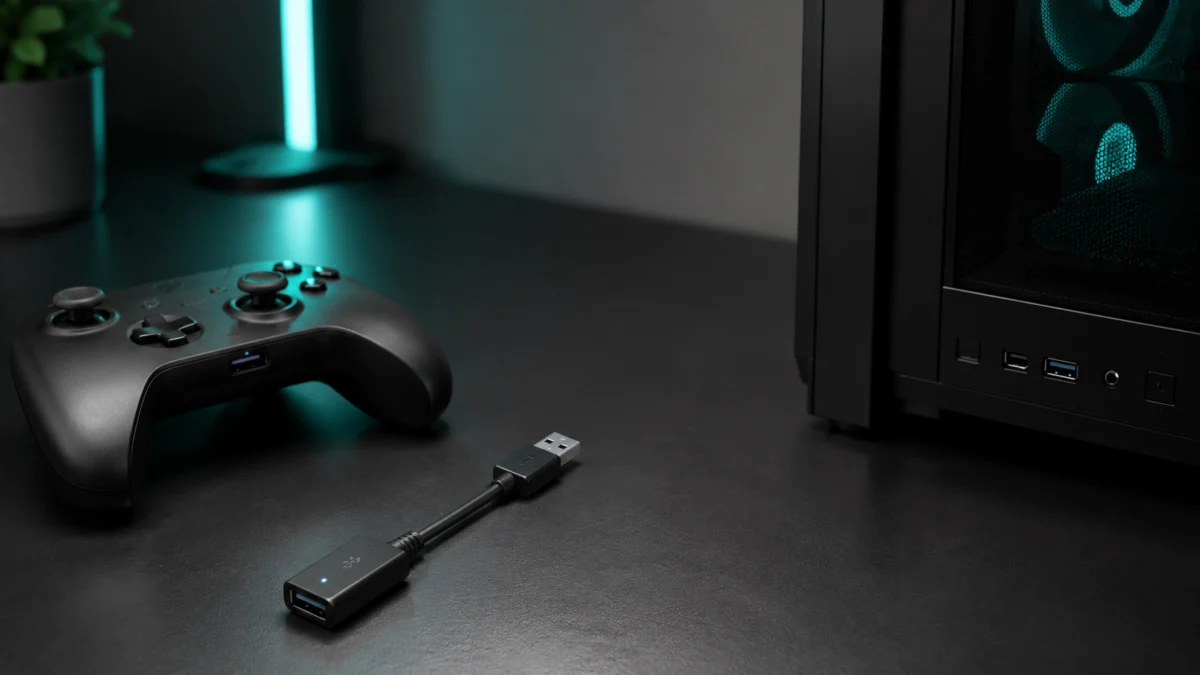
- Move the adapter away from USB 3.0 ports and the metal chassis using a USB 2.0 extension cable, placing it on the desk with a clear line of sight to the controller.
- If the PC still has no Bluetooth or a very old module, then add a modern adapter — and still mind its placement.
- Only after placement is optimized should you judge whether the adapter itself is the limitation.
Note: A USB 2.0 extension cable is deliberate here. USB 2.0 does not generate the same 2.4 GHz interference that USB 3.0 does, so it is the safer choice for relocating a wireless dongle.
Generic Bluetooth Adapter vs Xbox Wireless Adapter vs Controller-Specific Adapter
These three are not the same product, and confusing them leads to wasted purchases. A generic Bluetooth adapter adds standard Bluetooth to your PC. The Xbox Wireless Adapter uses Microsoft’s proprietary 2.4 GHz protocol and is not a Bluetooth device. An 8BitDo adapter is a hardware translator that converts a controller’s signal for your PC.
| Solution | What it actually is | Best use case | Main limitation |
|---|---|---|---|
| Generic USB Bluetooth adapter (nano) | Adds standard Bluetooth to the PC | No built-in Bluetooth; connecting many device types including basic controller input | Sensitive to USB 3.0 interference; rear-port placement causes lag |
| Antenna-equipped Bluetooth adapter | Larger Bluetooth adapter with an external antenna | Desktop towers placed far away where a nano dongle is too weak | Still cannot escape noise right next to a USB 3.0 port |
| Xbox Wireless Adapter for Windows | Proprietary 2.4 GHz receiver — not Bluetooth | Xbox Wireless Controllers, including the headphone jack | Works only with Xbox wireless devices; not a general Bluetooth dongle |
| 8BitDo Wireless USB Adapter 2 | Bluetooth receiver / protocol translator | Switch Pro, DualSense, Xbox and more, converted to a standard gamepad | For controllers only — will not connect headphones, keyboards, or other Bluetooth devices |
The most important takeaway: buying a generic Bluetooth adapter will not give you Xbox controller chat audio, and buying an Xbox Wireless Adapter will not let you connect Bluetooth earbuds. Pick the device that matches what you actually need.
Controller-by-Controller Buying Notes
Wireless behavior on PC differs sharply by controller family, so the right purchase depends on what you own. Do not assume that all Bluetooth controllers behave the same way. Below are the verified, controller-specific points that should shape your decision before you buy any adapter.
Xbox Wireless Controller: Bluetooth Works, but Audio Needs the Official Adapter
Xbox controllers pair over Bluetooth on Windows 11 for normal gameplay. However, the built-in headphone jack and advanced accessory features do not work over Bluetooth. To use the controller’s audio jack and full functionality, you need the official Xbox Wireless Adapter, which uses Microsoft’s proprietary 2.4 GHz connection rather than standard Bluetooth.
Many users also report lower latency and steadier connections after switching from Bluetooth to the official adapter. For casual play, Bluetooth is generally fine; for competitive use or chat audio, the official adapter is the path that is actually supported.
PlayStation DualSense: Haptics Require a Wired Connection
The DualSense and DualSense Edge pair easily over Bluetooth for basic button and stick input on PC. But Sony’s signature haptic feedback, adaptive triggers, and the built-in mic, speaker, and headphone jack almost always require a wired USB connection in PC games, even when the game supports those features. A new Bluetooth adapter does not unlock them.
If wireless haptics specifically are your goal, that is a separate hardware path rather than something a generic adapter provides. We cover that case in our DualSense wireless haptics guide.
Nintendo Switch Pro & Switch 2 Pro: 8BitDo or Steam Input Is the Reliable Path
Nintendo designs the Switch Pro Controller for its own console and does not officially support PC gameplay; a PC simply recognizes it as a generic HID device. According to multiple community reports, native Windows Bluetooth often causes random disconnects on this controller. Reliable fixes include Steam Input or a dedicated 8BitDo adapter that translates the signal in hardware.
For the Switch 2 Pro Controller, Steam added support, but it is currently described as support over a USB connection, so stable wireless behavior still carries environment-dependent uncertainty. If you use this controller on PC, see our Switch 2 Pro Controller PC setup guide.
8BitDo and Other Controllers
The 8BitDo Wireless USB Adapter 2 pairs with various controllers over Bluetooth and presents them to the PC as a standard gamepad through hardware translation. Remember that it is a controller receiver, not a way to add general Bluetooth to your PC. For any other controller, verify official PC compatibility rather than assuming it behaves like an Xbox pad.
When a Bluetooth Adapter Is the Wrong Fix
A Bluetooth adapter cannot fix problems that have nothing to do with signal strength. If your symptom is software, firmware, game support, or power related, buying a new dongle wastes money and leaves the issue unsolved. Check these causes before treating the adapter as the culprit, because they are far more common than a defective adapter.
- Steam Input configuration — the controller pairs but inputs are wrong or absent.
- Game does not support the controller type — especially outside Steam, where Steam Input does not apply.
- Controller firmware or mode — many controllers have switchable modes that change how the PC sees them.
- Windows driver issue — unrelated to how strong the wireless signal is.
- Dead battery or controller hardware fault — a hardware problem no adapter addresses.
- USB power, sleep, or port issue — power management can drop a connection regardless of the adapter.
What to Check in a Bluetooth Adapter (Buying Checklist)
When an adapter is genuinely the right purchase, choose it on the factors that affect controllers specifically, not on Bluetooth version alone. A higher Bluetooth number does not guarantee lower controller latency, because latency depends heavily on the controller’s own polling and on physical interference. Use this checklist to judge candidates.
- Windows 11 support and plug-and-play or clearly documented driver requirements.
- Official driver / chipset support from the manufacturer, not just a generic listing.
- Placement options — whether you can use a USB 2.0 extension cable to escape interference.
- Antenna vs nano form factor — an antenna can help a buried desktop tower; a nano dongle suits a nearby laptop.
- Real reports with controllers, not only with headphones or keyboards.
- Multiple-device use if you plan to connect more than one controller.
- Return policy and support availability, since controller compatibility varies by setup.
Treat any “gaming low-latency” marketing claim with caution unless it is backed by a verifiable source. Bluetooth version is one factor among several, not the deciding one.
Recommended Buying Paths
The best purchase depends entirely on your controller and PC setup, not on a single “best overall” product. For many readers, the cheapest fix — better placement — should come first. Below are use-case paths with a quick Buy if / Don’t buy if for each, using price bands only since exact prices change.
Start Here: A USB 2.0 Extension Cable (Often Under $10)
Before buying any new adapter, relocating your current dongle with an extension cable is frequently the most effective and cheapest step. Multiple community reports describe disconnect and lag problems disappearing entirely once the dongle was moved to a clear spot on the desk.
Buy if: you already have Bluetooth or a dongle, and it sits behind your PC near USB 3.0 ports.
Don’t buy if: your PC has no Bluetooth at all — you need an adapter first.

Please check the Amazon product page for the latest price and availability.
Budget Generic Bluetooth Adapter
A modern nano Bluetooth 5.x adapter is the right starting point when your desktop has no Bluetooth and you want general wireless capability alongside basic controller input.
Buy if: your PC lacks Bluetooth and you also want to connect other Bluetooth devices.
Don’t buy if: you specifically need Xbox audio or stable Switch Pro input — those need other devices.
Check on Amazon
/
Official site
Antenna-Equipped Adapter for Desktop Towers
If your tower sits far away or under a desk, an antenna-equipped adapter can provide stronger reach than a tiny nano dongle, though placement near USB 3.0 ports still matters.
Buy if: a nano dongle is too weak because of distance or obstructions.
Don’t buy if: better placement with an extension cable already solves the problem.
Check on Amazon
/
Official site
Xbox Wireless Adapter for Xbox Controllers
For Xbox Wireless Controller users who want the headphone jack and a connection Microsoft officially supports, this proprietary 2.4 GHz adapter is the intended solution rather than generic Bluetooth.
Buy if: you use an Xbox controller and want chat audio or a steadier connection.
Don’t buy if: you expected it to connect non-Xbox Bluetooth devices — it will not.
8BitDo Wireless USB Adapter 2 for Switch Pro
For Switch Pro Controller users frustrated by native Windows Bluetooth instability, the 8BitDo adapter translates the controller in hardware so the PC sees a standard gamepad.
Buy if: you want reliable Switch Pro (or mixed-controller) use on PC.
Don’t buy if: you also expected it to add general Bluetooth — it is a controller receiver only.
Check on Amazon
/
Official site
Wired USB-C Cable for Stability-First Use
When stability and full features matter most — including DualSense haptics — a wired USB-C connection avoids wireless variables entirely.
Buy if: you want maximum stability or DualSense haptics and adaptive triggers.
Don’t buy if: wireless freedom is your main goal and basic input is enough.

Please check the Amazon product page for the latest price and availability.
What to Check After Buying
Once your adapter or cable arrives, a short setup routine isolates Bluetooth-specific problems from everything else. Test in stages so that if something still fails, you know whether the cause is the connection, Windows, Steam, or the game itself. This setup-and-test routine takes 8 steps.
- Install the manufacturer’s official driver if one is required.
- Place the adapter away from rear-panel USB 3.0 interference, using an extension cable for line of sight.
- Remove old or duplicate pairings for the controller in Windows Bluetooth settings.
- Re-pair the controller from scratch.
- Test input in Windows first (for example, the built-in controller test).
- Test in Steam Big Picture / Steam Input.
- Test in your target game.
- Compare with a wired USB connection to confirm whether the problem is Bluetooth-specific.
FAQ
Does a higher Bluetooth version mean lower controller latency?
Not by itself. A Bluetooth 5.4 adapter is not automatically faster for controllers than a 5.0 one, because input latency depends largely on the controller’s own polling behavior and on physical interference such as USB 3.0 noise. Treat Bluetooth version as one factor, not the deciding one.
Will a Bluetooth adapter fix DualSense haptic feedback on PC?
No. DualSense haptic feedback and adaptive triggers almost always require a wired USB connection in PC games. A Bluetooth adapter only carries basic button and stick input, so changing adapters will not unlock those premium features over wireless.
Is the Xbox Wireless Adapter a Bluetooth adapter?
No. The Xbox Wireless Adapter for Windows uses Microsoft’s proprietary 2.4 GHz protocol, not Bluetooth. It connects Xbox wireless devices and enables the controller’s headphone jack, but it cannot connect general Bluetooth devices like earbuds or keyboards.
Why does my controller still disconnect after I bought a new adapter?
The most common reason is placement. According to multiple community reports, a new adapter plugged into a rear USB 3.0 port can still suffer interference. Moving it onto the desk with a USB 2.0 extension cable, away from the metal chassis, often resolves the dropouts.
How We Researched
This article is based on official manufacturer and platform support documentation for the controllers and adapters covered here, an Intel white paper on USB 3.0 interference in the 2.4 GHz band, and recurring community reports from forums such as Reddit and Steam where the same pattern appeared across multiple threads. We have not conducted hands-on lab testing. Any compatibility or behavior claims are attributed to official sources or clearly identified community reports, and where reports describe environment-specific issues, we note that they may not affect every setup.
Next Steps
If your problem points to a specific controller rather than your PC’s Bluetooth, these guides go deeper:
- Switch 2 Pro Controller PC setup guide — for Switch 2 Pro Controller users.
- DualSense wireless haptics guide — if wireless haptics specifically is your goal.
- Steam Controller setup guide — for Steam Input configuration and controller mapping.
Final Recommendation
For most readers, the right first move is not a new adapter at all: relocate your existing Bluetooth dongle with a USB 2.0 extension cable and clear the USB 3.0 interference zone. If your PC truly lacks Bluetooth, a modern nano adapter is the sensible budget path, and an antenna model helps a distant tower. Beyond that, buy by controller — the Xbox Wireless Adapter for Xbox audio, an 8BitDo adapter for reliable Switch Pro use, and a wired USB-C cable whenever stability or DualSense haptics matter most. Identify your actual problem first, and the correct purchase becomes obvious.