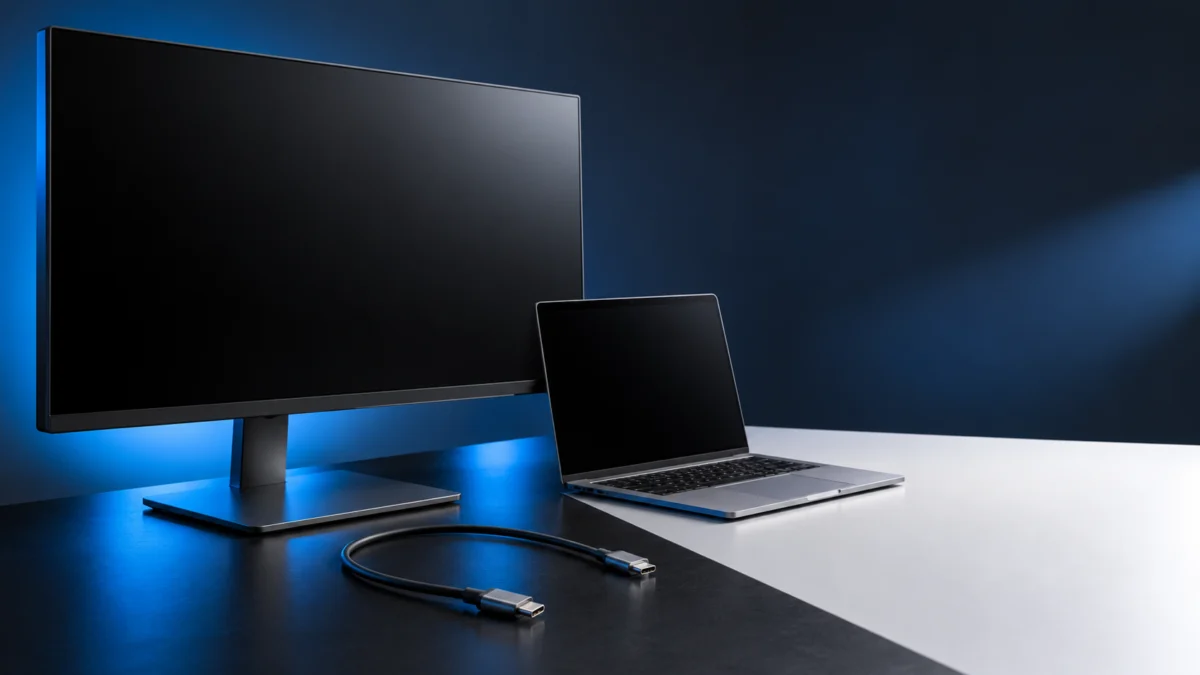
If your Mac charges from a BenQ PD3225U but the monitor shows no signal, the charging only proves that power is getting through — not video. Check three things first: the cable must go into the monitor’s Thunderbolt 3 input (not the Thunderbolt 3 out or the USB-C downstream port), it should be the cable from the monitor box plugged straight into the Mac, and the monitor must be set to that input. All three checks are free.
This guide is for PD3225U owners using a Mac over USB-C/Thunderbolt. It covers which port does what, a symptom table, seven fixes in order, and how to tell a cable or Mac-port problem from a monitor that needs service. It is based on BenQ and Apple documentation; we have not tested a unit ourselves.
Quick Fix Checklist
- The cable is in the PD3225U port that carries DisplayPort Alt Mode (the Thunderbolt 3 input), not “Thunderbolt 3 out” and not the USB-C downstream hub port.
- You are using the cable from the PD3225U box, not your MacBook’s charging cable.
- No dock, hub, or adapter sits between the Mac and the monitor.
- The monitor’s input source is set to the Thunderbolt/USB-C input.
- You have tried another Thunderbolt/USB-C port on the Mac.
- On an Apple silicon Mac laptop, you allowed the display when macOS asked.
Why Does My Mac Charge but the PD3225U Shows No Signal?
Power and video are separate jobs on the same connector. The PD3225U’s Thunderbolt 3 input can charge a Mac at up to 85W and carry DisplayPort video, but a cable or port that only handles charging will still power your MacBook while the screen stays dark. Treat charging as a power test, not proof the video path works.
A cable that charges your Mac is not automatically a display cable. BenQ advises checking its video capability and starting with the monitor’s supplied cable. If that cable is missing, check the required video and power specifications before buying a replacement cable.
Which PD3225U ports carry video from a Mac?
Only one of the PD3225U’s USB-C-shaped connections is a video input. This is how the BenQ US PD3225U spec sheet lists them:
| Spec sheet listing | What it does | Plug your Mac’s video cable here? |
|---|---|---|
| Thunderbolt 3 (PowerDelivery 85W, DisplayPort Alt Mode, Data) | Video input, data, and up to 85W charging for the Mac | Yes — this is the Mac connection |
| Thunderbolt 3 out (PowerDelivery 15W) | Thunderbolt daisy-chain output to a further device, with 15W of power | No — it sends signal onward, not in |
| “USB C ( Downstream )” | USB hub port for accessories | No — no video input |
| “USB Type B ( Upstream )” | Connects the monitor’s USB hub to a computer | No — hub data only |
| HDMI (v2.0) ×2, DisplayPort (v1.4) ×1 | Other video inputs | Useful for a comparison test (Step 7) |
The listed panel resolution is 3840×2160 at 60Hz. Keep those limits in mind when checking the Mac’s display settings.
The PD3225U is a Thunderbolt 3 monitor. The same spec sheet lists a Thunderbolt 4 (1m) cable under “Signal Cable (may vary by region)”, so check what actually came in your box. That cable’s rating does not make the monitor Thunderbolt 4, and BenQ’s connection guide includes Thunderbolt 4 Mac hosts when discussing Thunderbolt 3 displays. Check the ports and display support for your exact Mac.
What Does Your Symptom Point To?
Use these symptoms to choose the next check, rather than to diagnose a failed component. Charging without video leaves the cable, input selection and connection path to check. A working HDMI connection narrows the comparison to the Thunderbolt path; it does not prove every monitor circuit is healthy. Contact support if the remaining checks are unclear or the problem persists.
| What you see | Possible area to check | What to do |
|---|---|---|
| Mac charges, monitor says no signal | Charging-only cable, wrong monitor port, or wrong input selected | Steps 1–3 |
| Works through a dock or hub only sometimes, or not at all | Dock/hub in the video path | Step 2 (connect directly) |
| Works on one Mac port, not another | That Mac port’s video output | Step 4 |
| Apple silicon Mac laptop, screen stays dark after plugging in | Check whether macOS displayed an accessory-approval prompt | Step 5 |
| Cable and input are correct, still dark | Display detection or another unresolved connection issue | Step 6 |
| A second monitor daisy-chained from the PD3225U stays dark | Check the exact Mac model’s display limit and the second connection | See FAQ |
| HDMI or DisplayPort works, Thunderbolt does not | USB-C/Thunderbolt cable or port path | Step 7, then the cable-vs-monitor section |
| No picture on any input, any cable, any computer | Possible monitor fault | Contact BenQ support |
How Do You Fix PD3225U No Signal on a Mac?
Work from the cable outward: right monitor port, bundled cable plugged directly into the Mac, correct input, then a different Mac port, macOS approval and detection, and finally a different cable type. Use the equipment you already have for these checks, and stop when the picture returns. Skip comparison tests that would require buying a cable or adapter; support can help with the remaining diagnosis.
Try the following seven checks in order.
- Plug into the Thunderbolt 3 input, not the output or hub port. The PD3225U has two Thunderbolt 3 connectors plus a USB-C downstream port, and only the input carries DisplayPort Alt Mode from your Mac. If you are unsure which physical port is which, check the user manual linked from the BenQ PD3225U product page.
- Use the cable from the box and connect directly. The BenQ Mac connection guide recommends the supplied display cable. Apple also advises bypassing a hub or dock during diagnosis. Once the direct connection works, reconnect the dock separately and compare the result.
- Select the correct input on the monitor. Turn the monitor off and on, then open its on-screen menu with the physical controls and choose the Thunderbolt/USB-C input. Use the input-source control in the on-screen menu to match the connected video port. Exact menu labels can differ between BenQ models, so look for the input-source setting rather than a specific name.
- Try another port on the Mac. BenQ’s USB-C display FAQ suggests another Mac port as a comparison. Confirm that the chosen host port carries video, using the specifications for the exact Mac listed in About This Mac.
- Allow the display on Apple silicon Mac laptops. When you connect a display to a Mac laptop with Apple silicon, macOS might ask you to allow the accessory. If that prompt appears, approve the display connection; refusing it can prevent a picture.
- Make the Mac detect the display again. Apple’s external display troubleshooting page lists these options:
- Disconnect both the Mac connection and the display’s power, then reconnect them.
- Put the Mac to sleep, then wake it. On a Mac laptop, you can close the lid for a few seconds and open it again.
- Open Apple menu → System Settings (or System Preferences) → Displays. Hold Option, then select Detect Displays when it appears.
- Restart the Mac.
- Compare with a different cable type. If your Mac has an HDMI port, or you already own a video-capable adapter, connect to the PD3225U’s HDMI or DisplayPort input and select that input. BenQ recommends trying a different type of cable as a test. If you use a USB-C multiport adapter for this, it must support video output (DP Alt Mode).
How Do You Tell a Cable or Port Problem From a Faulty Monitor?
Change one connection at a time and compare the results. A picture over HDMI or DisplayPort shows that the display can work through that path; it does not rule out a fault in the monitor’s Thunderbolt input. A difference between Mac ports helps narrow the investigation, but it does not identify the failed component by itself. Share the results with BenQ if the issue persists.
| Result of your comparison | What it tells you | Next move |
|---|---|---|
| HDMI/DisplayPort shows a picture, Thunderbolt does not | The display works through that input; the Thunderbolt cable, settings, host port and monitor input still need checking | Retry with the bundled cable or an Apple Thunderbolt cable on another Mac port |
| Thunderbolt works on one Mac port only | The result differs by Mac port; confirm that port’s supported display functions | Use the working port; check your Mac’s specifications for which ports support external displays |
| Works directly, fails through a dock | The dock connection introduces a difference; check its cable, settings and compatibility | Keep the direct connection or troubleshoot the dock separately |
| No picture on any input, cable, or computer, and the on-screen menu won’t open | The monitor itself, or its power | Contact BenQ support and note what you already ruled out |
When Should You Contact BenQ or Replace the PD3225U?
Contact BenQ if the no-signal problem persists, including when HDMI works but Thunderbolt does not. You can also ask for help if you cannot perform a comparison test with equipment you own. Consider replacement after discussing diagnosis, repair and warranty options, and only if you still need the same 32-inch 4K Thunderbolt 3 workflow. If a free check restores the picture, a replacement is unnecessary.
When you contact support, list the Mac model, the ports and cables you tried, the input you selected, and whether HDMI or DisplayPort worked. That shortens the conversation and helps settle whether it is a cable, port, or panel issue.
Buy a replacement PD3225U if:
- BenQ support has confirmed a fault and repair or warranty service is not an option for you.
- You rely on single-cable Mac charging up to 85W, the Thunderbolt 3 daisy-chain output, or the built-in KVM switch, and want the same 32-inch 4K workflow back.
Don’t buy one if:
- Any of the seven steps restored the picture.
- HDMI or DisplayPort works and you have not yet discussed the remaining Thunderbolt problem with support.
- You have not yet checked your warranty status with BenQ.
- You are thinking of a cheaper “USB-C” monitor as an equal swap. USB-C video alone is not the same as Thunderbolt 3 with 85W charging and a daisy-chain output.
BenQ PD3225U (32-inch 4K, Thunderbolt 3)
Consider the same model only after support has established that replacement is appropriate. Check included accessories and seller terms before purchase.

Please check the Amazon product page for the latest price and availability.
FAQ
Is the BenQ PD3225U a Thunderbolt 4 monitor?
No. BenQ’s US spec sheet lists its ports as Thunderbolt 3. A Thunderbolt 4 cable appears in the bundled-cable list, which may vary by region, and BenQ notes that Thunderbolt 3 monitors work with Thunderbolt 4 Macs. The cable’s rating does not change the monitor’s.
Why does my MacBook charge from the PD3225U but show no picture?
Charging and video are separate. A power-only USB-C cable, the wrong monitor port, or the wrong input source can all leave the screen dark while the Mac charges. Start with Steps 1–3 above.
The PD3225U works, but a second monitor daisy-chained from it stays dark. Why?
Your Mac may have reached the number of external displays it can drive. The supported count depends on the exact Mac model. Check your Mac’s specifications before you troubleshoot the second monitor or its cable.
How We Researched
This article is based on manufacturer documentation and official support materials: BenQ’s US PD3225U specifications and product page, BenQ’s Mac connection guide, BenQ’s USB-C display FAQ, and Apple Support’s guide for a dark external display. We have not conducted hands-on lab testing. Port, power, and compatibility details come from those official sources. Steps from BenQ’s general guidance are applied to the PD3225U only where its spec sheet confirms the matching port.
Conclusion
Charging alone does not establish that the PD3225U’s video connection is working. Check the Thunderbolt 3 input, supplied cable, direct connection and selected input first, then try the Mac’s approval and detection checks where applicable. Compare another video path if you already have the equipment, or ask BenQ for help. Discuss repair and warranty options before considering a replacement.