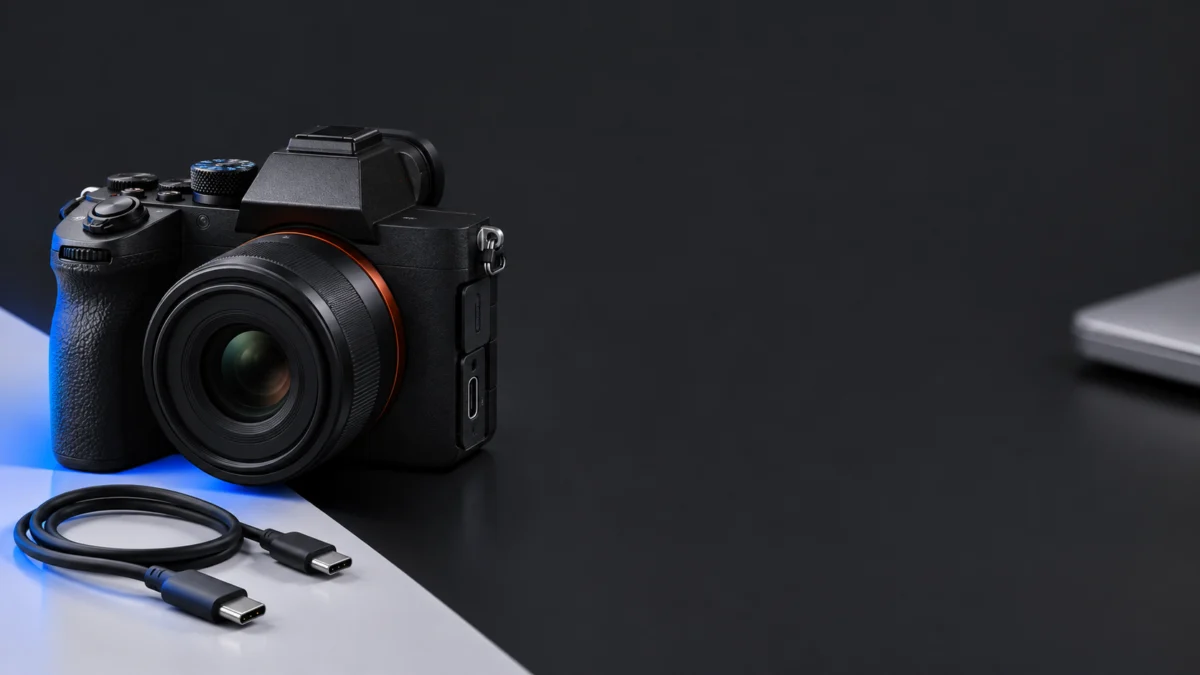
If your Sony A7 IV (ILCE-7M4) will only stream 720p over its built-in USB Streaming mode, check the USB connection before anything else. Sony documents that a USB 2.0 connection restricts the USB stream to 720p at 30p or 25p.
A 720p 30p or 25p feed after you chose 1080p or 4K on the camera matches that documented USB 2.0 restriction. Check the cable and port before concluding that the camera is faulty, confirm the camera’s USB Streaming menu second, and check what your capture app actually receives third. All three checks are free.
One limit to know up front: Sony’s native USB Streaming list tops out at 4K 15p/12.5p and 1080p 60p/50p. It does not list 4K30 or 4K60, so no cable or setting adds those over native USB.
Quick Check: Which Layer Is Limiting Your Resolution?
Start by separating the USB link, the camera’s Streaming settings, and the app reading the camera. Check them in that order, then distinguish the incoming camera feed from the outgoing call or stream. A result of exactly 720p 30p or 25p after choosing a higher setting matches Sony’s documented USB 2.0 fallback.
| Layer | What to check | Points to this layer when |
|---|---|---|
| USB link | Cable rated for USB 3 data, a direct USB 3 port on the PC, no hub or adapter | The feed is exactly 720p 30p/25p whatever you select on the camera |
| Camera settings | [USB Connection Mode] and [Output Res/Frame Rate] under [USB Streaming] | The camera itself is set to an HD(720p) option |
| Capture app | The resolution set for the camera source inside your app | The app source is set lower than the camera’s output |
| Outgoing call or stream | What your meeting or streaming service sends to viewers | The app receives 1080p but viewers see less; this is outside the camera |
What Sony lists for native USB Streaming
These are the [Output Res/Frame Rate] options in Sony’s ILCE-7M4 Help Guide. Anything not in this list is not available over native USB.
| Option | What it means for you |
|---|---|
| [4K(2160p) 15p] / [4K(2160p)12.5p] | Highest resolution over USB, but at a low frame rate |
| [HD(1080p) 60p] / [HD(1080p) 50p] | Highest frame rate listed for USB |
| [HD(1080p) 30p] / [HD(1080p) 25p] | Full HD at a standard frame rate |
| [HD(720p) 30p] / [HD(720p) 25p] | Also what a USB 2.0 connection forces; MJPEG only |
Sony lists the video format as MJPEG or YUV420, with only MJPEG available at HD (720p). Audio is PCM, 48 kHz, 16 bit, 2 ch. Which pair of frame rates you see (60p/30p or 50p/25p) depends on the NTSC/PAL system your camera uses, covered in the camera section below.
Check the Cable and PC USB Data Path
Use a cable that carries USB 3 data and plug it directly into a USB 3 port on the PC. A USB-C plug on both ends does not prove the link runs at USB 3: some USB-C cables, especially charging cables, carry only USB 2.0 data, and a USB 2.0 hub, dock, or adapter in the path limits the link too.
Sony’s instruction is to use a cable or adapter that matches the terminal on the device you connect. A matching connector shape is the minimum; it does not tell you the data speed.
Test the USB path in 5 steps.
- Unplug any hub, dock, extension cable, or adapter between the camera and the PC for this test.
- Use the USB cable supplied with your camera if you have it, or a cable clearly labeled for USB 3 (SuperSpeed) data. Set aside unlabeled charging cables.
- Plug into a port that your PC maker identifies as USB 3 or higher. On a desktop, try a rear motherboard port rather than a front-panel or keyboard port.
- Reconnect, wait for [Streaming:Standby] on the camera screen, then start the stream from your app.
- Recheck the incoming resolution in your app. If it still reads exactly 720p, try a second known-good cable and a different port before you move on to the camera settings.
During USB streaming the camera draws power from the computer. If you want to keep that load low, Sony documents setting [USB Power Supply] to [Off].
Check the Camera’s USB Streaming Settings
On the camera, set USB Connection Mode to allow streaming, then choose the output resolution under USB Streaming before you connect. If the camera is set to 1080p or 4K and the PC still receives 720p 30p or 25p, go back to the cable and port; the camera setting cannot override a USB 2.0 link.
The setup takes 4 steps, following Sony’s Help Guide.
- Go to MENU → (Setup) → [USB] → [USB Connection Mode] → [Sel. When Connect] or [USB Streaming].
- Go to MENU → (Network) → [Streaming] → [USB Streaming], then set [Output Res/Frame Rate] and [Movie Rec During Streaming].
- Connect the camera to the PC. The camera shows [Streaming:Standby]. If you chose [Sel. When Connect], pick [Live Stream(USB Streaming)] on the selection screen.
- Start streaming from your livestreaming or web-conferencing app. The camera shows [Streaming:Output]. To exit USB Streaming, disconnect the cable.
Change resolution before you go live where possible. Sony notes that changing [Output Res/Frame Rate], [Movie Rec During Streaming], or [File Format] during streaming may pause the image temporarily. Depending on the service, you may need to restart the stream in the app.
If the picture looks different from your recording setup, that can be expected: Sony states that Picture Profile, Power Save Start Time, and Auto Monitor OFF are disabled while USB Streaming runs, and network functions such as Remote Shooting, FTP transfer, and Bluetooth are unavailable.
NTSC/PAL and firmware: check, don’t change blindly
The camera’s video system is set under MENU → (Setup) → [Area/Date] → [NTSC/PAL Selector]. Use it to see which system your camera is on, which explains whether you are offered 60p/30p or 50p/25p. The Sony section we checked does not describe every consequence of switching, so do not switch systems just to troubleshoot 720p.
To see your firmware, go to MENU → (Setup) → [Setup Option] → [Version]; the Body line shows the camera firmware. The USB Streaming page we checked does not state a minimum firmware, and we found no Sony statement that an update raises USB Streaming resolution. Use the version number to match Sony support information for your camera.
Verify the Capture App, Not the Outgoing Call
Judge the camera link by the resolution your app receives from the camera source, not by what a call or stream shows viewers. The PC may receive 1080p from the camera while the meeting or streaming service sends less; that outgoing step is set by the app and service, not by the A7 IV.
- Open the settings for the camera source or video device in your app and read its resolution and frame rate.
- Set the source to match the [Output Res/Frame Rate] you chose on the camera.
- If the app only offers 720p choices for the camera while the camera is set higher, a USB 2.0 link is one possibility. Repeat the cable and port checks, then check the app’s own input settings and supported formats; the menu alone does not identify the cause.
- After changing camera settings mid-stream, restart the stream in the app if the image freezes.
Menu names differ between apps, and we did not verify any specific app version. This is a diagnostic check, not a documented app limit.
When HDMI Capture Is a Separate Workflow
HDMI capture is not a fix for native USB Streaming; it is a different video path through the camera’s HDMI port and a USB capture device. Consider it only after the free USB checks, and only if you specifically want an HDMI workflow. If native USB already gives you the 1080p or 4K 15p you need, skip it.
Check every item below against your own setup before buying anything:
- Clean camera output: set MENU → (Setup) → [External Output] → [HDMI Info. Display] to Off. Sony explains that Off removes shooting information from the HDMI display.
- Input type: Elgato lists the Cam Link 4K input as HDMI (unencrypted).
- 4K60 is conditional: Elgato’s own footnote reads *Only with compatible cameras using the latest Cam Link 4K model. We did not confirm that the A7 IV appears in Elgato’s Camera Check, or which hardware revision a given seller ships.
- Connection: Connect the camera’s HDMI output to the capture device, and connect the capture device to a USB 3.0 port on the PC. The HDMI cable is not included.
- PC requirements: the US product page lists Windows 10 (64-bit) or later, an Intel or AMD CPU, and a USB 3.0 port. Requirements can differ by revision, so check the current ones on the official Elgato Cam Link 4K page.
- Power: Elgato says supported cameras need a clean HDMI output and unlimited runtime, so plan how the camera stays powered for long sessions.
If all of those check out for your setup, Amazon US lists the device as Elgato Cam Link 4K Capture Card for DSLR, Camcorder, Action Cam. The listing does not confirm the hardware revision or A7 IV compatibility, so verify both before ordering.

Please check the Amazon product page for the latest price and availability.
Skip it if: the cable and port swap brought back 1080p or 4K 15p, you only need 1080p for calls, or you are not prepared to manage HDMI output, an HDMI cable, and camera power separately.
FAQ
Why does my A7 IV show 1080p in the menu but the PC gets 720p?
Sony documents that a USB 2.0 connection sets USB Streaming to HD (720p) 30p or 25p regardless of your choice. Replace the cable, remove hubs or adapters, and use a direct USB 3 port. See the Sony USB Streaming Help Guide page.
Can the A7 IV stream 4K30 or 4K60 over native USB?
Not according to Sony’s USB Streaming option list, which offers 4K only at 15p or 12.5p. Higher-frame-rate options over USB stop at 1080p 60p/50p. Do not use the camera’s internal recording specs to judge USB Streaming.
Will a firmware update or a cooler room fix 720p?
Neither is documented as a fix for 720p in the pages we checked. Sony warns that rising internal temperature can reduce streaming runtime. No streaming duration is guaranteed.
How We Researched
This article is based on Sony’s English ILCE-7M4 Help Guide pages for USB Streaming, HDMI Info. Display, NTSC/PAL Selector, and Version, plus Elgato’s US Cam Link 4K product page and the Amazon US listing, used only to identify the product. We have not conducted hands-on testing with an A7 IV, a Windows PC, any streaming app, or a capture device. No community reports were used.
Conclusion
A USB 2.0 link is a documented reason for an A7 IV USB stream to stay at 720p. Swap to a USB 3 data cable and a direct USB 3 port, confirm [Output Res/Frame Rate] on the camera, then read the source resolution in your app. Expect at most 1080p 60p/50p or 4K 15p/12.5p over native USB; only consider HDMI capture if you want that separate workflow and have checked its conditions.