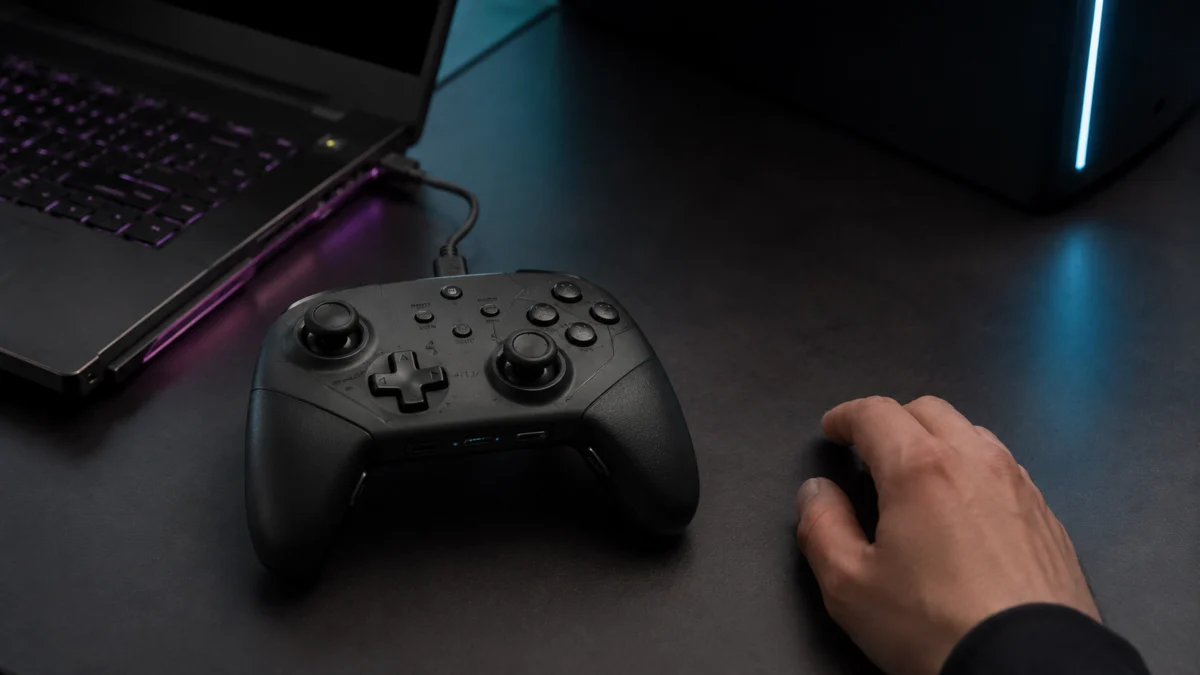
The Nintendo Switch 2 Pro Controller works on PC via a USB-C wired connection through Steam Input — but two things catch most users off guard. First, Bluetooth is not supported on PC as of the current Steam client. Second, Steam detecting the controller in its settings menu does not automatically mean your games will respond to it. You need to enable Steam Input at both the global and per-game level before inputs will register in most titles.
This guide walks through the USB setup, how to confirm Steam Input is active, what to check when a game ignores your inputs, and what the current limits are for GL/GR buttons, the C Button, and Nintendo button layout prompts on PC.
- Quick Answer: Can You Use It on PC?
- What You Need Before You Start
- Step 1 – Connect via USB-C and Check Windows Detection
- Step 2 – Enable Steam Input for the Controller
- Fix: Steam Detects It but Games Don’t Respond
- Bluetooth on PC: Why It Doesn’t Work
- GL/GR, C Button, and Nintendo Button Layout
- Using It in Non-Steam Games
- FAQ
Quick Answer: Can You Use the Switch 2 Pro Controller on PC?
Yes — via USB-C wired connection through Steam, with Steam Input enabled. Valve added Switch 2 Pro Controller support to the Steam client in November 2025 (official patch note: “Added support for Nintendo Switch 2 controllers connected over USB on Windows”), and that support is reflected in the current stable client as of early 2026. Bluetooth does not work on PC with this controller at the time of writing. The Switch 2 Pro Controller uses a Bluetooth LE implementation that Windows does not natively handle for this device, and Steam has not added wireless support for it. Only the original Switch Pro Controller (Switch 1) works wirelessly over Bluetooth on PC.
One more compatibility point worth flagging: the Switch 2 Pro Controller is not backward compatible with Nintendo Switch (first generation). It is designed for Nintendo Switch 2 only. If you are looking to use a Pro Controller with Switch 1 on PC, the original Switch Pro Controller applies, and the steps differ slightly.
At a glance, here is how the three connection pieces fit together:
| Connection | Works on PC? | What it needs / why |
|---|---|---|
| USB-C (wired) | Yes — the reliable path | A USB-C data cable, plus Steam Input enabled both globally and per game. |
| Bluetooth (wireless) | No (at the time of writing) | Windows does not natively handle this controller’s Bluetooth LE; pairing fails or sends no usable input. |
| Steam Input (software layer) | Required | Translates the controller’s HID signals into gamepad inputs. Must be on globally and per game. |
What You Need Before You Start
Before plugging anything in, confirm you have the following three things in place. Missing any one of them is the most common reason the setup fails partway through.
- A USB-C data cable. The cable included with the Switch 2 Pro Controller charges but may not transmit data on all setups. Use a USB-C cable rated for data transfer — the type that ships with recent Android phones works reliably. A charge-only cable will let Windows detect the controller as a power device but Steam will not register inputs.
- Steam installed and up to date. Switch 2 Pro Controller support requires a recent Steam client build (November 2025 or later). If Steam has been sitting idle for a while, let it update before connecting the controller.
- Windows 10 or Windows 11. The Switch 2 Pro Controller is recognized by Windows as a Human Interface Device (HID) when connected via USB. No separate driver installation is needed, and Nintendo does not provide a dedicated Windows driver for it.
Step 1 – Connect via USB-C and Check Windows Detection
Plug the USB-C cable into the top of the controller and connect the other end to a USB port on your PC. Windows should detect it within a few seconds. To confirm:
- Open Device Manager (right-click Start → Device Manager).
- Expand Human Interface Devices.
- Look for “Pro Controller” in the list.
If the entry appears, Windows has recognized the controller at the hardware level. If it does not appear after 10–15 seconds, try a different USB port (preferably USB 3.0) and swap the cable. Some USB-C cables are charge-only and will not enumerate as a data device in Device Manager.
At this stage the controller is physically connected, but no game inputs will work yet. Steam Input needs to be enabled in the next step before the controller behaves as a gamepad.
Step 2 – Enable Steam Input for the Controller
Steam Input is the layer that translates the Switch 2 Pro Controller’s HID signals into gamepad inputs that Steam games understand. It must be enabled both globally (so Steam recognizes the controller type) and per game (so individual titles receive inputs). Skipping either level is why most “Steam sees it but nothing works” situations happen.
Global setting:
- Open Steam and go to Steam → Settings → Controller.
- Under the connected device list, your Switch 2 Pro Controller should appear. Select it.
- Confirm that Switch Pro Configuration Support is enabled.
If you want Steam’s UI to display Nintendo button labels — where A is the right-side button and B is the bottom button, matching the physical layout of the Switch 2 Pro Controller — enable Use Nintendo Button Layout in the same settings area. Note that this setting affects display only in Steam’s own UI — individual game engines control which glyphs they render in-game, and many will still show Xbox prompts regardless of this setting.
Per-game setting:
- In your Steam Library, right-click the game you want to play and select Properties.
- Go to the Controller tab.
- From the dropdown, select Enable Steam Input.
Once both settings are in place, launch the game. The controller should respond immediately. If it does not, check the section below.
Fix: Steam Detects the Controller but Games Don’t Respond
The most common cause of “Steam shows the controller in settings, but nothing happens in the game” is that Steam Input is enabled at the global level but not at the per-game level. The global setting tells Steam what type of controller is connected; the per-game setting tells each title to route inputs through Steam Input instead of reading the HID device directly. Without the per-game step, many games ignore the Switch controller entirely or receive partial input.
Work through these checks in order:
- Confirm the per-game Steam Input setting. Right-click the game in your library → Properties → Controller → set to Enable Steam Input. Relaunch the game.
- Check whether Steam Input is conflicting with in-game controller detection. Some titles have their own controller settings. If the game has an in-game menu for controllers, set it to auto-detect or gamepad mode. A conflict between in-game detection and Steam Input can cause inputs to route to the Steam overlay instead of the game.
- Verify the Steam client is current. If the controller was working and then stopped responding after a Steam update, check the Steam Client Beta notes. Switch 2 Pro Controller support was briefly disabled in December 2025 due to a conflict with other controllers before being restored. If your client is stuck on a build from that period, update or switch Steam branches.
- Try a different USB port and cable. If Device Manager shows the controller but Steam’s controller settings do not register any inputs in the test screen, the cable or port may be providing power but not full data throughput.
- Close other input software. If you have JoyShockMapper, DS4Windows, or any other controller mapper running in the background, it may claim the HID device before Steam Input can access it. Close background input tools and restart Steam.
Note: The Steam controller test screen (Settings → Controller → your device → Test Device Inputs) is a reliable check. If buttons register there but not in a specific game, the issue is the per-game Steam Input setting or the game’s own controller configuration. If nothing registers in the test screen, the issue is at the cable, port, or client-level.
Bluetooth on PC: Why It Doesn’t Work (and What to Do Instead)
Bluetooth is not a viable option for the Switch 2 Pro Controller on PC at this time. The Switch 2 Pro Controller communicates over Bluetooth LE (Low Energy), and Windows does not natively expose Bluetooth LE gamepad devices through its HID stack in a way that Steam or games can read. Multiple community reports across Steam forums and gaming hardware communities confirm that pairing attempts either fail outright or produce a device that shows up in Windows Bluetooth settings but sends no usable inputs to Steam or any game.
This is a Windows-level limitation, not a Nintendo lock. The original Switch Pro Controller (Switch 1) uses a different Bluetooth implementation that Windows and Steam handle correctly, which is why wireless setup guides for that controller do not apply here.
Until Valve or Windows adds Bluetooth LE gamepad support for the Switch 2 Pro Controller, the practical options are:
- USB-C wired connection. This is the supported path and works reliably with Steam Input.
- A dedicated Bluetooth gamepad adapter. Some third-party Bluetooth adapters (such as the 8BitDo Wireless USB Adapter 2) use their own firmware to handle Nintendo controller protocols and may work where native Windows Bluetooth does not.
Do not assume that a Bluetooth adapter will automatically solve the issue — adapter compatibility with Switch 2 Pro specifically (versus Switch 1 Pro) varies, and vendors do not always document Switch 2 support clearly.
GL/GR Buttons, C Button, and Nintendo Button Layout on PC
Steam Input recognizes all of the Switch 2 Pro Controller’s new buttons — GL, GR, and the C Button — and allows them to be mapped in the Steam Input configurator. According to community reports from users who tested the controller after the November 2025 Steam update, the GL and GR back buttons appear in the Steam Input test screen and can be assigned to any standard gamepad input. The C Button similarly registers as an input that can be remapped.
To configure GL, GR, or C Button assignments:
- Go to Steam → Settings → Controller and select your Switch 2 Pro Controller.
- Open Edit Layout.
- Locate the GL, GR, and C Button entries in the button list and assign them to your preferred inputs.
- Configurations can be saved as global defaults or set per game.
Nintendo vs. Xbox button layout in games: The Switch 2 Pro Controller has A/B and X/Y buttons in Nintendo positions — which are physically rotated 90 degrees compared to Xbox layout. A is on the right, B is on the bottom, X is on the top, and Y is on the left. Xbox layout places A on the bottom and B on the right. Many PC games are built around Xbox controller expectations, so even with Steam Input active, in-game prompts may show Xbox labels or the actions tied to each button may feel reversed.
To address this in Steam:
- Enable Use Nintendo Button Layout in Steam controller settings if you want Steam’s UI to reflect Nintendo positions.
- If a game’s confirm/cancel actions feel swapped, use Steam Input’s per-game button remap to swap A↔B and X↔Y globally for that title.
- Accept that some games (especially those without full Steam Input integration) will continue showing Xbox glyphs regardless of any Steam setting — this is a game-engine limitation, not a controller problem.
Using the Switch 2 Pro Controller in Non-Steam Games
For games outside of Steam, the path is less straightforward. The Switch 2 Pro Controller does not present itself to Windows as an XInput device (the standard Xbox-compatible protocol that most Windows games expect). This means launching a non-Steam game directly will typically result in no controller input, even if the controller appears in Device Manager.
The most reliable approach for non-Steam titles is to add them to your Steam library and launch them through Steam, which applies Steam Input’s translation layer:
- In Steam, go to Games → Add a Non-Steam Game to My Library.
- Find and select the game’s executable.
- Once added, right-click the game in your library → Properties → Controller → Enable Steam Input.
- Launch the game from Steam rather than directly from its own launcher.
If launching through Steam is not possible (some games with their own DRM launchers or anti-cheat systems may block or behave unpredictably when launched via Steam), third-party input mappers such as JoyShockMapper can translate the Switch 2 Pro Controller’s HID output into XInput. These tools are not maintained by Nintendo or Valve, require manual configuration, and compatibility can vary by game and Windows build. They are an advanced-user option, not a default recommendation.
FAQ: Switch 2 Pro Controller on Steam and Windows
Does the Switch 2 Pro Controller work on PC?
Yes — over a USB-C wired connection through Steam, with Steam Input enabled. Bluetooth is not supported on PC at the time of writing, so the wired path is the reliable option.
How do I use the Switch 2 Pro Controller on Steam?
Connect it with a USB-C data cable, then enable Steam Input both globally (Steam → Settings → Controller) and per game (right-click the game → Properties → Controller → Enable Steam Input). Inputs will not register until both levels are turned on.
Does the Switch 2 Pro Controller work with the original Nintendo Switch on PC?
No. The Switch 2 Pro Controller is only compatible with Nintendo Switch 2. It will not function as a controller for Switch 1 consoles, and the PC setup described in this guide applies specifically to the Switch 2 Pro Controller, not the original Switch Pro Controller.
Do I need to install any drivers?
No dedicated driver is required. Windows recognizes the Switch 2 Pro Controller as a standard HID device over USB automatically. Nintendo does not publish a standalone Windows driver for this controller. Steam handles the rest through its Steam Input layer.
Will the audio jack work on PC?
The Switch 2 Pro Controller includes a 4-pole stereo 3.5mm audio jack (CTIA standard). Some community reports note that the audio jack was functional when testing the controller connected via USB to a PC, though this depends on how Windows routes audio to the device. This behavior may vary by system and is not an officially documented PC feature.
Does gyro work on PC?
Gyro input is accessible through Steam Input when the controller is connected via USB. Steam supports gyro mapping for the Switch 2 Pro Controller as part of its Input configuration, and users can assign gyro to camera control or other inputs in the Steam Input layout editor.
Why does my game show Xbox button prompts instead of Nintendo prompts?
Steam Input translates Switch controller inputs into a format that games understand, but individual game engines control which on-screen glyphs they display. Most games are built to show Xbox prompts by default. Enabling “Use Nintendo Button Layout” in Steam settings affects Steam’s own interface but does not change what an individual game renders. For games that do support Switch glyphs (increasingly common on Steam as of 2025–2026), the correct prompts should appear automatically.
The controller worked before and suddenly stopped — what happened?
Check your Steam client build. In December 2025, Valve temporarily disabled Switch 2 Pro Controller support across Steam client builds to address a conflict causing crashes with other controllers. The feature was restored in subsequent updates. If your Steam client has not updated recently, allow it to update and test again. Also confirm no new input software was installed that might be claiming the HID device before Steam.
How We Researched
This article is based on Nintendo’s official support documentation and product pages, Valve’s official Steam Client Beta patch notes, and community reports from Steam Community discussions, Famiboards, and ResetEra, where the same patterns — Bluetooth failure, per-game Steam Input requirement, and button layout behavior — were confirmed across multiple independent threads. We have not conducted hands-on lab testing. Any claims about Steam Input behavior reflect documented patch notes and multiple consistent community reports rather than a single post or single source.
Conclusion
The Switch 2 Pro Controller is a workable PC gamepad when connected via USB-C and used with Steam Input — a setup that takes under five minutes once the right cable is in hand and the per-game Steam Input setting is enabled. Bluetooth is not an option with this controller at the time of writing, and that limitation is unlikely to be resolved without a Windows or Steam update. For most Steam gaming, the wired path is reliable and covers GL/GR buttons, gyro, and the full button layout. For non-Steam games, routing through Steam’s non-Steam game shortcut feature is the lowest-friction solution before turning to third-party tools.