
⚠️ Important: DS5Dongle is an unofficial, third-party open-source project distributed under an MIT license. It is not developed, endorsed, or supported by Sony Interactive Entertainment in any way. Use this tool at your own risk. Compatibility may change as Sony updates DualSense firmware or the PlayStation Accessories app.
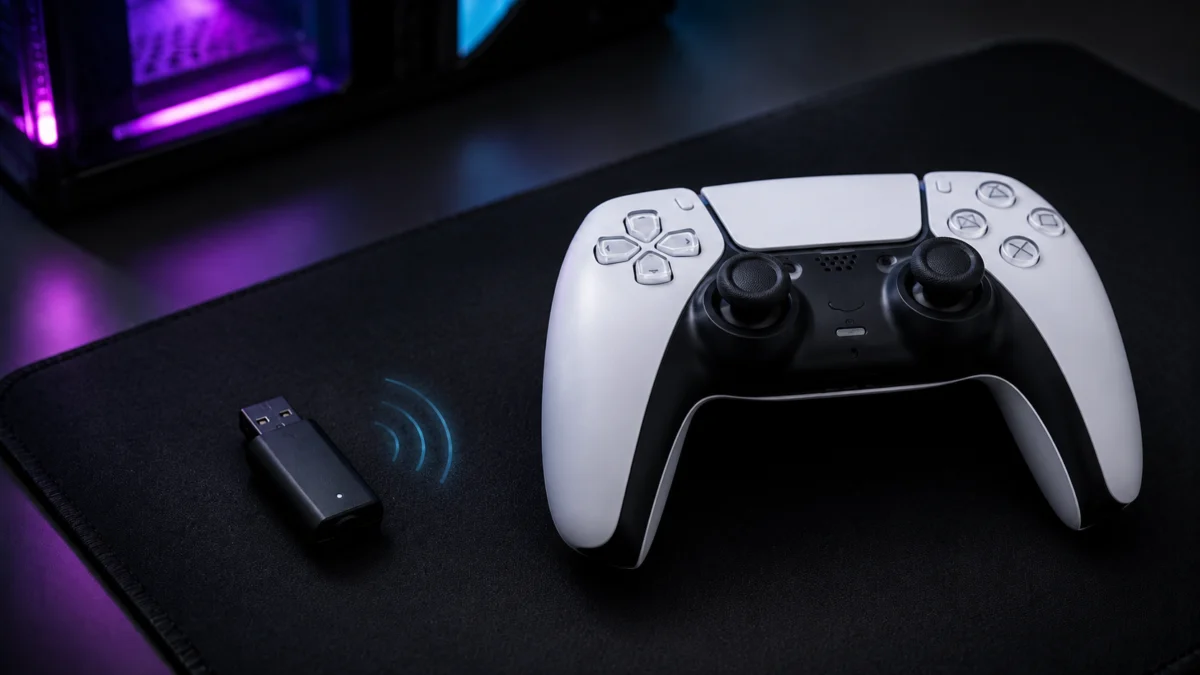
DS5Dongle is a free, open-source firmware project (MIT license) that turns a Raspberry Pi Pico 2 W into a wireless dongle for the PlayStation DualSense controller on Windows PC. The controller pairs to the board over Bluetooth; the board then presents itself to the PC as the device-facing connection. The result, as documented in the project README, is HD haptics and full DualSense connectivity with no cable to the controller. The firmware is distributed through the DS5Dongle GitHub repository — download the .uf2 file for your board from the Releases page (v0.7.2, released June 20, 2026, is the latest tagged release as of this update).
What you need: a DualSense or DualSense Edge, a supported wireless board — the Raspberry Pi Pico 2 W or the Waveshare RP2350B-Plus-W, with a feature-limited build also available for the Raspberry Pi Pico W (haptics only, no speaker output) — and a Windows 10 64-bit or Windows 11 PC. What it does not do: it cannot run on the non-wireless Pico 2, and advanced features such as adaptive triggers remain game-dependent on PC per Sony’s documentation. As of v0.7.2, the firmware runs at the board’s stock 150 MHz — the overclock required by earlier releases is no longer needed.
Why does this project exist? Sony officially supports the DualSense controller on Windows 10 64-bit and Windows 11 over both USB and Bluetooth — but Sony’s own support documentation states that haptic feedback on PC requires a supported game and a USB connection, and that advanced features including adaptive triggers remain game-dependent. For players who want to keep the cable off the desk without losing those features, that gap is the whole problem — and bridging it is exactly what DS5Dongle was built for.
This guide covers flashing the firmware, pairing the controller, verifying that haptics are active in a real game, and resolving the most common setup failures documented in the DS5Dongle issue tracker. All steps are based on v0.7.2 (release tag v0.7.2-hotfix), the latest tagged release as of July 2026.
This guide is for you if:
- You own a DualSense or DualSense Edge and a supported board — Raspberry Pi Pico 2 W or Waveshare RP2350B-Plus-W
- You are comfortable flashing firmware and navigating a GitHub releases page
- You want wireless DualSense haptics on a Windows 10 64-bit or Windows 11 PC
This guide is not for you if:
- You need a guaranteed plug-and-play experience — DS5Dongle is an unofficial DIY firmware project, not a retail product
- You are using a non-wireless Raspberry Pi Pico 2 (without the “W”)
Quick Fix Checklist
Most failed DS5Dongle setups trace back to five causes: an unsupported board (a non-wireless Pico 2 instead of a Pico 2 W), the wrong firmware file for your board, expecting Windows to detect the dongle before pairing, testing haptics outside a DualSense-supported game, and using a 10 Gbps USB port. Run through these five checks before going deeper.
- Confirm your board is supported — a Raspberry Pi Pico 2 W or Waveshare RP2350B-Plus-W (the Pico W runs a feature-limited build with haptics only). The non-wireless Pico 2 has no Bluetooth radio and cannot run DS5Dongle; this hardware mismatch is the documented root cause in GitHub issue #33.
- Confirm the correct firmware is flashed. The file you need is the
.uf2for your specific board from the v0.7.2 release page, not compiled source or an older build. - Do not expect Windows to detect the dongle before the DualSense is paired to the board. The DS5Dongle README states the device only becomes visible to the host system after the controller connection is established. This is expected behavior, not an error.
- Test haptics inside a game that officially supports DualSense features, not just Windows’ controller settings panel. Sony’s documentation confirms that advanced DualSense features remain game-dependent on PC.
- Use a standard USB 3.0 port, not a 10 Gbps SuperSpeed port. A user-reported recovery sequence in issue #30 documents that switching port type resolved DSE yellow-light and USB-device-not-recognized errors.
What You’ll Need Before You Start
You need four things: a supported wireless board (Raspberry Pi Pico 2 W or Waveshare RP2350B-Plus-W — a plain Pico 2 will not work), a DualSense or DualSense Edge on current firmware, a Windows 10 64-bit or Windows 11 PC, and a USB cable for the initial firmware flash. Confirm every item before downloading anything.
| Board | DS5Dongle support | Basis |
|---|---|---|
| Raspberry Pi Pico 2 W | Supported | v0.7.2-hotfix README |
| Waveshare RP2350B-Plus-W | Explicitly supported | v0.7.2-hotfix README |
| Raspberry Pi Pico W | Supported via a separate build — haptics only, no speaker output | v0.7.2-hotfix README |
| Raspberry Pi Pico 2 (non-W) | Not supported — no Bluetooth radio | GitHub issue #33 |
| Other clone boards | Unconfirmed — no general compatibility list published | — |
- A supported board — the v0.7.2-hotfix README lists the Raspberry Pi Pico 2 W and the Waveshare RP2350B-Plus-W as supported, plus a feature-limited Pico W build (haptics only, no speaker). Support for other clone boards in general remains unconfirmed.
- Windows 10 64-bit or Windows 11 — the Windows versions Sony officially supports for DualSense on PC.
- A USB cable to connect the board to your PC for the initial firmware flash.
- DualSense firmware up to date — Sony recommends keeping the controller on the latest firmware for stability and security. Update using a PS5 console or the PlayStation Accessories app (v2.2.1 at review time).
- No overclocking required — as of v0.7.2, the firmware runs at the board’s stock 150 MHz with no voltage increase. The 1.2 V / 320 MHz overclock documented for earlier releases applies only to those older versions; if you followed an older guide, flashing v0.7.2 removes that requirement.
How to Install DS5Dongle: Step-by-Step
Installation takes four stages: download the v0.7.2 .uf2 file for your board from the DS5Dongle GitHub Releases page, flash the board using BOOTSEL drag-and-drop, pair the DualSense with Create + PS, then review the configuration options in Web Config. Each stage is detailed below.
Step 1: Download the Firmware
Go to the DS5Dongle repository on GitHub and open the Releases page. Download the .uf2 file matching your board from the latest tagged release. At the time of this update, that release was v0.7.2, published June 20, 2026.
Use the tagged release rather than building from the master branch — that way the firmware on your board matches the behavior this guide describes, instead of tracking unreleased changes.
Step 2: Flash the Board
- Hold the BOOTSEL button on the board.
- While holding BOOTSEL, connect the board to your PC via USB.
- Release BOOTSEL. The board mounts as a USB storage device on your PC.
- Drag and drop the
.uf2file onto the mounted drive. - The board reboots automatically once the flash completes. The USB drive disappears — that is the confirmation the flash succeeded.
Step 3: Pair the DualSense to the Board
- Make sure the DualSense is fully powered off.
- Hold Create + PS simultaneously until the light bar starts blinking rapidly. This puts the controller into Bluetooth pairing mode, per Sony’s official DualSense pairing guidance.
- Wait for the board to detect and connect to the controller. Once pairing succeeds, the DS5Dongle device appears on the host PC.
If Windows still shows nothing at this point, that is not a failure — it is expected. The DS5Dongle README is explicit: the dongle only becomes visible to the host system after the controller connection is established. Confirm the light bar behavior on the DualSense before assuming an error.
Step 4: Configure Initial Settings
As of v0.7.2, DS5Dongle settings are managed through a Web Config interface documented in the project README. The older method of adjusting settings through the DualSense’s own hardware controls (microphone volume and mute buttons) applied to earlier releases and no longer reflects the current README — if you have seen that advice elsewhere, it is out of date. For the exact options available in Web Config, refer to the README for the release you installed.
The BOOTSEL button on the board also serves operational functions in the current release: pairing search, disconnect, restart, entering BOOTSEL (flash) mode, and clearing stored pairing records. This means you do not need to re-flash the board just to unpair a controller.
Verify It’s Working
Confirm haptics inside a game that officially supports DualSense features on PC — not in Windows’ controller settings panel. Sony documents that haptic feedback and adaptive triggers remain game-dependent on PC, so a generic input test cannot prove the wireless haptics path is actually working. “Windows detects a controller” is not the finish line.
- Open a game or application that officially supports DualSense features on PC. Sony’s documentation notes that haptic feedback and adaptive triggers are game-dependent on PC, so a generic controller panel test in Windows Settings will not surface these features.
- Trigger an in-game action that would normally produce haptic feedback in a supported title. Confirm the effect is present.
- If haptics feel weaker than expected, review the configuration options available in Web Config, as described in Step 4 above and the project README.
If wired USB produces haptics in the same game but DS5Dongle wireless does not, that is a documented compatibility gap — GitHub issue #19 records exactly this symptom. It is not necessarily proof that the overall setup failed. See the troubleshooting section below.
Troubleshooting Common DS5Dongle Issues
The most-reported DS5Dongle problems are: no Windows detection (usually expected behavior, not an error), pairing failure (unsupported board), connection drops (issue #28, addressed in v0.7.2), DualSense Edge yellow-light errors (USB port type), per-game missing haptics (issue #19), and slight haptic delay (issue #17). Each fix below traces to a documented GitHub issue or the README.
DS5Dongle Is Not Detected by Windows
This is almost always expected behavior, not a failure. The DS5Dongle README explicitly states the device only becomes visible to Windows after the DualSense has been successfully paired to the board. Complete Step 3 fully before expecting anything to appear in Device Manager or Windows Settings.
Controller Refuses to Pair at All
Verify the board is genuinely a supported model — a Raspberry Pi Pico 2 W or Waveshare RP2350B-Plus-W (or a Pico W running the feature-limited build). GitHub issue #33 was closed after the reporter confirmed they had purchased a non-wireless Pico 2 by mistake. The non-wireless Pico 2 has no Bluetooth radio and cannot run DS5Dongle under any configuration.
Controller Connects Then Immediately Disconnects
This symptom is documented in issue #28. The v0.7.2 release includes fixes for USB suspend behavior, disconnects immediately after connecting, and USB reconnection — so the first step is to confirm you are on v0.7.2, not an older release such as v0.5.4, where these fixes were not yet packaged. If disconnect loops persist on v0.7.2, check the GitHub issue tracker for the current status before opening a new report.
DualSense Edge Stuck on Yellow Light / WebHID Error / USB Device Not Recognized
A user-reported recovery sequence from issue #30:
- Move the board from a 10 Gbps USB port to a standard USB 3.0 port.
- Unplug the board from the PC.
- Reboot the PC completely.
- Reconnect the board.
- Re-pair the DualSense from scratch using Create + PS.
This is a user-reported fix, not a maintainer-authored canonical solution. If it does not resolve the issue, proceed to opening a GitHub issue using the details in the final section below.
Haptics Missing in Specific Games (Wired Works Fine, Wireless Does Not)
Issue #19 documents this exact pattern: haptic effects absent over DS5Dongle wireless in titles where a direct wired connection works correctly. Sony’s own documentation confirms that DualSense advanced features remain game-dependent on PC. Treat this as a valid per-game compatibility gap rather than proof that the full setup is broken. Search the issue tracker for the specific game title before opening a duplicate report.
Slight Haptic Delay Compared With Wired
Issue #17 reports that haptic feedback arrives slightly late compared with wired play, even when button inputs themselves are not affected. The v0.5.4 release included an optimized USB polling rate and race-condition fix, and development has continued through subsequent releases up to v0.7.2. Latency tuning is an ongoing development area — keep the firmware on the latest tagged release and watch future releases for further improvements.
Audio Stutter and Boot Instability
Boot instability was historically tied to the overclock that earlier releases required. As of v0.7.2, the firmware runs at the board’s stock 150 MHz with no overclock or voltage increase — so if you flashed an older release and see boot problems, update to v0.7.2 rather than adjusting voltage or frequency. On the audio side, issue #22 indicates that full microphone-path parity with a wired connection is not guaranteed, and the Pico W build has no speaker output at all — avoid expecting the controller’s built-in audio features to behave identically to a direct USB connection.
How We Researched
This guide is based on the DS5Dongle GitHub repository README, Releases page, and issue tracker, initially reviewed on May 6, 2026, and re-verified against the v0.7.2-hotfix README and Releases page on July 16, 2026. Sony’s official DualSense Windows support documentation and the PlayStation Accessories app page (v2.2.1, re-verified July 16, 2026) were used as primary sources for all official compatibility claims. Troubleshooting steps trace directly to individual GitHub issues (#17, #19, #22, #28, #30, #33). Community discussions on Reddit (r/Dualsense, r/pcgaming) and coverage from PC Gamer, Tom’s Hardware, and XDA Developers informed search-intent framing only and were not used as procedural sources.
Frequently Asked Questions
Where do I download DS5Dongle?
From the official DS5Dongle GitHub repository. Open the Releases page and download the .uf2 file for your board from the latest tagged release — v0.7.2, released June 20, 2026. Avoid building from the master branch unless you specifically need an unreleased change.
Does DS5Dongle work with a regular Raspberry Pi Pico 2?
No. The non-wireless Pico 2 has no Bluetooth radio and cannot run DS5Dongle under any configuration — GitHub issue #33 confirms a mistakenly purchased non-W board as a documented failure cause. The boards the v0.7.2-hotfix README supports are the Raspberry Pi Pico 2 W and the Waveshare RP2350B-Plus-W, plus a feature-limited Raspberry Pi Pico W build (haptics only, no speaker). Support for other clone boards in general remains unconfirmed.
How much latency does DS5Dongle add?
There are no published measured latency figures for DS5Dongle. GitHub issue #17 reports haptic feedback arriving slightly later than wired play, while button inputs were unaffected in that report. Releases since v0.5.4 have included USB polling and connection-handling optimizations, and latency behavior depends on your configuration — low latency is not guaranteed. Compare wired and wireless behavior in your own games to judge.
Is DS5Dongle an official Sony product?
No. DS5Dongle is an unofficial, MIT-licensed open-source project with no development, endorsement, or support from Sony Interactive Entertainment. Compatibility can change when Sony updates DualSense firmware or the PlayStation Accessories app, so use it at your own risk.
When to Open a GitHub Issue
If you have worked through every step and troubleshooting fix above and the problem persists, opening an issue on the DS5Dongle GitHub repository is the right next step. Before filing, confirm all of the following independently:
- Board is confirmed as a supported model — Raspberry Pi Pico 2 W, Waveshare RP2350B-Plus-W, or Pico W on the feature-limited build
- Firmware flashed is the latest tagged release (v0.7.2 at the time of this update), or a specific named master commit
- DualSense firmware is updated to the latest version via the PlayStation Accessories app or a PS5 console
- Controller has been reset and re-paired from scratch
- Board is connected to a standard USB 3.0 port, not a 10 Gbps port
- Issue reproduces in a DualSense-supported title, not only in Windows’ controller settings panel
When you file the issue, include: Windows version, controller model (DualSense or DualSense Edge), board model (Pico 2 W, RP2350B-Plus-W, Pico W, or clone and model name), DS5Dongle release version or master commit hash, USB port type used, whether the controller was reset and re-paired, and whether the problem occurs across all games or only in specific DualSense-supported titles. These are the variables that appear most consistently across the README, Sony support documentation, and the existing issue tracker reports.








Comments