If a game controller won’t connect to Windows 11 over Bluetooth, the problem is almost always stuck at one of five layers: Windows Bluetooth itself, the controller’s pairing mode, Steam Input, the specific game’s controller support, or your Bluetooth adapter and wireless environment. The single most useful first step is to identify which layer the problem stops at, because each one needs a different fix. A controller that pairs but sends no input is a different problem from one that never appears in the Bluetooth list, and “connected to Windows” is not the same as “usable inside a game.” This guide separates those layers by symptom so you can stop guessing, avoid buying hardware you don’t need, and apply the right fix for an Xbox controller, DualSense, Switch Pro Controller, or 8BitDo pad.
Start Here: Where Does the Bluetooth Controller Problem Stop?
Match your exact symptom to the table below to find the layer that’s failing. Each symptom points to a different cause: a controller missing from the Bluetooth list is a pairing-mode or PC-radio issue, while a controller that works in Steam but not one game is a game-support issue. Fix the identified layer first instead of running every step.
| Symptom | Most likely layer | Go to |
|---|---|---|
| Controller doesn’t appear in the Windows Bluetooth list | Windows Bluetooth or controller pairing mode | Check Windows First, then Controller Side |
| Pairing starts but fails or stalls on “Connecting…” | Driver / pairing handshake | Check Windows First |
| Windows says connected, but no input works anywhere | Controller mode or driver | Check the Controller Side |
| Steam sees the controller, but the game does not respond | Steam Input or game-native support | Steam Sees the Controller |
| Works in one game, not another | Game-native controller support | Steam Sees the Controller |
| Works over USB, but not over Bluetooth | PC Bluetooth radio / adapter / environment | Works Wired but Not Over Bluetooth |
| Connects fine, then disconnects after a few minutes | Battery, range, or 2.4 GHz interference | Works Wired but Not Over Bluetooth |
Key distinction: “Connected to Windows” only means the operating system paired with the controller. Whether a game actually reads its input is a separate question handled by Steam Input or the game’s own controller support. Many “paired but not working” reports are really game-layer problems, not Bluetooth problems.
Check Windows 11 Bluetooth First
Before touching the controller, confirm the PC side is healthy. Make sure Bluetooth is on, Airplane mode is off, old pairings are removed, and the controller appears under Bluetooth devices. Then check the Bluetooth adapter in Device Manager and install pending Windows updates, which often include controller drivers. This clears the most common PC-side blockers.
- Open Settings → Bluetooth & devices and confirm the Bluetooth toggle is on. Confirm Airplane mode is off.
- If the controller was paired before, select it and choose Remove device, then re-pair from scratch. Stale pairings are a frequent cause of failed reconnects.
- Put the controller into pairing mode (covered per controller below), then select Add device → Bluetooth and pick it from the list.
- Open Device Manager (Windows + X) and confirm your Bluetooth adapter appears without a warning icon under Bluetooth.
- Go to Settings → Windows Update, install all updates, and check Optional updates for HID and controller driver packages.
According to Microsoft’s official guidance, wireless controllers have a connectivity range of roughly 19–28 ft, so keep the controller close during pairing. On a desktop PC, antenna or USB-dongle placement matters: a Bluetooth dongle plugged into a rear USB port, behind a metal case, or surrounded by other devices can weaken the signal. If you use an external USB Bluetooth adapter, try a front port or a short USB extension cable so the dongle sits in the open.
According to multiple community reports, some users see the pairing process stall on “Connecting…” indefinitely on Windows 11, where the controller is discoverable but the handshake never completes. Reported workarounds include removing hidden Bluetooth and HID entries in Device Manager (View → Show hidden devices), restarting the Bluetooth service, and re-pairing. This does not appear to affect every setup, so try the basic re-pair first before deeper cleanup.
Check the Controller Side
If Windows is healthy but the controller still won’t connect or sends no input, the issue is usually on the controller. Confirm it’s in the correct pairing mode, has charge, and is not still bonded to a console, phone, or another PC. Test it wired if possible to separate a hardware problem from a Bluetooth one.
- Pairing mode: Each controller family has a specific button combo (see the controller-specific section below). Holding the wrong button only powers it on, it won’t make it discoverable.
- Battery: A low battery can prevent pairing or cause dropouts. Charge or replace batteries before troubleshooting further.
- Existing bonds: Many controllers reconnect to the last device automatically. Disconnect or power off any console, phone, tablet, or other PC it was paired with.
- Wired test: If the controller works over a data-capable USB cable but not Bluetooth, the controller hardware is fine and the problem is wireless. If it fails wired too, suspect the cable or the controller.
- Bluetooth support: Confirm your specific model supports Bluetooth at all. Some older controllers connect wirelessly only through a proprietary adapter, not generic Bluetooth.
Xbox Wireless is not Bluetooth. Xbox controllers can connect three ways: wired USB, Bluetooth, or the proprietary Xbox Wireless radio. The Xbox Wireless Adapter is a separate USB dongle that uses Microsoft’s own radio, not Bluetooth. Pairing steps and feature support differ between the two, so don’t treat them as interchangeable.
Steam Sees the Controller, but the Game Does Not Respond
If Windows and Steam both detect the controller but a game ignores it, the problem is the input layer, usually Steam Input or the game’s own controller support. Steam Input should not be flipped on or off as a blanket rule: it helps in some games and conflicts in others, depending on whether the game natively supports your controller.
Steam Input acts as a wrapper that intercepts controller input before passing it to the game, which lets it add XInput support to controllers that lack it. You can enable or disable it per game: right-click the game in your Steam library, open Properties → Controller, and set the override.
When to flip which way:
- Game has native controller support (especially for DualSense or Xbox): Try disabling Steam Input for that game. Steam’s wrapper can override the game’s native implementation, which is a common reason adaptive triggers or haptics feel like plain rumble.
- Game only accepts Xbox-style (XInput) controllers and yours isn’t recognized: Try enabling Steam Input so Steam presents your pad as an Xbox controller.
- Non-Steam game: Add it via Games → Add a Non-Steam Game, then configure controller support the same way.
Two behaviors catch people out. Since a November 2023 change, Steam automatically disables Steam Input when it detects a game with native PlayStation controller support launching, though you can override this in settings. Separately, some games are tagged by their developers as requiring Steam Input, so it can activate even when you didn’t enable it. According to multiple community reports, some users also find that disabling Steam Input doesn’t fully release the controller while Steam is running, so test with the game fully closed before changing settings.
Works Wired but Not Over Bluetooth
If the controller works perfectly over USB but won’t connect or keeps dropping over Bluetooth, the issue is your PC’s wireless environment, not the controller. Built-in laptop Bluetooth, a cheap USB dongle, poor dongle placement, and 2.4 GHz congestion are the usual culprits. A better-placed or higher-quality adapter often helps, but it cannot fix a Steam or game-side problem.
- Adapter quality and placement: Built-in desktop Bluetooth is often weak. An external USB dongle in a front port or on a short extension cable, away from the metal case, usually connects more reliably than one buried in a rear port.
- 2.4 GHz congestion: Bluetooth shares the 2.4 GHz band with Wi-Fi, wireless mice, and USB 3.0 devices. Move other 2.4 GHz dongles to a different port or hub, and keep the controller in line of sight.
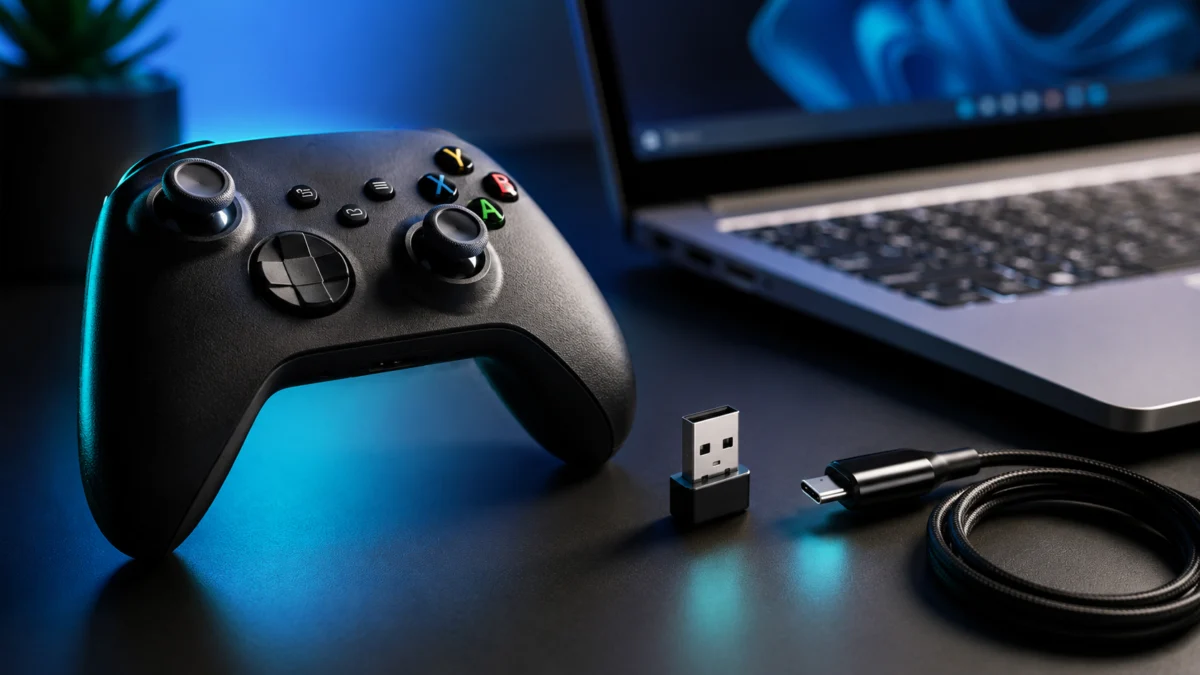
- Cable check: If you fall back to wired and still get nothing, confirm the USB cable carries data. Charge-only cables are common and will power the controller without delivering input, a frequently reported cause of “connected but no input.”
- What an adapter can’t fix: A new Bluetooth adapter improves the wireless link only. If the real problem is Steam Input or missing game support, no adapter will change it.
Controller-Specific Notes
Official pairing steps and Bluetooth limitations differ by controller family. The steps below come from each manufacturer’s documentation. Confirm the model against official support pages before assuming a specific feature works wirelessly.
Xbox Wireless Controller
To pair over Bluetooth, press the Xbox button to power on, hold the Pair button for three seconds until the Xbox button flashes, then add it in Settings → Bluetooth & devices → Add device. Bluetooth on PC requires the Windows 10 Anniversary Update or later. For lower latency, multi-controller use, or headset audio passthrough, Microsoft’s separate Xbox Wireless Adapter is the recommended path instead of Bluetooth, and it’s also how older non-Bluetooth Xbox controllers connect wirelessly.
DualSense (PS5)
To pair, disconnect any USB cable, then hold the PS button and the Create button together for about five seconds until the light bar flashes, and add it under Windows Bluetooth. Per Sony’s official documentation, haptic feedback requires a USB connection on PC, the headset jack requires a wired connection, and adaptive triggers work only when the game supports them. According to community technical analyses, the likely reason haptics don’t pass over Bluetooth on Windows is that the Windows Bluetooth stack doesn’t carry the audio bandwidth those features use; some community projects work around this, but it is not officially supported. Note that one DualSense can hold up to four pairing slots and must be re-paired each time you switch devices.
Nintendo Switch Pro Controller / Switch 2 Pro Controller
The Switch Pro Controller pairs over USB-C or Bluetooth, and Windows usually enumerates it as a generic HID device, so many games read it natively while others need Steam Input. Because its button layout is Nintendo-style, Steam Input is often used to remap it to an Xbox layout. If you’re specifically setting up a Switch 2 Pro Controller on PC, see the dedicated guide linked below.
8BitDo Controllers
8BitDo controllers support several connection modes (for example DINPUT, XINPUT, macOS, and Switch), and the on-controller LED pattern indicates the current mode. Connecting in the wrong mode is a common reason a game doesn’t recognize the pad: for broad Windows and Steam compatibility, XInput mode is usually the safest starting point. Firmware updates and mode configuration are handled through 8BitDo’s official software over a USB connection. Check 8BitDo’s support pages for your exact model, since combos and supported modes vary across their lineup.
When to Buy a Bluetooth Adapter, USB Cable, or Use Wired Instead
Buy hardware only after troubleshooting points to it. A new Bluetooth adapter makes sense when your PC’s Bluetooth is weak, outdated, or missing, and a data-capable USB cable solves a surprising number of “no input” cases. Wired USB remains the most stable option when reliability matters more than wireless convenience.
- Bluetooth adapter: Worth trying when a desktop lacks Bluetooth or its built-in radio is unreliable, especially before replacing the controller. Try better dongle placement or a USB extension first.
- USB data cable: If a charge-only cable is your problem, a data-capable USB-C or USB-A cable fixes it outright. This is the lowest-cost fix on this list.
- Wired USB: Choose this for competitive play or any time stick jitter and dropouts are unacceptable. It bypasses Bluetooth entirely.
- Official wireless adapter: Use a proprietary adapter (such as the Xbox Wireless Adapter) only when it’s officially supported for that controller family. It is not a generic Bluetooth adapter.
Check a Windows 11 Bluetooth adapter on Amazon
/
Check a USB-C to USB-A data cable on Amazon
/
Check a USB extension cable on Amazon
A Bluetooth adapter improves the wireless connection only. It cannot fix Steam Input conflicts, missing game-side controller support, or feature limits like wireless DualSense haptics on Windows. Match the purchase to the layer the troubleshooting identified, and check the manufacturer’s stated Windows 11 compatibility before buying.
Next Steps by Controller Type
This article is the Windows 11 Bluetooth hub. For deeper, controller-specific setup, use the guides below where available.
- Switch 2 Pro Controller: Full PC setup walkthrough — see the linked Fixory guide above.
- Xbox controller: If you rely on the Xbox Wireless Adapter or need detailed Xbox-specific steps, follow Microsoft’s Xbox support and the Fixory Xbox PC guide when published.
- DualSense: For adaptive triggers and haptics on PC, a DualSense-specific guide covers the wired requirement and Steam Input interaction.
- Steam Input deep dive: If your issue is purely Steam-side, a dedicated Steam Input troubleshooting guide goes further than this hub.
How We Researched
This article is based on manufacturer documentation and official support materials from Microsoft, Sony (PlayStation), Nintendo, and 8BitDo, along with Steam’s controller documentation and community reports from sources such as Microsoft Q&A, Steam Community, and hardware forums. We have not conducted hands-on lab testing. Any compatibility claims or feature limits are attributed to official sources, and recurring issues are identified as community reports rather than universal outcomes.
Frequently Asked Questions
My controller is “connected” in Windows but no input works. Why?
“Connected” only means Windows paired with it. Whether a game reads the input is separate, handled by Steam Input or the game’s own controller support. Check that the controller is in the right mode, that the game supports it, and that any USB cable you’re using is data-capable, not charge-only.
Is the Xbox Wireless Adapter the same as a Bluetooth adapter?
No. The Xbox Wireless Adapter uses Microsoft’s proprietary radio, not Bluetooth, and supports features Bluetooth doesn’t, such as headset audio passthrough and multiple controllers. A generic USB Bluetooth dongle won’t provide those, and the two pair differently.
Do I actually need to buy a Bluetooth adapter?
Only if your PC’s Bluetooth is missing, outdated, or unreliable after you’ve tried re-pairing, updating drivers, and improving dongle placement. If the controller works over Bluetooth but a game ignores it, the problem is the input layer, and no adapter will fix that.
Conclusion
The fastest way to fix a Windows 11 Bluetooth controller is to stop treating it as one problem. Identify the symptom first, then target the layer that’s actually failing: the PC’s Bluetooth, the controller’s pairing mode, Steam Input, the game’s native support, or your wireless hardware. Most “paired but not working” cases are input-layer issues, not Bluetooth issues, and most “won’t pair” cases come down to mode, drivers, or placement. Work the layer the symptom points to, and reach for new hardware only after the troubleshooting has earned it.