
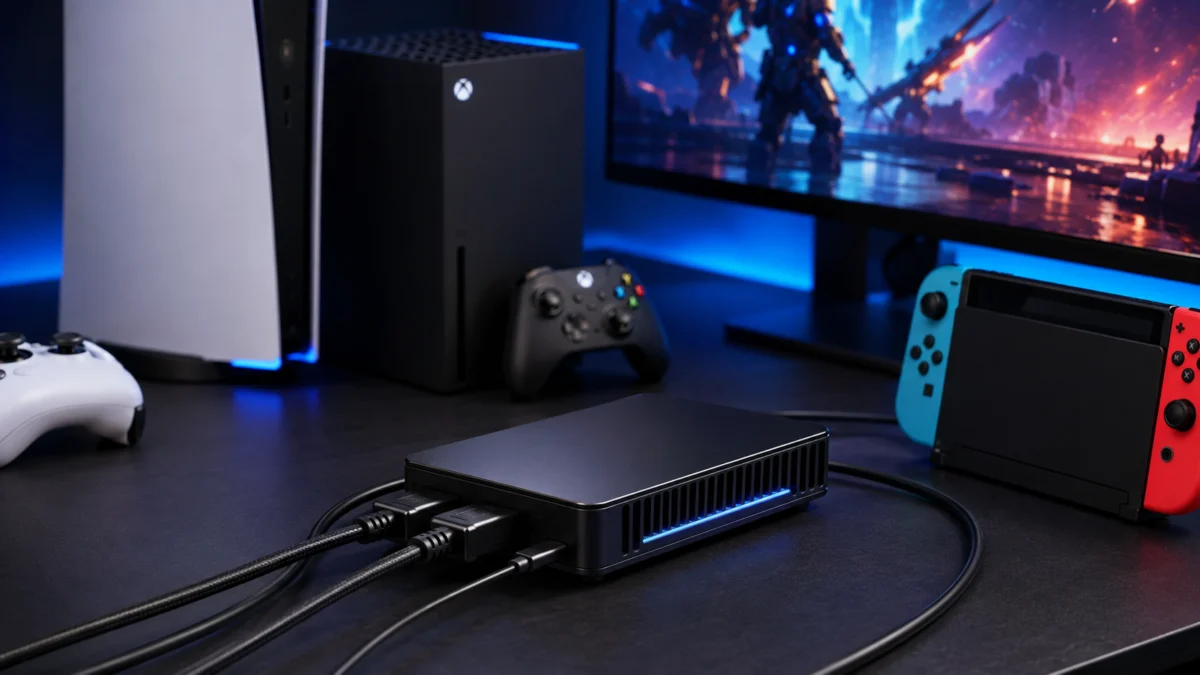
The right capture card for PS5, Xbox Series X, or Nintendo Switch 2 depends on three variables most roundups overlook: whether your goal is 4K recording or 4K passthrough, which operating system you are on, and whether OBS Studio is your primary workflow. For most console streamers, the AVerMedia Live Gamer Ultra 2.1 (GC553G2) is the strongest all-around option. If budget matters and your setup tops out at 4K60, the Genki ShadowCast 2 Pro delivers that quality for less. If you are on a Mac or want the simplest plug-and-play experience, the Elgato 4K S is the safest pick. This guide breaks down the specs that actually matter — and flags the common misreadings that lead buyers to overspend or run into setup problems they were never warned about.
Quick Comparison: Best Capture Cards for PS5, Xbox Series X, and Switch 2 (2026)
AD — The products below include affiliate links. See individual sections for full details on each pick.
| Product | Interface | HDMI | Max Capture | Max Passthrough | VRR Pass. | HDR Capture | UVC / OBS Direct | Best For |
|---|---|---|---|---|---|---|---|---|
| AVerMedia GC553G2 | USB 3.2 Gen 2 | 2.1 | 4K144 (MJPEG) / 4K60 | 4K144 | ✅ | ✅ Windows only | ✅ | Most console streamers |
| Genki ShadowCast 2 Pro | USB 3.2 Gen 1 | 2.0 | 4K60 / 1080p240 | 4K60 | ✅ | ❌ | ✅ | Budget 4K60 |
| Elgato 4K X | USB 3.2 Gen 2 | 2.1 | 4K144 / 1080p240 | 4K144 | ✅ | ✅ Windows only | ✅ | Elgato ecosystem users |
| Elgato 4K S | USB-C | 2.1 | 4K60 SDR / 1080p HDR | 4K60 | ✅ | ✅ (SDR convert) | ✅ | Beginners / Mac users |
| ASUS TUF 4KPRO | USB 3.2 Gen 2 | 2.1 | 4K60 / 1440p120 | 4K144 | ✅ | ✅ | ✅ OBS certified | OBS-first workflow |
| AVerMedia ELITE GO (GC313Pro) | USB-C / GaN | DP Alt | 1080p60 | 1080p60 | N/A | ❌ | ✅ | iPad / mobile capture |
| AVerMedia GC553Pro | USB 3.2 Gen 1 | 2.0 | 4K60 / 1440p144 | 4K60 | ✅ | ✅ (limited) | ✅ | Budget HDMI 2.0 alt. |
What to Look for in a Capture Card for PS5, Xbox Series X, and Switch 2
Five variables determine which capture card actually fits your setup. Recording resolution and passthrough resolution are different numbers, USB interface bandwidth determines your recording quality ceiling, OBS compatibility removes the need for unstable proprietary software, your operating system narrows the field significantly on Mac, and your monitor’s HDMI version determines whether you need an HDMI 2.1 card at all. Check these in order before comparing prices.
1. Recording resolution vs passthrough resolution. A card can pass 4K144 to your monitor while recording at only 4K30. The next section explains this in detail — understanding it prevents the single most common overspend in this category.
2. USB interface bandwidth. Capturing 4K60 in full quality (NV12 or YUY2 color format) requires USB 3.2 Gen 2 (10 Gbps) at minimum. Gen 1 (5 Gbps) cards are forced to either cap recording at 4K30 or apply MJPEG compression, which reduces color accuracy. This is not a spec that can be worked around in software.
3. OBS compatibility and UVC support. Any card that supports UVC (USB Video Class) can be used as a direct source in OBS without proprietary software. This is the standard for professional streaming setups, because manufacturer-bundled applications have well-documented stability problems across both major brands.
4. Operating system. Mac users face two hard limits regardless of which card they buy: HDR recording is not supported on macOS, and cards with high bandwidth requirements (4K60 and above) may cause frame drops on Apple Silicon chips below M1 Ultra level.
5. HDMI version of your monitor. HDMI 2.1 is required for 4K above 60 Hz, VRR passthrough, and HDR passthrough at full spec. If your monitor tops out at 4K60 — including most 4K televisions — an HDMI 2.0 card covers your needs at a lower price point.
Capture vs Passthrough: Why 4K60, HDR, and VRR Specs Are Easy to Misread
The number printed on a capture card box — “4K144” or “4K240” — almost always refers to the passthrough ceiling, not the recording capability. A card labeled 4K144 can pass that signal to your monitor while capturing to OBS at a much lower resolution. Knowing this distinction prevents the most common purchase mistake in this product category.
How passthrough works
Passthrough routes the video signal from your console through the capture card’s internal chip and directly to your gaming monitor. This process does not use your PC’s CPU or USB bandwidth. An HDMI 2.1 card can deliver 4K at 144 Hz, HDR10, and VRR to your monitor with no added latency — none of that requires PC involvement.
What recording actually requires
Recording means the card decodes the video signal and transfers it to your PC over USB or PCIe for OBS to process. Uncompressed 4K60 footage demands more throughput than USB 3.2 Gen 1 (5 Gbps) can supply. Cards on that interface either cap at 4K30 or apply MJPEG compression. Achieving uncompressed 4K60 recording in NV12 or YUY2 requires USB 3.2 Gen 2 (10 Gbps) or PCIe — there is no software workaround for a hardware bandwidth ceiling.
HDR recording vs HDR passthrough
A card can pass HDR10 to your gaming monitor while recording only in SDR to OBS. Even when HDR recording is officially listed as supported, quality depends on how well the card’s hardware converts the wide HDR color range to SDR for streaming platforms. Poorly implemented tone mapping causes the washed-out look many users report in OBS preview. On macOS, HDR recording is not supported by any capture card regardless of what the spec sheet says — this is an OS-level limitation.
VRR passthrough vs VRR in recordings
VRR support means your monitor receives a variable-framerate signal from the console and refreshes to match, eliminating screen tearing. However, OBS records at a fixed framerate — for example, 60 fps. When VRR is active on the console, the variable-rate signal conflicts with OBS’s constant framerate encoder, causing frame duplication or microstutter in the recording file. For clean recordings, disable VRR on the console while capturing. VRR is a passthrough feature for your monitor’s benefit, not a recording format.
Best Capture Cards for Console Streaming in 2026
AD — The products below include affiliate links.
Common Patterns Reported by Users: What to Check Before You Buy
Based on multiple reports across r/elgato, r/obs, r/AverMedia, and official AVerMedia support threads, four recurring issues appear across most capture card brands. These are not isolated incidents — they appear in multiple independent threads and affect setup across brands.
- Black screen in OBS on PS5 or Switch 2 connection: Most often caused by EDID negotiation failure — the handshake between console, capture card, and monitor fails to agree on a resolution. Particularly reported with the Elgato 4K Pro in 1440p setups. Workaround: open the manufacturer utility and manually set the EDID input mode from Default to Display, then restart OBS.
- No audio from Switch 2 in OBS: Several users on r/obs report that OBS does not detect Switch 2 audio on initial connection with multiple capture cards. Related Reddit thread Workaround: disable HDR output and set Switch 2 to 1080p resolution, confirm audio is detected, then re-enable settings one at a time.
- Proprietary software instability: Both Elgato’s 4K Capture Utility and AVerMedia’s Streaming Center have persistent crash and preview stutter reports across multiple community threads. The consistent recommendation is to connect via OBS DirectShow (UVC) and use manufacturer software only for firmware updates.
- HDR footage appearing washed out in OBS: Caused by HDR tone mapping being applied incorrectly during conversion to SDR. Fix: in OBS, set the video source color space to Rec. 709 and disable HDR output on the console. Twitch and YouTube receive SDR video regardless, so HDR output to OBS is not required for streaming.
Best Overall for Most Console Streamers: AVerMedia Live Gamer Ultra 2.1 (GC553G2)
For PS5 and Xbox Series X streamers who need HDMI 2.1 performance without frequent compatibility issues, the GC553G2 is the most reliable all-around pick. Its EDID negotiation is more accurate than competing HDMI 2.1 cards — particularly in PS5 setups running 1440p output, where Elgato alternatives have documented resolution misread problems. According to multiple discussions on r/obs, users who switched from Elgato 4K X to GC553G2 report fewer EDID-related black screen incidents. Related Reddit discussion
Its OBS-specific 5.1 multichannel audio plugin allows PS5 surround audio to be routed correctly into OBS without manual virtual audio cable configuration — a capability that has no direct equivalent in the Elgato lineup.
Recording reaches 4K60 in standard NV12/YUY2 formats on Windows, and 4K144 via MJPEG compression. Passthrough supports up to 4K144 with VRR and HDR via HDMI 2.1. On macOS, 4K60 recording requires M1 Ultra-class processor at minimum, and HDR recording is not supported on any Mac regardless of chip. According to AVerMedia’s official product page, VRR passthrough is supported. Official site
The main friction point is AVerMedia’s Streaming Center software. Multiple users on r/AverMedia describe it as resource-heavy and prone to bitrate artifacts during fast-motion footage. Related Reddit thread Treat it as a firmware update tool only and connect to OBS via DirectShow.
Check on Amazon
/
Official site
✅ Buy if…
- You stream on PS5 or Xbox Series X and want the most EDID-reliable HDMI 2.1 card available
- You need accurate 5.1 surround audio routing into OBS from PS5
- You are on Windows and want 4K HDR passthrough to a high-refresh gaming monitor
❌ Don’t buy if…
- You are on Mac with anything below M1 Ultra — 4K60 capture will produce frame drops
- You intend to use Streaming Center as your primary software — OBS DirectShow is required for stable operation
- Your monitor tops out at 1080p or 4K60 — HDMI 2.1 passthrough will not benefit you in this configuration
Best Value 4K60 Option: Genki ShadowCast 2 Pro
If your setup does not require 120Hz or 144Hz passthrough — which covers most 4K television users and Switch 2 players in docked mode — the Genki ShadowCast 2 Pro delivers 4K60 recording at a lower price than HDMI 2.1 alternatives. The HDMI 2.0 interface is not a meaningful limitation when your display tops out at 4K60 and VRR is not in play.
Recording is confirmed at 4K60 and 1080p240 per official specifications. The card operates via UVC, meaning OBS recognizes it without proprietary software. According to the official Genki ShadowCast 2 Pro product page, the card is tuned for low input latency in passthrough mode when used with OBS and YUY2 color format selected. Official site
One consistent caution across user discussions: the bundled Genki Studio application has reported audio desync and video stutter issues. Running the card directly through OBS — without Genki Studio open — is the widely recommended setup.
Check on Amazon
/
Official site
✅ Buy if…
- You primarily record Switch 2 in docked mode or PS5 on a 4K60 television
- You want 4K60 recording without paying for an HDMI 2.1 card your monitor cannot use
- OBS is your primary workflow and HDR recording is not required
❌ Don’t buy if…
- You use a 4K120Hz or 4K144Hz gaming monitor and want VRR or high-refresh passthrough — HDMI 2.0 cannot supply that
- You need HDR recording — this card does not support it
- You plan to rely on the bundled Genki Studio application as your primary capture tool
Best HDMI 2.1 / High Refresh Passthrough: Elgato Game Capture 4K X
The Elgato 4K X is built for streamers who need 4K144 passthrough and are already invested in the Elgato hardware ecosystem — Stream Deck, Chat Link Pro, and related peripherals. Its USB 3.2 Gen 2 (10 Gbps) interface supports 4K144 capture and passthrough on Windows, with VRR and HDR passthrough through HDMI 2.1. According to Elgato’s official product documentation, the 4K X supports passthrough up to 4K at 144 Hz and recording up to 4K at 144 Hz and 1080p at 240 Hz. Official site
The critical operational note: multiple reports on r/elgato describe the bundled 4K Capture Utility as unstable, with crashes and choppy preview behavior after software updates. Related Reddit thread / Related Reddit thread Using the 4K X as a UVC device in OBS without the 4K Capture Utility running is how most users maintain a stable workflow. On macOS, HDR recording is not available and USB bandwidth issues were reported at launch, with partial improvement through subsequent firmware updates.
Check on Amazon
/
Official site
✅ Buy if…
- You use a 4K144Hz or 1440p144Hz gaming monitor and need full high-refresh passthrough while recording
- You are already in the Elgato ecosystem — Stream Deck, Facecam, and peripheral integration is tighter here than with any other brand
- You are on Windows and need 4K HDR recording capability
❌ Don’t buy if…
- You plan to use 4K Capture Utility as your primary recording software — OBS DirectShow is required for stable operation
- You are on Mac — HDR recording is unsupported on macOS regardless of the card
- Your monitor tops out at 4K60 — the GC553G2 or Genki ShadowCast 2 Pro offer equivalent capture performance for that use case
Best Simple 1080p Streaming Option: Elgato Game Capture 4K S
Despite its name, the Elgato 4K S is best understood as a high-quality, plug-and-play solution for streamers whose primary output is 1080p60 on Twitch or YouTube — not as a direct competitor to the 4K X. It captures 4K60 SDR and 1080p HDR, and performs internal downscaling so that 1080p content derived from a 4K source is noticeably sharper than native 1080p capture from lower-tier cards.
Its defining advantage over HDMI 2.1 alternatives is simplicity: no external power adapter required, UVC compliance that allows OBS to detect it without any software installation, and consistent recognition on both Windows and macOS 13 and above. According to Elgato’s official documentation, the 4K S is explicitly listed as compatible with Nintendo Switch 2. Official site Switch 2 guide
Check on Amazon
/
Official site
/
Switch 2 guide
✅ Buy if…
- Your primary streaming platform is Twitch or YouTube at 1080p60
- You want the simplest possible plug-and-play OBS setup with no proprietary software required
- You are capturing Nintendo Switch 2 and want officially confirmed compatibility from Elgato
❌ Don’t buy if…
- You need 4K144 passthrough or VRR passthrough for a high-refresh gaming monitor — the 4K X is required for that
- You want uncompressed 4K60 HDR recording on Windows — the 4K X or GC553G2 are required
Best for OBS-First Workflow: ASUS TUF Gaming Capture Box 4KPRO
The ASUS TUF Gaming Capture Box 4KPRO is the only major consumer capture card in 2026 with official OBS certification. Its practical advantage over other HDMI 2.1 cards is onboard hardware scaling: the card itself downscales 4K input to your OBS canvas resolution — for example, 1080p — before the signal reaches OBS. This frees your GPU to focus entirely on encoding rather than software scaling, which reduces dropped frames during live streams on mid-range systems.
Recording supports up to 4K60 and 1440p120. Passthrough reaches 4K144 with VRR and HDR passthrough via HDMI 2.1. The card operates via UVC and connects cleanly into OBS without additional software. According to the ASUS product page, the 4KPRO supports the full OBS integration workflow through UVC compliance. Official site
One confirmed platform-specific issue: on Mac (M1 Max and similar chips), the device can fail to wake from USB standby, resulting in a persistent black screen in OBS. A workaround reported in community threads involves briefly connecting a USB 2.0 cable to force the device to initialize before switching back to the primary cable. This appears to be a Mac-specific behavior and is less frequently reported on Windows.
✅ Buy if…
- OBS is your only capture tool and you want the benefit of OBS certification and onboard hardware scaling
- You are on a mid-range Windows PC and want to reduce GPU load during live streams
- You need 4K144 passthrough and HDR passthrough via HDMI 2.1
❌ Don’t buy if…
- You are on Mac — the USB standby bug creates a reliability risk in live streaming scenarios
- You need 4K144 recording rather than passthrough — capture tops out at 4K60
Best for Mac Users: Elgato Game Capture 4K S
Mac users running Apple Silicon face a narrower set of compatible options than Windows users. HDR recording is not supported on macOS regardless of the capture card — this is an OS-level constraint that no driver update resolves. Additionally, high-bandwidth HDMI 2.1 cards designed for USB 3.2 Gen 2 frequently cause frame drops on M1, M2, and M3 chips due to how Apple Silicon handles USB bandwidth allocation. M1 Ultra and above are the exception, not the rule.
For this reason, the Elgato 4K S is the recommended pick for Mac streamers for the same reasons it excels as a plug-and-play option on Windows: its lower bandwidth ceiling avoids the USB negotiation conflicts that affect higher-spec cards on Apple Silicon. According to a published review on AppleInsider forums, the 4K S performs reliably in macOS-based OBS setups where higher-bandwidth alternatives produce instability. The SDR-only recording limitation applies universally on Mac, so the 4K S’s HDR-to-SDR conversion is not a relative disadvantage in this environment.
See the full product details and Buy if / Don’t buy if criteria in the 1080p Streaming section above.
Best for iPad and Mobile Capture: AVerMedia ELITE GO (GC313Pro)
The AVerMedia ELITE GO (GC313Pro) is a different device category: a 100W GaN fast charger with an integrated 1080p60 capture card built in. Connecting a Nintendo Switch 2 and an iPad via USB-C delivers simultaneous charging and OBS-compatible capture without a desktop PC. For hotel setups, travel streaming, or anyone who wants to record Switch 2 without a full PC rig, it eliminates most of the cable complexity associated with mobile capture workflows.
According to AVerMedia’s official Switch 2 compatibility page, the GO series is listed as compatible with Nintendo Switch 2 in dock mode. Switch 2 compatibility status Recording is capped at 1080p60, which is the practical ceiling for iPad-based OBS workflows. This card is not suited as a primary desktop capture device — passthrough flexibility and resolution ceilings are more limited than any of the seated recommendations above.
Check on Amazon
/
Official site
/
Switch 2 compatibility status
✅ Buy if…
- You capture Nintendo Switch 2 on the go using an iPad and want charging and recording combined into one device
- 1080p60 recording is sufficient for your workflow
- You want to avoid carrying a separate power adapter and a separate capture card
❌ Don’t buy if…
- You need 4K recording or high-refresh passthrough — this card supports neither
- Your primary setup is a desktop PC — any of the options above offer more recording flexibility
Elgato vs AVerMedia: Which Brand Makes More Sense for OBS Users?
For OBS-first workflows, AVerMedia has a meaningful practical edge in EDID accuracy and multichannel audio routing. Elgato leads on ecosystem integration with Stream Deck and first-party peripheral hardware. Neither brand’s bundled software is recommended for production use.
EDID accuracy: EDID is the handshake protocol that tells your console which resolutions and refresh rates the connected display supports. Elgato 4K Pro users on r/elgato have reported that PS5 sometimes misidentifies the card as incapable of 1440p output and downgrades to 1080p — even when the hardware nominally supports it. Related Reddit thread AVerMedia’s GC553G2 has fewer documented instances of this specific problem, and community comparisons on r/obs generally describe AVerMedia as more reliable in PS5 EDID negotiation at 1440p.
Multichannel audio: AVerMedia offers an OBS-specific plugin that routes 5.1 surround audio from PS5 correctly into OBS. Without it, PS5’s 5.1 output is typically downmixed to stereo or arrives in a format OBS does not handle cleanly. Elgato does not have an equivalent plugin. For streamers who care about accurate game audio, this is a practical differentiator in favor of GC553G2.
Ecosystem integration: If you use Stream Deck, Elgato’s integration with scene switching, audio mixing shortcuts, and capture card control is tighter than any competing setup. For users without Stream Deck hardware, this advantage does not apply to the purchase decision.
Software: Both brands’ proprietary capture applications have persistent stability reports across multiple community threads. The recommendation is the same for both: use OBS with DirectShow input, and treat manufacturer software as a firmware update tool only.
Do You Really Need HDMI 2.1 for PS5 or Xbox Series X Capture?
HDMI 2.1 is necessary only if your setup meets at least one of the following conditions. If none apply, an HDMI 2.0 card is sufficient and typically more affordable for your use case.
- Your gaming monitor supports 4K at 120 Hz or higher, and you want VRR passthrough active while the capture card is in the signal path
- You play at 1440p at 120 Hz or 144 Hz and want those rates to pass through without downsampling to a lower refresh rate
- You want HDR to pass through to your monitor while capturing in SDR for streaming platforms
If your monitor is a 4K60 television, a 1080p panel, or a 1440p60 display, HDMI 2.0’s passthrough ceiling is not a bottleneck for your workflow. In those cases, the Genki ShadowCast 2 Pro or the AVerMedia GC553Pro both deliver 4K60 recording at a lower price point without a meaningful functional trade-off for that specific setup. The GC553Pro (HDMI 2.0 / USB 3.2 Gen 1) supports 4K60 and 1440p144 capture and is a reasonable cost-effective alternative when high-refresh passthrough is not a requirement.
Check on Amazon
/
Official site
The scenario where HDMI 2.1 is unambiguously worth the premium: Xbox Series X users who run games at 4K120 or use Auto HDR and VRR simultaneously on a capable gaming monitor. In that configuration, routing the signal through an HDMI 2.0 card in the passthrough chain forces the monitor into a lower operating mode even if the monitor itself supports higher rates.
Common Setup Mistakes: Black Screen, No Audio, HDR Washed Out, and VRR Problems
The four most common capture card setup failures each have a confirmed fix based on multiple independent community reports. Check these before concluding the hardware is faulty.
| Symptom | Most Likely Cause | Fix to Try First |
|---|---|---|
| Black screen in OBS after connecting PS5 or Switch 2 | EDID negotiation failure — console, capture card, and monitor cannot agree on a supported resolution | Open the manufacturer utility (4K Capture Utility or RECentral / Streaming Center). Locate the EDID input mode setting and change it from Default to Display. Restart OBS and reconnect the console. |
| No audio from Nintendo Switch 2 in OBS | Switch 2 HDR or 120Hz output conflicting with the capture card’s audio detection on initial connection | On Switch 2: disable HDR output and set TV resolution to 1080p. Confirm audio appears in OBS, then re-enable higher output settings one at a time. Related Reddit thread |
| HDR footage appears washed out or overexposed in OBS | The capture card’s HDR-to-SDR tone mapping is not converting correctly for OBS’s SDR pipeline | Set the OBS video source color space to Rec. 709. Disable HDR output on the console. Streaming platforms receive SDR regardless of source, so HDR passthrough into OBS is not required for Twitch or YouTube live streams. |
| Recording has microstutter or inconsistent framerate | VRR enabled on the console while OBS encodes at a fixed framerate, causing frame timing conflicts | Disable VRR in the console’s display settings before starting a recording session. VRR is a passthrough feature for your monitor’s refresh behavior — OBS cannot encode a variable-rate signal at a fixed bitrate without artifacts. |
| Audio crackle or static noise during capture (particularly on NZXT Signal 4K30) | Grounding or signal interference from an HDMI cable pairing that creates noise at HDMI 2.1 bandwidth | Replace the HDMI output cable with a certified HDMI 2.0 specification cable. Multiple reports on r/obs confirm this resolves audio crackle on the NZXT Signal 4K30 specifically. Related Reddit thread |
| Capture card not recognized after a Switch 2 firmware update | Console firmware changed HDCP handshake behavior, breaking compatibility with previously working configurations | Check the manufacturer’s Switch 2 compatibility page for updated capture card firmware or driver versions before troubleshooting hardware further. AVerMedia and Elgato both maintain dedicated Switch 2 support pages updated after console firmware changes. AVerMedia Switch 2 compatibility page Elgato Switch 2 guide |
How We Researched
This article is based on official product specifications published by Elgato, AVerMedia, ASUS, and Genki; a deep research report compiled from manufacturer documentation, third-party hardware reviews, and community discussions on r/elgato, r/obs, r/AverMedia, and official AVerMedia support and compatibility pages; and a review of user-confirmed troubleshooting reports verified across multiple independent threads on Reddit and OBS community forums. We have not conducted hands-on lab testing. All performance figures reflect manufacturer claims or community-reported results confirmed across multiple independent sources. Manufacturers explicitly claim optimization for Nintendo Switch 2 across the products listed, though real-world performance relies on the console’s final firmware state.
Which Capture Card Should You Buy?
Match your situation to the column below. If your setup spans multiple rows, prioritize the constraint that is hardest to work around — typically operating system and monitor type.
| Your Situation | Best Pick | Why |
|---|---|---|
| PS5 or Xbox, Windows, HDMI 2.1 gaming monitor, OBS workflow | AVerMedia GC553G2 | Best EDID reliability, 5.1 audio routing plugin for OBS |
| PS5 or Switch 2, budget matters, 4K60 television or 1080p monitor | Genki ShadowCast 2 Pro | HDMI 2.0 is sufficient here; lower cost, 4K60 recording |
| Deep in the Elgato ecosystem (Stream Deck), 4K144Hz or 1440p144Hz monitor, Windows | Elgato 4K X | HDMI 2.1 passthrough and recording, Elgato peripheral integration |
| Beginner, Switch 2 or PS5, just want it to work in OBS immediately | Elgato 4K S | Plug-and-play UVC, no proprietary software required, confirmed Switch 2 compatible |
| Mac user, any console | Elgato 4K S | Stable UVC on macOS 13 and above, avoids USB bandwidth conflicts on Apple Silicon |
| OBS-certified device required, mid-range Windows PC, want onboard hardware scaling | ASUS TUF Gaming Capture Box 4KPRO | Only OBS-certified card in this list; onboard scaling reduces GPU load during streams |
| Switch 2 on the go with an iPad; want charging and capture in one device | AVerMedia ELITE GO (GC313Pro) | GaN 100W charger + 1080p60 capture, single USB-C cable to iPad |
If you are deciding between the AVerMedia GC553G2 and the Elgato 4K X, the deciding factor is audio: if routing 5.1 surround from PS5 into OBS matters to your stream quality, the GC553G2 is the more complete solution out of the box. If you already own Stream Deck hardware and want native Elgato integration, the 4K X makes more sense. Both require OBS DirectShow for stable long-session operation — neither brand’s bundled software is recommended for production streaming.









Comments