If your Garmin Edge 1050 is not charging, start with three free checks: make sure the USB port is completely dry and undamaged, make sure the device is within its charging temperature of 0–45°C (32–113°F), and connect the included cable securely to a Garmin-approved AC adapter or a computer USB port. Garmin’s manual states that the Edge 1050 will not charge outside its approved temperature range, so a bike computer that feels fine in the cold or heat can still refuse to charge.
This guide covers charging and powering on from a cable only. It uses Garmin’s own Edge 1050 manual, does not involve opening the device, and explains when to stop and contact Garmin. If your Edge charges but will not pair with your phone, that is a separate Bluetooth and Garmin Connect problem.
Quick Checks: What to Try First
The check takes 5 steps. Do them in order, because the first two are about avoiding damage and the last one is where free fixes end.
- Dry and inspect the port. If the Edge has been rained on, washed or sweated on, let the USB port, the weather cap and the area around them dry thoroughly before you plug anything in. If the port looks damaged, stop here.
- Bring it into the charging range. Move the device somewhere between 0–45°C (32–113°F) before you connect it.
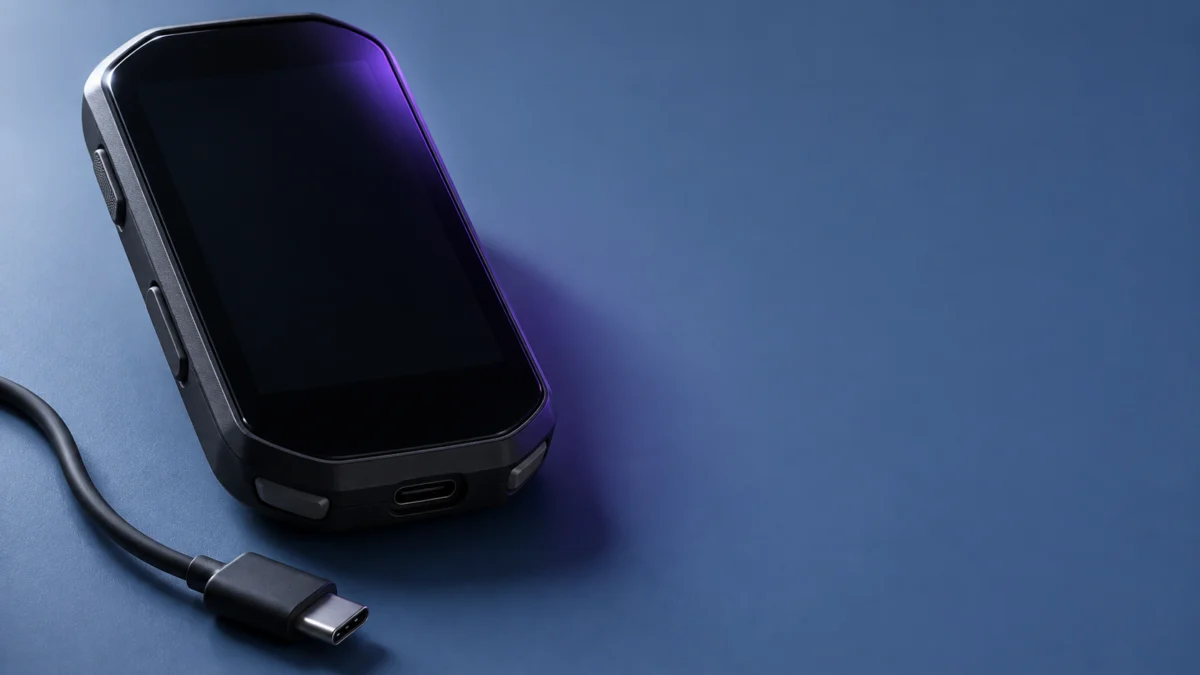
- Connect it the way Garmin describes. Pull up the weather cap, plug the included cable firmly into the device, and plug the other end into a Garmin-approved AC adapter on a wall outlet or into a USB port on your computer.
- Watch for a reaction. Connecting the Edge 1050 to a power source turns it on. If the screen was frozen instead, hold the power button for 12 seconds to restart it.
- Compare, then escalate. If nothing changes, try a compatible, known-good cable and another Garmin-approved AC adapter or computer USB port. If the Edge still does not respond, contact Garmin support.
Which Edge 1050 Charging Symptom Do You Have?
Match what you see to one row below. If the charging area is wet, wait until it is thoroughly dry; if the device is outside the charging range, move it and let its temperature settle. A damaged port is different: stop and contact Garmin support rather than trying more cables. Cable and power comparisons only narrow the cause down. If the Edge shows no reaction to any approved power source after these checks, Garmin support is the next step.
| What you see | What it points to | What to do |
|---|---|---|
| USB port, weather cap or surrounding area is wet | Moisture in the charging area | Do not charge or connect to a computer yet; let everything dry thoroughly first |
| Port looks bent, corroded or otherwise damaged | Possible hardware damage | Stop and contact Garmin support; do not attempt a port repair |
| Device has been in a cold car, a hot room or direct sun | Possibly outside the 0–45°C (32–113°F) charging range | Let it reach a temperature inside the range, then reconnect |
| Charges with one cable or power source but not another | The cable, adapter or port you were using | Use the included cable with a Garmin-approved AC adapter or a computer USB port |
| Screen is stuck and buttons do nothing, even when connected | The bike computer has stopped responding | Hold the power button for 12 seconds to restart it |
| No reaction with a compatible cable and a Garmin-approved adapter or computer USB port | A problem the free checks cannot reach | Contact Garmin support before buying anything |
Is the USB Port Wet or Damaged?
If the USB port is wet, do not charge the Edge 1050 or connect it to a computer until it is fully dry. Garmin’s manual tells owners to dry the USB port, the weather cap and the surrounding area thoroughly before charging, to prevent corrosion. If the port looks physically damaged, stop and contact Garmin support instead of plugging it in.
The Edge 1050 has an IPX7 water rating in its official specifications, but that rating describes incidental exposure to water. It is not permission to charge through a wet port, and the manual’s drying instruction applies whether the device got wet on a ride or after cleaning.
After charging, close the weather cap again, as the Edge 1050 charging instructions describe.
Is the Edge 1050 Within Its Charging Temperature?
The Edge 1050 charges only between 0–45°C (32–113°F), according to Garmin’s specifications. When the device is colder or hotter than that, it does not charge, even with a good cable and power source. Move it somewhere within the range, give it time to reach that temperature, and then reconnect it before deciding anything is broken.
The same specification page lists a wider operating temperature range than the charging range. That difference matters: an Edge 1050 that worked normally on a cold morning ride or in summer heat can still refuse to charge at that temperature. If you usually charge it in a car parked in the sun or on a cold garage floor, rule that out first.
Are the Cable and Power Source the Problem?
Use the cable that came with the Edge 1050 and connect it securely at both ends. Garmin recommends the included charging cable for the best results, and approves two power sources: a Garmin-approved AC adapter plugged into a standard wall outlet, or a USB port on your computer. Testing other cables only helps narrow down the cause.
- Seat the connector fully. Garmin’s tips start with connecting the cable securely to the bike computer, so check that it is pushed in all the way with the weather cap out of the way.
- Switch power sources. If a wall adapter gives no reaction, try a computer USB port, or the reverse. Use a Garmin-approved adapter for the wall outlet option.
- Compare with a known-good cable. If you suspect the included cable, try a compatible cable known to work. A different response points you toward the original cable or connection, without proving which component has failed. If it does not, the result does not prove the device is faulty, but it does mean you have done the free checks.
Garmin’s charging instructions do not list adapter power ratings or charging times, so this guide does not either.
Is It a Charging Failure or a Frozen Screen?
A connected Edge 1050 should turn on, because Garmin says connecting it to a power source turns it on. If the screen is on but stuck, the device may have stopped responding rather than failed to charge. In that case, hold the power button for 12 seconds; Garmin says this restart does not erase your data or settings.
The restart is described in Garmin’s Edge 1050 reset instructions. After the device restarts, connect it to power again and check whether it now charges.
Do not confuse this restart with the menu option Delete Data and Reset Settings. That option removes your history and data, such as rides, workouts and courses, and Garmin does not present it as a charging fix. If the restart does not help and the device still shows no reaction on power, move on to support rather than wiping it.
When Should You Contact Garmin or Consider a Replacement?
Contact Garmin support if the port is damaged, or if the Edge 1050 is dry, within its charging temperature, restarted, and still shows no reaction with the included cable and an approved power source. The device uses a built-in rechargeable lithium-ion battery, so battery or port problems belong with Garmin, not with home repair.
Ask Garmin support to assess whether the unit has a hardware fault and to explain any warranty, repair or replacement options available for your device. This guide does not describe disassembly, port repair or battery replacement, and we cannot tell you what Garmin will offer in your case.
Buying another Edge 1050 is not a charging test, so do not start there. Consider the Garmin Edge 1050 listing on Amazon US below only if Garmin support has confirmed a hardware fault, you have checked the available warranty and repair or replacement options and found them unsuitable, and you still need the same model. We could not confirm its current price, condition or seller, so check those details before you buy.

Please check the Amazon product page for the latest price and availability.
A replacement purchase is optional; it does not establish why the original unit stopped charging.
How We Researched
This article is based on Garmin’s official Edge 1050 owner’s manual (English, US version 8, September 2026): the Charging the Device page, the Edge Specifications page and the Resetting the Edge Bike Computer page. We also confirmed that the Amazon US listing linked above is for the Garmin Edge 1050, but not its price, condition or seller. We have not conducted hands-on testing, measured charging behavior or timed a full charge. The known-good cable comparison is a diagnostic step, not a guaranteed fix.
FAQ
Why won’t my Edge 1050 charge in cold weather?
Garmin lists a charging range of 0–45°C (32–113°F). Below 0°C the device is outside that range and will not charge, even if it still works for riding. Let it reach a temperature inside the range before reconnecting.
Can I charge the Edge 1050 right after a wet ride?
No. Dry the USB port, the weather cap and the area around them thoroughly first. The IPX7 rating covers incidental water exposure, not charging through a wet port.
Will resetting the Edge 1050 erase my rides?
The 12-second power-button restart does not erase your data or settings, according to Garmin. Delete Data and Reset Settings is different: it removes your history and data, so do not use it as a charging fix.
Conclusion
Most Edge 1050 charging checks cost nothing: dry the port, bring the device into the 0–45°C (32–113°F) charging range, and connect the included cable firmly to an approved power source. If the screen is frozen, use the 12-second restart, not a data reset. When a dry, in-range, restarted Edge 1050 still shows no reaction, contact Garmin support before you think about buying a replacement.