If the files on your Samsung Portable SSD T9 matter, stop before you change anything in Disk Management. Windows may offer destructive options, and Initialize Disk, Format, Delete Volume, and Secure Erase can destroy data on a drive that may only be locked or missing a drive letter.
The fastest way to know what is safe is to find out how far detection actually gets. Check four places in this order: File Explorer, Disk Management, Device Manager, and Samsung Magician. The deepest place that still lists the T9 tells you whether this is a cable problem, a drive-letter problem, a locked drive, or a hardware failure.
Rule out one thing immediately: a port that does not support USB 3.2 Gen 2×2 limits speed, not detection. Samsung lists the T9 as backward compatible down to USB 2.0, so a slower port alone does not explain a drive that never appears.
Before You Touch Anything: Protect the Data on the T9
If the files on your T9 matter, do not run Initialize Disk, Format, Delete Volume, or Secure Erase yet. Those operations can destroy data, even when Windows presents them as available actions. Start with the free, non-destructive checks below.
Whether you need the data changes which steps are acceptable, not just which are advisable. The checks below avoid initializing, formatting, deleting a volume, or using Secure Erase. Formatting will not repair a cable, port, or physical connection problem.
Use Safely Remove Hardware every time. Samsung notes that improper removal after a copy can leave the file system update incomplete, so the copied data is not visible afterwards.
Find Where Windows Stops Seeing the Samsung T9
Check four places in order: File Explorer, Disk Management, Device Manager, and Samsung Magician. The deepest layer that still sees the T9 tells you what is actually broken and which steps are safe to run next. Skipping this check is how readers end up formatting a drive that was only locked.
The check takes 4 steps.
- In File Explorer, look under This PC for a new drive letter.
- Press Windows + X and open Disk Management. Look for a disk of roughly the right size, with or without a readable volume.
- Press Windows + X and open Device Manager. Expand Disk drives and Universal Serial Bus controllers.
- Open Samsung Magician and check whether the T9 is listed.
The row you land on decides the rest of the article.
| What you see | What it usually means | Where to go next |
|---|---|---|
| Nothing anywhere, including Device Manager | No working USB connection, or no power | Cable and port checks |
| Device Manager only | The USB device enumerated, but no usable disk mounted | Device Manager section |
| Disk Management, but no letter in File Explorer | Missing letter, offline disk, or an unreadable file system | Disk Management section |
| A volume of only a few dozen megabytes | Very likely locked by a password, not broken | Password section |
| Works in Windows, invisible in Magician only | A software-side problem, not a drive failure | Magician section |
| Worked until a Windows update, now RAW | Unconfirmed cause; data preservation comes first | Post-update section |
Rule Out the Cable, Port, and Hub Before Anything Else
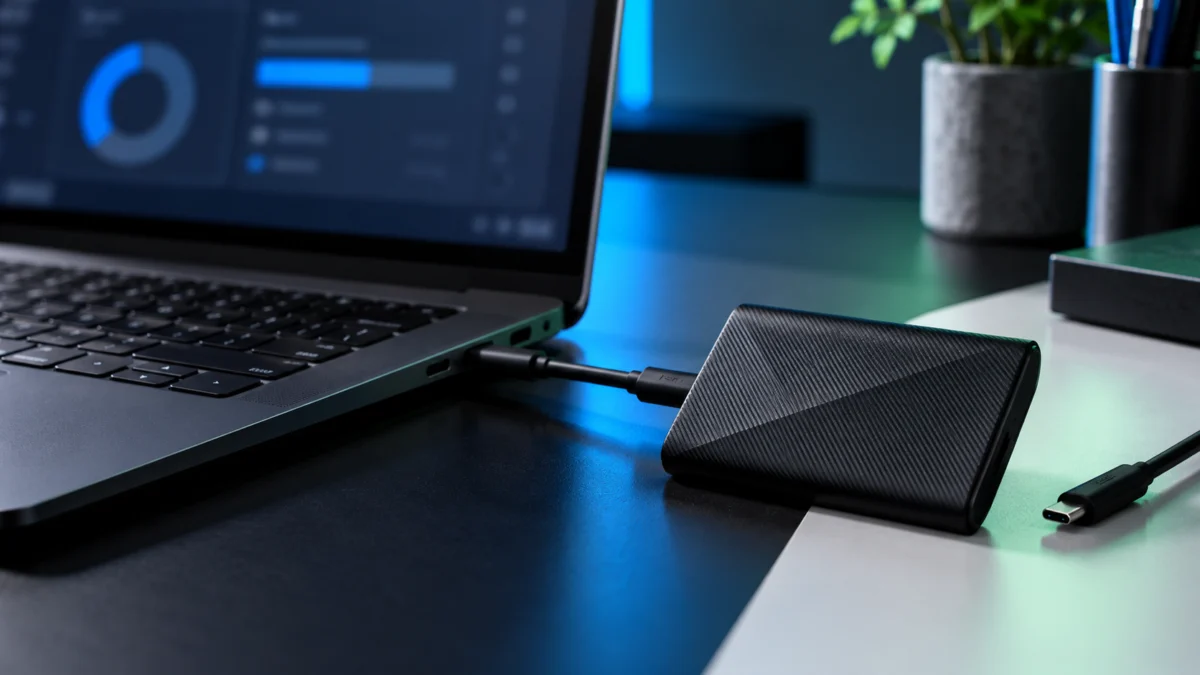
Remove hubs, docks, and monitor pass-through ports, then plug the T9 straight into the PC. Swap between the bundled USB-C to USB-C and USB-C to USB-A cables. A port that does not support USB 3.2 Gen 2×2 limits speed only, because the T9 is backward compatible down to USB 2.0.
This is the first branch to eliminate because it is free and does not require changing the drive. The check takes 4 steps.
- Disconnect the T9 from any hub, dock, monitor port, or keyboard pass-through, and connect it directly to the computer.
- Try a different physical port. On a desktop, use a rear motherboard port rather than a front-panel one.
- Swap cables. The T9 ships with both a USB Type-C to Type-C and a USB Type-C to Type-A cable, so you already have two independent paths to test.
- Eliminate any cable that came with a phone charger. Charge-oriented cables can carry power without usable data lines, producing a drive that lights up and never appears.
Samsung T9 announcement and specifications
The speed question causes a lot of misdiagnosis. The T9 uses a USB 3.2 Gen 2×2 (20Gbps) interface, rated for sequential reads of up to 2,000 MB/s. Samsung states that reaching maximum speeds requires both the host and the cable to support Gen 2×2 with UASP enabled, and separately that the drive is backward compatible with USB 3.2, 3.1, 3.0, and 2.0. An older port costs throughput, not visibility.
If the T9 mounts normally but copies files far more slowly than expected, that is a different problem with a different fix.
If the drive is detected but slow, see our Windows 11 slow-transfer checks for the SanDisk Extreme SSD V2.
If your drive is a different portable SSD, the four-layer check still applies, but the vendor branches do not. A SanDisk drive has its own unlocker software and firmware history, covered separately.
For SanDisk-specific detection steps, see SanDisk Extreme SSD V2 not recognized in Windows 11.
If the T9 Appears in Disk Management but Not File Explorer
Windows can see the disk but give you no way to open it. Check for a missing drive letter, an Offline disk, a healthy partition with no letter, and a file system Windows cannot read. If the volume shows as RAW, Unallocated, or Not Initialized and you need the data, change nothing here.
This is the branch where most data gets lost, because Windows presents Initialize Disk as though it were a setup step. The fix takes 3 steps.
- If the partition reads Healthy at close to full capacity but has no letter, right-click it, choose Change Drive Letter and Paths > Add, and assign an unused letter. This does not alter your files.
- If the disk is labelled Offline, right-click the disk name on the left and choose Online. Offline is a state, not damage.
- If Windows shows an unfamiliar file system, consider where the drive was last used. A drive formatted with APFS on macOS or ext4 on Linux may still be readable on the system where it was prepared. Check it there and copy the files off if possible instead of reformatting.
Treat RAW, Unallocated, and Not Initialized as a stop point when the data matters. Those states can come from a damaged partition table rather than a dead drive, and that table is exactly what initializing replaces.
If Device Manager Sees the T9 but Disk Management Does Not
This pattern usually means Windows has enumerated the USB device but has not mounted a usable disk. Record the device status and Hardware IDs first, then run Scan for hardware changes, reconnect safely, and restart. Do not download drivers from unofficial driver sites, because the T9 does not need a vendor driver.
The fix takes 4 steps.
- Note where the T9 appears under Disk drives and Universal Serial Bus controllers, and whether any entry carries a warning icon.
- Right-click the entry, choose Properties, read Device status, then open Details and select Hardware Ids. Write both down: they tell a support agent far more than a description of the symptom.
- Use Action > Scan for hardware changes, then remove the drive safely, reconnect it to a different direct port, and recheck Disk Management.
- Restart Windows with the T9 disconnected, and connect it after the desktop has loaded.
On drivers: Windows 11 mounts the T9 with its own in-box USB storage support. Samsung publishes an NVMe driver, but its stated scope is a specific set of internal SSDs, and the T9 is not among them.
If Only Samsung Magician Cannot Find the T9
Confirm first whether Windows itself sees the drive. If File Explorer or Disk Management shows the T9 and only Magician does not, the failure is at a different detection layer and does not by itself prove that the drive has failed. Install the current Magician release from Samsung’s official download page, and leave firmware updates until the connection is stable.
Do not treat the two signals as equivalent. If Windows mounts the drive and files read and write normally, back up important files before changing management software or firmware.
- Install the current version from Samsung’s official consumer storage download page, rather than reusing an older installer.
- Expect the portable-drive tools inside Magician. Samsung states that Samsung Portable SSD Software and Data Migration are integrated into it, so there is no separate application to hunt for.
- Reconnect through a direct port rather than a hub, then check whether both Windows and Magician list the drive.
Do not treat a firmware update as a fix for an unstable connection. Firmware writes to the drive, and a write interrupted by a drive that keeps dropping out leaves you worse off. Update only when the connection is stable and you hold a current copy of your files.
If the T9 Is Locked or Shows a Tiny Volume
If the T9 appears with a capacity of only a few dozen megabytes, it is probably locked rather than broken. Samsung states that a restricted area is shown when a password is set, and unlocking through the Samsung Portable SSD software or Magician restores the full capacity display.
This is the most misread symptom on Samsung portable drives. Two situations get merged here, and their outcomes differ completely.
| Situation | What to do | Data outcome |
|---|---|---|
| You know the password, but no unlock prompt appears | Launch Magician or the Samsung Portable SSD software manually and unlock from there | Full capacity may reappear after a successful unlock; this does not guarantee file integrity |
| You have forgotten the password | A factory reset is required, arranged through a Samsung Authorized Service Center | All data on the drive is deleted |
Samsung is explicit about the second case: its documented path for a lost password is a factory reset, that reset deletes all data on the drive, and Samsung does not guarantee the data under any circumstances. Do not rely on a third-party tool that claims it can unlock a Samsung portable SSD while preserving the files.
Samsung Portable SSD troubleshooting
If It Started Right After a Windows Update
Timing alone does not prove cause. Record your update history and the date the symptom started, then recheck Disk Management and Device Manager. If any machine still reads the drive, copy your files off before trying anything else, and treat rolling updates back as a last step rather than a first one.
One pattern is worth knowing. In a thread on Samsung’s official US community, several users reported that after a mid-2026 Windows 11 update their Samsung portable SSD was still detected by Windows and visible in Disk Management and Magician, but its partition was no longer accessible, in some cases showing as RAW. The reports cover both T9 and older T-series drives, and describe the same drives working on machines that had not yet updated. Some users restored access by uninstalling updates, though which updates differed between reports.
That shows the pattern exists on real machines. It does not establish a cause, a rate of occurrence, or a fix that will work on your system. We found no acknowledgement of this behaviour in the official Samsung material we checked, and we have not read every page Samsung or Microsoft publishes.
Read the Samsung Community discussion
Rolling back an update is not our first recommendation: it removes fixes that may include security fixes, and it does nothing if your symptom has another cause. The fix takes 4 steps.
- Open Settings > Windows Update > Update history and note what installed, and when, relative to the day the symptom began.
- Try the drive on a computer that has not received the same updates. If it mounts there, copy your files off immediately.
- Do not reformat, initialize, or run repair tools against a RAW volume holding files you need. Windows may offer to fix errors at boot; that is not a recovery process.
- Only once your files are safe, and only if the drive still fails on the updated machine, consider removing recent updates as a diagnostic step, then reinstalling them.
Test on a Second PC, Then Decide: Fix, Warranty, Recover, or Replace
A second Windows PC separates a drive fault from a host fault faster than any software step. Test with both the original cable and a known-good one. If the T9 works elsewhere, fix the first PC. If no PC sees it, the decision moves to warranty, data recovery, or replacement.
Use a direct port on the second machine and allow several seconds for the drive to enumerate. If detection is intermittent rather than absent, stop testing and copy your most important files while it is readable.
| Test result | What it points to | Next move |
|---|---|---|
| Works on the second PC | The first PC’s USB ports, power management, or software state | Focus on the first PC and its connection path |
| Works only with a different cable | A failed or charge-only cable | Replace the cable |
| No PC detects it, data not needed | A possible hardware fault | Check warranty, then choose a claim or a replacement |
| No PC detects it, data needed | A hardware fault with files still on it | Talk to a recovery service before any claim or reformat |
| Out of warranty, data not needed | Repair may not be practical | Consider replacement |
Two cautions. A warranty process is not a data recovery service, so if the files matter, discuss recovery first and confirm what Samsung requires before sending the drive anywhere. No recovery service can guarantee a result. Check Samsung’s current warranty terms for your region rather than assuming coverage.
Review Samsung’s storage warranty terms
View the Samsung T9 product page
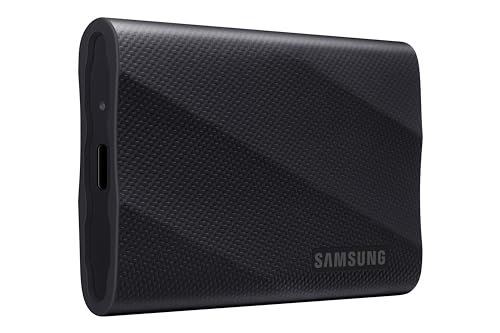
If the drive is undetected on every machine with every cable, and you have either secured your files or accepted their loss, replacement becomes a decision rather than a guess. The T9 is sold in 1TB, 2TB, and 4TB capacities, so a failure is a natural moment to reconsider capacity. Drives at this performance tier sit in the mid-range price band.
Fixory may earn a commission from qualifying purchases made through links in this section, at no additional cost to you. Every step that can fix the problem for free comes first.
Please check the Amazon product page for the latest price and availability.

Please check the Amazon product page for the latest price and availability.
FAQ
Does the Samsung T9 need a driver on Windows 11?
No. Windows 11 mounts the T9 using its own in-box USB storage support. Samsung’s published NVMe driver is scoped to a specific list of internal SSDs, and the T9 is not included. Magician is management software, not a driver, so installing it will not fix a T9 that Windows cannot see.
Why does Disk Management see my T9 but File Explorer does not?
Common causes include a missing drive letter, an Offline disk, or a file system Windows cannot read. Some of these cases can be resolved without formatting the drive. The case to stop at is a volume shown as RAW, Unallocated, or Not Initialized while you need the data.
Can I initialize the T9 without losing files?
No. Initializing writes a new partition structure, and Windows does not preserve the existing one. Treat Initialize Disk as a setup step for a drive you are prepared to wipe. If the files matter, that is the point to consult a data recovery service instead.
Why does Samsung Magician not recognize the T9 when Windows does?
Magician-only detection failure is separate from Windows-level detection and does not by itself prove a drive failure. Install the current Magician release from Samsung’s official download page and reconnect through a direct port. Samsung Portable SSD Software is now integrated into Magician.
How We Researched
This article is based on Samsung’s manufacturer documentation and official support materials, together with reports posted in Samsung’s official user community. We have not conducted hands-on lab testing. Specifications, interface behaviour, password behaviour, and software scope are attributed to Samsung’s official product page, its published specifications, its consumer storage tools page, and its Portable SSD troubleshooting documentation. Behaviour reported after Windows updates is identified as community reporting, is not confirmed by Samsung or Microsoft in the material we checked, and is not presented as a failure rate.
What to Do Next
The order matters more than any individual step. Decide whether you need the data, find the deepest layer that still sees the T9, then exhaust the free, non-destructive checks: direct ports, both bundled cables, drive letters, offline disks, Device Manager status, Magician’s separate detection, and the locked-drive signature of a tiny volume. Only after a second PC and a known-good cable have both failed does the question become warranty, recovery, or replacement.