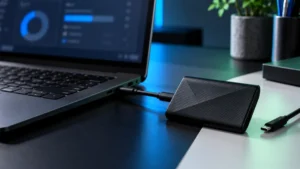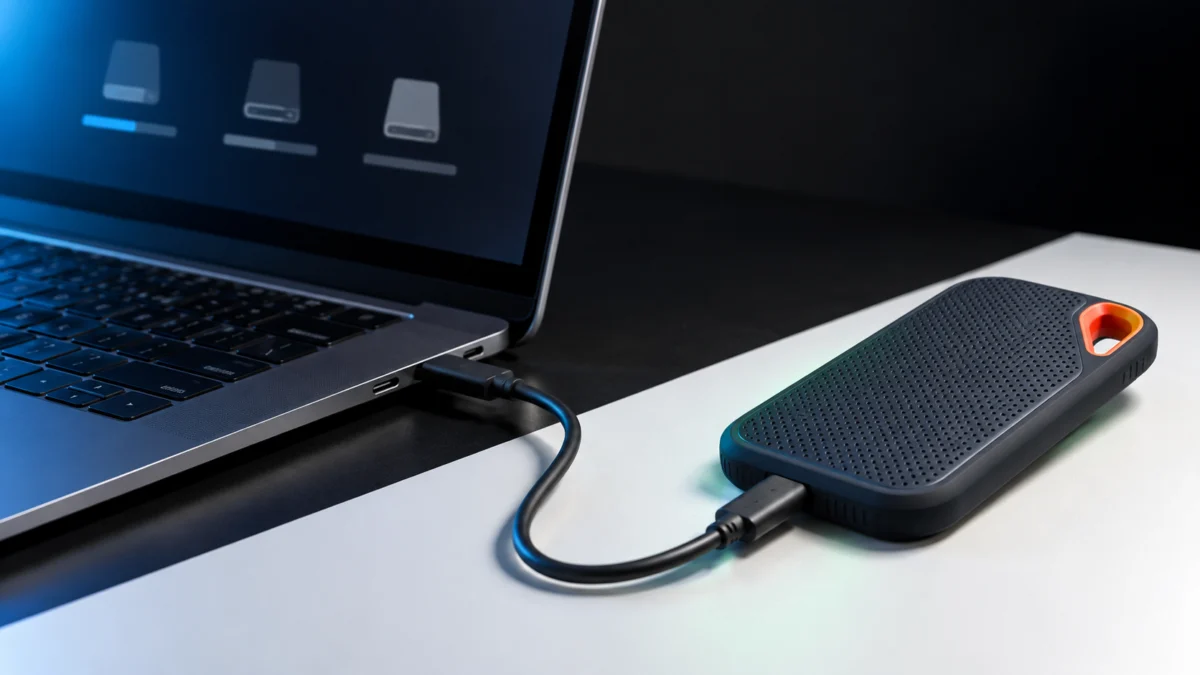
When a SanDisk Extreme Portable SSD V2 (SDSSDE61) is not recognized in Windows 11, the fastest route to a fix is to find out how far Windows actually gets. Check three places, in this order: File Explorer, Disk Management, and Device Manager. The deepest place the drive still appears decides which fixes apply to you, and which ones you must avoid.
If the drive still holds files you need, do not initialize it, format it, or delete its partitions. Microsoft documents that initialization erases all data on the disk. Everything below is ordered so that the free, non-destructive checks come first.
If you only have a minute: remove any USB hub, connect the drive to a port directly on the PC using the cable from the box, open Disk Management, and choose Action → Rescan Disks. That is where Microsoft’s own guidance starts for an external disk that is not showing up.
Before You Start: Protect Your Data, Then Run These Free Checks
If the drive still holds files you need, do not initialize it, format it, or delete partitions. Microsoft states that initialization erases all data on the disk. Start instead with four checks that cannot damage anything: remove USB hubs, use a port directly on the PC, reseat the bundled cable, and rescan disks.
The first pass takes 4 steps.
- Unplug any USB hub, dock, or extension cable and connect the SSD to a port directly on the PC.
- Use the USB-C cable that shipped with the drive. If your PC has only USB-A ports, use the bundled adapter rather than an unknown third-party one.
- Open Disk Management: press Windows + X and select Disk Management, or run Computer Management as administrator and go to Storage → Disk Management.
- Unplug the drive, plug it back in, then select Action → Rescan Disks.
Initializing a disk erases everything on it, which Microsoft states directly as a warning, and formatting a partition Windows reports as RAW does the same. Neither is a diagnostic step.
Microsoft: Initialize new disks
Find Out Where the SSD Disappears: File Explorer, Disk Management, or Device Manager
Check three places in order: File Explorer, Disk Management, then Device Manager. The deepest place the drive still appears tells you what is safe to do next. A drive missing only from File Explorer is a very different problem from one that never enumerates in Device Manager at all.
Open all three before changing anything. Find the lowest row below that matches what you see, then go to the matching section.
| Deepest layer where the drive appears | What that usually means | Safe next step | Do not do this yet |
|---|---|---|---|
| File Explorer, but only as a small volume named SANDISK Unlocker | The drive is password-protected and currently locked | Unlock it in the SANDISK App desktop software | Do not format the Unlocker volume |
| Disk Management, but not File Explorer | A volume exists without a drive letter, or its file system is one Windows cannot read | Assign a drive letter, then identify the file system | Do not initialize or format if you need the data |
| Device Manager only | The device enumerated, but no usable volume mounted | Read the partition information first, then check for a device error code | Do not delete partitions or run diskpart clean |
| Nowhere at all | Nothing about the drive reaches Windows | Test a direct port, the bundled cable, and a second PC | Do not buy a replacement drive yet |
If the drive appears at every layer but vanishes after a restart or an idle period, skip to the section on intermittent detection.
Microsoft: Troubleshoot Disk Management
If It Appears in Disk Management but Not File Explorer: Drive Letter, File System, or a Locked Volume
Three states produce this symptom. A Healthy volume with no drive letter simply needs one assigned. A partition listed as RAW, or one formatted on a Mac, is not readable by Windows as it stands. A password-protected drive shows only the SANDISK Unlocker volume instead of your files.
The volume is Healthy but has no drive letter
This is the reversible case. Microsoft’s guidance is to add a drive letter manually when a partition has a file system but no letter assigned. Your account must be in the Administrators or Backup Operators group.
The fix takes 4 steps.
- Open Disk Management with administrator permissions.
- Right-click the volume on the SanDisk disk and select Change Drive Letter and Paths.
- Select Add if the volume has no letter, or Change to replace an existing one.
- Select Assign the following drive letter, pick a letter, select OK, and confirm with Yes.
If Change Drive Letter and Paths is missing or grayed out, Microsoft lists three causes: the disk is unallocated and not initialized, the partition is one Windows keeps inaccessible, or your account lacks permission. Distinguish among those conditions before changing a disk that may contain data.
Microsoft: Change a drive letter
The disk shows as Offline, or the partition shows as RAW or Unallocated
If the disk itself is listed as Offline, right-click it and select Online. That is safe and sometimes sufficient.
A partition listed as RAW rather than NTFS, exFAT, or FAT32 means Windows cannot interpret its file system. Microsoft’s guidance is to format such a partition only when you know the disk is empty, and the same caution applies to creating a volume on unallocated space. If you are trying to recover files, both options are off the table.
One cause worth ruling out on this drive is that it was last used on a Mac. Windows does not natively mount Apple’s APFS or HFS+ file systems, so a drive carrying a Time Machine volume can enumerate correctly and still show nothing usable. A Microsoft Q&A thread describes exactly that, with the SSD visible under Disk drives in Device Manager, absent from File Explorer, and readable on the owner’s MacBook. If that matches your situation, copy the files off using a Mac before changing anything in Windows.
Microsoft Q&A: SanDisk Extreme Portable SSD 1TB not showing up on PC
The drive shows only a SANDISK Unlocker volume
If File Explorer shows a small volume named SANDISK Unlocker instead of your storage, the drive is not missing. It is locked. SanDisk’s password protection presents the unlocker first and reveals the data volume only after the password is entered.
SanDisk ended support for its older SANDISK Security software in July 2025 and points users to the SANDISK App desktop software instead, which unlocks drives and can also remove the Unlocker. Do not format the Unlocker volume to make it disappear. On a drive that still holds data, that is a destructive action aimed at the wrong target.
SanDisk references: Security software end of support | SANDISK App and Unlocker
If It Appears Only in Device Manager: Recheck the Windows Detection Path
The device enumerated, but no usable volume mounted. Read the drive’s partition information without writing to it first, using Device Manager, then check whether Windows has flagged a device error code. Only after those two read-only checks should you touch the driver or the disk itself.
The check takes 4 steps.
- Press Windows + X and select Device Manager.
- Expand Disk drives and double-click the SanDisk entry.
- Open the Volumes tab and select Populate.
- Read the partition style and the volumes listed. This action only reads from the drive.
If volumes are listed with sizes, Windows can read at least some volume information, so return to the mounting and drive-letter checks above. If Windows cannot return volume information at all, treat the drive as potentially failing and prioritize preserving the data over making it mount.
Then look for a warning icon or error code on the device. Microsoft’s troubleshooting guidance includes right-clicking the device, selecting Uninstall device, then choosing Action → Scan for hardware changes so Windows re-enumerates it. That removes the device entry, not the data, but do it after the read-only checks above.
If It Appears Nowhere: Test a Direct Port, the Bundled Cable, and a Second PC
When nothing enumerates at any layer, check the physical connection before anything else. Use a port directly on the PC rather than a hub, use the cable that shipped with the drive, then test a second computer. Failure on both machines makes a drive, cable, or connection-hardware problem more likely than a Windows issue limited to the first PC.
The isolation takes 5 steps.
- Move the drive to a different port directly on the PC. Microsoft’s troubleshooting guidance recommends bypassing hubs and trying another direct port.
- Swap in a different cable that you know carries data, not only power.
- Connect the drive to a second computer, ideally with its own cable.
- If the second PC detects it, focus the next checks on the first PC’s connection path and USB stack.
- If neither PC detects it with two different cables in direct ports, stop testing and go to the stop conditions below.
Step 2 is easy to skip because a charge-only cable can look similar to a data cable. If the drive is detected with a known-good borrowed cable but not with yours, treat the original cable as the leading suspect.
Disclosure: Fixory earns commission from qualifying purchases made through links in this article. This does not affect which products we include or how we describe them.
A replacement needs to be USB-C to USB-C and explicitly rated for 10Gbps data transfer, not charge-only and not a listing that omits a data speed. If your PC has only USB-A ports, you also need a proper adapter, since a USB-C cable alone will not help.

Please check the Amazon product page for the latest price and availability.
If It Connects and Then Disappears: Cable, USB Power Settings, and Lock State
Intermittent detection has three causes worth separating before you assume the drive has failed: a marginal cable, Windows USB power management, and a password-protected drive that fails to unlock automatically. All three produce the same visible symptom of a drive that vanishes after a restart or an idle period.
- Cable and port. A cable that works only intermittently should be treated as suspect. Test a second known-good cable in a direct port before looking anywhere else.
- USB power management. Windows can suspend USB devices to save power. If the option is present, open a USB Root Hub under Universal Serial Bus controllers in Device Manager, go to Power Management, and clear Allow the computer to turn off this device to save power. If this changes the behavior, treat it as a clue for this setup, not as a documented model-specific fix.
- Lock state. SanDisk documents that automatic unlocking does not occur when there is file system corruption or disk sector and I/O errors, and that drives can lock during a restart or sign-off because of how the operating system suspends USB devices.
According to multiple community reports, some users see this on SanDisk Extreme portable SSDs under Windows 11: no detection after a restart or a long idle period, access restored by unplugging and reconnecting, and the same drive working normally on other computers. These are individual reports from different setups, not a measured failure rate, and they do not establish a defect across the product line.
Microsoft Q&A: SanDisk Extreme SSD stops being recognized after a while
Reddit: SanDisk Extreme Portable SSD not detected after restart
If the drive is now detected reliably and the only remaining problem is that transfers are slow, that is a separate diagnosis with its own causes, and we cover it for this exact drive and operating system.
Open the Windows 11 slow-transfer checks.
Check Whether a Firmware Update Actually Applies to Your SDSSDE61
A firmware update is not a fix for a drive Windows cannot detect. SanDisk’s Windows updater reports that no compatible target device is found when Windows does not see the drive. Check your exact capacity and model number on the label before you look for firmware at all.
That is why firmware sits near the end of this article rather than near the top, where many troubleshooting guides put it. The updater depends on the same detection path that is already failing.
Firmware matters when the drive is detected but disconnects unexpectedly. SanDisk identified a firmware issue that could cause certain drives to disconnect from a computer without warning, and the affected list is specific: for the Extreme Portable SSD V2 it names the 4TB model, alongside several Extreme Pro V2 capacities and one WD My Passport SSD model. A serial number lookup lets you check whether your individual unit is affected.
SanDisk firmware update for unexpected disconnects
Separately, SanDisk publishes a firmware update for the SDSSDE61 in its 4TB and 8TB capacities, delivered through the SANDISK App desktop software. Do not assume the same update applies to a 500GB, 1TB, or 2TB SDSSDE61, and do not install an updater aimed at a different model. Read the label on the drive first and note the full model number including the capacity suffix, because a drive sold as an “Extreme Portable SSD” may be an Extreme, an Extreme PRO, a V2, or an earlier generation.
SanDisk firmware update for SDSSDE61 4TB and 8TB
SanDisk support for the Extreme Portable SSD (SDSSDE61)
SanDisk also publishes a walkthrough of the Windows firmware update procedure.
When to Stop and Contact SanDisk, Use the Warranty, or Consider Data Recovery
Stop troubleshooting when the drive fails on a second computer with a known-good cable in a direct port, or when Disk Management reports it as Unreadable or Failed and you still need the files. A warranty replacement returns a drive, not your data, so decide about recovery first.
Microsoft’s guidance is direct: if the disk does not work on another PC, the problem is the disk, not your computer. Further software steps then carry more risk than upside.
Decide in this order.
- Do you need the data? If yes, stop running repair tools and avoid write operations until you have decided whether to pursue recovery. Data recovery is a paid service, and no provider can guarantee a result.
- Is the drive under warranty? Check SanDisk’s warranty terms and return process for your region and purchase channel. Coverage periods and eligibility vary, so confirm them with SanDisk rather than assuming.
- Do you want the data and a replacement? Recovery normally has to happen before you send the drive back, because a warranty return is an exchange, not a repair.
Only after those three decisions does replacement hardware make sense. The Extreme Portable SSD V2 is still sold in the same capacities, and Amazon listings sometimes label it as a previous-generation model even when the hardware matches.

Please check the Amazon product page for the latest price and availability.
If the drive is part of a backup system you rely on, treat this failure as a prompt to confirm that a second copy of anything important exists elsewhere.
How We Researched
This article is based on manufacturer documentation, official support materials, and community reports where available. We have not conducted hands-on lab testing. Any procedure or compatibility claim is attributed to an official source or clearly identified as a community report.
The Windows procedures, disk status meanings, and diagnostic ordering come from Microsoft’s Disk Management documentation and its troubleshooting article. Firmware scope, the affected model list, updater behavior, and password handling come from SanDisk’s own support articles for the SDSSDE61 and the Extreme Portable SSD V2 family. Community reports are drawn from Microsoft Q&A and Reddit, and are used only for symptom patterns that appeared in more than one independent thread, never as failure rates.
Frequently Asked Questions
Will initializing the disk in Disk Management delete my files?
Yes. Microsoft’s documentation warns that initialization erases all data on the disk and advises backing up existing files first. Initialization is intended for new, empty disks. If Disk Management offers to initialize a drive that should already hold your data, decline it and treat the prompt as a symptom.
Why does the SSD show up on a Mac but not in Windows 11?
One common cause is the file system. Windows does not natively mount Apple’s APFS or HFS+ volumes, so a drive last used on a Mac, particularly one holding a Time Machine backup, can enumerate correctly in Device Manager and still show nothing usable in File Explorer. Copy the files off using the Mac before reformatting for Windows.
Does a firmware update fix a drive Windows cannot detect?
No. SanDisk’s Windows updater reports that it cannot find the target device when Windows itself has not detected the drive, so the update cannot run. Firmware is relevant to drives that are detected but disconnect unexpectedly, and the published SDSSDE61 firmware article covers the 4TB and 8TB capacities rather than all of them.
What to Do Next
Work the layers, not the fix list. Find the deepest place the drive still appears, and take only the actions that match that row. In Disk Management, a drive letter or a file system is the likely answer, and both are recoverable. In Device Manager only, read before you write. Nowhere at all, and the cable, the port, and a second PC will tell you more than any software tool.
Throughout, the decision that matters most is whether you need the data. If you do, the destructive options never become available, no matter how many guides list them, and recovery has to be settled before a warranty return.