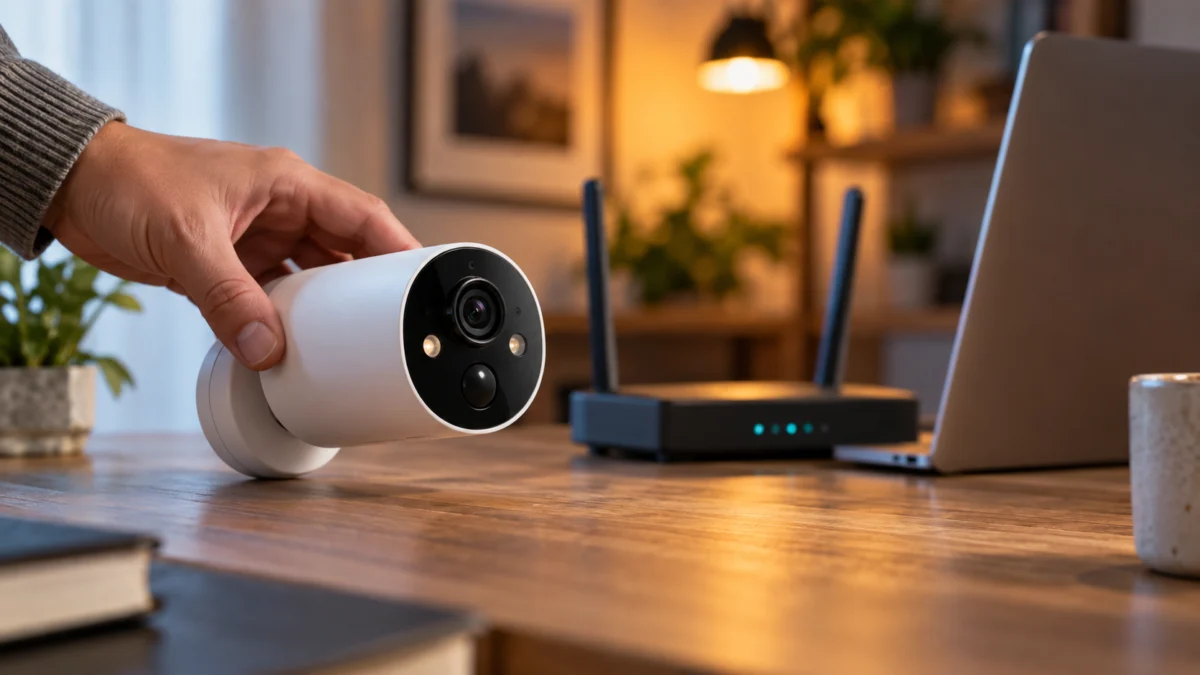
If your Tapo C425 shows Offline in the Tapo app, do not start with a factory reset. Start with the status LED. That LED separates two failures that look identical in the app but have completely different fixes: a camera that never joined your Wi-Fi, and a camera that is on your Wi-Fi but cannot reach TP-Link’s cloud.
Blinking red slowly means the camera is still trying to connect to Wi-Fi. Solid amber means it is already connected. Solid green means it has reached the cloud. Your router’s client list is the second piece of evidence: if the C425 appears there as an active client, that suggests the camera has joined Wi-Fi, so start by checking the path beyond the wireless link while still watching for intermittent signal loss.
Reset last. TP-Link’s support documentation states that the Tapo app cannot move a device to a different Wi-Fi network, so a reset commits you to a full re-pairing and erases the evidence every other route depends on.
Is Your Tapo C425 Offline, or Just Not Reaching the Cloud?
In the Tapo app, Offline by itself does not tell you whether the camera lost Wi-Fi association or cannot reach the cloud. A C425 can hold a solid Wi-Fi link and still be labeled Offline when it cannot reach TP-Link’s servers. TP-Link’s camera LED guidance draws the same line: solid amber means connected to Wi-Fi, solid green means connected to the cloud.
The C425 Quick Installation Guide publishes the full LED table for this model, including one state that only battery cameras have.
View TP-Link’s camera troubleshooting guide
| Status LED | What it means | Next step |
|---|---|---|
| Solid red | Starting up | Wait, re-read LED |
| Blinking red and green | Ready for setup | Route A |
| Blinking red slowly | Connecting to Wi-Fi | Route A |
| Solid amber | Connected to Wi-Fi | Route B |
| Solid green | Connected to the cloud | Route B, then signal |
| Blinking amber quickly for 3 seconds | USB charger plugged in | Charging only |
| Blinking red quickly | Camera resetting | Re-run setup |
| Blinking green quickly | Camera updating | Wait |
The practical consequence: if the LED is solid amber or solid green, the camera has not lost your network, and every step aimed at re-joining Wi-Fi is wasted effort.
Quick Checks Before You Reset Anything
Five checks take about five minutes and settle most C425 offline reports before any reset: read the status LED, open your router’s client list, check the battery level in the Tapo app, confirm your phone is on the same network as the camera, and turn off any VPN or filtering app.
- Status LED. Use the table above. It determines which route to follow.
- Router client list. A camera listed as a connected client has a working wireless link.
- Battery level. Charge with the supplied USB cable and a 5 V / 2 A charger; TP-Link notes that unsuitable cables can charge slowly or fail. A full charge takes about five and a half hours, and the LED blinks amber quickly for three seconds when the charger is connected.
- Same network. Guest networks and main networks do not see each other.
- VPN and filtering apps. TP-Link’s camera guidance names apps such as AdGuard, DuckDuckGo, and NordVPN as a common cause of viewing failures.
Match Your Symptom to the Right Route
Six symptom patterns point to different root causes. Treating them as one problem can lead to an unnecessary reset even when the camera never lost its Wi-Fi connection. Match what you actually see, in the app, on the LED, and in your router, to a route below, then work only that route.
| What you see | Typical evidence | Route |
|---|---|---|
| Offline everywhere, no live view | Blinking red slowly; absent from client list | Route A |
| Works at home, fails away | Solid amber or green; present in client list | Route B |
| Shows online, live view will not load | Solid green | Route B, plus lower quality |
| Cannot connect during setup | Blinking red and green, or red slowly | Route A |
| Offline after a router or password change | Blinking red slowly | Route C |
| Recovers, then drops again | Varies; RSSI reading needed | Signal checks |
Route A: The Camera Cannot Join Your Wi-Fi
The C425 is a 2.4 GHz-only camera. Its official specification lists IEEE 802.11b/g/n on 2.4 GHz and WPA/WPA2-PSK security, with no 5 GHz band and no WPA3 entry. A 5 GHz-only SSID or a WPA3-only network falls outside what the camera is documented to support. The fix takes 6 steps.
View the official Tapo C425 specifications
- Confirm a 2.4 GHz network exists. If your router publishes one combined name for both bands, enable a separate 2.4 GHz SSID for setup.
- Set the 2.4 GHz channel width to 20 MHz and fix the channel to 1, 6, or 11 instead of automatic. TP-Link recommends both for camera stability.
- Set 2.4 GHz security to WPA2-Personal. TP-Link’s camera guidance suggests WPA2/WPA3-Personal, which keeps a WPA2 path open; a WPA3-only setting does not match the camera’s listed support.
- Turn off band-steering features such as Smart Connect, Wi-Fi Optimizing, and Channel Optimization.
- Disable client isolation, and keep the phone and camera off the guest network.
- Reboot the router, then the camera, and read the LED. Solid amber or green means it joined; move to Route B.
Run this test with the camera close to the router. A setup that fails at the mounting position but succeeds beside the router is a signal problem, not a configuration problem.
Route B: On Wi-Fi But Still Offline, or Failing Only Away From Home
If the LED is solid amber, or the camera works at home but not away from it, the camera has joined Wi-Fi, so focus first on the cloud path while keeping intermittent signal loss in mind. TP-Link’s camera troubleshooting guidance points at the same short list: phone connectivity, VPN software, DNS, and security software. The fix takes 5 steps.
- Confirm your phone reaches the internet. Open an unrelated site, or try a second phone on the same network.
- Turn off any VPN or filtering app, and disable cellular data while testing over Wi-Fi so the app cannot switch paths silently.
- Change your router’s DNS server to a public resolver such as 8.8.8.8, which TP-Link lists as a fix for cloud connectivity problems.
- Temporarily disable antivirus, firewall, or security software that could block the cloud server, then retest.
- Set the camera up on a phone hotspot. If it reaches the cloud there, the fault is in your home network.
If the camera reports online but live view spins or fails, lower the stream quality under Device Settings → Video & Display and stream from one device at a time.
Route C: Offline After a Router, SSID, or Password Change
After an ISP change, a new router, or a router Wi-Fi reset, the C425 is still trying to join the old network. TP-Link states that the Tapo app cannot switch a device to a different Wi-Fi network directly, so you have exactly two options: recreate the old wireless settings, or reset and set the camera up again.
View TP-Link’s router-change guidance
- Keep the old settings. Give the new router the same network name, encryption type, and password as the old one. The camera then reconnects on its own, with no reset and no re-pairing.
- Reset and reconfigure. If matching is not possible, reset the camera and run setup against the new network. This is the one case where a reset is the first action rather than the last.
Changing only the Wi-Fi password has the same effect: each C425 using that SSID goes offline until it is reconnected.
Weak Signal: Check RSSI First, Then Placement, Then Hardware
Take a number before you move anything. The Tapo app reports the camera’s RSSI under Device Settings, and TP-Link’s published thresholds are specific: stronger than -50 dBm is strong, -70 to -50 dBm is good to average, and below -70 dBm is poor. Placement changes are only measurable against a starting figure.
In the Tapo app, tap the camera on the Home page, tap the gear icon, open Device Settings → Device Info, then tap the Wi-Fi icon to read the RSSI value.
View TP-Link’s network stability guide
If the reading is poor, work through the physical causes before buying anything:
- Move the camera or the router, then re-read the RSSI to confirm the change helped.
- Keep the camera away from microwave ovens, Bluetooth devices, USB 3.0 devices, and baby monitors, which TP-Link names as interference sources.
- If the camera connects through an extender or mesh node, test it directly against the main router. A problem that appears only through the extender points to that path, including its placement, backhaul, or configuration.
- Assign the camera a fixed IP address, which TP-Link lists among its stability measures for cameras.
- If the RSSI is acceptable but the camera still drops, ping the camera’s IP address. TP-Link treats packet loss or delay above 100 ms as an unstable connection.
Check the manufacturer’s official mounting guidance before repositioning a camera permanently, and in a rental or shared building, confirm any drilling or exterior mounting with your landlord or building manager first.
Fixory may earn a commission from purchases made through links in this article. This does not change the diagnostic order above or which products appear here.
Added coverage makes sense only if the signal stays weak after all of the above and a direct connection to the main router shows the camera itself is working. What you need is an extender or mesh node that serves 2.4 GHz, the only band the C425 can use.

Please check the Amazon product page for the latest price and availability.
Firmware, Factory Reset, and What to Send TP-Link Support
Firmware updates and a factory reset belong at the end of the sequence, not the start. The C425 ships in several hardware versions, and release notes differ between them, so check the notes for your own version rather than assuming a fix applies. A reset erases the evidence the earlier routes depend on.
TP-Link’s download page for the C425 lists six hardware versions, from V1 through V2.60, each with its own firmware history. The V2.6 notes, for example, record Wi-Fi connection stability work and support for connecting to the Tapo H200 hub, and they describe that firmware line only. Find your hardware version first, then read the notes that belong to it.
Open the Tapo C425 Download Center
Update the camera firmware and the Tapo app before resetting. If a reset is still needed, the reset button sits under the port cover; hold it with a pin for at least five seconds to return the camera to factory defaults, then run setup again.
If the camera stays offline, contact TP-Link support. Their published request list asks for the LED status while the device is offline, the model number and MAC address, your TP-Link ID email address, your router model, how often the problem happens, and what you have already tried. Arriving with the LED state and an RSSI reading turns that exchange into a diagnosis rather than a script.
Replacement becomes reasonable only after charging, firmware, re-setup, and a second network have all been tested and support or a warranty assessment points at the hardware.
How We Researched
This article draws on TP-Link’s official Tapo C425 product page and specifications, the official C425 Quick Installation Guide, TP-Link’s published camera and network troubleshooting articles, and the Download Center listing for this model. We have not conducted hands-on lab testing. Specification figures and LED behavior are attributed to official documentation.
Frequently Asked Questions
Does the Tapo C425 work on 5 GHz Wi-Fi?
No. The official specification lists IEEE 802.11b/g/n on 2.4 GHz, with no 5 GHz band. Connect the camera to a 2.4 GHz network. A single combined name for both bands can complicate setup; Route A shows how to test with a separate 2.4 GHz SSID.
What does a blinking red light on the Tapo C425 mean?
Speed and color both matter. Slow red blinking means the camera is trying to connect to Wi-Fi. Fast red blinking means it is resetting. Red and green together means it is ready for setup, and solid red means it is starting up.
Does the C425 keep recording if my Wi-Fi goes down?
Verify this on your own setup rather than assume it. The camera supports local microSD storage, while Tapo Care cloud storage needs an internet path. Whether a given recording continues through an outage depends on your recording settings, the card, the firmware version, and the battery level.
Conclusion
The order is what matters. Read the LED, check the router’s client list, then pick a route: Wi-Fi association, cloud reachability, or a network change. Signal work comes next, with an RSSI number taken before and after. Firmware and a factory reset come last, because a reset destroys the evidence and forces a re-pairing the Tapo app cannot shortcut.