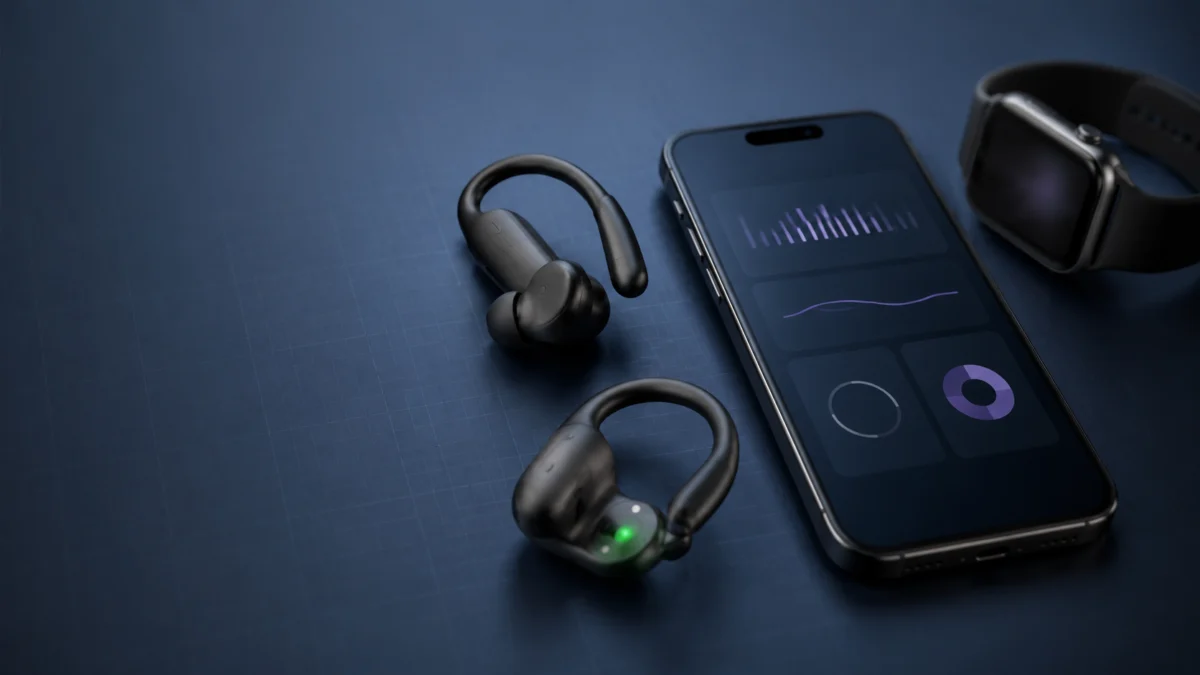
If Powerbeats Pro 2 shows no heart rate on your iPhone, start by identifying where the reading is missing. A blank reading does not by itself prove that the sensor has failed. Check the iOS version, the workout app, permissions, and the connection path first. A reading that appears as dashes or looks dimmed is a different problem. Apple attributes that state to a poor sensor reading, which points to fit and skin contact.
Before anything else, do two things. Open Settings, tap the name of your Beats near the top of the screen, and confirm Heart Rate Sensor is turned on. Then open the Fitness app and check whether a Workout tab appears at the bottom. If that tab is missing, confirm that your iPhone is on iOS 26 or later before adjusting the fit.
Start Here: The Quick Fix Checklist
Run these five checks before changing anything else. They cover the settings and conditions that Apple’s own documentation identifies as prerequisites for in-ear heart rate monitoring on iPhone. These checks also make the remaining causes much easier to narrow down.
- Both your iPhone and your Powerbeats Pro 2 firmware are on the latest available version.
- Heart Rate Sensor is switched on in Settings under your Beats name.
- You are wearing at least one earbud, and it is connected to your iPhone.
- Your workout app is HealthKit-enabled and has been granted heart rate permission.
- No Apple Watch or chest strap is quietly acting as the heart rate source instead.
A note on scope: heart rate monitoring on Powerbeats Pro 2 is a fitness feature, not a medical device. Nothing here should be used to assess a health condition. If you have concerns about your heart rate itself rather than how it is displayed, speak to a qualified healthcare professional.
Where Exactly Is Your Heart Rate Missing?
Apple documents heart-rate sharing through Fitness, Health, third-party workout apps, and compatible gym equipment. Each path can fail for a different reason. Naming the location before you change anything prevents the common mistake of blaming the sensor when the problem sits in software or the connection path.
| Where it’s missing | What you see | Most likely cause |
|---|---|---|
| Fitness app, no Workout tab at all | Only Summary, Fitness+, and Sharing | iOS version may predate the iPhone workout experience |
| Fitness app, Workout tab present | Workout runs but heart rate stays blank | Heart Rate Sensor switched off, or earbuds not connected |
| Third-party workout app | Nothing live, data sometimes appears afterwards | App is not HealthKit-enabled, or permission was declined |
| Health app | No Powerbeats entry under data sources | Sensor never became an active source during a workout |
| Gym equipment | Equipment does not find Powerbeats HR | Sensors not in discovery mode, or switch turned off |
One symptom is missing from this table on purpose: a reading that shows as dashes or looks dimmed. That points somewhere else entirely, and it has a different fix.
Why Doesn’t the Fitness App Show a Workout Tab or a Heart Rate?
The Workout tab in the Fitness app is where Powerbeats Pro 2 heart rate appears during an iPhone workout. If your Fitness app shows only Summary, Fitness+, and Sharing, first confirm that your iPhone is running iOS 26 or later. Updating iOS comes before fit adjustments.
The absence of a reading alone cannot distinguish a poor sensor reading from an iPhone with no active display path. Apple’s Fitness guide also says a supported heart rate device should be connected before you start an iPhone workout and provides a pairing path inside the Workout tab.
The fix takes 4 steps.
- Open Settings → General → Software Update and install any available iOS update.
- Open Settings, tap the name of your Beats near the top of the screen, then confirm Heart Rate Sensor is turned on. When it is off, the in-ear sensors are inactive.
- If you use a third-party workout app, open it and grant permission for it to read heart rate data and to read and record workouts. Apple notes this is only required the first time you use the app with Apple Health.
- Start the workout from the app, wearing at least one earbud, and watch whether a value appears.
Check the app, not just the earbuds. Apple states that a workout app must be HealthKit-enabled to use Powerbeats Pro 2 heart rate monitoring on iPhone. If your app does not connect to Apple Health at all, no setting on the earbuds will change the outcome.
Be careful with older guidance. Launch-era articles may still refer to a short list of named partner apps. Apple’s current page states the requirement as HealthKit support instead, without naming a fixed list.
One user posting in the Apple Support Community in October 2025 described exactly this cluster: no heart rate reading, no Workout tab in Fitness, and no Powerbeats entry under the Health app’s heart rate data sources, despite having enabled every permission. That is a single report rather than a measured pattern, but it shows why the missing tab is worth checking first.
What Causes Dashes or a Dimmed Heart Rate Reading?
Apple attributes dashes or a dimmed heart rate to a poor reading, which points to fit and skin contact rather than proving that the sensor is broken. The ear tip size that gives you the best acoustic seal is not always the size that gives the sensor reliable contact with your ear.
Sizing ear tips only by sound can miss this difference. Apple explicitly notes that the correct size for an acoustic seal and the correct size for heart rate recording may differ, so a fit that sounds right can still leave the sensor without reliable contact.
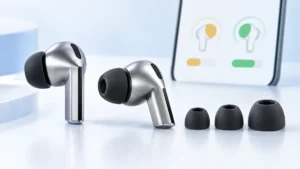
Powerbeats Pro 2 ships with five ear tip sizes, from extra small to extra large, with medium pre-installed. Apple’s fit guidance also covers the earhook: secure it behind your ear, insert the earbud, then rotate the earhook toward the back of your ear into a comfortable position.
The fix takes 4 steps.
- Wear your Powerbeats Pro 2 and make sure they are connected to your iPhone.
- Open Settings, then tap the name of your Beats near the top of the screen.
- Make sure Automatic Ear Detection is turned on, since the fit test depends on it.
- Tap Ear Tip Fit Test and follow the onscreen instructions in a quiet room.
If the test passes but readings still drop out, Apple lists several conditions that reduce sensor performance:
- Cold weather, which reduces blood flow in the ears and can leave skin perfusion too low for a reading.
- Earwax buildup, moisture, or skin conditions interfering with sensor contact.
- Metal jewelry from piercings near where the earbuds sit, which Apple suggests temporarily removing to see whether readings improve.
- Individual variation in skin blood flow, which differs significantly between people.
Apple also recommends cleaning the earbuds regularly and keeping your Health app profile details current, since height, weight, gender, and age feed into the calorie figures derived from heart rate.
If you have lost the other sizes and cannot test a different fit, replacement tips are the practical next step. Confirm compatibility with Powerbeats Pro 2 before buying, since ear tips are not interchangeable across Beats models. A different size may improve contact, but it will not fix a software-side blank reading.

Please check the Amazon product page for the latest price and availability.
Is Your Apple Watch or Another Monitor Taking Over as the Heart Rate Source?
If you wear an Apple Watch alongside Powerbeats Pro 2, Apple’s current documentation states that the highest-confidence source in the moment is used automatically. A third-party monitor such as a chest strap is prioritized outright. Heart rate from another device is not evidence that your earbuds have failed.
Seeing another device credited in Health does not by itself show whether the Powerbeats sensor is working. It shows which source supplied that entry.
One related behavior is worth knowing. If you work out with Powerbeats Pro 2 and your iPhone without wearing your Apple Watch, Apple states that connecting the Watch to your iPhone by midnight the next day syncs that workout with your Activity rings. A reading that never reaches your rings is a syncing question, not necessarily a sensor question.
The fix takes 3 steps.
- Open the Health app, tap the search button at the bottom right, tap Heart, then tap Heart Rate.
- Scroll down, tap Show All Data, pick a date, and look for entries marked with a Bluetooth icon.
- Alternatively, tap Data Sources & Access, tap Bluetooth Device in the Data Sources list, then tap a date to see what was recorded.
Watch out for outdated instructions. An earlier version of Apple’s own Powerbeats Pro 2 heart rate page is still reachable online, and it describes behavior that no longer matches the current page. The older version says Apple Watch data is prioritized outright and that both earbuds must be worn on iPhone. The current page says the highest-confidence source is selected automatically and that one earbud is enough. Troubleshooting against the older wording leads to the wrong conclusion.
When Should You Update Firmware, Reconnect, or Contact Support?
Firmware updates for Powerbeats Pro 2 arrive over the air on Apple devices. Contact Apple or Beats support only after the earlier checks in this guide have passed, because they rule out documented settings, connection, and fit conditions before you consider a sensor fault.
You can check the installed version in Settings, by tapping the name of your Beats and scrolling to the About section. If an update appears not to have completed, Apple documents a manual procedure that gives the automatic process time to run.
The fix takes 5 steps.
- Make sure your iPhone has the latest iOS installed, is connected to Wi-Fi, and has Bluetooth turned on.
- Confirm your Powerbeats Pro 2 are connected to your iPhone.
- Charge the earbuds fully, or keep them connected to power.
- Place both earbuds in the case, close the lid, and keep them within Bluetooth range of your iPhone for at least 30 minutes.
- Reconnect the earbuds and check the firmware version again. If it still has not updated, Apple advises resetting your Beats and repeating the update.
Once firmware, iOS, permissions, and fit are ruled out, contacting Apple or Beats support is reasonable, and the checks you have run will make that conversation faster. Warranty and service terms vary by region and purchase channel, so confirm what applies to you first.
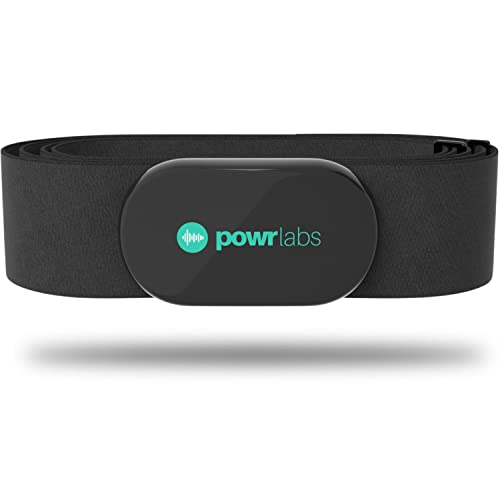
There is also a middle option. Apple’s Fitness app supports Bluetooth heart rate monitors that connect to the Health app, and a paired third-party monitor takes priority over the earbuds. If a chest strap produces a live reading in the same app where the earbuds produced nothing, you have narrowed the problem to the Powerbeats-specific path. Check compatibility with your iPhone and your app before buying, and treat any such device as a fitness accessory rather than a medical instrument.
Please check the Amazon product page for the latest price and availability.
Frequently Asked Questions
These are the questions that come up most often once the basic checks are done. Each answer reflects what Apple’s current support documentation states for Powerbeats Pro 2 on iPhone, rather than the launch-era behavior that still circulates in older articles and forum threads.
Do you need an Apple Watch to see Powerbeats Pro 2 heart rate on iPhone?
No. Apple’s documentation describes the iPhone workout experience as working with Powerbeats Pro 2 alone, with no Apple Watch required. An Apple Watch is only relevant if you wear one at the same time, in which case it becomes one of several possible heart rate sources rather than a requirement.
Can you wear only one earbud and still get a heart rate?
On iPhone, yes. Apple states that you can monitor your heart rate wearing at least one Powerbeats Pro 2 earbud, though wearing both may improve accuracy. On an Android device the requirement is different: Apple’s documentation says both earbuds must be worn for heart rate monitoring to work.
Why does heart rate reach the gym machine but the music stops?
That trade-off is documented behavior, not a fault. Apple states that connecting Powerbeats Pro 2 to fitness equipment disconnects them from your iPhone, and that you cannot play iPhone audio to the earbuds while equipment-based heart rate monitoring is active. You choose one or the other.
How We Researched
This article is based on Apple’s current Beats and iPhone support documentation, which we read directly, plus one publicly posted user report in the Apple Support Community. We have not conducted hands-on lab testing, and every behavior described here is attributed to official documentation or clearly identified as a single report.
We compared the current Apple support pages against an earlier published version of the same heart rate article and found material differences in the stated Apple Watch priority rule and the single-earbud requirement. Where the two disagreed, we used the current page and flagged the discrepancy in the body rather than silently choosing one. We did not include community reports that we could not confirm across multiple threads, and we did not embed a video because we could not confirm one that demonstrates the current iOS interface.
Conclusion
The fastest route to a fix is to name the missing location before touching hardware. A completely blank reading should send you to the software, setting, permission, and connection checks first. Dashes and dimmed readings point to fit. Treating both symptoms as the same fault is what sends people to support too early.
Work through the checks in order: iOS version, the Heart Rate Sensor switch, app permissions, fit, then which device is actually supplying the reading. If yours does not resolve there, you will reach support knowing exactly what you have already eliminated.