
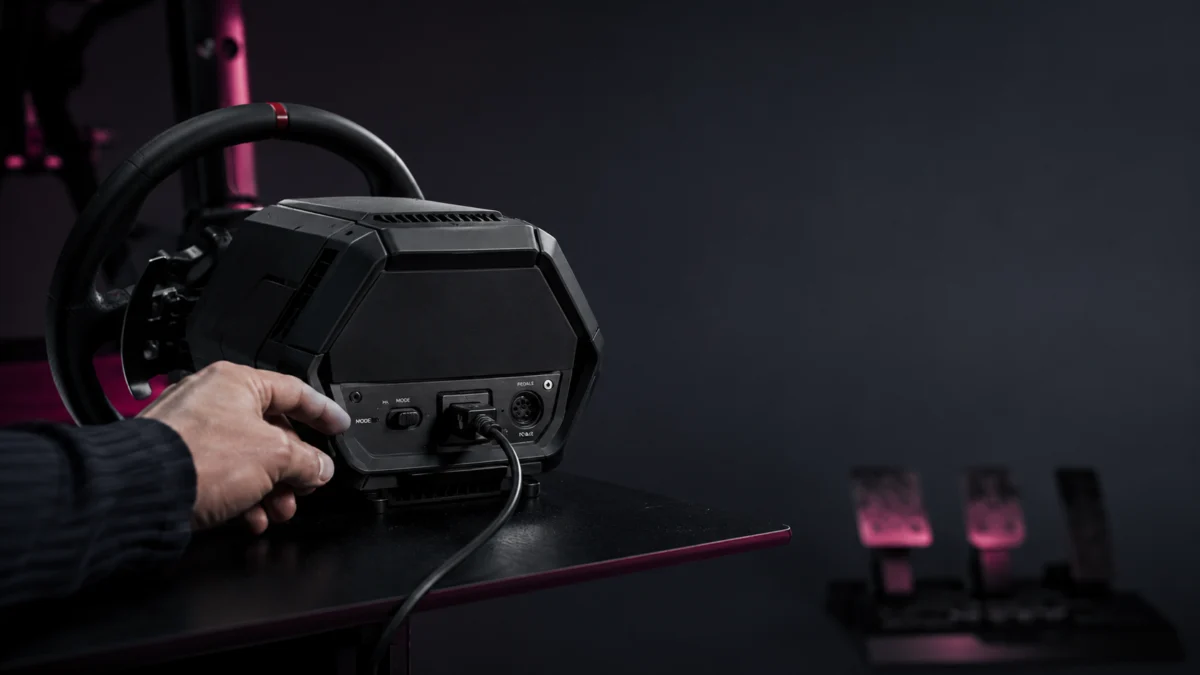
If your Thrustmaster T598 is not detected, the first job is to figure out where detection stops: Windows itself, the My Thrustmaster Panel app, the firmware update, or the game. These are separate problems with separate fixes. The most common sticking point is firmware updating, where the base hangs on “Checking if your device is in boot mode.” When that happens, Thrustmaster’s official Firmware Recovery flow is the correct route. Work through the checks below in order before assuming hardware failure.
This article is focused on the T598 specifically. If your issue is broader and not T598-related, see our wider guide on why a racing wheel is not detected on PC.
Before you start: The T598 is a direct drive base. Firmware updates require a Windows 10/11 PC and the My Thrustmaster Panel app — game consoles cannot check or update firmware. Always follow the manufacturer’s official specifications and instructions, and do not install unofficial firmware, drivers, or registry edits.
First, identify where the T598 is not detected
“Not detected” can mean several different things on a T598. Pin down the layer first: Windows does not see the device at all, Windows sees it but My Thrustmaster Panel does not, the panel detects it but firmware update fails, it works on PS5 but not PC, or it is detected but a game does not respond. Each layer points to a different fix.
Use this symptom table to find your starting point, then jump to the matching section below.
| Symptom | Most likely layer | Where to go next |
|---|---|---|
| Nothing happens when plugged in; base not in Windows at all | USB / power / mode | Check USB, power, and mode |
| Windows sees a device, but My Thrustmaster Panel does not list the T598 | App / driver | Check My Thrustmaster Panel |
| Panel detects the base, but firmware update hangs or fails | Firmware / boot mode | Use official Firmware Recovery |
| T598 shows as a T248, T-GT, or odd firmware like 1.80 | Driver not yet installed (known behavior) | Check My Thrustmaster Panel |
| Works on PS5 but not on PC | PC driver / mode | Check USB, power, and mode |
| Wheel rim or pedals not recognized | Accessory firmware | If rim or pedals are not recognized |
| Base detected, but game has no input or FFB | Game-side support / mapping | If detected but games do not respond |
Check USB, power, and the base mode before anything else
Before touching firmware, rule out the basics. Connect the T598 directly to a USB port on the PC, try a different port, and confirm the power switch on the back of the base is set to ON. For PC use, the base must be in PC mode (GREEN). If a second PC is available, test there to separate a PC-specific issue from a base issue.
- Use a direct USB connection. Connect the base straight to the PC during troubleshooting, not through a USB hub or extension lead.
- Try another USB port. Front-panel and unpowered ports can behave differently from rear motherboard ports.
- Confirm power. According to Thrustmaster’s firmware guide, the switch on the back of the base must be ON; the T598 no longer auto-calibrates at startup, so wait a few seconds after powering on.
- Set the correct mode. For PC, use PC mode (GREEN). PlayStation modes are a separate path covered later.
- Try another PC if possible. If a second PC also fails to detect the base, the issue is more likely hardware or driver-side than specific to your main PC.
Not every detection problem is a firmware problem. Many “not detected” reports come down to a hub, a cable, or the wrong mode. Clear these first.
Check My Thrustmaster Panel (PC, Windows 10/11)
My Thrustmaster Panel is the PC app that installs the driver and manages firmware for the T598. According to Thrustmaster, it runs only on Windows 10/11 or later, and game consoles cannot use it to check or update firmware. If the base is in Windows but not in the panel, a missing or pending driver is the usual cause.
According to Thrustmaster’s official software notes, My Thrustmaster Panel supports the T248R, T598X, T598P, T818, and Raceline LC. The app installs the PC driver automatically; on first connection it may download and install the driver, after which a PC restart is typically needed.
Known display behavior, not always a fault: Thrustmaster’s release notes list that the T598 can show an incoherent firmware version such as 1.80 when no drivers are installed, and in some states it may appear as another model. Wheel rims connected may also not refresh until the base is restarted while the app is open. Let the driver install fully and restart before treating this as a failure.
If the panel still does not list the T598 after the driver installs and the PC restarts, move to the firmware recovery flow below. Do not rely on unofficial driver packages or app “repair” scripts as a fix — those are not Thrustmaster’s documented route.
If firmware update fails: use official Firmware Recovery only
If a normal firmware update hangs — commonly at “Checking if your device is in boot mode” — Thrustmaster provides an official Firmware Recovery procedure. The fix takes the steps below. Use only this official flow and the official updater; do not download firmware files from non-official sources.
According to Thrustmaster’s firmware recovery article, the procedure is:
- Turn on the T598 base and open My Thrustmaster Panel. On the main page, click FIRMWARE RECOVERY.
- Click OPEN FIRMWARE UPDATER. The Firmware Updater opens and shows the current firmware under “Device.”
- Set the base into Boot mode: turn off the base, press and hold the L3 and SETTINGS buttons, and turn the base on while holding them. The updater then shows the latest firmware under “Firmware.” Release L3 and SETTINGS.
- Select the latest firmware listed and click OK to start the update.
- Let the updater finish, then turn the base off and on again when prompted for the final check.
- When the update completes, click OK and close the Firmware Updater window.
This is normal: Thrustmaster notes that once a direct drive base is in Boot mode, it stays off — no LEDs or screen will light up. That blank state is expected. Thrustmaster also recommends not unplugging the wheel during the update.
The latest base firmware shown on Thrustmaster’s product page at the time of writing is FW 3.08, displayed on the T598’s own screen. Firmware version numbers change over time, so always select whatever the official updater lists as latest rather than a specific number.
According to multiple community reports, some users see the update stall at the boot-mode check, or the base read as a T248 with only an older firmware listed. These reports point to the same recovery flow above rather than a defect, but check whether your situation matches before drawing conclusions.
If the wheel rim or pedals are not recognized
The base, the wheel rim, and the pedal set are separate devices, and some have their own firmware requirements. If the base is detected but a rim or pedal set is not behaving correctly, check the accessory’s firmware in My Thrustmaster Panel rather than re-running base recovery. Confirm current versions on the official T598 page before acting.
According to Thrustmaster’s product page, certain accessories must be updated to work properly with the T598:
- Ferrari 488 GT3, EVO Racing 32, and Hypercar wheel add-ons: require firmware V2.06, which Thrustmaster says avoids telemetry disconnections and some force feedback issues in games.
- Ferrari SF-25 and SF1000 wheel add-ons: require firmware V9.15 for the same reasons.
- Raceline LC (Load Cell) pedal set: requires firmware V2.53 to work properly with the T598.
Thrustmaster’s release notes also list quirks such as a wheel rim not refreshing until the base is restarted with the app open, and certain rims briefly showing the wrong model before their firmware is updated. Update the accessory firmware first, restart the base, then re-check. Note that game mapping is a separate issue from panel detection and is covered next.
If the T598 is detected but games do not respond
Panel detection and in-game support are not the same thing. A base that shows correctly in My Thrustmaster Panel can still fail in a game if the game does not support it, if the wrong mode is selected, or if the wheel and pedals are not mapped in the game’s controls. Check the game side separately before assuming the base is faulty.
How the T598 is detected depends on platform and mode. According to Thrustmaster, since firmware v2.52, in PS5 games using the latest Thrustmaster SDK the wheel is detected as a T598 in PlayStation Mode 2 (RED) and as a T-GT in PlayStation Mode 1 (BLUE) for backward compatibility; in PS4 games it is detected as a T-GT. This is why “works on PS5 but not on PC” does not automatically mean the PC side is broken — the detection path is different, and the PC driver and mode still have to be correct.
- Check the game compatibility list. Thrustmaster publishes lists of games compatible with the T598, including which support the base screen, telemetry, and effects. Not every title auto-detects the wheel.
- Set the correct mode for the platform. On PS5, some games specify BLUE or RED mode; on PC, use PC (GREEN) mode.
- Map inputs in-game. Open the game’s controller or wheel settings and confirm steering, pedals, and buttons are assigned. Some games require manual axis assignment.
- Check FFB settings. Confirm force feedback is enabled both on the base and in the game; a detected wheel with FFB turned down feels “dead.”
According to a community report on an official game forum, a game patch can change wheel behavior even when the wheel itself is correctly recognized — another sign that game-side support and base detection are separate problems. If only one game misbehaves, the issue is likely that title rather than the T598.
If you are weighing a PS5-focused setup or checking GT7 compatibility, see our PS5 direct drive racing wheel guide. For a brand-specific alternative troubleshooting route, our Logitech G923 force feedback guide covers a different wheel family.
When to stop troubleshooting and contact Thrustmaster
If the official Firmware Recovery flow does not restore the base, or a second PC also fails to detect it, the problem is more likely hardware or a support case than something you can fix at home. At that point, stop repeating recovery attempts beyond the official guidance and contact Thrustmaster support directly with your details.
- Save screenshots of Windows device detection, the My Thrustmaster Panel state, and any firmware error messages.
- Note your base firmware version (shown on the T598 screen), product number, and platform.
- Do not run repeated recovery cycles beyond what the official article describes.
Thrustmaster also publishes a knowledge base article on unexpected T598 disconnections, which is worth checking if your base is detected but drops out during use rather than failing to appear at all.
If you have concluded the base may need replacing or you are comparing upgrades, our sim racing wheel buying guide covers options by use case. This article does not guarantee a repair outcome; always follow Thrustmaster’s official instructions and warranty terms.
How We Researched
This article is based on Thrustmaster’s official product support page, the My Thrustmaster Panel firmware update guide, the official T598 firmware recovery article, and community reports from sim racing forums where the same issue appeared across multiple threads. We have not conducted hands-on lab testing. Firmware version numbers, compatibility, and recovery steps are attributed to official Thrustmaster sources or clearly identified community reports, and should be reconfirmed against the official T598 support page, which is updated over time.
FAQ
What is the latest T598 firmware version?
At the time of writing, Thrustmaster’s product page lists FW 3.08 as the latest base firmware, shown on the T598’s own screen. Because versions change, always install whatever the official updater lists as latest rather than targeting a fixed number.
Why does my T598 work on PS5 but not on PC?
The detection path differs by platform. On PC the base needs the driver installed via My Thrustmaster Panel and PC (GREEN) mode selected. On PS5 it is recognized through PlayStation modes. A working PS5 setup does not confirm the PC driver or mode is correct.
Why does my T598 show up as a T248 or T-GT?
Thrustmaster’s release notes list that the T598 can appear as another model or show an odd firmware version such as 1.80 when no driver is installed. Let My Thrustmaster Panel install the driver fully, restart the PC, and re-check before treating it as a fault.
Can I update T598 firmware on a console?
No. According to Thrustmaster, My Thrustmaster Panel runs only on Windows 10/11 or later, and game consoles cannot check or update firmware. You need a Windows PC to update the T598.
Conclusion
The key to fixing a T598 that is “not detected” is separating the layers: USB and mode, My Thrustmaster Panel and driver, firmware and boot mode, and finally game-side support. Work through them in order, use only Thrustmaster’s official Firmware Recovery and updater, and treat known display quirks — odd model names or a 1.80 firmware reading — as expected behavior until the driver installs. If official recovery fails or a second PC also cannot see the base, contact Thrustmaster support rather than repeating recovery attempts.








