
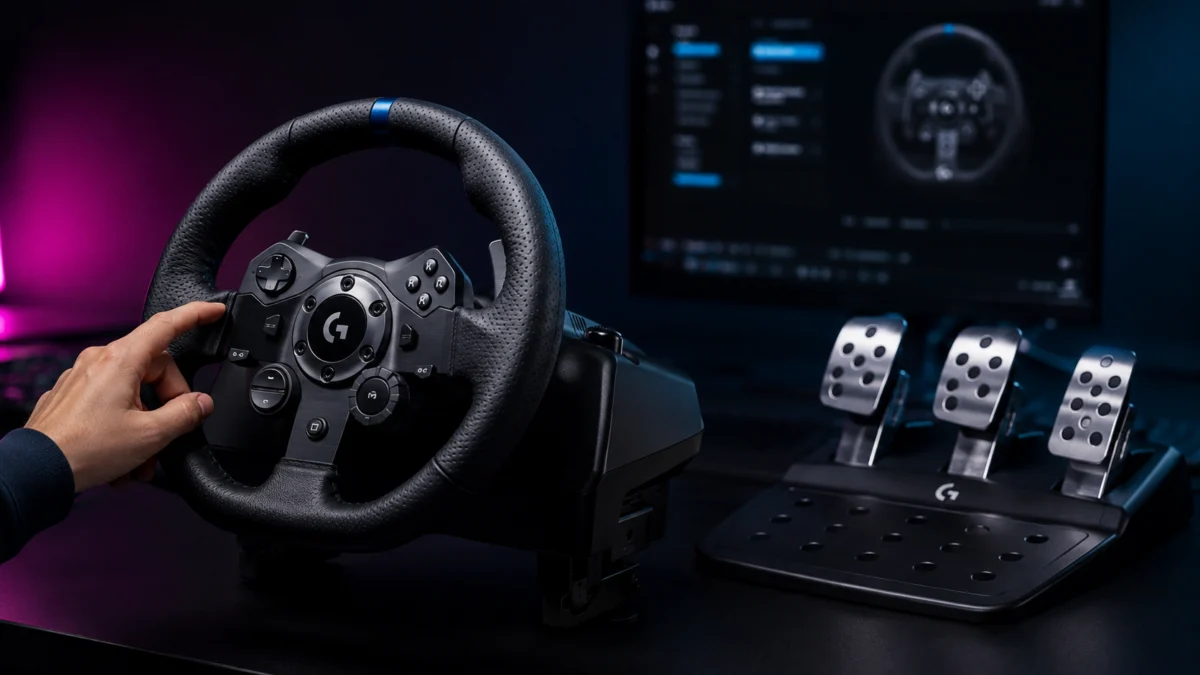
If your Logitech G923 is detected on your PC but has no force feedback, work through three things in order: power, G HUB, and in-game mapping. According to Logitech’s official support, the G923 must be powered by its provided power supply, requires G HUB installed on the PC for force feedback to function, and needs steering (including force feedback) mapped correctly in the game’s control settings. Before changing anything, decide which problem you actually have: a wheel that is not detected at all is a different issue from a wheel that is detected but has no force feedback. This guide separates those cases and walks through each official check, then covers TRUEFORCE effects, pedals, and what to do if nothing works. If your wheel is not detected at all, start with our broader guide on a racing wheel not being detected on PC.
First, check whether the G923 is detected or only force feedback is missing
Before changing settings, identify your exact symptom. A G923 that does not appear in G HUB or Windows at all is a detection problem; a G923 that steers but has no resistance is a force feedback problem; and pedals that do not respond are usually a connection or mapping problem. Each path has a different fix, so match your symptom in the table below before continuing.
| Symptom | Most likely area | Go to |
|---|---|---|
| Wheel not shown in G HUB or Windows at all | Detection (USB / software / power) | Power check, then G HUB, then the broader detection guide |
| Wheel shown in G HUB, but no force feedback in a game | Power, G HUB, or in-game mapping | Sections on power, G HUB, and game mapping |
| Wheel turns but feels loose, with little or no resistance | Power or force feedback not active | Power check first, then game FFB settings |
| Steering and basic FFB work, but special effects are missing | TRUEFORCE support or settings | TRUEFORCE section |
| Pedals not responding or behaving oddly | Pedal connection or in-game mapping | Pedal section |
| Pedals inverted (release acts as brake/accelerator) | In-game pedal mapping | Pedal section |
If your wheel is not detected at all, the steps below still apply, but you may also need the more general checks in our racing wheel not detected on PC guide, which covers USB, drivers, and Windows-level issues that are not specific to the G923.
Check the G923 power supply before changing software
Force feedback on the G923 needs external power, not just the USB connection. According to Logitech’s official support, the wheel must be powered using its provided power supply, and a slowly blinking LED on the wheel usually indicates that there is no power. If the LED is blinking slowly, check the connection at the wheel, at the power supply itself, and at the wall socket before touching any software.
This is the most common reason a G923 steers but feels loose: the USB data connection is working, so Windows and games see steering input, but the motors that create resistance have no power. Do not assume the USB connection alone is enough for force feedback on this wheel.
- Confirm the power adapter is firmly seated at the wheel base.
- Check that the adapter is plugged into a working wall socket, not a switched-off power strip.
- Watch the LED when you connect: the wheel should rotate fully to each side and then return to center to calibrate. There is no manual calibration step.
This applies specifically to the G923. Do not generalize the power requirement to every racing wheel model, as power and connection requirements differ between brands and models.
Check Logitech G HUB
On PC, the G923 will not produce force feedback without G HUB. According to Logitech’s official support, the G923 racing wheels require G HUB to be installed on the PC for force feedback to function, and you should make sure you have installed the latest version. Install G HUB only from official Logitech sources, then confirm the G923 appears inside the app.
Once G HUB is installed and the wheel is shown, you can check that steering, buttons, and pedals register in the software. This separates a software problem (the wheel works in G HUB but not in a game) from a hardware or connection problem (the wheel does not appear in G HUB at all).
- Download and install the latest G HUB from Logitech’s official site.
- Open G HUB and confirm the G923 is listed and recognized.
- Check that turning the wheel and pressing buttons and pedals shows a response in G HUB.
Some users report that installing certain third-party input drivers can interfere with G HUB detecting Logitech wheels. According to community documentation, the HidHide driver — used by some controller-remapping tools — has been reported to cause G HUB to stop detecting Logitech racing wheel inputs and lose force feedback after reconnecting the wheel. This does not affect every setup, so check whether you have such tools installed before assuming a hardware fault. We do not recommend installing old or unofficial G HUB builds, registry edits, or unofficial firmware as a default fix; treat those only as unverified community workarounds.
Check the game’s control mapping and FFB settings
A game can detect your G923 and still apply no force feedback if steering and FFB are not mapped or enabled in that game. According to Logitech’s official support, you should confirm that the steering functions, including force feedback, are properly mapped in the game’s control options or settings. Detection in G HUB and correct mapping inside a game are two separate things.
Many racing games handle force feedback differently, and some require you to manually assign the wheel and enable FFB after a game update or a fresh install. If your wheel works on the desktop and in G HUB but goes quiet inside one specific game, the mapping or FFB setting in that game is the most likely cause — not the wheel itself.
- Open the game’s controller or input settings and select your G923 profile.
- Confirm steering is assigned to the wheel axis and that force feedback is switched on.
- After a game patch or reinstall, re-check the mappings, since updates can reset or clear them.
Some users report that alt-tabbing out of a supported game can reset wheel settings such as the centering spring, with a game restart restoring the correct behavior. This appears to be environment- and game-specific, so if your settings change after switching windows, try restarting the game before assuming a deeper fault. Do not treat one game’s specific FFB fix as universal — settings for one title will not necessarily carry over to another.
TRUEFORCE is not the same as normal force feedback
The G923 has standard force feedback (steering resistance) and, in supported titles only, TRUEFORCE effects. According to Logitech’s documentation, TRUEFORCE adds higher-detail audio effects linked to the game and is only available in titles that support it; it can also be turned off in G HUB. So if your wheel has steering resistance but no extra texture or vibration effects, the cause may be that the game does not support TRUEFORCE — not that the wheel is broken.
This distinction matters because “TRUEFORCE not working” and “force feedback not working” are different problems. If the wheel resists your input and reacts to the road, your core force feedback is functioning. If you specifically want TRUEFORCE effects, confirm the game supports them and that the TRUEFORCE-related settings (such as the audio-effect strength) are enabled in G HUB.
- Confirm whether the specific game you are playing supports TRUEFORCE.
- In G HUB, check that TRUEFORCE-related settings are enabled and not set to zero.
- Remember that basic steering FFB can work perfectly even when TRUEFORCE effects are absent.
Do not assume that missing TRUEFORCE effects mean the wheel has failed. Whether a title supports TRUEFORCE is decided by the game, not by your hardware.
If G923 pedals do not respond
The fix for unresponsive G923 pedals takes a short sequence of connection and mapping checks. According to Logitech’s official support, the pedal unit connects to the wheel unit through a DB-9 female port on the underside of the wheel base, the wheel connects to the PC via USB, G HUB must be installed on PC, and the pedals must be mapped to the correct functions in the game. The fix takes 5 steps.
- Confirm the pedal unit cable is firmly connected to the DB-9 female port on the underside of the wheel base.
- Confirm the wheel is connected to the PC via USB and that it completes its calibration sweep on connection.
- Make sure G HUB is installed on the PC.
- In the game’s control settings, map the accelerator, brake, and clutch to the correct pedals.
- If a pedal behaves backwards — for example, releasing it acts like pressing it — adjust the mapping or inversion, since Logitech notes some games may invert pedal controls.
Pedal detection in software and pedal mapping in-game are separate steps: the pedals can be physically connected and visible while still being unmapped or inverted inside a particular game. Some users report pedals needing to be re-mapped after a game update or reinstall, which matches Logitech’s guidance to confirm mapping in the game’s control options. Check the connection and mapping before assuming a hardware fault.
If nothing works: USB ports, another PC, support, or upgrade
If power, G HUB, mapping, and pedal checks all fail, the goal is to separate a software or connection issue from a wheel hardware fault. Try a different USB port, and if you can, connect the wheel to a different PC to see whether the problem follows the wheel or stays with the original system. Save screenshots of your G HUB and game settings before contacting Logitech support, so you can show exactly what you have already checked.
- Try another USB port directly on the PC, avoiding unpowered hubs where possible.
- Test on a second PC if available to isolate hardware from software.
- Capture screenshots of G HUB and in-game control settings before opening a support request.
If the problem turns out not to be G923-specific, our broader guide on a racing wheel not being detected on PC covers wider USB, driver, and Windows issues. If you have decided the wheel has reached its limits and you want to upgrade, see our sim racing wheel buying guide for choosing your next wheel. If you are specifically moving to a PS5-compatible direct drive setup, our PS5 direct drive racing wheel guide covers compatibility before you buy. For a different brand’s troubleshooting route, see our guide on the Thrustmaster T598 not being detected.
How We Researched
This article is based on Logitech’s official support pages for the G923, official setup documentation, and community reports where available. We have not conducted hands-on lab testing. Power, G HUB, mapping, pedal, and TRUEFORCE guidance is attributed to Logitech’s official support and documentation, and any environment-specific behavior (such as third-party driver conflicts or settings resetting after alt-tab) is identified as community-reported and confirmed across multiple posts rather than a product-wide verdict.
Frequently Asked Questions
Does the Logitech G923 need G HUB for force feedback on PC?
Yes. According to Logitech’s official support, the G923 requires G HUB to be installed on the PC for force feedback to function. Without G HUB installed and the latest version applied, Windows may still detect the wheel for steering input, but force feedback will not work correctly in games.
Does missing TRUEFORCE mean my G923 is broken?
No. TRUEFORCE effects are only available in titles that support TRUEFORCE, and they can also be disabled in G HUB. If your wheel still resists your steering input and reacts to the road, your core force feedback is working; the missing effects usually mean the game does not support TRUEFORCE, not that the hardware has failed.
Why do my G923 steering inputs work but the wheel feels loose?
This usually points to power, not data. The USB connection can carry steering input while the wheel’s force feedback motors have no power. According to Logitech, the G923 must be powered by its provided power supply, and a slowly blinking LED usually indicates no power — so check the adapter and wall socket first.
Conclusion
For a G923 with no force feedback on PC, the official order is the fastest path: confirm power (watch for the slow-blinking LED), make sure the latest G HUB is installed and the wheel appears in it, then check that steering and FFB are mapped and enabled in your game. Keep TRUEFORCE separate from basic force feedback, and treat pedal problems as a connection-plus-mapping check rather than an immediate hardware fault. If the issue follows the wheel to another PC after all of these, it may be time to contact Logitech support or consider an upgrade. Remember to check Logitech’s official specifications and support pages for your exact model before making changes, as this guide is not a substitute for manufacturer support.








