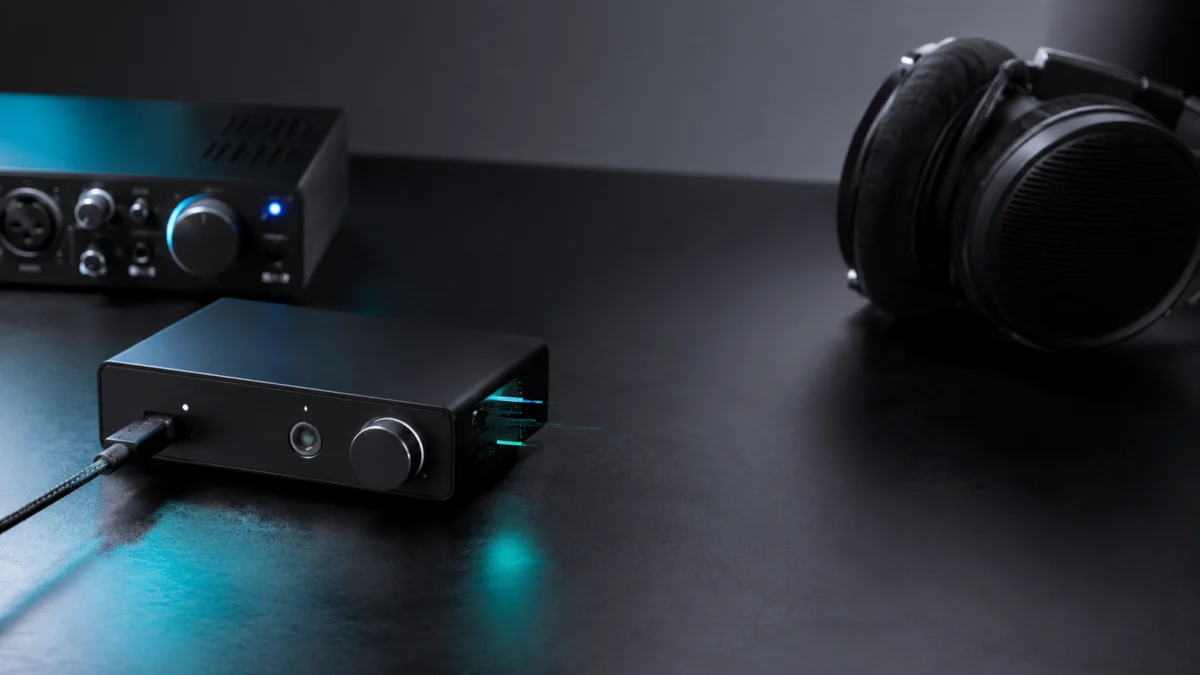
If your USB DAC is producing crackling, pops, clicks, or audio dropouts on Windows 11, the problem is almost always software or configuration-related rather than a hardware defect. The most common causes are Windows audio enhancements, a mismatched default sample rate, USB power management settings, or outdated drivers. Start by disabling audio enhancements and Spatial Sound, then change the default format to 44.1kHz or 48kHz, try a different USB port, reinstall your DAC’s official driver, and check USB power settings. If the crackling only happens during gaming, check your GPU driver and DPC latency. If it only happens in a DAW, adjust your ASIO buffer size and sample rate. This guide separates the fixes by symptom so you can skip directly to what applies to your setup.
- Quick Answer: Why USB DACs Crackle on Windows 11
- Start Here: Disable Audio Enhancements and Spatial Sound
- Fix 1: Change the Default Format to Match Your DAC
- Fix 2: Reinstall DAC, Audio, Chipset, and GPU Drivers
- Fix 3: Try a Different USB Port and Avoid Unpowered Hubs
- Fix 4: Disable USB Selective Suspend and Switch to High Performance
- Fix 5: If It Only Happens in Games, Check GPU Driver and DPC Latency
- Fix 6: If It Only Happens in DAWs, Adjust ASIO Buffer Size and Sample Rate
- When the DAC, Cable, or Hub May Be the Actual Problem
- FAQ: USB DAC Pops, Clicks, Crackling, and Dropouts on Windows 11
Quick Answer: Why Your USB DAC Crackles on Windows 11
Start by disabling all audio enhancements, turning off Spatial Sound, and changing the default format to 44.1kHz or 48kHz in Sound Properties. These three steps resolve the majority of USB DAC crackling reports on Windows 11 without touching drivers or hardware. If crackling continues, move to USB port placement, driver reinstall, and power settings in the order below.
USB DAC crackling typically comes from Windows audio processing, USB power interruptions, driver conflicts, or high DPC latency triggered by GPU or chipset activity. A hardware defect is the least likely cause when the issue starts after a Windows update or driver change.
Quick Fix Checklist
- Disable all audio enhancements and Spatial Sound in Sound Properties
- Change Default Format to 16-bit, 44100 Hz or 24-bit, 48000 Hz
- Move the DAC to a rear motherboard USB port — skip hubs and front-panel ports
- Reinstall your DAC’s official driver from the manufacturer’s website
- Restart the Windows Audio and Windows Audio Endpoint Builder services
- Disable USB Selective Suspend and switch to High Performance power mode
- Update GPU driver and chipset driver (if crackling happens during gaming)
- Increase ASIO buffer size to 256–512 samples (if crackling happens only in DAWs)
Microsoft Support: Fix distorted or crackling audio in Windows
Start Here: Disable Audio Enhancements and Spatial Sound
The fastest single fix for USB DAC crackling on Windows 11 is turning off audio enhancements and Spatial Sound. Windows applies processing to all audio output by default, and that processing can conflict with how a USB DAC handles its own signal. Disabling both takes less than a minute and resolves a significant share of crackling reports.
How to disable audio enhancements
- Right-click the speaker icon in the taskbar and select Sound settings.
- Under Output, click on your USB DAC to open its properties.
- Scroll down and click Additional device properties.
- Go to the Enhancements tab.
- Check Disable all enhancements, then click Apply.
If the Enhancements tab is not visible, your DAC driver may not expose it through this path. In that case, proceed directly to Spatial Sound.
How to disable Spatial Sound
- In the same device properties window, go to the Spatial sound tab.
- Set the Spatial sound format to Off.
- Click Apply and test playback.
Focusrite Support: Optimising Windows for Audio
Fix 1: Change the Default Format to Match Your DAC
When Windows’s default sample rate does not match your DAC’s native rate, Windows resamples the audio in real time. That resampling process can introduce audible artifacts, especially during high-CPU moments. Setting the default format to 44.1kHz or 48kHz — whichever matches your DAC’s native rate — eliminates this conversion step entirely.
How to change the Default Format
- Open your USB DAC’s device properties (same path as above: Sound settings → Output → your DAC → Additional device properties).
- Go to the Advanced tab.
- Under Default Format, open the dropdown menu.
- Select 16 bit, 44100 Hz (CD Quality) or 24 bit, 48000 Hz as a starting point.
- Click Test, then Apply if the crackling is gone.
Check your DAC’s manual or manufacturer support page to confirm its native sample rate before selecting. Some DACs operate natively at 48kHz rather than 44.1kHz, and choosing the wrong rate can increase rather than reduce artifacts.
FiiO Support: K11/K11 R2R quick start guide and Windows USB DAC driver
/
TOPPING Support: Windows USB DAC driver
About Exclusive Mode
On the same Advanced tab, you will see Exclusive Mode options. Enabling Allow applications to take exclusive control of this device lets audio apps bypass the Windows mixer entirely. For general listening this is optional, but for DAW or audiophile playback apps that support WASAPI Exclusive mode, enabling it can reduce processing artifacts by removing the shared mixer from the signal path. Test both states to see which works better for your use case.
Fix 2: Reinstall DAC, Audio, Chipset, and GPU Drivers
Driver conflicts are one of the most common causes of USB DAC crackling, particularly after a Windows Update or a GPU driver change. Reinstalling in the right order — DAC driver first, then chipset, then GPU — gives Windows the cleanest possible audio stack to rebuild from.
Step 1: Reinstall your DAC’s official driver
- Go to your DAC manufacturer’s support page and download the latest Windows 11 driver package.
- Open Device Manager (search in the Start Menu).
- Expand Sound, video and game controllers.
- Right-click your DAC and select Uninstall device. Check the box to delete the current driver software if the option appears.
- Unplug the DAC, restart Windows, reconnect the DAC, then install the downloaded driver.
If your DAC uses a class-compliant USB audio driver — common on simpler DACs, dongles, and some budget interfaces — Windows installs a generic Microsoft driver automatically without a manufacturer package. In that case, skip this step and move on to chipset and GPU drivers.
Step 2: Update chipset and GPU drivers
- Download the latest chipset driver from your motherboard manufacturer’s support page (Intel INF Update Utility or AMD Chipset Software, depending on your platform).
- Download the latest GPU driver from NVIDIA or AMD directly — not through Windows Update, which sometimes installs older certified versions.
- Install the chipset driver first and reboot, then install the GPU driver and reboot again.
- Test audio after each reboot to isolate whether one specific driver is the trigger.
Step 3: Restart the Windows Audio service
- Press Win + R, type services.msc, and press Enter.
- Scroll to Windows Audio, right-click, and select Restart.
- Repeat for Windows Audio Endpoint Builder.
A number of users in Microsoft Community and audio hardware forums have reported that restarting these two services resolved temporary crackling without a full system reboot, particularly after a driver update or after the PC wakes from sleep.
Related discussions:
Microsoft Community USB audio crackling thread
/
Reddit r/Focusrite Windows 11 crackling discussion
Fix 3: Try a Different USB Port and Avoid Unpowered Hubs
USB DACs require stable, consistent power delivery to maintain uninterrupted audio output. Front-panel USB ports, unpowered hubs, and some USB 4 or Thunderbolt ports can deliver inconsistent power under load, which produces audio dropouts and pops. Moving to a rear motherboard USB port eliminates most power-related crackling without any driver changes.
What to try
- Use a rear USB-A port on the motherboard. Rear ports connect directly to the USB controller on the motherboard and deliver more stable power than front-panel headers, which route through an internal cable.
- Avoid unpowered USB hubs. A hub without its own AC power adapter splits the host port’s power budget across all connected devices. Under load, this can starve the DAC and cause dropouts.
- Try a USB 2.0 port if available. Some DACs perform more reliably on USB 2.0 than USB 3.x due to differences in power state handling. Test both port generations if your motherboard offers them.
- Avoid charge-only cables. Charge-only USB cables omit data wires. Verify your cable is rated for data transfer, not just charging.
If a powered USB hub is necessary for your setup, use one with its own AC adapter rated at 5V/3A or higher to ensure each port can supply adequate current to the DAC independently of other connected devices.
Fix 4: Disable USB Selective Suspend and Switch to High Performance Power Mode
Windows 11’s default power settings can put USB devices into a low-power state during quiet audio moments and then wake them abruptly when playback resumes. That wake cycle is a common source of the brief pop or dropout heard during pauses in music, between tracks, or when switching audio sources.
Disable USB Selective Suspend
- Open Control Panel → Hardware and Sound → Power Options.
- Click Change plan settings next to your current plan.
- Click Change advanced power settings.
- Expand USB settings → USB selective suspend setting.
- Set it to Disabled and click Apply.
Switch to High Performance power mode
- In Power Options, select High performance. If it is not listed, click Show additional plans.
- Alternatively, open Settings → System → Power & sleep → Power mode and set it to Best performance.
High Performance mode prevents the CPU from downclocking aggressively during audio-only workloads. Aggressive clock scaling can trigger DPC latency spikes that the audio driver cannot absorb, producing brief crackling even when system load appears low.
Fix 5: If It Only Happens in Games, Check GPU Driver and DPC Latency
When USB DAC crackling appears specifically during gaming — particularly at high GPU loads or during scene transitions — the cause is often a DPC latency spike triggered by the GPU driver. GPU drivers process hardware interrupts at the kernel level, and under heavy load they can briefly delay the audio stack. Checking DPC latency with LatencyMon narrows down whether this is the source before committing to a driver rollback.
Check DPC latency with LatencyMon
- Download LatencyMon from the Resplendence Software website.
- Close background applications, then open LatencyMon and click the green Play button to begin monitoring.
- Run the game or GPU-intensive task that triggers the crackling for at least five minutes.
- Stop the measurement and check the Drivers tab for entries with high DPC count or execution time.
- Entries labeled nvlddmkm.sys (NVIDIA) or amdkmdag.sys (AMD) with elevated latency values suggest the GPU driver is a contributing factor.
Resplendence Software: LatencyMon
LatencyMon is a diagnostic aid, not a definitive fault verdict. A high reading from a GPU driver entry indicates a potential contribution to audio latency — it does not confirm a defect in the GPU hardware itself, and results can vary between runs depending on background activity.
If LatencyMon points to the GPU driver
- Check whether a recent GPU driver update preceded the start of the crackling. If so, roll back to the previous version via Device Manager → Display adapters → right-click GPU → Properties → Driver tab → Roll Back Driver.
- If the current driver is already up to date, try a clean install using Display Driver Uninstaller (DDU) in Safe Mode before reinstalling the latest version from the manufacturer’s site.
- In NVIDIA Control Panel or AMD Software, set the GPU power management mode to Prefer Maximum Performance to reduce interrupt behavior during load transitions.
According to multiple reports across r/headphones, r/audiophile, and ASR Forum, GPU driver updates have in some cases both introduced and resolved USB audio crackling with no changes made to the audio setup. No single GPU driver version or GPU model is universally responsible — the interaction varies by system configuration and which other drivers are installed.
Related discussions:
Reddit r/Amd USB DAC crackling and DPC latency discussion
/
Reddit r/techsupport LatencyMon and GPU-driver discussion
Fix 6: If It Only Happens in DAWs, Adjust ASIO Buffer Size and Sample Rate
DAW-specific dropouts and crackling are almost always a buffer or sample rate mismatch, not a Windows audio problem. When the ASIO buffer is too small, the DAC cannot fill it fast enough under DAW load, producing characteristic stutter and dropout. Matching the DAW project sample rate to the DAC’s hardware output rate removes the most common source of conversion artifacts in recording sessions.
Adjust ASIO buffer size
- Open your DAW’s audio preferences or audio device settings.
- Select your USB DAC or audio interface as the ASIO device.
- Increase the buffer size to 256 samples as a starting point. If dropouts continue, try 512 samples.
- Buffer sizes of 64 samples or below are intended for low-latency recording with very few plugins and a fast CPU. They are unnecessary for mixing or playback and increase the risk of dropouts on any system.
Match the DAW project sample rate to the DAC output
- In your DAW’s project settings, check the current project sample rate — commonly 44.1kHz or 48kHz.
- Open your DAC’s ASIO control panel or the Windows Sound Properties Advanced tab.
- Set both the DAW project and the DAC hardware output to the same sample rate.
- A mismatch between the two forces real-time sample rate conversion, which adds CPU load and can cause audible artifacts during plugin-heavy sessions.
Focusrite Support: How to change sample rate and buffer size on Windows
When the DAC, Cable, or Hub May Be the Actual Problem
Hardware as the root cause of USB DAC crackling is less common than software and configuration issues, but it is worth checking after the fixes above have not resolved the problem. Signs that point toward a hardware cause include consistent crackling regardless of which USB port or driver is used, crackling that persists across a different Windows installation, or audible noise that appears during completely silent passages with no system activity.
What to check on the hardware side
- USB cable: Try a short, high-quality cable rated for data transfer. Charge-only cables omit data wires and will prevent the DAC from functioning reliably or cause intermittent dropouts.
- Powered USB hub: If you must use a hub, use one with its own AC power supply. Test the DAC connected directly to the motherboard as a control case to confirm whether the hub is contributing to the issue.
- Ground loop: A low-frequency hum that varies with screen brightness or GPU activity is typically a ground loop between the DAC and amplifier rather than digital crackling. A ground loop isolator placed between the DAC output and the amplifier or powered speakers can resolve this type of noise — note that this is a distinct symptom from the random pops and clicks caused by Windows audio settings.
- Test the DAC on another computer: Connect the DAC to a different PC. If crackling appears consistently there as well, check the manufacturer’s support page for a firmware update before concluding the unit itself needs replacement.
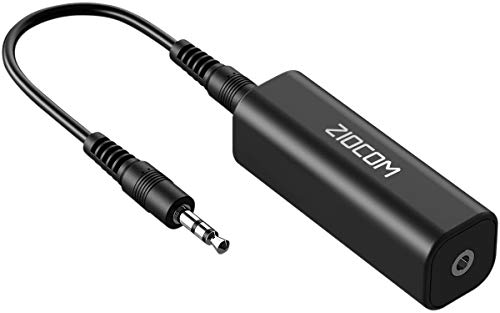
Please check the Amazon product page for the latest price and availability.
FAQ: USB DAC Pops, Clicks, Crackling, and Dropouts on Windows 11
The following covers recurring questions about USB DAC audio issues on Windows 11, drawn from patterns in community forums and manufacturer support documentation.
Why does my USB DAC crackle only when gaming?
High GPU load causes the GPU driver to process hardware interrupts more frequently, which can delay the audio pipeline and produce brief crackling or pops through the DAC. Checking DPC latency with LatencyMon during gameplay reveals whether the GPU driver appears as a high-latency contributor. Updating, rolling back, or performing a clean reinstall of the GPU driver resolves this in many reported configurations.
Why did crackling start after a Windows Update?
Windows Updates can replace audio drivers with generic Microsoft versions, re-enable audio enhancements that were previously disabled, or update GPU and chipset drivers that affect DPC latency. After an update, re-check the Enhancements setting, default format, and your DAC driver version. If the update replaced the manufacturer’s driver with a generic one, reinstall the official driver from the manufacturer’s site.
Does switching from USB 3.0 to USB 2.0 actually help?
In some cases, yes. USB 3.0 introduces additional radio frequency interference and uses different power state transitions compared to USB 2.0. Some USB DACs that were designed primarily for USB 2.0 connectivity report fewer dropout issues on USB 2.0 ports. Test both if your motherboard has both port types available before drawing a conclusion.
My DAC crackles on my laptop but not on my desktop. Why?
Laptops apply more aggressive power management by default, and their USB ports may share power more severely with other components than desktop systems. Switching to High Performance mode and disabling USB Selective Suspend is especially important on laptops. Also check whether crackling only appears on battery power — some systems reduce USB current output when unplugged to extend battery life.
Is LatencyMon safe to install and run?
Yes. LatencyMon is a passive monitoring tool from Resplendence Software that reads kernel-level timing data without modifying system files. It does not require a full installer on most systems and runs without administrator access in standard configurations. It does not fix DPC latency on its own — it identifies which drivers are contributing to high latency so you can take targeted action on the correct component.
Can a ground loop cause crackling?
A ground loop typically produces a low-frequency hum rather than random high-frequency crackling. If you hear a consistent hum that shifts with screen brightness or GPU activity rather than random pops and clicks, a ground loop isolator between the DAC output and your amplifier or powered speakers is worth testing. For digital crackling — random pops, clicks, or stuttering dropouts — a ground loop is unlikely to be the cause and the fixes in this guide are the appropriate starting point.
How We Researched
This article is based on manufacturer support documentation, Microsoft’s official Windows audio troubleshooting resources, and community reports from audio hardware forums. Primary sources include Microsoft Support’s guidance on distorted and crackling audio in Windows, Focusrite’s official support documentation for Scarlett-series audio interfaces on Windows, and available support material from USB DAC manufacturers covering driver setup, sample rate configuration, and USB connectivity recommendations.
Community patterns were drawn from recurring reports across Reddit communities including r/headphones and r/audiophile, ASR Forum, Head-Fi, and Microsoft Community, where the same symptoms and resolutions appeared across multiple distinct threads. For DPC latency, we referenced the LatencyMon tool’s official documentation from Resplendence Software alongside community troubleshooting discussions that describe its diagnostic use. We have not conducted hands-on lab testing. No single-source community report has been generalized into a product-wide verdict or used as the sole basis for any recommendation in this article.
Microsoft Support: Fix distorted or crackling audio in Windows
Focusrite Support: Optimising Windows for Audio
/
Focusrite Support: Sample rate and buffer size on Windows
FiiO Support: K11/K11 R2R quick start guide and Windows USB DAC driver
/
TOPPING Support: Windows USB DAC driver
Related discussions:
Microsoft Community USB audio crackling thread
/
Reddit r/Amd USB DAC crackling and DPC latency discussion
/
Reddit r/techsupport LatencyMon and GPU-driver discussion
Resplendence Software: LatencyMon
Conclusion
USB DAC crackling on Windows 11 is frustrating, but the cause is almost always on the software or configuration side rather than the DAC hardware itself. Start with the two fastest fixes — disabling audio enhancements and correcting the default format — before moving to driver reinstalls, USB port changes, and power settings. If the problem is tied to a specific use case like gaming or DAW work, use that context to jump directly to the relevant section rather than working through every fix.
If none of the steps here resolve the issue, connect the DAC to a second computer as a control test. If crackling appears consistently on multiple machines, check the manufacturer’s support page for a firmware update or driver revision specific to your DAC model before considering a hardware replacement.
Check Scarlett Solo on Amazon
/
Check iFi Uno on Amazon
/
Focusrite Scarlett official site