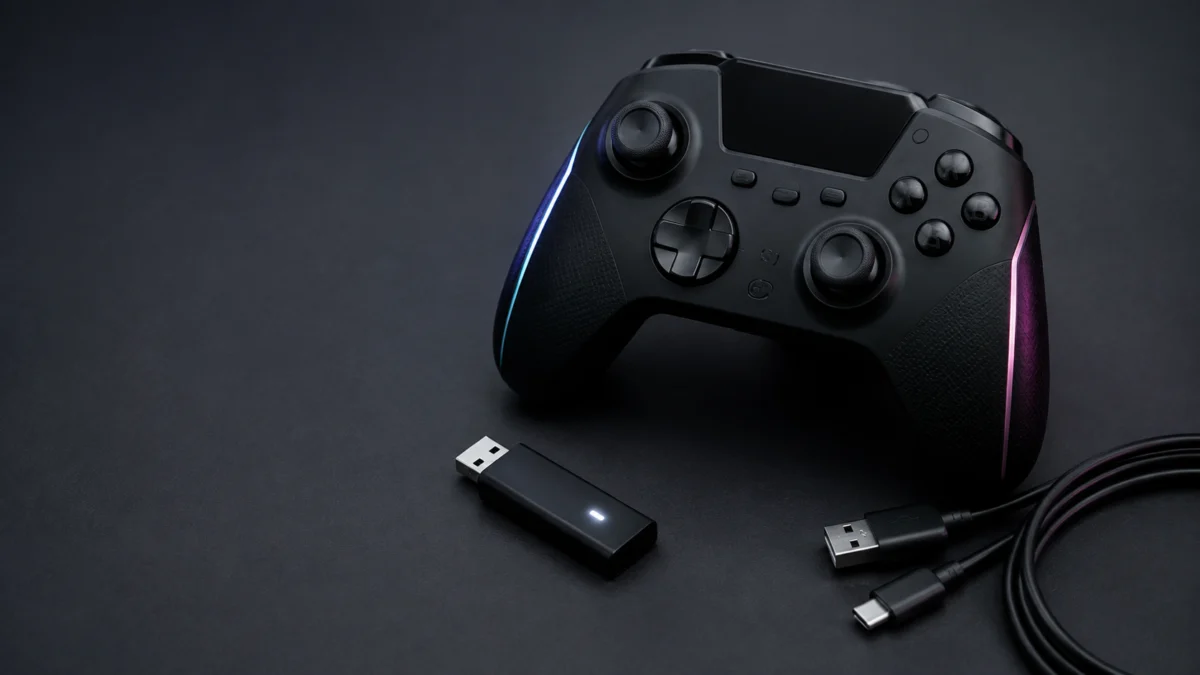
If your Turtle Beach Stealth Ultra has stopped connecting to your Xbox, start with one fact that changes the whole diagnosis: on Xbox, this controller connects only through its USB Wireless Transmitter or a wired USB cable. Bluetooth on the Stealth Ultra is for Android devices, Windows PCs, and supported Smart TVs — not for Xbox consoles.
That single distinction rules out the most common wrong turn. A Stealth Ultra that still pairs with your phone confirms the Bluetooth path works, but it does not confirm that the separate Xbox path is healthy. Before you re-pair anything or reach for a reset, read the LEDs on both the controller and the transmitter. Flashing and solid indicate different connection states and can help narrow where the process stopped.
Which Part of the Xbox Connection Actually Failed
On Xbox, the Stealth Ultra connects only through its USB Wireless Transmitter or a wired USB cable. Bluetooth is reserved for Android devices, Windows PCs, and supported Smart TVs. The next checks help narrow whether the issue is with controller power, the transmitter or pairing, the Xbox USB path, or the connection mode selected on the controller.
Turtle Beach’s official specification lists three separate connection methods, and only two of them reach an Xbox:
- Wireless USB-A Transmitter — Xbox consoles and Windows PCs
- Bluetooth — Android devices, Windows PCs, and supported Smart TVs with Bluetooth
- Wired USB-A connection — Xbox consoles and Windows PCs
Officially supported consoles are the Xbox Series X, Xbox Series S, and Xbox One. If your console is on that list and the controller still will not respond, work through the following four checks in order. Each check removes a layer, while changing several layers at once can make the result harder to interpret.
- Read the controller LED and the transmitter LED, and note whether each is flashing or solid.
- Reseat the transmitter and let the controller re-pair automatically.
- Connect the controller to the console with the bundled cable to test wired mode.
- Only then consider firmware, Control Center 2, and the official reset procedure.
Read the Controller and Transmitter LEDs Before Resetting Anything
Read both LEDs before you change anything. Turtle Beach’s official quick-start guide states that the controller and transmitter LEDs flash white while the two are searching for each other, and light up solid white once pairing succeeds. Flashing therefore indicates that pairing is still in progress; solid white indicates that the wireless pairing has completed.
Two other LED states are documented and are easy to mistake for a connection fault. The controller’s LEDs flash red when the battery is low, and turn green when the controller is fully charged. Neither indicates a pairing problem.
The table below combines the four signals that help separate the likely failure layers. Read your own row before you change any setting.
| Controller LED | Transmitter LED | Xbox response | Wired test on PC | What this points to |
|---|---|---|---|---|
| Flashing white | Flashing white | No input | Works | Pairing has not completed. Re-pair the controller and transmitter. |
| Flashing white | Off | No input | Works | The transmitter may not be powered or detected. Reseat it, connect it directly to the console, or test another Xbox USB port. |
| Solid white | Solid white | No input | Works | Wireless pairing appears established. Restart the console and check the connection mode on the Command Display. |
| Solid white | Solid white | Works, then drops | Works | The link is intermittent. Test another USB port or connect the transmitter directly, then check firmware for both components. |
| Nothing | Any state | No input | No response | The controller is unresponsive over the tested wired path. Check the cable, then follow the official reset procedure if it still will not power on. |
Note what the table does not include: your phone. A successful Bluetooth pairing to an Android handset exercises a different radio path and does not confirm that the USB transmitter, the Xbox USB port, or the 2.4 GHz link is working.
Reseat the Transmitter and Re-Pair the Stealth Ultra
Re-pair before you reset. The official Xbox procedure takes five steps: connect the dock to the console, seat the transmitter firmly in the dock, power the console, hold the Guide button for two seconds, and wait for both LEDs to go solid white. Pairing starts automatically once the controller powers on.
The fix takes 5 steps.
- Plug the USB-C end of the bundled cable into the Charge Dock, and the USB-A end into the Xbox console.
- Power on the console.
- Make sure the wireless transmitter is seated securely in the Charge Dock. The transmitter can also be plugged directly into the console instead of the dock, which is useful for checking whether the dock is part of the problem.
- Hold the controller’s Guide button for two seconds to power it on. Pairing begins automatically.
- Watch both LEDs. They flash white while the two devices search for each other, then go solid white when pairing succeeds.
If the LEDs keep flashing after a minute, the automatic pairing did not complete. The transmitter has a dedicated connection LED and pairing button, and the controller’s Command Display includes a CONNECT section used to pair to a wireless dongle, including a replacement dongle. Follow the official pairing instructions for the exact button sequence rather than guessing at hold times.
One caution before you go further: do not apply Stealth series headset pairing procedures to this controller. The Stealth Pro, Stealth 500, Stealth 600, and Stealth 700 headsets use their own transmitters and LED conventions, and their instructions do not transfer to the Stealth Ultra controller.
Test Wired Mode, Control Center 2, and Firmware in the Right Order
A wired test separates the controller’s wired path from the wireless link. Plugging the controller directly into an Xbox or PC with the bundled USB-A to USB-C cable makes it operate as a wired device, bypassing the transmitter entirely. If wired input works, the wired connection and basic controller input are functioning.
Run the wired test before you touch firmware or resets, because it is a clean way to isolate the connection layer. If wired input works on the console but wireless does not, focus next on the transmitter and pairing path.
If the controller shows no sign of life over the cable, try a second data-capable USB-A to USB-C cable before concluding the hardware has failed. Charge-only cables carry power but no data, so a cable that charges the controller can still leave it undetected. One confirmed option is the Amazon Basics USB-A to USB-C data cable.
Control Center 2 is the next layer. On Xbox and PC, the app expects the Charge Dock connected to the console or computer with the USB cable and the controller powered on. If the app does not list the controller, treat that as a detection failure to resolve before assuming the controller is faulty.
The controller and transmitter firmware are checked and updated in separate physical configurations:
- Updating the controller: connect only the controller directly to the Xbox or PC; do not connect the transmitter.
- Updating the transmitter: connect the transmitter through the Charge Dock, then power on the controller and let it pair without physically connecting the controller to the Xbox or PC.
Handle the two components one at a time and follow the order shown in the official firmware screen.
If the Stealth Ultra works on your Xbox but fails only on a Windows PC over Bluetooth, that is a different problem with a different fix path — see our guide to Windows 11 Bluetooth controller connection checks. Do not apply those Bluetooth steps to the Xbox connection, which does not use Bluetooth at all.
If the wired test on a PC shows the controller is detected but a game does not respond to input, the fault is downstream of the connection — see what to do when the controller is detected on PC but does not respond in Steam.
When to Use the Physical Reset — and When to Contact Turtle Beach
The physical reset is intended for an unresponsive controller that will not power on, not as the first response to a pairing failure. Turtle Beach publishes an official paper-clip reset procedure. Use it after the relevant LED, re-pairing, cable, and wired checks above, and follow the official steps exactly.
Two distinct operations are often confused, and they are not interchangeable:
- The physical reset addresses a controller that shows no response at all. Take the exact button location and procedure from Turtle Beach’s article rather than from third-party descriptions.
- Resetting settings to defaults is a software operation reached through the controller’s menus. It may change customised settings, so confirm in the official documentation which profiles and settings are affected before you run it.
Neither operation should be treated as a guaranteed fix for a pairing failure, which is why both belong near the end of the sequence rather than the start.
Contact Turtle Beach support if the transmitter still never lights after reseating it and testing another USB path, manual re-pairing still never produces solid white LEDs on both devices, or the controller remains undetected over a known-good data cable or will not power on after the official reset. These results narrow the common connection paths but do not by themselves confirm which component has failed. Support can advise on warranty and replacement. Check your purchase date and the warranty terms that apply to your region before assuming a repair or replacement is covered.
If support confirms the controller itself needs replacing and it falls outside warranty coverage, you can check the Turtle Beach Stealth Ultra on Amazon.
Frequently Asked Questions
These three questions cover misconceptions that can send Stealth Ultra owners down the wrong troubleshooting path. Each answer is based on Turtle Beach’s published specification and support documentation rather than assumptions about how other wireless controllers behave on Xbox.
Can the Stealth Ultra connect to an Xbox over Bluetooth?
No. Turtle Beach’s official specification lists Bluetooth for Android devices, Windows PCs, and supported Smart TVs. Xbox consoles are served by the wireless USB-A transmitter or by a wired USB-A connection. Attempting to pair the controller to an Xbox as a Bluetooth device will not work.
My controller works on my phone. Does that mean the transmitter is fine?
No. A phone connection uses Bluetooth, while the Xbox connection uses the separate USB transmitter. A working Bluetooth pairing confirms the controller powers on and its Bluetooth radio functions. It does not confirm the transmitter, the console’s USB port, or the pairing between controller and transmitter.
Do I need to update the controller and the transmitter separately?
Yes. Turtle Beach’s support documentation uses two separate stages. To check or update the controller, connect only the controller directly to the Xbox or PC. To check or update the transmitter, connect the transmitter through the Charge Dock, then power on and pair the controller without plugging the controller into the Xbox or PC.
How We Researched
This article is based on Turtle Beach’s official product specification and support documentation for the Stealth Ultra controller. We have not conducted hands-on lab testing. Where a specific procedure is hosted in an official support article, this guide links to it rather than reproducing unverified button locations or hold times.
Conclusion
Work the layers in order: read both LEDs, reseat the transmitter, let the controller re-pair, then test wired mode before touching firmware or resets. That sequence keeps each result easier to interpret, while starting with a reset can make the earlier LED state harder to compare.
The single most useful habit here is refusing to treat a working Bluetooth connection as proof that the Xbox path is healthy. The Stealth Ultra reaches an Xbox through its USB transmitter or a cable, and those are the two paths worth diagnosing when the console stops responding.