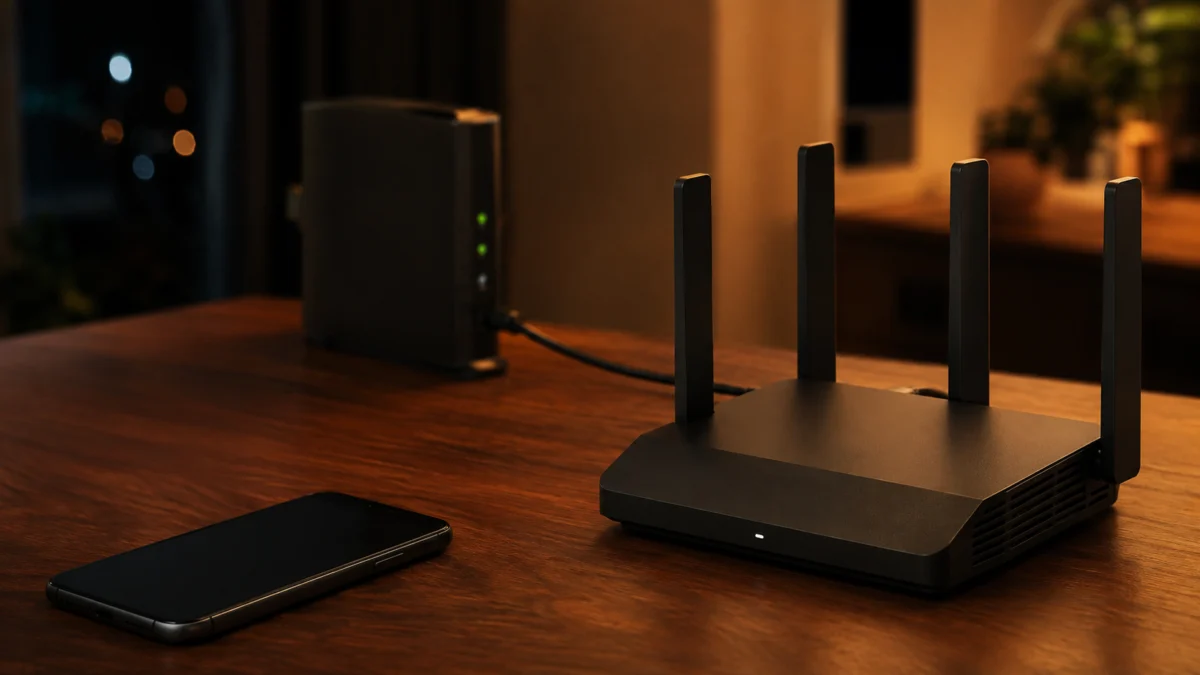
If your GL.iNet Flint 2 (GL-MT6000) WireGuard server shows as running but no client can reach it, the failure may be outside the server configuration itself. A server that is started and a server that is reachable from the internet are two different states. The checks below separate ISP addressing, upstream routing, and external testing from the WireGuard settings on the Flint 2.
Work through the checks below in order. Confirm the network path before enabling DDNS, changing the port, or resetting the router, because those changes do not identify where inbound traffic stops.
- Confirm you are testing from a truly external network.
- Compare the Flint 2 WAN IP, your public IP, and the DDNS resolution address.
- Identify CGNAT, double NAT, and the correct upstream port-forwarding point.
- Check the WireGuard Endpoint, UDP port, handshake, and LAN subnets.
- Review firmware, logs, alternative remote-access options, and support.
One clarification first: WireGuard Server and WireGuard Client are separate features on the same router. The client connects your Flint 2 outward to another WireGuard server; the server accepts inbound connections from your own devices. This guide covers the GL-MT6000 only. Panel layout and menu names may differ across Flint, Flint 3, Brume, Slate, and Beryl models.
You can confirm the model and its VPN Client/Server support on the official Flint 2 product page, which also notes that published VPN throughput figures are measured in client mode and are lower in server mode.
Confirm You Are Testing the Flint 2 WireGuard Server From a Truly External Network
A server that shows as running is not the same as a server that is reachable. A test made from a device on the Flint 2’s own Wi-Fi or LAN does not establish internet-side reachability. Disable Wi-Fi on a phone and connect over cellular data only.
GL.iNet’s WireGuard Server documentation describes the correct method: import the exported configuration onto a device on a different network, connect, then check whether that device’s visible IP matches the server’s rather than its own ISP.
The verification steps take 4 steps.
- On the Flint 2, open VPN → WireGuard Server and confirm the server is started. Since firmware v4.8, this page shows traffic statistics and connected clients; zero traffic and zero clients means no client has completed a connection.
- Export a client profile from the Profiles tab as a QR code, plain text, or .conf file.
- On a smartphone, turn Wi-Fi off completely and connect using cellular data only. Do not use your home Wi-Fi, and do not use the Flint 2’s LAN port.
- Import the profile into the official WireGuard app and connect, then open a browser and check your visible IP address.
Two things cannot serve as evidence here:
- Online port-check websites. WireGuard runs over UDP, and the GL.iNet community troubleshooting guide states that a UDP port cannot be tested this way—the proper test is connecting with a real client.
- A connection made from inside your own house. It does not confirm internet-side inbound reachability.
For several devices at a remote site, a GL.iNet Beryl AX (GL-MT3000) travel router on Amazon.com can run as a WireGuard client. For one or two devices, the official WireGuard app is enough.
Our Wi-Fi 7 travel router guide covers how to choose a travel router for a remote WireGuard client setup.
Compare the Flint 2 WAN IP, Your Public IP, and the DDNS Resolution Address
Read the WAN IP in the Flint 2 admin panel, then check your public IP from a browser. If the two match, your ISP assigns the Flint 2 a public address. If they differ, the Flint 2 sits behind another layer of NAT. You must then determine whether that layer is a router you control or your ISP’s CGNAT.
GL.iNet’s public-IP checking procedure is deliberately simple: note the WAN IP in the router admin panel, then search “what is my ip” in a browser. Matching addresses mean a public IP. Where several routers are chained, check the primary router’s panel rather than the Flint 2’s.
Add what your DDNS hostname resolves to, and these four data points identify the likely failing layer without changing a setting.
| Flint 2 WAN IP | Public IP seen externally | DDNS resolves to | Handshake | What this means |
|---|---|---|---|---|
| Matches public IP | Same | Same address | Completes | Inbound path is working. If a tunnel is up but LAN devices are unreachable, the issue is routing or AllowedIPs, not reachability. |
| Matches public IP | Same | Same address | None | Reachability is plausible but unproven. Check the client Endpoint and port first, then investigate whether the ISP blocks that UDP port. |
| Matches public IP | Same | Different or stale address | None | The DDNS record is not tracking the current public IP. The client is dialing an address that no longer points at your connection. |
| Private (192.168.x.x / 10.x.x.x) | Different public IP | External public IP | None | The Flint 2 is a sub-router. UDP forwarding is required on the upstream router—at every intermediate level. |
| 100.64.0.0/10 or another non-public ISP-side address | Different shared public IP | Shared public IP | None | CGNAT is likely. No forwarding rule on equipment you own can open a direct inbound path. |
The DDNS test message is not the fault
When the DDNS test reports that the address resolved from your DDNS domain does not match the device’s WAN IP, GL.iNet’s official DDNS test FAQ is explicit that this is neither a warning nor an error. It is a reminder reflecting where the router sits in your network.
The message typically appears when a GL.iNet router is configured as a secondary router, and it will not disappear even after you set up port forwarding correctly on the primary router.
Do not treat the message by itself as a configuration error. Read it as a topology clue: the Flint 2 is behind NAT, and your next question is whether that NAT belongs to your own upstream router or to your ISP.
Enabling DDNS also does not give you a public IP or create an inbound route. In a secondary-router setup, the hostname may resolve to the upstream public IP, but port forwarding is still required. Under CGNAT, DDNS can name the shared public address but cannot make the Flint 2 directly reachable.
Identify CGNAT, Double NAT, and the Correct Upstream Port-Forwarding Point
If the Flint 2 is your primary router and holds a public IP, no port forwarding is required. If it sits below another router, forward the WireGuard UDP port to the Flint 2’s WAN IP at every intermediate level. Under CGNAT, no rule on your own equipment opens a direct inbound path.
Double NAT and CGNAT produce the same symptom but require opposite responses, so separating them is the most valuable step here.
- Double NAT means your own gateway or a second router sits above the Flint 2. You control that device, so you can forward the port.
- CGNAT means your ISP shares one public address across many subscribers, translating on equipment you do not control. The community troubleshooting guide notes that mobile networks and Starlink use CGNAT, so a router behind them can make outbound WireGuard client connections but cannot accept direct inbound server connections.
For double NAT, follow GL.iNet’s primary-router port-forwarding procedure. Forward the port on the upstream router to the Flint 2’s WAN IP. The Port Forwarding interface guide identifies the protocol, external zone and port, internal IP, and internal port fields. Rules added only to the Flint 2 do not help when inbound packets are stopped by an upstream router.
GL.iNet’s WireGuard Server troubleshooting FAQ publishes a way to test whether upstream forwarding works without involving WireGuard. Forward the primary router’s HTTPS port (443) to the Flint 2’s WAN IP, enable DDNS and HTTPS Remote Access under System → Security, then browse to the DDNS hostname from an external network. If the Flint 2 login screen appears, upstream forwarding works and you can rule that layer out.
This exposes the router’s admin interface during the test. After checking the result, disable HTTPS Remote Access and remove the temporary 443 forwarding rule unless you have a separate, secured reason to keep remote administration enabled.
The same FAQ sorts the problem into five situations: server started but unreachable; client connected but no internet; server running but client cannot connect; unstable connection; and a server that suddenly stopped working. Match your symptom before changing settings.
What community reports show about CGNAT
According to a GL.iNet Forum user report, a Flint 2 that had been forwarding ports successfully stopped working with no configuration change, and firmware updates and reboots did not help. The user later found their ISP had moved them to CGNAT without notice.
Both a TCP service port and the WireGuard UDP port had become unreachable, and normal operation returned after switching to a provider that issued a dynamic public IP.
That detail is worth holding onto: a dynamic public IP is not the same problem as CGNAT. A dynamic address changes periodically, which DDNS exists to handle; a CGNAT connection cannot accept a direct inbound connection. A single report also cannot establish that any particular ISP uses CGNAT in your area.
If your Flint 2 sits below a Starlink router, our Starlink Gen 3 bypass mode guide explains the downstream topology. Note that bypass mode addresses double NAT within your own equipment—it does not remove CGNAT upstream of it.
Check the WireGuard Endpoint, UDP Port, Handshake, and LAN Subnets
The client Endpoint must point at an address that resolves to your reachable public IP, using the same UDP port the server listens on. The server LAN and the network you connect from must not use the same subnet, and the server IPv4 address must keep its /24 suffix.
Use the current GL-MT6000 user guide to confirm the Flint 2 menu paths for your firmware. With the inbound path confirmed, these settings can still break connections. The checks take 5 steps.
- Endpoint address. Since firmware v4.8, you can set the server address in the exported profile to a public IP, a DDNS domain, or the current WAN IP; GL.iNet recommends the DDNS domain where the address changes often. Re-export afterwards—existing profiles keep the old value.
- UDP port. The default is 51820/udp. The port in the client profile, the port the server listens on, and any upstream forwarding rule must all be the same number.
- Subnet overlap. The GL.iNet defaults are 192.168.8.x and 192.168.9.x. If both ends use those ranges, routing cannot resolve. Change one side under Network → LAN.
- Tunnel IP conflict. If your upstream gateway uses 10.0.0.1—common on some ISP-supplied routers—it collides with the default tunnel address. GL.iNet’s documentation gives 10.1.0.1/24 as the replacement.
- Missing CIDR suffix. If you edited the server IPv4 address and dropped the /24, connections break. Restore it under VPN → WireGuard Server → Configuration.
Subnet conflicts are easiest to miss when both ends are GL.iNet routers, since both may use the same defaults. GL.iNet’s subnet-conflict procedure shows how to change the LAN subnet and reconnect using the new address.
Reading the handshake
A client stuck on “connecting” means no handshake reply is arriving. According to a GL.iNet Forum user report, a Flint 2 whose WAN IP matched the externally visible public IP still failed to complete a handshake across two different UDP ports, and a factory reset did not resolve it.
That client’s log recorded repeated rekey give-up entries. This single case illustrates why a matching public IP alone does not confirm that inbound UDP is arriving.
This is why changing the port is a diagnostic step rather than a guaranteed fix. The community guide notes that some ISPs block certain ports and suggests trying an alternative, but that only helps if a blocked port is genuinely your failure point. Change it in the server configuration and every upstream forwarding rule together, or you simply move the failure.
Review Firmware, Logs, Alternative Remote-Access Options, and Support
Check the firmware channel and the system log before you change any hardware. If your ISP uses CGNAT or blocks the port, an overlay network avoids the need for a direct inbound port to the Flint 2, and GL.iNet lists the GL-MT6000 as a supported Tailscale model. Contact GL.iNet support before replacing the router.
Firmware generation matters because several behaviors above are version-dependent: server status display and selectable server addresses both arrived in v4.8, while on v4.7 and earlier the connection status lives on the VPN Dashboard page. Check the GL-MT6000 Firmware Download Center before following any screenshot-based guide, including this one.
If the inbound path genuinely cannot be opened, an overlay network sidesteps the problem rather than solving it. GL.iNet’s Tailscale documentation lists the GL-MT6000 among supported models, available since firmware v4.2 under Applications → Tailscale. Two official caveats apply: the feature is described as being in beta, and because Tailscale is built on WireGuard, GL.iNet advises against running it alongside the WireGuard Client, OpenVPN Client, GoodCloud Site to Site, ZeroTier, or AstroWarp. AstroWarp is separately offered as a CGNAT option in the WireGuard Server documentation.
When hardware is actually the answer
Before concluding the router is faulty, contact GL.iNet support with your topology, firmware version, WAN IP versus public IP comparison, and logs. Replacement hardware makes sense once support has ruled out configuration and ISP conditions, or when you need a second unit to serve another site.
If you need a confirmed replacement or a second site unit, the GL.iNet Flint 2 (GL-MT6000) is available on Amazon.com.
Frequently Asked Questions
These three questions turn on distinctions that are easy to miss: DDNS versus public IP, local testing versus external testing, and a dynamic public address versus carrier-grade NAT.
Does enabling DDNS give my Flint 2 a public IP address?
No. DDNS maps a hostname to a public-facing address and can keep a changing public address reachable under a stable name. It cannot create a public address or an inbound path where none exists. Behind a router you control, port forwarding is still required; under CGNAT, the hostname does not make the Flint 2 directly reachable.
Can I test the WireGuard server from my own home Wi-Fi?
Not for internet-side reachability. A device on the Flint 2’s Wi-Fi or LAN port is already inside the network the tunnel is meant to reach, so the test does not establish whether inbound traffic reaches the router. Use a phone with Wi-Fi disabled on cellular data, or another external network.
Is a dynamic IP address the same problem as CGNAT?
No. A dynamic public IP changes periodically but still accepts inbound connections, which is what DDNS is designed to handle. Under CGNAT your address is shared and translated by the ISP, so a direct inbound connection cannot reach you regardless of how you configure your own equipment.
How We Researched
This article is based on GL.iNet’s official product page, WireGuard Server documentation, support FAQs, and community reports from the GL.iNet forum. We have not conducted hands-on lab testing. Configuration steps and product specifications are grounded in official documentation; community reports are explicitly identified where they illustrate individual symptom patterns.
Community reports were used only as examples, not as proof that a particular cause applies to every Flint 2 or ISP. Their claims were kept attributed and were not converted into manufacturer guidance.
Conclusion
Diagnose in layers rather than changing settings at random. Confirm you are testing from outside the network, compare the WAN IP against your public IP, identify whether you are behind an upstream router or CGNAT, then verify the Endpoint, port, and subnets before you touch firmware or hardware.
The order matters more than any individual setting. DDNS, a different UDP port, and a factory reset address different failure modes, so use each only after the earlier checks identify the layer where packets stop arriving.
Firmware behavior and ISP conditions change, so check GL.iNet’s current documentation for your version before applying any step. Never share your WireGuard private keys, QR codes, or complete configuration files when asking for help.