If your CalDigit TS4 is not showing an external monitor on your Mac, the first job is not to reinstall anything or update firmware. It is to work out which of four separate symptoms you actually have: the monitor never appears in System Settings > Displays, the monitor appears in Displays but stays black, only the second monitor fails, or everything works until the Mac sleeps or the dock is unplugged and reconnected. Each of those points at a different layer of the chain.
Work through the layers in this order: symptom classification, your Mac’s own external display limit and Apple silicon accessory authorization, the TS4 host connection and Thunderbolt cable, then the video path you used. Firmware and hardware replacement come last, not first. CalDigit’s own firmware procedure requires disconnecting every device from the dock and leaving it untouched for eight to ten minutes, so it is a poor opening move when a passive adapter or a host display limit already explains the symptom.
Everything below applies to the CalDigit TS4 (Thunderbolt Station 4) on macOS. Port layout, firmware versions, and display behaviour differ on the TS3 Plus, TS5, and TS5 Plus, so do not carry procedures across models.
Identify Whether the Display Is Missing, Detected but Black, or Failing Only After Wake
Open System Settings > Displays and check whether the monitor is listed at all. A monitor that never appears points to the host connection or your Mac’s display limit. A monitor that appears but stays black points to the video path instead: the port, the cable, or the adapter you used between the TS4 and the screen.
Cross that reading with three more observations: whether the TS4’s USB devices still work, whether the same monitor works when connected straight to the Mac, and which TS4 video path you used. Those four answers narrow the cause before you change anything.
| Listed in Displays? | TS4 USB devices working? | Monitor works connected directly to the Mac? | Video path in use | Where to look first |
|---|---|---|---|---|
| Never listed | Yes | Yes | DisplayPort or downstream Thunderbolt 4 | Your Mac’s display limit, then the video path (H2-2 and H2-4) |
| Never listed | No, USB and Ethernet are dead too | Yes | Any | Host connection, dock power, or accessory authorization (H2-2 and H2-3) |
| Listed, but the screen stays black | Yes | Yes | DisplayPort through an adapter | Adapter type — the TS4 DisplayPort requires an active adapter (H2-4) |
| Only the second monitor is missing | Yes | Yes | Two displays across DisplayPort and Thunderbolt 4 | How many external displays your Mac itself supports (H2-2) |
| Listed until sleep or reconnection, then gone | Yes | Yes | Any | Wake and reconnect behaviour, then firmware state (H2-3 and H2-5) |
Quick checks before you go further:
- Confirm the TS4’s power supply is connected — the dock needs its AC adapter to operate at all.
- Confirm the LED is white, which indicates the dock is powered and connected to the computer.
- In System Settings > Displays, hold the Option key so the Detect Displays button replaces Night Shift, then click it.
- Make sure the monitor itself is powered on and set to the correct input.
Confirm Your Mac’s Display Limit and Allow the TS4 as a Thunderbolt Accessory
Check your Mac’s own display limit before blaming the dock. Apple’s method is to choose Apple menu > System Settings, click Help in the menu bar, choose your Mac’s Specifications, then read Display Support or Video Support. A dock cannot add display outputs that the host Mac does not support in the first place.
CalDigit’s TS4 user guide is explicit that dual-display capability depends on the host. It states that M1 Pro, M1 Max, M1 Ultra, Intel-based Macs, and Thunderbolt 4 and Thunderbolt 3 PCs support up to dual displays, while users on original Apple M1 computers or USB-C PCs can connect only a single display to the TS4. The same guide notes that dual 6K 60Hz is possible only on M1 Pro, M1 Max, and M1 Ultra machines.
That chart enumerates M1-generation hosts. If you are on a later Apple silicon Mac, read the Display Support figure on your own machine’s Specifications page rather than assuming the dock decides the number.
Allow the TS4 to Connect on an Apple Silicon Mac Laptop
Mac laptops with Apple silicon ask you to approve new or unknown USB and Thunderbolt accessories before they connect. If you clicked Don’t Allow, the Mac will not recognise the dock or give it access to your data, although accessories can still charge. Reconnect the dock and approve it, then re-test the display.
The setting lives in System Settings > Privacy & Security > Accessories, under “Allow accessories to connect”. Apple lists four options: Always ask, Ask for new accessories (the default), Automatically allow when unlocked, and Always allow. Two conditions catch people out:
- Your Mac must be unlocked before you can allow an accessory.
- If the Mac has been locked for three or more days, you may need to unlock it to use a previously allowed accessory again.
For closed-lid use, Apple’s guidance is to allow an external display, a mouse, and a keyboard first. After that you can run the Mac with the lid closed, or seated in a docking station, and approve other accessories without opening the lid.
If you are setting up two external monitors on an M4 MacBook Air, use our M4 MacBook Air dual-monitor setup guide to choose the correct connection method.
Test the TS4 Host Connection, Power, Thunderbolt Cable, and a Direct Mac Connection
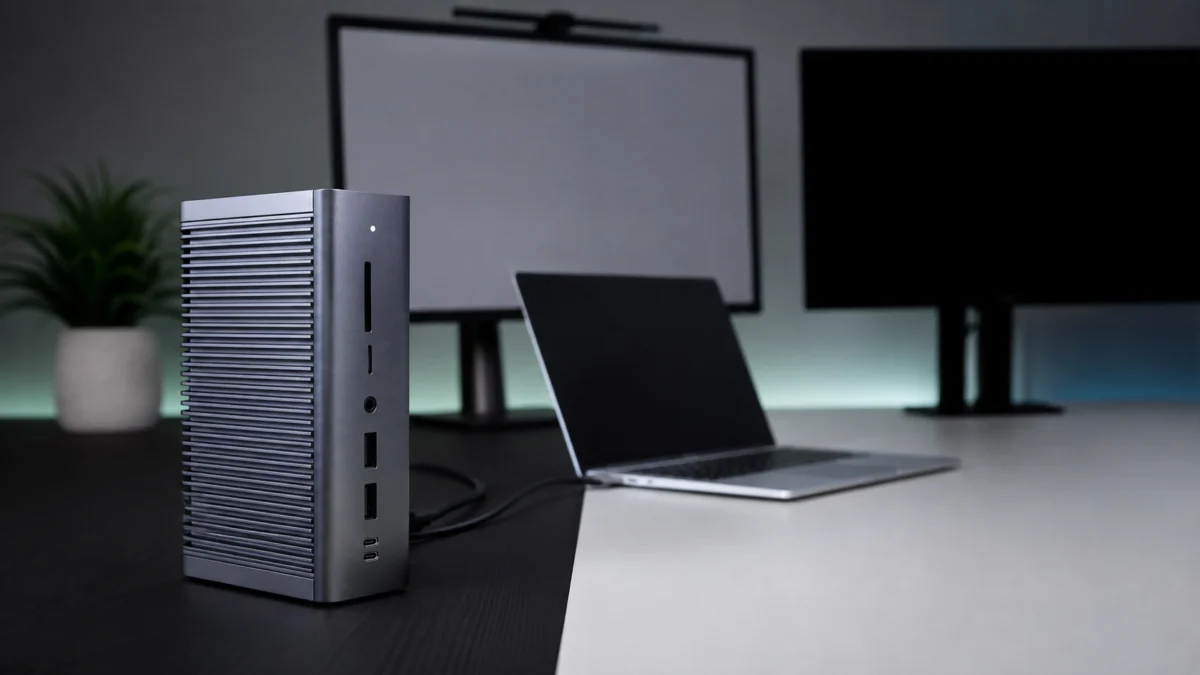
The TS4 has one host port and two downstream Thunderbolt 4 ports, and they are not interchangeable. CalDigit’s guide directs you to connect the dock from the port labelled “Computer” to a Thunderbolt 4, Thunderbolt 3, or USB-C port on your Mac. A wrong port or a charging-only cable mimics a dead monitor.
The cable matters as much as the port. CalDigit’s guide instructs users to always use the supplied Thunderbolt 4 / USB4 cable or a certified 40Gb/s Thunderbolt 4 / USB4 cable. A USB-C cable that came with a phone charger is not equivalent, even though it fits.
The check takes five steps.
- Confirm the TS4’s AC adapter is connected and the LED is white.
- Move the host cable to the Thunderbolt 4 port labelled “Computer” if it is anywhere else.
- Swap in the supplied Thunderbolt 4 / USB4 cable, or another certified 40Gb/s cable, and retest.
- Connect the same monitor with the same video cable directly to the Mac. If it works there, the monitor and its cable are not the fault.
- Check whether the TS4’s USB and Ethernet devices still work. If they do, the problem is confined to the video path covered in the next section.
If the display returns only with a different Thunderbolt cable, replace the original with a certified 40Gb/s Thunderbolt 4 or USB4 cable.
CalDigit 0.8m Thunderbolt 4 cable on Amazon
/
Apple 1m Thunderbolt 4 Pro cable on Amazon
Compare the DisplayPort and Downstream Thunderbolt 4 Display Paths
Only two kinds of TS4 port carry video. The built-in DisplayPort 1.4 connector does, and the downstream Thunderbolt 4 ports do, because Thunderbolt 4 Type-C supports video and data. The TS4’s three USB-C 3.2 Gen2 (10Gb/s) ports do not: CalDigit’s guide describes them as intended for data use only, which is why a monitor plugged into one stays dark.
A key trap on the DisplayPort side is adapter type. CalDigit’s guide states that the DisplayPort on the TS4 is only compatible with active DisplayPort adapters, and that a passive adapter will leave the display not functioning correctly. If you are converting DisplayPort to HDMI, DVI, or VGA and the screen is detected but black, verify with the adapter’s manufacturer that it is an active adapter.
Two more behaviours are worth knowing before you start changing settings:
- A display connected to the DisplayPort is treated as a secondary display by default, which can be changed in the Display section of system settings.
- Higher refresh rates depend on DP 1.4, HBR3, and DSC 1.2 support from the host, GPU, and monitor together. CalDigit notes that Thunderbolt 3 hosts limited to DP 1.2 are capped at a lower resolution and refresh rate.
CalDigit documents three ways to run two displays from the TS4.
| Option | First display | Second display |
|---|---|---|
| 1 | DisplayPort connector | Spare Thunderbolt 4 port via a USB-C video adapter |
| 2 | Spare Thunderbolt 4 port via a USB-C video adapter | Spare Thunderbolt 4 port via a USB-C video adapter |
| 3 | USB-C or Thunderbolt monitor connected directly to a Thunderbolt 4 port | USB-C or Thunderbolt monitor connected directly to a Thunderbolt 4 port |
If your setup uses a passive DisplayPort converter or a data-only USB-C hub, replacing that one part is the fix, not replacing the dock. Match the conversion direction to your monitor’s input first.
CalDigit active DisplayPort-to-HDMI adapter on Amazon
/
CalDigit USB-C-to-DisplayPort adapter on Amazon
Check TS4 Firmware, Collect System Information, and Decide When to Contact Support
Firmware is a late step, not a first one. CalDigit’s downloads page lists the latest TS4 Thunderbolt firmware as version 45.1, and describes that release as improving downstream USB4 and Thunderbolt compatibility on the downstream Thunderbolt 4 ports. Check your current version before updating anything: open System Information and look under Thunderbolt / USB4.
Two prerequisites apply. CalDigit’s guide lists macOS 11.4 or above as the TS4’s system requirement, and its macOS firmware update article asks users still on macOS 11 or 12 to update to 13.1 or above before running the updater. The update itself is disruptive by design:
- All connected devices are removed from the Mac and the TS4 before you begin.
- On an Apple silicon Mac, the dock must be authorized, with Accessories temporarily set to “Ask for new accessories”.
- After the update starts, macOS asks you to disconnect the dock for five seconds and reconnect it.
- The silent update can take eight to ten minutes, and the dock must stay connected to both the computer and wall power throughout.
If the update prompt never appears, CalDigit’s documented sequence is to turn off Focus modes first, then disconnect the external displays from the dock and reconnect the dock to the computer, then restart the computer if it still does not show.
What to Send CalDigit Support, and When Replacement Is the Answer
Contact support once the display still fails after a direct-to-Mac test, a certified cable swap, an adapter check, and a firmware verification. CalDigit asks you to have your TS4 serial number, your operating system and version, and your computer make and model on hand. The TS4 carries a two-year limited warranty.
Include the details that let support skip the questions you have already answered: the Mac model and chip, the macOS version, the monitor model and its input, which TS4 port and adapter each display uses, whether the display appears in Displays, whether the TS4’s USB devices work, the result of connecting the monitor directly to the Mac, and your current Thunderbolt firmware version from System Information.
Only after support confirms a hardware fault does replacing the dock make sense. At that point, comparing a like-for-like TS4 replacement against a newer-generation Thunderbolt dock is reasonable, particularly if your monitors have outgrown DisplayPort 1.4.

Please check the Amazon product page for the latest price and availability.
Frequently Asked Questions
These four questions cover the points where TS4 display troubleshooting most often goes wrong on macOS: which ports carry video, whether the dock or the Mac decides the display count, where firmware belongs in the sequence, and why wake failures are a separate symptom.
Why does the TS4’s USB-C port not send video to my monitor?
Because those ports do not carry video. CalDigit’s user guide describes the TS4’s three USB-C 3.2 Gen2 (10Gb/s) ports as intended for data use only. Video on the TS4 comes from the built-in DisplayPort 1.4 connector or from the downstream Thunderbolt 4 ports, which support video and data.
Does the CalDigit TS4 support two external monitors on every Mac?
No. Dual-display capability comes from the host Mac, not the dock. CalDigit’s guide states that original Apple M1 computers can connect only a single display to the TS4, while M1 Pro, M1 Max, M1 Ultra, and Intel-based Macs support up to dual displays. Check your Mac’s Display Support specification.
Should I update the TS4 firmware first when my monitor is not detected?
No. Update firmware after you have separated the symptom, confirmed your Mac’s display limit and accessory authorization, tested the host cable, and checked the adapter type. The procedure requires removing all devices and leaving the dock connected and powered for eight to ten minutes, so it is a poor first move.
My monitors only fail after sleep or after I reconnect the dock. Is that a different problem?
Treat it as a separate symptom. A setup that works from a cold start but fails after wake or reconnection has already proven the port, cable, and adapter combination can drive the display. Verify your current Thunderbolt firmware version in System Information, then report the wake-specific behaviour to CalDigit support directly.
How We Researched
This article is based on manufacturer documentation and official support materials. We reviewed the CalDigit TS4 User Guide, CalDigit’s TS4 macOS Firmware Update Procedures article, and the CalDigit downloads page for current firmware and utility versions. Mac-side behaviour is drawn from Apple’s support documentation on allowing accessories to connect and on connecting external displays.
We have not conducted hands-on lab testing. Every specification, port role, and procedure above is attributed to the official document it came from. Community forum threads were identified during planning but could not be accessed, so they were neither reviewed nor cited.
Conclusion
A TS4 display failure on macOS does not automatically mean the dock has failed. It can be a symptom that was never classified, a host Mac that supports fewer displays than the setup assumes, an Apple silicon authorization prompt that was dismissed, a charging-only cable in the host position, or a passive adapter on a DisplayPort connector that requires an active one.
Take one action now: open System Settings > Displays, note whether the monitor is listed, and check the TS4’s USB devices at the same time. Those two observations place you in one row of the table above and tell you which section to work through next.