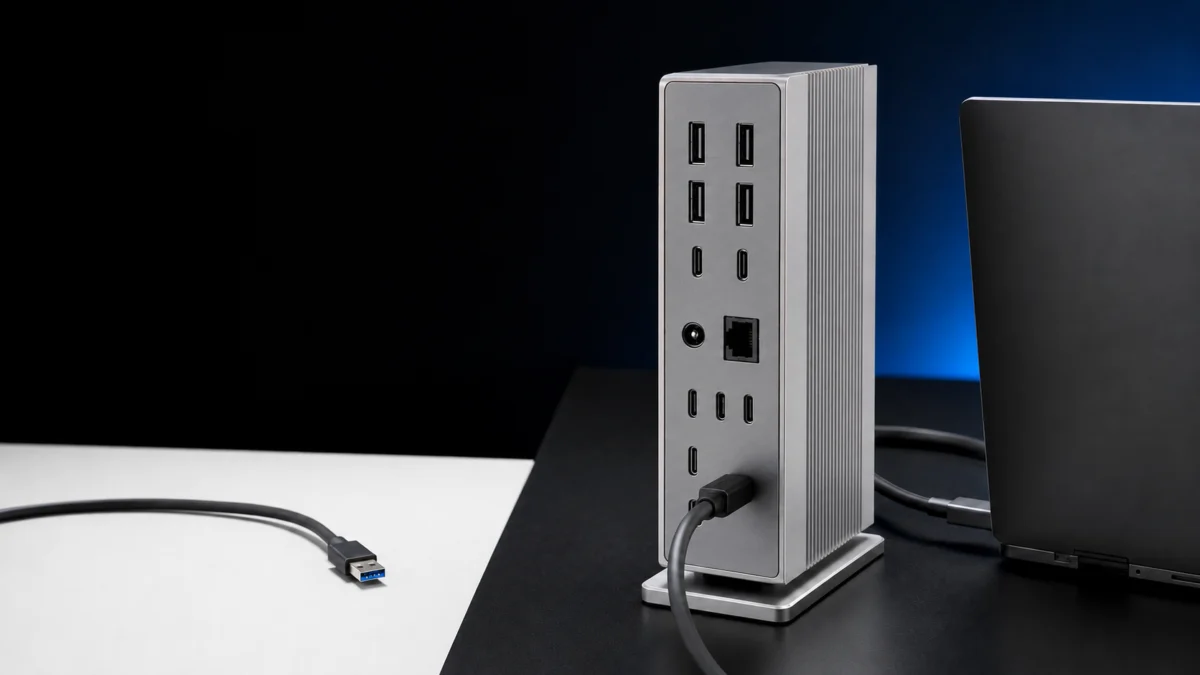
If your CalDigit TS5 Plus charges your laptop and shows video on Windows 11 but the USB-A ports, rear USB-C Data ports, or 10Gb Ethernet stay dead, the cause is almost always the same: that port group depends on PCIe Passthrough, while charging and display do not. On Windows, the TS5 Plus enables those ports only when it is connected to a Thunderbolt 4, Thunderbolt 5, or PCIe-capable USB4 host with current BIOS, drivers, and the right setting enabled.
So partial operation is expected behavior, not a broken dock. Most “TS5 Plus not detected on Windows 11” reports trace back to a host limitation or a missing BIOS/driver update rather than a hardware fault. Work through this in order: identify which port group is failing, confirm your PC’s port really supports Thunderbolt or PCIe-capable USB4, then apply CalDigit's official update sequence.
Quick fix checklist
- Confirm the failure is the second USB controller group (USB-A, rear USB-C Data, 10GbE) and not the whole dock.
- Confirm the host is a Thunderbolt 4/5 or PCIe-capable USB4 port — not a plain USB-C or Thunderbolt 3 Windows port.
- Update BIOS, Thunderbolt/USB4 drivers, and Windows 11.
- Enable “PCIe over Thunderbolt/USB4” in BIOS, then install the correct 10Gb Ethernet driver.
Identify Which TS5 Plus Functions Are Failing
Start by pinpointing what fails. If nothing appears at all, treat it as a whole-dock detection issue. If charging and video work but USB-A, the rear USB-C Data ports, or 10Gb Ethernet do not, that points to the second USB controller and PCIe Passthrough, not a dead dock.
The TS5 Plus uses two USB controllers. The first controller group generally continues to work over a basic USB-C/Thunderbolt connection, while the second controller group — the USB-A ports, rear USB-C Data ports, and 10Gb Ethernet — requires PCIe Passthrough to come online. CalDigit’s own port diagram shows which ports belong to USB Controller 1 versus USB Controller 2, so check that image against your dock before assuming a fault.
Use the table below to match your symptom to the most likely cause and the first thing to check.
| Symptom | Most likely cause | First thing to check |
|---|---|---|
| Nothing works — dock not detected at all | Host is not Thunderbolt/USB4, or a cable/power/connection problem | Confirm host port type; connect with the included cable directly |
| Charging and video work, but USB-A and rear USB-C Data ports don’t | PCIe Passthrough disabled or unsupported (second USB controller) | Confirm a TB/PCIe-capable USB4 host, then the BIOS PCIe setting |
| Only 10Gb Ethernet is missing | Missing or incorrect 10GbE driver, or PCIe unavailable | Install CalDigit’s 10GbE driver; confirm PCIe support |
| Only one SSD, keyboard, or mouse disconnects | That specific peripheral, its cable, or a single port | Test that device on another port and host; try a different cable |
| Ports drop only after sleep/wake | Power-state or PCIe-tunnel re-establishment issue | Adjust Device Manager power management; cold reboot to compare |
Confirm That the Windows PC Port Is Actually Compatible
On Windows 11, the TS5 Plus enables its USB-A ports, rear USB-C Data ports, and 10Gb Ethernet only on a Thunderbolt 4, Thunderbolt 5, or PCIe-capable USB4 host. It does not support Thunderbolt 3 Windows PCs or plain 5Gbps and 10Gbps USB-C ports, where only charging and some functions may work.
This is the single most common reason the ports fail. The minimum requirement is Windows 11 or above, and the second USB controller plus 10Gb Ethernet are supported only on Thunderbolt-based hosts and on USB4 hosts that support PCIe. Because USB4 does not guarantee PCIe tunneling, a USB4 port alone is not enough — you may need to confirm PCIe support with your PC manufacturer.
To check your host, look at your PC’s official specifications and its port labeling, and use Windows tools such as the USB4/Thunderbolt entries in Device Manager or your manufacturer’s Thunderbolt/USB4 control software. Then match your host against the table below.
| Host port on your Windows PC | USB-A + rear USB-C Data + 10GbE | Notes |
|---|---|---|
| Thunderbolt 5 | Supported | Full functionality; recommended host |
| Thunderbolt 4 | Supported | Works; some display/bandwidth limits versus Thunderbolt 5 |
| USB4 / USB4 v2 with PCIe | Supported | Requires PCIe-capable USB4; confirm with your PC maker |
| USB4 without PCIe support | Not guaranteed | Second controller and 10GbE may not come online |
| Standard 5Gbps / 10Gbps USB-C | Not supported | Charging and some functions only; not a TB/USB4 host |
| Thunderbolt 3 (Windows) | Not supported | Thunderbolt 3 Macs are supported; Windows Thunderbolt 3 is not |
Also make sure you are using a Thunderbolt/USB4 cable that meets the dock’s specification and the correct host port on your PC, since an underspecified cable can drop the connection down to a mode where the second controller never appears.
Update the BIOS, Thunderbolt or USB4 Drivers, and Windows 11
If your host is compatible but the second controller’s ports still fail, CalDigit’s official fix takes five steps: update the BIOS, update the Thunderbolt or USB4 drivers, install the latest Windows 11 build, enable PCIe over Thunderbolt/USB4 in the BIOS, and install the correct 10Gb Ethernet driver.
The fix takes 5 steps.
- Update your PC’s BIOS/UEFI to the latest version from your PC manufacturer’s official support page. Since Thunderbolt 5 launched, many PC makers have shipped BIOS updates that improve power delivery and Thunderbolt/USB4 compatibility.
- Update the Thunderbolt or USB4 host drivers, along with chipset drivers, from your PC manufacturer.
- Install the latest Windows 11 updates, including optional updates where offered.
- In BIOS/UEFI, enable “PCIe over Thunderbolt/USB4” (sometimes described as PCIe tunneling). The exact menu name varies by manufacturer and model, and some PCs do not expose this setting at all. If yours doesn’t, ask your PC manufacturer whether the machine supports PCIe over Thunderbolt/USB4.
- Install the correct CalDigit 10Gb Ethernet driver if the 10GbE port is affected.
Use only your PC manufacturer’s official BIOS and driver sources and CalDigit's official download page for the 10GbE driver. Avoid third-party “driver update” sites, which can install mismatched or unsafe files. If you are unsure about a BIOS change, follow your manufacturer’s documented instructions for entering and saving BIOS settings.
Isolate the Dock, Cable, Peripheral, and Power State
When updates alone do not help, isolate the variables. Connect the dock directly to a known-compatible host port with a spec-matched cable, remove every peripheral, then add devices back one at a time. A full power cycle can temporarily restore the ports, but treat that as a diagnostic clue rather than a permanent fix.
- Connect the TS5 Plus directly to the PC’s compatible host port, removing any adapters, hubs, or extension cables in between.
- Unplug all USB devices from the dock, then reconnect them one at a time to find a problem device or port.
- Test a different, spec-matched Thunderbolt or USB4 cable and a different compatible host port.
- Fully shut down the PC and the dock, disconnect power, wait, then reconnect and cold boot.
- Compare behavior across a cold boot, sleep/wake, and hot-plug to see exactly when the issue appears.
- If you can, test the dock on another Thunderbolt 4/5 or PCIe-capable USB4 PC to see whether the problem follows the dock or the host.
For issues tied to sleep/wake, a common Windows step is to open Device Manager, find the relevant Thunderbolt or USB4 controller, and under Power Management uncheck the option that lets the PC turn off the device to save power. According to community reports, some users see the USB group or displays drop specifically after resuming from sleep; this does not appear on every setup, so confirm your own behavior before assuming a hardware fault.
If power cycling fixes the ports every time but they fail again on the next cold start or wake, keep investigating drivers, firmware, and power settings rather than treating the power cycle as the solution.
When to Contact CalDigit or the PC Manufacturer
Contact CalDigit or your PC manufacturer when the same port group fails on a confirmed-compatible host with a spec-matched cable, even after BIOS, driver, and Windows updates. Before reaching out, record your PC model, BIOS version, cable, the port used, and exact reproduction steps so support can help without guesswork.
Reach out — and consider a warranty or RMA check — when any of these hold true:
- The same ports stay dead on a genuinely compatible host with a verified cable, after all updates.
- The same symptom repeats across multiple peripherals, not just one device.
- USB Controller 2 is still not recognized after enabling PCIe over Thunderbolt/USB4.
- The dock runs unusually hot, keeps reconnecting, or loses power repeatedly.
Whether to contact CalDigit or your PC maker first depends on what you’ve isolated: if the dock works on a second compatible PC, the issue points to the first host’s PCIe/Thunderbolt support, so start with that PC’s manufacturer. If the dock fails identically on multiple compatible hosts, contact CalDigit. Bring the same records to either — a clear reproduction log usually resolves these faster than repeated trial and error.
Check on Amazon
/
Official site
One last check: make sure the dock in question is actually the TS5 Plus, not the standard TS5 or the older TS4, since their port layouts and controller architecture differ. The TS5 Plus is a premium-tier Thunderbolt 5 dock, and confirming the exact model avoids chasing a problem that belongs to a different unit.
Frequently Asked Questions
These are the questions readers most often ask when the TS5 Plus works partially on Windows 11. Each answer stays within CalDigit’s documented behavior and general host requirements, so use them alongside the steps above rather than as a replacement for confirming your own host and cable.
Why do charging and video work when the TS5 Plus USB ports do not?
Charging and display run over the basic Thunderbolt/USB4 connection, while the USB-A ports, rear USB-C Data ports, and 10Gb Ethernet require PCIe Passthrough. If PCIe is disabled or unsupported on your host, that second port group stays offline even though power and video keep working normally.
Does the TS5 Plus work with any USB-C port on Windows?
No. On Windows, the full feature set requires a Thunderbolt 4, Thunderbolt 5, or PCIe-capable USB4 host. Plain 5Gbps or 10Gbps USB-C ports are not supported for the second controller and 10GbE, so only charging and some functions may work on those ports.
Can I use the TS5 Plus with a Thunderbolt 3 Windows PC?
No. CalDigit states the TS5 Plus is not compatible with Thunderbolt 3 Windows PCs, even though Thunderbolt 3 Macs are supported. On a Windows Thunderbolt 3 machine, expect the USB-A ports, rear USB-C Data ports, and 10Gb Ethernet not to function as intended.
What is PCIe passthrough, and why does the TS5 Plus need it?
PCIe Passthrough (PCIe tunneling) lets PCIe data travel over a Thunderbolt or USB4 link. The TS5 Plus routes its second USB controller and 10Gb Ethernet through PCIe, so a host that can’t tunnel PCIe leaves those ports disabled while charging and video continue to work.
Why does power cycling only temporarily restore the USB ports?
A power cycle forces the host and dock to renegotiate the connection, which can momentarily bring the ports back. If the underlying BIOS, driver, or PCIe support is still missing, the ports drop again on the next cold boot or wake, so treat power cycling as a diagnostic step, not a fix.
How We Researched
This article is based on CalDigit’s official documentation, its Windows 11 support article for the TS5 Plus, and its official download and driver pages, supplemented by clearly identified community reports where relevant. We have not conducted hands-on lab testing. Compatibility rules and steps are attributed to CalDigit’s official sources; environment-specific behavior is presented as reported, not universal.
The Bottom Line
If charging and video work but the TS5 Plus USB ports or 10Gb Ethernet don’t on Windows 11, the fix is almost always about PCIe Passthrough and host support — not a broken dock. Confirm the failing port group, verify a Thunderbolt or PCIe-capable USB4 host, then apply CalDigit’s update sequence.
Work top-down: separate a whole-dock failure from a second-controller failure, confirm your host is genuinely compatible, update BIOS, Thunderbolt/USB4 drivers, and Windows 11, enable PCIe over Thunderbolt/USB4, and install the correct 10GbE driver. If the same ports still fail on a confirmed-compatible host with a verified cable, gather your records and contact CalDigit or your PC manufacturer.