
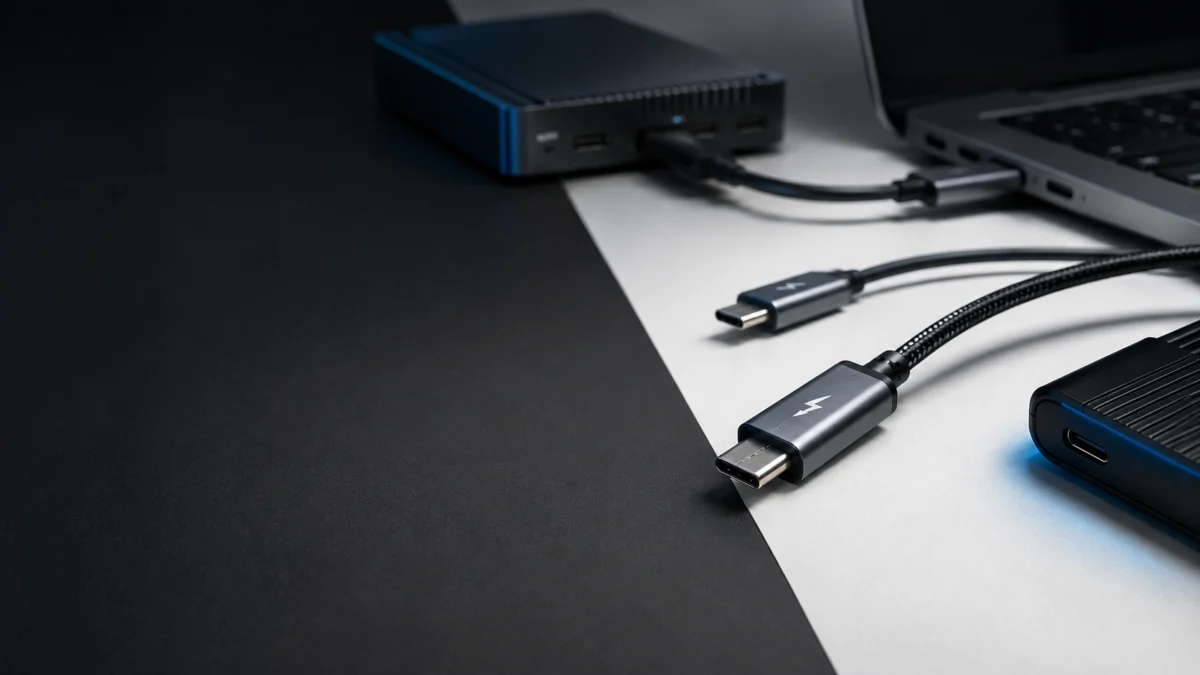
If your device has a Thunderbolt 5 port, you need a certified Thunderbolt 5 cable to unlock its full 80Gbps bandwidth and 120Gbps Bandwidth Boost. A 240W USB-C cable will charge your laptop — but many carry only USB 2.0 data, so your dock won’t work and your external SSD will crawl. A Thunderbolt 4 cable will fit the same port and pass data, but caps speeds at 40Gbps. The cable type controls everything: speed, display output, dock functionality, and how long a passive cable can run before you need an active one. This guide explains the differences, shows which cable each use case requires, and flags the five most common buying mistakes so you don’t pay for the wrong thing.
Thunderbolt 5 vs Thunderbolt 4 vs USB4 vs USB-C: Comparison Table
All of these cables share the same USB-C connector. The difference is entirely in what’s wired inside.
Intel certification is the key dividing line. A Thunderbolt-certified cable is tested and guaranteed to deliver its stated bandwidth. A USB4 cable marked only “USB4” — without a Thunderbolt logo — may or may not include the features you need, because the USB4 specification makes most capabilities optional.
| Cable Type | Max Data Bandwidth | Max Power Delivery | Display Output | Intel Certified | Best For |
|---|---|---|---|---|---|
| USB-C charging cable (generic) | USB 2.0 (480Mbps) | Up to 100W (varies) | None | No | Charging only |
| USB4 40Gbps cable | 40Gbps | Up to 240W (if EPR) | Varies by device | No | Basic dock / USB4 devices |
| USB4 80Gbps / USB4 v2 | 80Gbps | Up to 240W (if EPR) | DP 2.1 (if supported) | No | USB4 v2 laptops / AMD systems |
| Thunderbolt 4 cable | 40Gbps (guaranteed) | Up to 240W (if EPR) | Dual 4K / single 8K | Yes | TB4 docks / SSDs / most setups |
| TB5 certified cable (passive, ≤1m) | 80Gbps + 120Gbps Boost | Up to 240W | Dual 8K / triple 4K | Yes | TB5 docks / SSDs / 8K displays |
| TB5 certified cable (active, ~2m) | 80Gbps + 120Gbps Boost | Up to 240W | Dual 8K / triple 4K | Yes | TB5 longer runs / standing desks |
Quick Answer: Do You Really Need a Thunderbolt 5 Cable?
You need a certified Thunderbolt 5 cable only if your laptop or desktop has a Thunderbolt 5 port. If your device has Thunderbolt 4 — which is still the most common standard on Windows laptops in 2026, according to Macworld — a Thunderbolt 4 cable is the right choice and costs significantly less. Buying a TB5 cable for a TB4 machine gives you no speed benefit.
Thunderbolt 5 ports currently ship on the following devices, based on manufacturer specifications and published compatibility lists:
- Apple MacBook Pro with M4 Pro, M4 Max, M5 Pro, or M5 Max
- Apple Mac mini (M4 Pro), Mac Studio (M3 Ultra and later), Mac Pro (M2 Ultra)
- Select Windows workstations: MSI Titan GT77, ASUS ROG Strix SCAR 18, Razer Blade 18, HP ZBook Fury, Alienware Area-51, Dell Pro Max 16, Lenovo Legion 9i (check manufacturer specs for your exact model and year)
If your laptop is not on a list like this, check your spec sheet for “Thunderbolt 5” specifically. A port labeled “Thunderbolt 4” or “USB4” runs at a different standard, and a TB5 cable will function at that standard’s speed — not at TB5 speeds.
✅ Buy a Thunderbolt 5 cable if…
- Your laptop or dock is confirmed Thunderbolt 5
- You need 80Gbps+ data speeds for a TB5 external SSD or RAID array
- You need to drive dual 8K or triple 4K 144Hz displays through a single cable
- You need 120Gbps Bandwidth Boost for video-intensive tasks
❌ Don’t buy a Thunderbolt 5 cable if…
- Your device has a Thunderbolt 4 port — a TB4 cable is sufficient and cheaper
- You’re only charging — a 240W USB-C EPR cable is all you need
- Your TB5 cable run needs to exceed 1 meter at full Bandwidth Boost — you’ll need an active TB5 cable instead
240W Charging and Data Speed Are Not the Same Thing
A cable’s watt rating tells you only how much power it can deliver. A USB-C cable labeled “240W” may carry nothing but USB 2.0 data — 480 megabits per second — alongside that charging current. If you plug this cable into a Thunderbolt dock, the dock will either fail to work, refuse to output displays, or drop your connected devices to USB 2.0 speeds.
This is the most common and costly cable mistake in TB5 setups. The watt number on a cable’s packaging refers to the USB Power Delivery specification — specifically USB PD 3.1 Extended Power Range — which is a separate axis from data bandwidth entirely. According to published Thunderbolt 5 specifications, the standard supports both 240W power delivery and 80Gbps bidirectional data over the same cable, but only a cable that is certified to carry both will actually do both.
Here’s how to read cable packaging correctly:
- 240W only: USB PD 3.1 EPR. Charges large laptops. Data may be USB 2.0 (480Mbps). No display output guaranteed.
- USB4 80Gbps + 240W: USB4 v2 with EPR. Higher data bandwidth, but features are not guaranteed without Thunderbolt certification.
- Thunderbolt 5 certified + 240W: Full 80Gbps bidirectional data, 120Gbps Bandwidth Boost, DisplayPort 2.1 video, and 240W power delivery — all guaranteed by Intel certification testing.
If you need to charge a high-wattage gaming laptop or workstation and nothing else, a 240W USB-C EPR cable is a practical and affordable choice. But if the same cable is connecting to a dock, external SSD, or display, the Thunderbolt certification matters.
Thunderbolt 5 Bandwidth: 80Gbps, 120Gbps Boost, and What Controls Which
Thunderbolt 5’s standard operating mode is 80Gbps bidirectional — 40Gbps flowing in each direction simultaneously. Bandwidth Boost is a separate mode that reallocates lanes to push 120Gbps in one direction (transmit) while maintaining 40Gbps in the other. This asymmetric configuration is designed specifically for display-heavy tasks. You do not manually choose between these modes; the controller negotiates automatically based on connected devices.
According to Intel’s Thunderbolt 5 specification announcement, the standard is built on USB4 v2, DisplayPort 2.1, and PCIe Generation 4. The practical breakdown works as follows:
- 80Gbps bidirectional: The baseline for all Thunderbolt 5 connections. Used for external SSDs, docks, eGPUs, and general high-bandwidth tasks. This is roughly twice the 40Gbps ceiling of Thunderbolt 4.
- 120Gbps Bandwidth Boost: Activated when the system detects a display-intensive workload — for example, driving dual 8K 60Hz monitors or triple 4K 144Hz displays. The bandwidth is shifted asymmetrically: 120Gbps transmit, 40Gbps receive.
What this means for cable selection: any certified Thunderbolt 5 cable supports both modes. The 120Gbps figure is not a separate or premium cable specification — it’s a feature of every TB5-certified cable. However, passive cables rated for full TB5 speeds have a length limit of approximately 1 meter, as discussed in the active vs passive section below. Running a TB4 cable in a TB5 port caps the connection at 40Gbps and disables Bandwidth Boost entirely.
For storage use cases, Plugable’s published documentation notes that TB5 external SSD speeds can reach approximately 5,000 to 6,000 MB/s — roughly double the ceiling of TB4 — when a certified TB5 cable and a TB5-native SSD enclosure are used together.
Active vs Passive Thunderbolt 5 Cables: Why Length Matters
A passive TB5 cable is a copper cable with no active electronics. It supports full 80Gbps bandwidth and 120Gbps Bandwidth Boost up to approximately 1 meter. Beyond that, signal integrity degrades at these speeds. An active cable contains retimer chips at the connectors that regenerate the signal, extending reliable TB5 performance to approximately 2 meters. Active cables are physically thicker, stiffer, and more expensive.
Thunderbolt 4 cables handle this differently: passive TB4 copper cables maintain full 40Gbps at lengths up to 2 meters, according to Macworld’s Thunderbolt comparison guide. TB5’s higher signaling frequency means the passive length ceiling is tighter — roughly 1 meter for full Bandwidth Boost performance. Some sources cite up to 1.2 meters for certain certified passive TB5 cables.
Anker’s published TB5 documentation notes that passive TB5 copper cables can reach 3 meters for 80Gbps connections, but at that length, the 120Gbps Bandwidth Boost mode may not be available. If Bandwidth Boost for 8K display output is a priority, staying at or under 1 meter with a passive cable is the safe choice.
Key decision points:
- Standard desk setup (≤1m): Passive certified TB5 cable. Lower cost, same performance.
- Longer run (up to ~2m): Active certified TB5 cable. More expensive, slightly bulkier, but maintains full TB5 speed.
- TB4 environment: Passive TB4 cables run full speed at up to 2m — no active cable needed for most setups.
Note that active Thunderbolt 3 cables are directional and carry only Thunderbolt data, not USB. Thunderbolt 4 and TB5 active cables do not have this restriction. If you are running active cable for any generation, stick with TB4 or TB5 certified active cables for full compatibility.
✅ Buy a passive TB5 cable if…
- Your cable run is 1 meter or shorter
- You want TB5 performance at the lowest cost
- You want full 120Gbps Bandwidth Boost for 8K display output
❌ Don’t buy a passive TB5 cable if…
- Your cable needs to reach 1.5 meters or more — use an active TB5 cable instead
- You have a standing desk or production bench with a long cable run
Which Cable Do You Need? (Dock / SSD / Display / Charging)
The right cable depends entirely on your device’s port generation and what you’re connecting. Using a lower-spec cable with a Thunderbolt dock — even briefly — will strip the dock of its core features: displays may not light up, USB ports may run at USB 2.0 speeds, and Ethernet may fail to initialize. Match the cable to the device, not to the connector shape.
| Use Case | Device Port | Minimum Cable Required | Notes |
|---|---|---|---|
| Thunderbolt 5 dock | TB5 | Certified TB5 cable | TB4 cable works but limits speed to 40Gbps |
| Thunderbolt 4 dock | TB4 or TB5 | Certified TB4 cable | Generic USB-C will not work reliably |
| TB5 external SSD | TB5 | Certified TB5 cable | TB4 cable limits speeds to ~3,000 MB/s |
| TB4 external SSD | TB4 or TB5 | Certified TB4 cable | No benefit from TB5 cable |
| Dual 8K or triple 4K 144Hz display | TB5 | Certified TB5 cable (≤1m for Bandwidth Boost) | Requires TB5 dock with DP 2.1 outputs |
| Dual 4K 60Hz display | TB4 or TB5 | Certified TB4 cable | TB4 dock handles this comfortably |
| eGPU | TB5 | Certified TB5 cable | TB5 doubles PCIe throughput over TB4 |
| Laptop charging only (≤100W) | Any USB-C | USB-C with matching wattage rating | No Thunderbolt certification needed |
| Laptop charging only (140W–240W) | Any USB-C with EPR | USB-C PD 3.1 EPR cable | No Thunderbolt certification needed for charging |
One scenario worth flagging separately: if you have a Thunderbolt 5 dock but a Thunderbolt 4 laptop, the setup will function at TB4 speeds. According to Plugable’s published documentation, a TB5 dock connected to a TB4 host “will function at Thunderbolt 4 speeds, making it an excellent way to future-proof your setup for your next laptop upgrade.” In this case, a TB4 cable is sufficient for the current hardware.
Cable Categories Worth Buying — and What to Skip
Category 1: Thunderbolt 5 Certified Cable (Passive, 0.5m–1m)
The primary cable for TB5 docks, TB5 SSDs, and 8K display setups. Look for Intel Thunderbolt certification explicitly stated on the packaging — not just “80Gbps USB4.” Certified TB5 cables support bidirectional 80Gbps, 120Gbps Bandwidth Boost, DisplayPort 2.1, and USB PD 3.1 EPR (240W). Multiple manufacturers have released certified passive TB5 cables in 0.3m, 0.5m, 0.8m, and 1m lengths. Brands with confirmed certified TB5 cables available on Amazon.com as of this writing include Cable Matters, Anker, Plugable, Acasis, and CalDigit, among others — verify the Intel certification label before purchasing.
Check on Amazon
/
Official site
/
Certified product listing
✅ Buy if…
- You have a Thunderbolt 5 port and need full 80/120Gbps performance
- Your cable run is 1 meter or under
- You are connecting a TB5 dock, TB5 SSD enclosure, or 8K display
❌ Don’t buy if…
- Your port is TB4 — a certified TB4 cable costs less and performs identically
- Your run exceeds 1 meter — buy an active TB5 cable instead
Category 2: Thunderbolt 5 Certified Cable (Active, ~2m)
For setups where the dock, display, or SSD is more than 1 meter from the host machine. Active TB5 cables use retimer chips to maintain signal integrity at full TB5 speeds over approximately 2 meters. They are physically thicker and more expensive than passive TB5 cables. OWC was among the first to release a certified 2m active TB5 cable, according to multiple published hardware reviews. If full 120Gbps Bandwidth Boost is required at 2 meters, confirm the cable’s certification documentation before purchasing.
Check on Amazon
/
Official announcement
✅ Buy if…
- You need TB5 performance over a 1.5m–2m cable run
- You have a standing desk or production bench with a longer routing requirement
❌ Don’t buy if…
- Your run is under 1 meter — a passive TB5 cable is cheaper and equivalent
- You need runs beyond 2 meters — consider an optical Thunderbolt cable, which carries different tradeoffs and costs
Category 3: Thunderbolt 4 Certified Cable
The right cable for the majority of current setups. If your laptop has a Thunderbolt 4 port — still the most common Thunderbolt standard on Windows laptops in 2026 — a certified TB4 cable delivers full 40Gbps bandwidth, dual 4K display support, PCIe tunneling, and up to 240W charging (on EPR-rated models). Certified TB4 passive cables support full 40Gbps at lengths up to 2 meters, which is longer than the passive TB5 limit at full speed. They are also notably less expensive than TB5 cables.
Check on Amazon
/
Official site
✅ Buy if…
- Your laptop has a Thunderbolt 4 port
- You are using a TB4 dock or TB4 external SSD
- You need a 2m cable run without paying for active TB5 electronics
- You are replacing a generic USB-C cable that is failing with your dock
❌ Don’t buy if…
- Your port is TB5 and you are using a TB5 SSD or 8K display — buy a TB5 cable
Category 4: USB4 v2 / 80Gbps Cable (Non-Thunderbolt)
USB4 v2 cables can theoretically match TB5’s 80Gbps data bandwidth and support DisplayPort 2.1 tunneling. They are a reasonable choice for systems — including some AMD-based laptops and desktops — that specify “USB4 80Gbps” with DP 2.1 support but do not carry Thunderbolt certification. However, as noted by multiple published hardware analyses including those from XDA-Developers and UGREEN, USB4 is a flexible specification: manufacturers can omit PCIe tunneling, eGPU support, and full display output without losing the “USB4” label. A USB4 v2 cable that lacks Thunderbolt certification will not be guaranteed to work with a Thunderbolt dock.
✅ Buy if…
- Your device is explicitly labeled “USB4 80Gbps” with DP 2.1 and you are not using a Thunderbolt dock
- You want 80Gbps data at a lower cost than a certified TB5 cable
❌ Don’t buy if…
- You are connecting to a Thunderbolt-certified dock — use a certified Thunderbolt cable
- The USB4 v2 cable does not clearly state PCIe tunneling and DP 2.1 support on its packaging
What to Skip: Charging-Only USB-C Cables for Dock or SSD Use
240W USB-C charging cables — including many that ship in the box with high-wattage laptops and chargers — carry only USB 2.0 data (480Mbps) alongside the charging current. They are appropriate for power delivery only. Do not use them with docks, external SSDs, or displays. Their packaging may advertise 140W or 240W prominently with no mention of data speed, which is technically accurate — the watt rating applies only to charging.
Check on Amazon
/
Official site
5 Common Mistakes When Buying a Thunderbolt 5 Cable
These patterns appear consistently across hardware support documentation and tech media troubleshooting guides. They account for the majority of “my dock doesn’t work” and “my SSD is slow” reports in Thunderbolt setups.
Mistake 1: Using the Laptop’s Included Charging Cable with a Thunderbolt Dock
The cable bundled with most laptops and USB-C chargers is a charging-only cable — USB 2.0 data at 480Mbps. Plugging this cable into a Thunderbolt dock will result in displays not initializing, USB ports running at USB 2.0 speeds, and Ethernet failing to appear. Plugable’s support documentation describes the wrong cable as “problem number one” in dock troubleshooting, and Elgato’s official support page states plainly that a USB-C charging cable will not work with a Thunderbolt dock. Use the cable included with the dock itself, or a certified Thunderbolt cable, instead.
Source: Plugable support — 3 Quick Fixes if your Thunderbolt Dock isn’t Working
Mistake 2: Assuming 240W on the Label Means Fast Data
As covered above: the wattage number on a cable refers to Power Delivery only. Multiple hardware analysis articles, including coverage from XDA-Developers, confirm that two cables with “240W” on the packaging can have entirely different data capabilities — one carrying USB 2.0, the other carrying full Thunderbolt 5. Always check for the Thunderbolt certification logo or a clear “80Gbps / USB4 v2” data speed rating alongside the wattage.
Mistake 3: Buying a Thunderbolt 5 Cable for a Thunderbolt 4 Device
A certified TB5 cable used in a TB4 port will function correctly, but only at TB4 speeds — 40Gbps maximum. According to Plugable’s published documentation, the connection negotiates down to the lower standard automatically. You pay a TB5 premium for no speed benefit. If your laptop specification says “Thunderbolt 4,” a certified TB4 cable is the correct and more cost-effective choice.
Mistake 4: Buying a Passive TB5 Cable Longer Than 1 Meter
A passive TB5 copper cable longer than approximately 1 meter may not support the full 120Gbps Bandwidth Boost mode reliably. Multiple hardware sources note that longer passive TB5 cables can still carry 80Gbps but may not achieve the asymmetric 120Gbps configuration needed for dual 8K display output. For runs over 1 meter, an active certified TB5 cable is required.
Mistake 5: Trusting “USB4” Without Reading the Fine Print
USB4 is an open specification that allows manufacturers to omit PCIe tunneling, eGPU support, and multi-display output while still carrying the “USB4” badge. As documented in XDA-Developers’ analysis of USB4 vs Thunderbolt 4, a port or cable labeled “USB4” without a Thunderbolt lightning bolt may deliver 20Gbps or 40Gbps with limited feature support. If your use case involves a Thunderbolt dock, eGPU, or high-bandwidth display, verify that either the device carries Intel Thunderbolt certification or that the USB4 implementation explicitly lists PCIe tunneling and DP 2.1 in its specifications.
Source: XDA-Developers — The USB-C cable in your drawer won’t work with your dock
How We Researched
This article is based on official Thunderbolt 5 specification documentation from Intel (newsroom.intel.com), published manufacturer documentation from Plugable, Anker, Cable Matters, and CalDigit, hardware comparison analysis from Macworld, XDA-Developers, and UGREEN, and official support documentation from Plugable and Elgato. We have not conducted hands-on lab testing. All bandwidth figures, cable length limits, and speed estimates reflect manufacturer claims, official specification documents, or findings reported consistently across multiple published hardware sources.
Final Recommendation: Only Buy Thunderbolt 5 If Your Device Can Use It
The single most important question before buying any cable in this category: does your device actually have a Thunderbolt 5 port? If yes, a certified passive TB5 cable under 1 meter is the right starting point for docks, external SSDs, and display setups. If your run needs to exceed 1 meter, choose a certified active TB5 cable. If your device has Thunderbolt 4, a certified TB4 cable is sufficient for every current peripheral and costs less. If you need to charge a large laptop and nothing else, a 240W USB-C EPR cable handles the job without paying for Thunderbolt certification you won’t use.
The connector is the same across all of these options. The difference lives inside the cable — in the wiring, the certification, and the chips. Check the spec sheet for your laptop, match the cable to the port generation, and verify the Thunderbolt lightning bolt on the packaging before completing the purchase.








Comments