If your NETGEAR Nighthawk M6 Pro gets hot and then charges slowly, stops charging, drops its 5G connection, or shuts down, this is usually the device’s built-in thermal protection working as designed — not a hardware fault. NETGEAR’s official guidance describes staged behavior: as the device heats up, charging slows first and cellular bands are limited, and only at higher temperatures does performance drop or the unit shut down. Before you change any hardware, identify your exact symptom, confirm your model (MR6500 or MR6550), reduce the load on the device, and — for long, stationary use — switch to Plugged-In Mode. This guide walks through each step in order, and flags the point where a battery or heat problem means you should stop and contact NETGEAR Support instead.
Identify Your M6 Pro Model and the Exact Heat-Related Symptom
Start by confirming your model — MR6500 or MR6550 — and your current power mode, then match your problem to one of five symptom levels: slow charging, stopped charging, a dropped mobile connection, a data connection error, or a shutdown. A device that only feels warm is not the same as one that is actively limiting its own functions.
Model and carrier variant matter because firmware, supported bands, and Plugged-In Mode behavior can differ between models and regions. Don’t apply an MR6500 procedure to an MR6550, or mix in M6 (non-Pro) or M7-series instructions. You can confirm your exact model number on the device label under the battery, in the device’s touchscreen settings, or on the original packaging.
Next, note your current power state. In Battery Powered Mode, the battery is installed and the device protects the battery by limiting heat more aggressively. In Plugged-In Mode, the battery is removed and the device is allowed to run at higher temperatures. These two modes behave differently when the device heats up, so identify which one you’re using before troubleshooting.
Use this table to classify what you’re actually seeing:
| What you observe | Likely stage | First thing to do |
|---|---|---|
| Device feels warm, everything still works | Normal operation | No action needed; monitor |
| Battery charges slowly; fewer bands / slower data | Early thermal protection (Level 1) | Reduce load and improve ventilation |
| Charging stops; on-screen heat/charging warning | Active thermal protection | Let it cool; reduce load; consider Plugged-In Mode |
| 5G/4G connection unstable or drops | Higher thermal state | Reduce simultaneous load; check firmware |
| Data connection error shown | Higher thermal state | Cool down, restart, verify SIM/plan separately |
| Device freezes or shuts down on its own | Critical / protective shutdown | Cool fully; switch to Plugged-In Mode; if repeated, contact Support |
According to NETGEAR’s official support material, a warm device that shows a battery-with-heat icon and later a “battery charging stopped” message is behaving normally: charging resumes once the device cools to a preset level. Treat that as expected behavior, not a defect — unless it is paired with repeated shutdowns or signs of a battery problem covered later in this guide.
Why the M6 Pro Slows or Stops Charging When It Gets Hot
The M6 Pro limits charging and connectivity as it heats up to protect the battery and keep the device stable. NETGEAR describes staged limits: at an early level the battery charges slowly and 4G/5G connections (including mmWave on supported models) are restricted to fewer bands. If temperature keeps rising, you get reduced performance, stability issues, or an automatic shutdown.
The key mechanism is that heat limits are tied to the battery. When the battery is installed, the device has to keep temperatures lower to protect it, so protection kicks in sooner. That is why the same activity can trigger slow charging or a shutdown with the battery in, but run longer once the battery is removed and Plugged-In Mode is active. This is a documented design behavior, not a random fault.
Here is the general progression NETGEAR’s guidance describes, from mildest to most severe:
- Slow charging + fewer bands: the earliest protective stage; the battery charges slowly and available cellular bands are reduced.
- Charging stopped: the on-screen indicator changes to warn you that battery charging has paused; it resumes after cooling.
- Reduced performance / instability: at higher temperatures, throughput and stability can suffer.
- Automatic shutdown: if limits are exceeded, the device shuts down entirely to protect itself.
Exact temperature thresholds vary by model and operating mode, and NETGEAR publishes model-specific details rather than a single universal number. Check your model’s user manual for the specific behavior table rather than relying on a temperature figure quoted in a forum post.
NETGEAR thermal protection guidance
/
NETGEAR warm-device guidance
Reduce Heat Before Changing Hardware
Before buying a new charger, cable, or cooling accessory, lower the heat load the device is under. NETGEAR’s official advice is to improve ventilation, limit simultaneous connections and bandwidth-heavy activity, keep the device out of hot spots, and keep firmware current. Work through these, and note whether the symptom changes after each one.
Avoid placing the device where heat builds up. According to multiple community reports, some users see faster overheating and shutdowns when the unit sits in direct sunlight, inside a parked vehicle, on a windowsill, in a closed bag or cabinet, or on a soft surface that blocks airflow. Give it an open, shaded, well-ventilated spot with room around it.
Then reduce the demand on the device. Heavy, sustained workloads generate the most heat, so temporarily cut back on:
- The number of simultaneously connected clients.
- Bandwidth-intensive activity such as video streaming, online gaming, large downloads, and cloud backups running at once.
- Extra load from Ethernet, USB tethering, 6 GHz Wi-Fi, and wide Wi-Fi coverage settings when you don’t need them.
Keep a short record of what’s connected, what the screen shows, and the device’s connection state. After you reduce load and improve ventilation, check whether charging resumes, bands recover, or shutdowns stop. That before-and-after comparison tells you whether heat and load were the cause — and is far more useful than guessing.
One caution: do not modify or open the device, and don’t treat a third-party cooling fan as an official fix. According to multiple community reports, some users try fans, cooling pads, or airflow tricks; these may help airflow, but NETGEAR’s documented steps — ventilation, lower ambient temperature, reduced load, Plugged-In Mode, and firmware updates — should come first. If the device still overheats after natural convection cooling with the cover off, that points you toward Plugged-In Mode and the checks in the next sections.
Related community report 1
/
Related community report 2
/
Related community report 3
/
Related community report 4
Use Plugged-In Mode for Long-Term Powered Operation
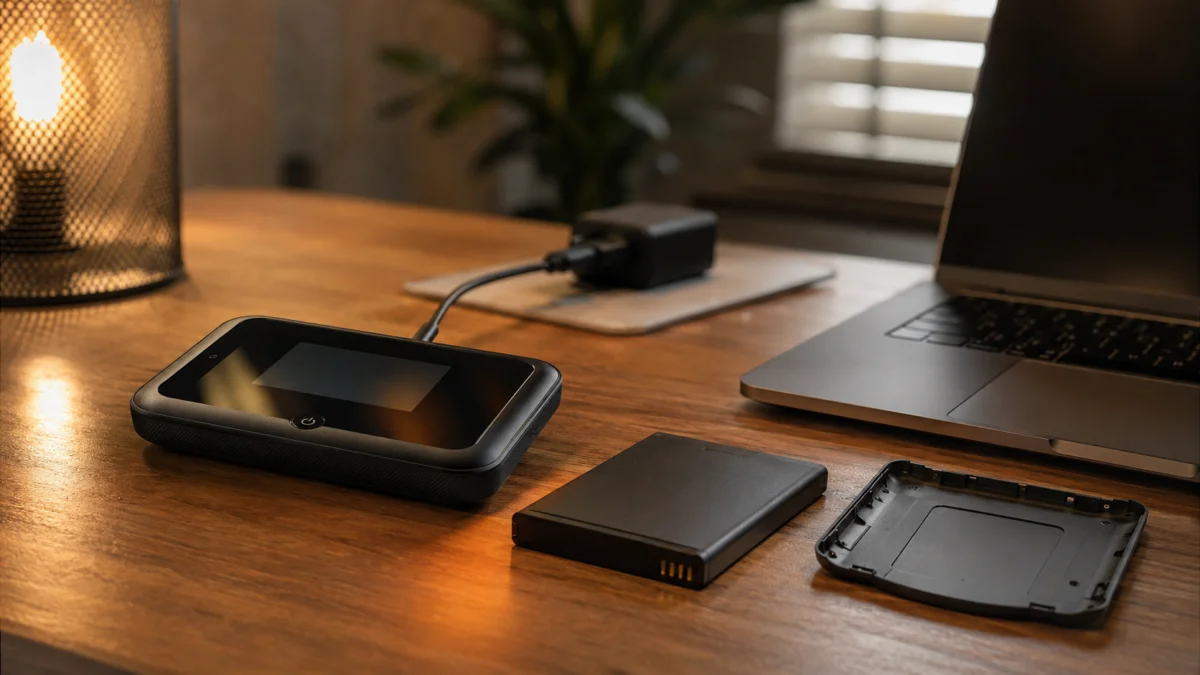
For long, stationary use — a fixed home, office, or backup line — remove the battery and switch to Plugged-In Mode. NETGEAR states this raises the device’s temperature limits and increases performance, because with no battery to protect, the device doesn’t have to throttle heat as aggressively. It’s the recommended mode for heavy, continuous data use.
Confirm your model supports Plugged-In Mode and check its user manual for the specific performance changes, since these differ by model and region. This is a NETGEAR mobile hotspot feature; do not carry over instructions from M7-series devices or assume identical behavior across the lineup.
The fix takes 5 steps. Follow NETGEAR’s official procedure exactly, and never remove the battery while the device is powered on:
- If the device is on, press and hold the Power button and select Shut down.
- Remove the battery cover from the device.
- Remove the battery.
- Plug the device into a suitable power adapter that meets NETGEAR’s requirements.
- The device powers on. Plugged-In Mode is now active.
A few conditions to know before you rely on this mode:
- It is not “charge while you use it.” Plugged-In Mode means the battery is removed and the device runs on wall power only. Running with the battery installed and permanently plugged in is a different setup with lower heat limits.
- Enhanced Wi-Fi and Ethernet features are model-dependent. On supported models this mode can boost Wi-Fi coverage and raise the maximum Ethernet port speed; check your manual for what your model gains.
- 6 GHz Wi-Fi has conditions. Where available, 6 GHz may need to be enabled manually and requires the power adapter to be connected; in the US, 6 GHz Wi-Fi is restricted to indoor use.
NETGEAR Plugged-In Mode instructions
Check Power, Firmware, Battery Condition, and Support Options
If reducing load and using Plugged-In Mode don’t resolve it, check your power supply, firmware, and battery. NETGEAR notes that Plugged-In Mode and normal charging require a power adapter and USB cable that meet certain standards, so an underpowered charger or cable can cause slow or stalled charging even when nothing is wrong with the device.
Verify each of these in turn:
- Power adapter and cable: use the supplied adapter and USB-C cable, or one that meets NETGEAR’s stated requirements. Don’t assume any USB-C charger will fully power or fast-charge the M6 Pro; confirm compatibility against NETGEAR’s official guidance before buying a replacement.
- Swap test: try a different compatible adapter and cable, and a different outlet, to see whether slow charging or charge stalls change.
- Firmware: install the current firmware for your model. On the device, go to Settings → More → Software → Check for Updates. NETGEAR has released firmware specifically to improve temperature-related connectivity behavior, so being up to date matters.
- Re-test: after a firmware update or settings change, restart the device and repeat your before-and-after load test.
NETGEAR power adapter and USB cable requirements
/
NETGEAR firmware announcement
Finally, check the battery itself and know when to stop. Look at how the battery sits in the device and how old it is; a battery that no longer holds charge well can worsen heat and charging problems.
Stop using the device and contact NETGEAR Support if any of the following apply:
- The battery is swollen, deformed, leaking, gives off an unusual smell, or becomes abnormally hot. Do not keep cooling and recharging it — discontinue use.
- The device repeatedly shuts down or freezes across multiple environments even after you’ve reduced load, improved ventilation, updated firmware, and tried Plugged-In Mode.
- Charging never completes or the device won’t hold a charge with a known-good, compatible adapter and cable.
In those cases, contact NETGEAR Support and check your warranty status rather than continuing to troubleshoot. This article can’t diagnose a hardware or battery fault for you, and a damaged lithium battery is a safety matter, not a settings problem.
MR6500 support
/
MR6550 support
/
NETGEAR warranty
Frequently Asked Questions
Is it safe to use the M6 Pro with the battery removed?
Yes — that’s exactly what Plugged-In Mode is. NETGEAR’s official procedure has you shut the device down, remove the battery and cover, and run it on a suitable power adapter. This is the recommended setup for long, stationary use because it raises the device’s heat limits and improves performance for heavy data use.
My M6 Pro just feels warm. Is it broken?
Not necessarily. NETGEAR states that a warm device, a battery-with-heat icon, and a “battery charging stopped” message can be normal thermal behavior, with charging resuming after the device cools. Treat it as a fault only if it’s paired with repeated shutdowns or signs of a battery problem like swelling or unusual heat.
Which charger should I use if charging is slow?
Use the supplied adapter and USB-C cable, or a replacement that meets NETGEAR’s stated requirements. NETGEAR notes that Plugged-In Mode and charging depend on an adapter and cable meeting certain standards, so an underpowered charger can cause slow or stalled charging. Confirm compatibility with NETGEAR’s official guidance before buying.
The device keeps shutting down even after cooling. What now?
If it repeatedly shuts down across different locations after you’ve reduced load, improved ventilation, updated firmware, and tried Plugged-In Mode, stop troubleshooting and contact NETGEAR Support to check for a hardware or battery fault and verify warranty coverage. Discontinue use immediately if the battery shows any physical abnormality.
How We Researched
This article is based on NETGEAR’s official support documentation, the Nighthawk M6 Pro user manual, and community reports where available. We have not conducted hands-on lab testing. Performance behavior, thermal protection stages, and compatibility requirements are attributed to official NETGEAR sources or clearly identified, multi-post community reports.
We reviewed NETGEAR’s guidance on thermal protection, warm-while-in-use behavior, and Plugged-In Mode activation, and we cross-checked recurring reports of overheating, charging stops, and shutdowns across multiple independent community threads before including them. Exact temperature thresholds and model-specific figures should be confirmed in your model’s own manual, since NETGEAR does not publish a single universal number.

Please check the Amazon product page for the latest price and availability.
Conclusion
On the Nighthawk M6 Pro, slow or stopped charging when the device is hot is usually thermal protection doing its job, not a broken unit. Confirm your model and symptom stage first, then reduce load, switch to Plugged-In Mode for stationary use, and verify your adapter, cable, and firmware before assuming a defect.
If the device still shuts down across multiple environments after these steps, or if the battery shows any physical abnormality such as swelling or an unusual smell, stop using it and contact NETGEAR Support to check for a fault and confirm your warranty coverage.