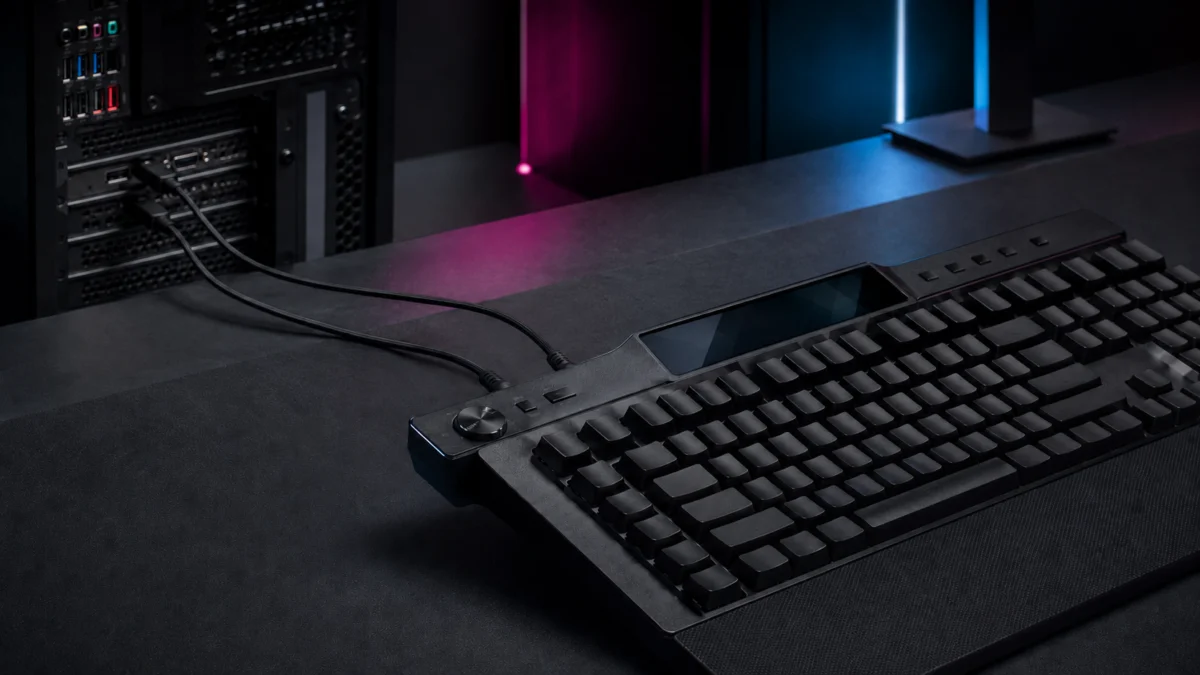
The Corsair Galleon 100 SD is really two devices in one shell: a mechanical keyboard managed through the browser-based Corsair Web Hub, and an Elgato Stream Deck managed by a separate desktop app. Each half has its own controller and its own firmware, so a failed update almost always freezes one side while the other keeps working.

Please check the Amazon product page for the latest price and availability.
If your keyboard went dead after a stalled or interrupted firmware update on the Corsair Galleon 100 SD — unresponsive keys and lighting, or just a flashing ESC key — the official first fix is Corsair’s B+L recovery, run in Google Chrome with the keyboard cable plugged straight into your motherboard rather than a USB hub. If instead the keys still type but the Stream Deck screen is blank, the fault is on the Elgato side and needs a different fix.
Before you touch anything, work out which half actually failed. Reflashing or resetting the wrong side wastes time and can make a recoverable keyboard harder to diagnose.
Fixory is reader-supported. If you buy through links on this page, we may earn a commission at no extra cost to you.
Quick fix checklist:
- Move the keyboard cable to a USB port directly on the motherboard — not a hub, dock, KVM, or monitor port.
- Use the latest Google Chrome for the Web Hub and Firmware Updater.
- Close SignalRGB, iCUE, and any other app that can take control of USB devices.
- For a dead keyboard after a failed update, run the official B+L recovery.
- For a blank Stream Deck screen, check its own USB cable and the Elgato app instead.
Identify Which Part of the Galleon 100 SD Has Failed
Start by identifying which half stopped working. The keyboard side — its keys and lighting, plus the two dials — runs through the Corsair Web Hub, while the Stream Deck screen and LCD keys run through the Elgato app. Match your symptom to the failed side below before you run any recovery, reset, or reinstall.
| Symptom | Likely failed side | Where to fix it |
|---|---|---|
| No keys, no lighting, or only ESC flashing after a firmware update | Keyboard | B+L recovery |
| Update stalls partway (often around 50%) and never finishes | Keyboard | USB and browser checks, then B+L |
| “USB disconnection” or an authorization error in the Web Hub | Keyboard | USB and browser checks, then B+L |
| Keys type normally but the Stream Deck screen or LCD keys are blank | Stream Deck | Stream Deck cable and Elgato app |
| Left Shift triggers Caps Lock | Keyboard firmware | Public beta firmware (manual) |
| Freezes at PC boot until the cable is reseated | Connection (either side) | Reseat cable; see the Stream Deck and escalation sections |
One rule applies to every case: if an update is still running, do not pull the cable to “restart” it. An interrupted flash is the most common way a recoverable keyboard becomes a harder recovery job.
Check the USB Connections, Browser, Web Hub, and Stream Deck Software
Most failed updates trace back to the connection, not the firmware. Plug both included USB-C cables directly into your motherboard rather than a hub or dock, use Google Chrome for the Web Hub, and close any app that can seize the keyboard before you retry the update.
The Galleon 100 SD ships with two USB-C-to-USB-A cables, and Corsair’s documentation says to connect both directly to your PC’s motherboard rather than through a hub or splitter, so the keyboard gets stable power and full data bandwidth during a flash. Connecting through a hub is a common cause of an update stalling midway.
The Web Hub and Firmware Updater talk to the keyboard directly through the browser, which is why the browser matters. Use an up-to-date Google Chrome. If the Web Hub shows an “unable to authorize” message, close background apps that control lighting or USB devices — SignalRGB and iCUE are the usual culprits — then reload the page and re-authorize.
According to multiple community reports, some users see the update freeze partway through specifically when the keyboard is connected through a hub or when a non-Chrome browser is used. Switching to a direct motherboard connection and a supported browser is the fix to try here, but confirm your own setup matches before assuming the hardware is at fault.
Recover a Failed Keyboard Firmware Update with the Official B+L Method
When a keyboard firmware update stalls or drops, the keyboard controller sits in a half-written state and stops responding. Corsair’s official recovery, known as B+L, forces the keyboard into its bootloader so you can re-flash it. Run it in Chrome with the cable connected directly to your motherboard.
The fix takes six steps:
- Open Google Chrome, go to Corsair’s Firmware Updater utility, and close SignalRGB, iCUE, or any other app that can take control of USB devices.
- Unplug the primary keyboard cable (the port marked with a keyboard icon) from your PC.
- On the keyboard, press and hold the B and L keys together.
- While still holding B and L, plug the cable back into a USB port directly on your motherboard.
- Keep holding until the lighting comes back on or the ESC key starts flashing, then release the keys.
- Back in the Firmware Updater, re-authorize the keyboard and run the update again.
If the update stalls a second time, do not unplug the cable or close the browser tab. Disconnecting mid-flash is what leaves the keyboard unresponsive in the first place, so let the updater finish or fail on its own before you try again. B+L only forces the re-flash mode; it does not deliberately erase your saved profiles or lighting, which is what separates it from the ESC factory reset covered in the FAQ.
Fixing the Left Shift / Caps Lock Bug with the Public Beta Firmware
Some Galleon 100 SD units type Caps Lock when you press the left Shift key. According to multiple community reports, this is a firmware-level key-matrix issue rather than a broken switch, and Corsair has published a public beta firmware that addresses it. The beta has to be installed manually.
To apply it, open the Firmware Updater in Chrome with the keyboard detected, click the three vertical dots on the device tile, choose Manual Update, drag in the beta firmware file downloaded from Corsair’s official beta firmware page, and click Update. The keyboard will go dark and briefly lose connection during the flash — that is normal, so do not unplug it. Because this is beta firmware, install it only if you actually have the left Shift issue. We are not listing a version number here because Corsair updates the beta over time; take the current file directly from the official page.
Fix the Stream Deck Side When the Keyboard Still Works
If the keys still type but the Stream Deck screen or LCD keys are blank or frozen, the fault is on the Elgato side, not the keyboard. That half needs its own upstream USB cable connected and a current Stream Deck desktop app — and you should not rerun the keyboard’s B+L recovery to fix it.
Work through the Stream Deck side in this order:
- Confirm the second (Stream Deck / upstream) USB-C cable is connected to the PC. If only the keyboard cable is attached, the LCD screen stays blank even though the keys work.
- Reinstall the Stream Deck desktop app from Elgato’s official download page to get the current version, rather than assuming the in-app updater has already applied it.
- Open the Stream Deck app and check whether it prompts for a separate Stream Deck module firmware update.
- Remember that the Galleon is managed by two apps, not iCUE — the Web Hub handles the keyboard, the Stream Deck app handles the screen.
According to multiple community reports, some Windows users see the keyboard or Stream Deck freeze at PC boot or when the Stream Deck app launches, and have to physically reseat the USB cable to restore input. Corsair has not published an official fix for this behavior, so treat cable reseating or a full power-down as a workaround rather than a confirmed cure, and note it for support if it keeps happening.
When to Stop Troubleshooting and Contact Corsair Support
Stop troubleshooting and contact Corsair when the keyboard never reappears in the Firmware Updater after a correct B+L attempt, when the update stalls at the same point on a clean direct connection, or when misinputs persist after the beta firmware. These point to a hardware fault, not a software one, and repeating the same steps will not fix them.
Treat these as escalation triggers:
- The keyboard is never detected in Chrome’s Firmware Updater even after a correct B+L attempt on a direct motherboard connection.
- The update freezes at the same point every time with all conflicting apps closed and no hub in the path.
- The left Shift / Caps Lock behavior or other stuck inputs remain after the public beta firmware installs successfully.
- The same symptom follows the keyboard to a different PC and a different USB port.
When you open a ticket, have this ready so support does not have to ask twice:
- Proof of purchase and the keyboard’s serial number.
- Your OS version and the browser you used for the Web Hub.
- The Stream Deck app version, if the Stream Deck side is involved.
- The exact error text shown, and the steps you have already tried.
One caution from community reports: some replacement units arrive on older factory firmware and show the same Shift / Caps Lock behavior out of the box. If your replacement does this, update to the current firmware before assuming the new unit is also faulty. This article is a troubleshooting guide, not a substitute for Corsair’s official support or warranty process — do not disassemble the keyboard, flash unofficial firmware, or force iCUE onto it, as none of these are supported and they can void your warranty.
Frequently Asked Questions
What is the difference between B+L recovery and an ESC factory reset?
They serve different purposes. B+L recovery forces the keyboard into bootloader mode so a failed update can be re-flashed, and it does not intentionally erase your settings. An ESC factory reset — hold ESC, unplug the USB-C cables, wait two seconds, plug back in, release when it flashes — wipes onboard profiles and lighting to restore defaults.
Does B+L recovery erase my profiles and lighting?
No. B+L recovery only puts the keyboard into the mode needed to rewrite firmware; your onboard profiles and lighting are not deliberately cleared. The reset that erases those is the ESC factory reset. If your goal is to recover from a failed update, use B+L first and keep the factory reset in reserve for genuine profile corruption.
Does the Galleon 100 SD work with iCUE?
No. Corsair has confirmed the Galleon 100 SD does not use iCUE. The keyboard is configured through the browser-based Corsair Web Hub, and the Stream Deck side is configured through the Elgato Stream Deck app. Installing iCUE and forcing it to grab the keyboard can create a conflict over device access, so avoid it.
How We Researched
This article draws on Corsair’s official Galleon 100 SD support pages, Elgato’s Stream Deck resources, and recurring r/Corsair community reports, used only where the same issue showed up across multiple independent threads. We have not conducted hands-on lab testing. Any performance or compatibility claim traces back to an official source or a clearly identified community report.
Firmware version numbers and browser requirements change over time, so we checked them against Corsair’s live official pages at the time of writing; where the exact public beta version was not stated consistently across sources, we describe the fix without pinning a version and point to Corsair’s official beta firmware page instead. No qualifying step-by-step recovery video was found, so the procedures above follow Corsair’s official text guidance rather than a video walkthrough.
Conclusion
A “failed firmware update” on the Galleon 100 SD is usually a one-sided problem. Decide whether the keyboard half or the Stream Deck half went down, then fix the connection first — direct to the motherboard, in Chrome, with conflicting apps closed — before running B+L recovery or checking the Stream Deck cable and app.
If a correct B+L attempt still leaves the keyboard invisible in the Firmware Updater, or misinputs survive the beta firmware, that is your signal to escalate to Corsair support rather than keep reflashing.