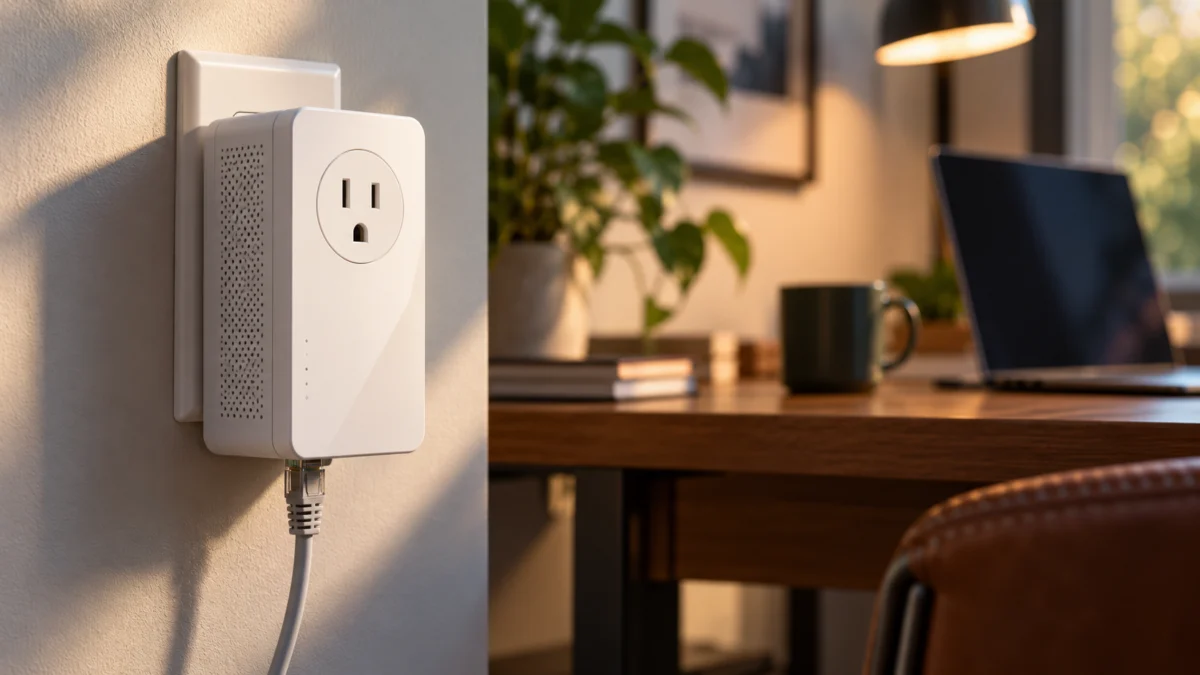
If the Powerline light on your TL-PA9020P is off, check the hardware version printed on the adapter’s label before you re-pair or reset anything. TP-Link publishes separate US user guides for V1, V2, V3, and the V4-series, and they do not describe this LED the same way. In the V1, V2, and V3 guides, an off Powerline light means the adapter is either not connected to a powerline network or in Power-Saving Mode. In the V4 guide, off means only that it is not connected, and no red or yellow-green state is listed at all. The documented reset hold time differs between them too. An off light on its own therefore does not confirm a lost pairing, a failed adapter, or a wiring fault — and a factory reset is not the first thing to try.
Quick Fix Checklist
Work through these in order. Each one is non-destructive, and the later checks only make sense once the earlier ones are ruled out.
- Read the hardware version on the product label of both adapters.
- Check the Power LED first: solid, blinking, or off tells you different things.
- Turn on the device connected to the remote adapter, then look at the LEDs again.
- Plug both adapters straight into wall outlets, not a power strip or surge protector.
- Test both adapters in nearby outlets before testing the target outlet.
- Re-pair using the instructions for your own hardware version.
- If the Powerline LED is on but you still have no Internet, check the Ethernet path instead.
Start With the Hardware Version on the Label
Read the version printed on the adapter’s product label before changing anything. TP-Link publishes separate US user guides for V1, V2, V3, and the V4-series of the TL-PA9020P KIT, and the LED legend and reset hold time differ between them.
TP-Link’s general instructions say to look for a Ver: X.X or VX marking on the product label. That is its company-wide method rather than a TL-PA9020P-specific note, so we cannot say exactly where the marking sits on this model. Check the label on each adapter.
One labeling detail helps when you look for your own guide. On TP-Link’s US support page, selecting V4.60 brings up a document named TL-PA9020P KIT(US)_V4.6_User Guide, while the linked web guide is titled V4. We are describing which document TP-Link points to from which selector, not claiming the two are the same hardware.
What an Off Powerline Light Actually Means on Your Version
In the V1, V2, and V3 guides, TP-Link defines an off Powerline LED as either no powerline connection or Power-Saving Mode. The V4 guide defines it only as not connected to a powerline network, and lists no red or yellow-green state. An off light on its own does not confirm a failed link.
V1, V2, and V3 LED States
| LED | State | What the V1–V3 guides say |
|---|---|---|
| Power | On / Off | The adapter is on or off |
| Power | Blinks once per second | Pairing is in process |
| Power | Blinks once every 3 seconds | Power-Saving Mode is on |
| Powerline | Yellow-green | The adapter is in a location with good signal strength |
| Powerline | Red | Poor signal strength; the guide recommends trying another wall socket |
| Powerline | Off | Not connected to any powerline network, or in Power-Saving Mode |
| Ethernet | On / Off | At least one Ethernet port is connected, or none is |
The V1 guide describes Power-Saving Mode starting five minutes after the connected device is turned off. The V2 and V3 guides state the condition as turned off or inactive for more than five minutes.
V4-Series LED States
| LED | State | What the V4 guide says |
|---|---|---|
| Power | On / Off | The adapter is on or off |
| Power | Blinking quickly | Pairing is in process |
| Power | Blinking slowly | Power-Saving Mode is on |
| Powerline | On | Connected to a powerline network |
| Powerline | Off | Not connected to any powerline network |
| Ethernet | On / Off | At least one Ethernet port is connected, or none is |
Two differences matter. The V4 guide has no red or yellow-green Powerline state, so advice built around a red light does not map onto it. Its Off entry mentions only a missing connection, not Power-Saving Mode, though Power-Saving Mode still appears there as a slow blink on the Power LED. On a V4-series unit, read that blink pattern before assuming what an off Powerline light implies.
If Every Light Is Off
If every LED is dark, confirm the adapter has power in a different wall outlet first. TP-Link’s tpPLC Utility can also switch device LEDs off, and its FAQ lists the TL-PA9020P KIT among supported products, though it does not limit that to a specific hardware version.
Treat that setting as a secondary check. If the Power LED is lit and only the Powerline LED is dark, go to the outlet and pairing checks below instead.
Rule Out Power-Saving Mode and the Outlet Before Re-Pairing
Check the Power LED’s blink pattern and whether the connected device is powered on and active. Then plug both adapters directly into wall outlets — not a power strip, extension cord, or surge protector — and test them near each other before moving one back to the target room.
Power-Saving Mode is enabled by default, and TP-Link’s FAQ says it can be turned off through the tpPLC Utility. What the official material we checked does not give is a wake procedure: no US guide or FAQ we opened states an action that reliably brings a specific version out of Power-Saving Mode. Powering on the connected device is worth trying as a diagnostic, but we did not find it documented as a version-specific wake step in those sources.
Placement comes next. The guides are explicit: plug into a wall socket rather than a power strip, extension cord, or surge protector, and avoid outlets near high-draw appliances such as washing machines or refrigerators.
Then run the same check in two places and write down what you see. This comparison can help when you contact support.
| Test position | Power LED | Powerline LED | Ethernet LED |
|---|---|---|---|
| Both adapters in the same room, in wall outlets | — | — | — |
| Second adapter moved to the target outlet | — | — | — |
If the pair links in the same room but not at the target outlet, the result is narrow but real: that outlet is not giving you a usable powerline link in this test. It does not tell you which circuit, phase, or breaker it sits on, and no one can map your home’s wiring remotely. Do not open a breaker panel, alter wiring, or take an adapter apart. If you suspect the outlet itself is faulty, have a qualified electrician check it, and in a rental or shared building confirm the rules with your landlord or building manager first.
Re-Pair Using Your Version’s Instructions
Pairing, leaving a network, and a factory reset are three different Pair button actions, and pairing uses a one-second press in the US V1, V2, V3, and V4 guides checked here. Do the pairing sequence first; use a reset only if it fails, with the hold time from your own version’s guide. Follow these five checks in order.
- Plug both adapters into wall outlets near each other and wait until both Power LEDs are solid on.
- Press the Pair button on the first adapter for 1 second. Its Power LED starts blinking.
- Within two minutes, press the Pair button on the second adapter for 1 second. When the Powerline LED comes on and stays on, pairing is complete.
- Move the second adapter to the outlet you actually want to use and check the Powerline LED again.
- Only if pairing fails, reset both adapters using the hold time listed in your version’s guide, then repeat steps 1 to 3.
The hold times are where a single universal instruction goes wrong.
| Guide | Reset (hold Pair button) | Leave the existing powerline network |
|---|---|---|
| V1, V2, V3 US guides | More than 15 seconds | About 8 seconds |
| V4 guide, Chapter 1 | More than 6 seconds | Not listed |
TP-Link’s general reset FAQ for the TL-PA series gives 15 seconds, which does not match the more-than-six-second hold in Chapter 1 of the V4 guide. Because the official material is inconsistent here, we are not publishing one number for every TL-PA9020P. Use the figure in your own version’s guide. The same applies to the roughly eight-second press that leaves an existing powerline network: it appears in the V1 to V3 guides and not in the V4 guide.
One more reason to leave the reset for later: it clears saved configuration and pairing information, so you may have to pair again afterwards.
TP-Link also publishes a general troubleshooting video for its powerline products. Its description covers problems with the Powerline LED on or off. Use it as a supplementary guide, and follow your own hardware version’s user guide for button timings and LED colors.
Powerline Light On but Still No Internet? Check the Ethernet Path
A lit Powerline LED confirms the powerline segment, not Internet access. Split the path into three parts — router to adapter, adapter to adapter over the wiring, adapter to your device — then compare router ports, cables, and a direct connection to the router before touching pairing again.
- Router side: router LAN port → Ethernet cable → TL-PA9020P
- Powerline segment: TL-PA9020P → household wiring → TL-PA9020P
- Device side: TL-PA9020P → Ethernet cable → PC, console, or other wired device
TP-Link’s troubleshooting FAQ treats this as a separate case from an off Powerline light, and it starts at the router end. Check that the Ethernet LED on the adapter connected to your router is lit. If it is not, the FAQ asks you to compare four things: a different router port, a different Ethernet cable, another powerline device on the same cable, and that cable connected to a computer instead. Connecting a computer directly to the router confirms the Internet connection itself before you blame the adapters.
If you already own a spare Ethernet cable you know is good, swap it in as part of that comparison. If you do not, there is no need to buy one on the strength of an off Powerline light: a cable is one candidate among several.
When to Contact TP-Link or Try a Different Connection
If the adapters link near each other but not at the target outlet, what you have confirmed is that this outlet is not giving you a usable powerline link in this test — not that a specific circuit or breaker is at fault. Collect your details before contacting support.
Have these ready:
- Model and the hardware version from each adapter’s label
- The LED states you recorded in both test positions
- Which outlets you tried and whether the adapters were plugged in directly
- Whether pairing succeeded anywhere, and whether you performed a reset
- Whether the Ethernet LED lights on the router-side adapter
On alternatives: TP-Link’s FAQ says that when powerline units pair in the same room but drop the link once moved, they may not suit that home, and it points to a range extender or an access point. Each has conditions. A range extender needs a usable upstream Wi-Fi signal where you place it; an access point normally needs backhaul reaching that spot. Running Ethernet directly from the router avoids the powerline segment altogether, though cabling work is outside this article.
Coaxial cabling is a third possibility if your home already has it in both places. Before assuming it applies, check whether MoCA 2.5 suits your home’s coax wiring. Seeing a coax outlet in a room is not the same as having a usable path between two points, and we are not claiming this route will work in your home.
FAQ
Does an off Powerline light always mean the adapters lost their pairing?
No. In the V1, V2, and V3 guides, an off Powerline LED covers two situations: no powerline connection and Power-Saving Mode. The V4 guide lists only the missing connection. Check the Power LED’s blink pattern before concluding that pairing failed.
Does a red Powerline light mean the adapter is broken?
No. In the V1 to V3 guides, red indicates poor signal strength at that location, and they recommend trying another wall socket. It is a placement status, not a fault code. The V4 guide lists no red state at all.
Should I factory reset the adapters first?
We would not. A reset clears saved settings and pairing information, and the hold time is documented differently for V1 to V3 than for V4. Confirm the version, the Power LED behavior, the outlet, and pairing first.
How We Researched
This article is based on TP-Link’s per-version US user guides for the TL-PA9020P KIT, its official support FAQs on powerline troubleshooting, power saving, LED behavior, and reset procedure. We have not conducted hands-on lab testing, and no performance figures appear here. Where official documents disagree, as they do on the reset hold time, we say so rather than picking one number.
We also looked for user reports on this exact symptom and did not find a set that identified the US hardware version and the off Powerline light together across multiple threads, so there is no community-reports section here. Claims about what is not documented apply only to the official pages we opened; TP-Link’s support library is larger than what we checked.
Conclusion
The order matters more than any single fix. Read the version off the label, interpret the Powerline LED with that version’s table, rule out Power-Saving Mode and the outlet, then re-pair and keep the reset in reserve. If the light comes on and the Internet does not, check the Ethernet path next.