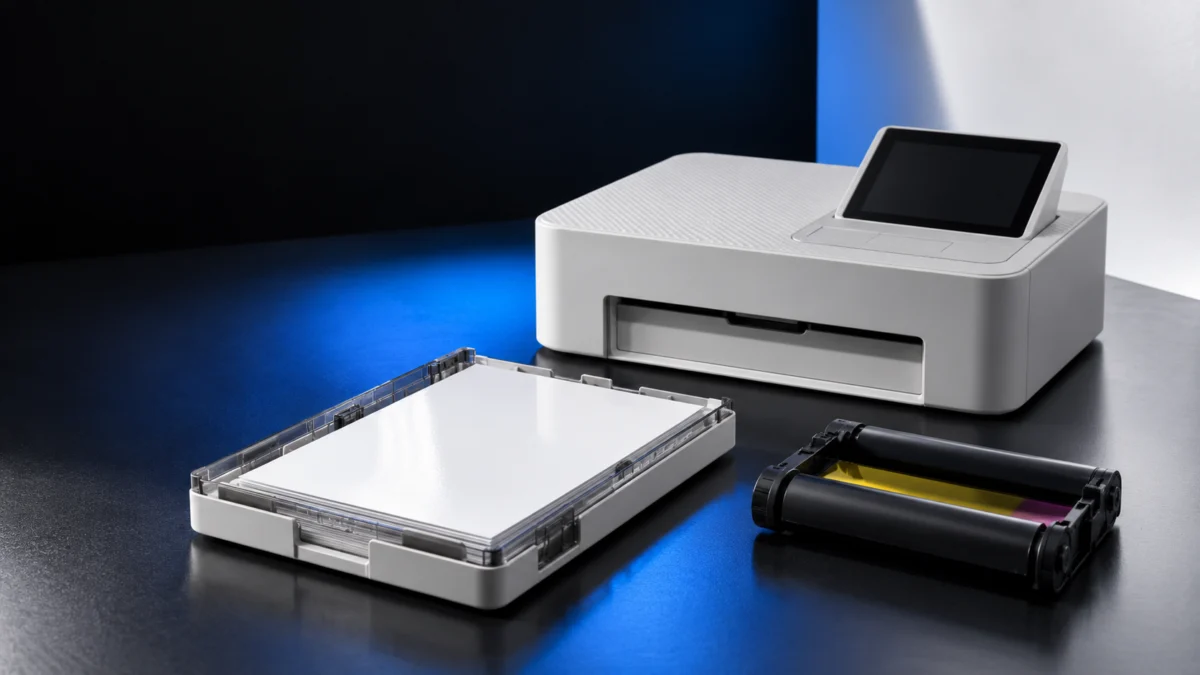
If your Canon SELPHY CP1500 stops before printing with a paper or cassette message, first check the size match, loading, and app setting. Canon’s documentation and support guidance identify four items to check before deciding whether replacement supplies are needed.
- The paper you loaded
- The paper cassette holding it
- The ink cassette in the side compartment
- The paper size selected in the app you print from
This guide puts the free checks before replacement purchases. Canon’s troubleshooting material includes checking the cassettes and replacing supplies as needed. Start with the exact wording on the printer screen to choose which checks to try first.
Identify Which Error You Are Seeing
Read the exact wording on the printer screen before you touch anything. Owner reports posted on Canon’s official community forum fall into two families. One family describes paper and ink cassette sizes as incorrect. The other reports no paper, or a cassette that is not inserted correctly. Each family points somewhere different.
Owner reports: paper and ink cassette size messages and no-paper or incorrectly inserted cassette message.
| What the screen shows | What to check | Where to check first |
|---|---|---|
| Wording about paper and ink cassette sizes, or the ink cassette size alone, being incorrect | Whether the sizes match and the cassettes are fully seated | The size match, then the loading checks |
| Wording about no paper, or a cassette not inserted correctly | Whether the cassette contains paper and is fully inserted | The loading checks |
| No message, but paper does not feed or jams repeatedly | Sheet count, paper condition, and loading | The paper feed section |
Then ask what changed just before the error appeared. Owners on Canon’s official community forum describe two timings: right after replacing supplies, and on a printer that has never printed. These are individual reports, not evidence of a product-wide fault or a confirmed cause. Check the size match and loading even when using a bundled starter set.
Match the Paper, Paper Cassette, and Ink Set
The SELPHY CP1500 uses three paper size families. Every part of the set has to belong to the same one, including the paper cassette itself. Canon’s official accessory list also attaches an extra condition to two of the three sizes, so read the footnotes rather than only the product name on the box.
| Color Ink / Paper Set | Paper size | Prints per set | Cassette condition stated by Canon |
|---|---|---|---|
| KL-36IP | L size | 36 | L-size adapter required in the cassette |
| KL-36IP 3PACK | L size | 108 | L-size adapter required in the cassette |
| KP-36IP (Postcard) | Postcard size | 36 | None listed |
| KP-108IN (Photo Paper) | Postcard size | 108 | None listed |
| RP-54 (Photo Paper) | Postcard size | 54 | None listed |
| RP-108 (Photo Paper) | Postcard size | 108 | None listed |
| RP-1080V (Photo Paper) | Postcard size | 1080 | None listed |
| KC-36IP | Card size | 36 | PCC-CP400 required |
| KC-18IF (Full-Page Label) | Card size | 18 | PCC-CP400 required |
| KC-18IL (8 Labels per Page) | Card size | 18 | PCC-CP400 required |
| KC-18IS (Square Labels) | Card size | 18 | PCC-CP400 required |
See Canon’s Ink and Paper (Sold Separately) compatibility table.
Check the two cassette conditions in the table. Card-size media does not work in the bundled cassette at all, because Canon specifies Paper Cassette PCC-CP400 for those sets. L-size paper needs the adapter fitted inside the cassette, and Canon notes that this adapter is not included in some countries or regions.
Canon also states that regular postcards cannot be used, and that ink and paper made for the SELPHY ES series is not compatible. The same applies to the SQUARE QX models and to iNSPiC printers. Accessory availability varies by region.
Check Loading and Paper Feed
If the sizes already match, the next candidate is how the paper and the cassette are physically loaded. Canon’s loading instructions include several conditions that are easy to miss on a reload, including the exact sheet count and which of the two cassette covers has to stay open while you print.
Canon’s illustrated instructions: Loading the Paper Cassette and Loading the Ink Cassette.
The fix takes 7 steps.
- Remove the paper cassette. If the printer reports that paper has run out, Canon says to remove the cassette without turning the power off.
- Take the paper out of its bag and remove any protective sheets. Load all 18 sheets. Canon warns that 19 or more may damage the printer or cause a malfunction.
- Load the paper with the glossy side facing up. Avoid touching the glossy printing surface. Never reload paper that has already been printed on.
- For Postcard size, remove the adapter for L-size paper if it is fitted. For postcard prints with a stamp area, orient the paper as the manual illustrates.
- Close the inner cover until it clicks and leave the outer cover open.
- Open the paper cassette compartment cover and insert the cassette all the way in. It slides roughly 2 cm (0.8 in.) into the compartment.
- Check the ink cassette last. Confirm its size matches the paper. If the ink sheet is loose, follow Canon’s illustrated instructions to turn the sprocket gently and tighten it before inserting the cassette in the arrow direction until it clicks.
Two cautions apply throughout. Canon states that ink cassettes must not be reused, so refitting an emptied cassette is not a valid test. Canon also warns against touching the springs inside the cassette, because bending them can prevent efficient feeding.
If Paper Feeds Badly or Jams Repeatedly
For feed problems or repeated jams, check cassette insertion, the number of loaded sheets, and finished prints collecting on the cassette. Also check that you are using SELPHY paper that has not already been printed on. Canon lists these checks separately from paper-size matching.
See Canon’s SELPHY CP1500 troubleshooting checklist.
- Confirm the paper and the cassette are inserted correctly.
- Confirm there are fewer than 19 sheets in the cassette.
- Confirm that 19 or more finished prints have not collected on the cassette.
- Confirm you are using paper designed specifically for SELPHY printers.
- Confirm you are not reusing paper that has already been printed on.
If jammed paper protrudes from a front or rear ejection slot, Canon’s instruction is to pull it out carefully. If gentle pressure does not free it, do not force it. Turn the printer off and then on, and repeat until the sheet is ejected. Canon states that forcing jammed paper may damage the printer, and that a sheet you cannot remove is a reason to contact your retailer or a Customer Support Help Desk.
Check the Paper Size Selected in the App
A physically correct setup can still fail if the app you print from is set to a different paper size. On Canon’s official community forum, a Canon Product Expert advised an owner with this error to select the paper type actually loaded in the printer inside the SELPHY Print Layout app, and then print again.
The Product Expert described three paper types, matching the size families above. In SELPHY Print Layout, check that the selected paper type matches the paper actually loaded, then try printing again.
Decide Whether You Actually Need New Supplies
Buy new supplies only after the checks above have identified something specific, such as an ink set that does not match your paper size or a cassette that has genuinely run out. Replacing supplies is not a guaranteed fix for this message, and Canon’s guidance for an error that persists is to contact support instead.
Fixory may earn a commission from qualifying purchases made through links in this section. That does not change which products we describe or the order of the checks above.
Replace supplies if: the ink set size does not match the paper you want to print, or the cassette is empty, or you have been printing on non-genuine paper. Do not replace supplies if: the sizes agree and you have not yet worked through the loading steps and the app setting.
For Postcard-size printing, the Canon Color Ink / Paper Set RP-108 is one of the Postcard-size sets Canon lists for this printer. It includes paper and matching ink supplies; you still need the correct paper cassette and app setting. If you print L size or Card size, buy the matching set instead.

Please check the Amazon product page for the latest price and availability.
When to Contact Canon
If the message survives the size match, the loading steps and the app setting, the remaining useful action is to contact Canon rather than to keep swapping parts. Two things make that call shorter: knowing your firmware version, and having the exact message wording written down before you start.
The fix takes 4 steps.
- Check the firmware version. Canon U.S.A. has published Firmware Version 1.0.7.0 for the SELPHY CP1500, described in the notice as improving system stability. The notice does not list this error among the changes, so treat the update as general maintenance rather than as a fix.
- If you do update, follow Canon’s condition. Canon instructs owners to perform the update with only the firmware file stored on the memory card, and states that no update is needed if the printer already reports 1.0.7.0.
- Write down the exact wording shown on the printer screen. Record the product name of the paper and ink set you are using. Note when the error started and what you changed just before it appeared.
- Contact Canon support through the SELPHY CP1500 Product Support page. Canon staff on the official community forum direct owners to sign in to their My Canon account, where the SELPHY CP1500 product page offers phone and chat support options.
See Canon’s Firmware Version 1.0.7.0 notice.
The pages reviewed here provide loading and jam-removal checks, not a procedure for opening the printer or cleaning internal sensors to resolve this message. If the documented checks do not clear it, contact Canon.
Frequently Asked Questions
Do I need to change the ink when I change paper size?
Yes. Canon pairs each paper size with its own Color Ink / Paper Set, and the ink cassette size has to match the paper you load. That is why the two ship together in one box. Changing the paper size without changing the ink cassette leaves the set mismatched.
Why did the error appear right after I replaced the ink?
Canon’s instructions point to a few causes for that timing. The new cassette may not have clicked fully into place. The ink sheet may be slack, which you can tighten by turning the sprocket. The size of the new set may not match the paper already sitting in the cassette.
Should I buy new paper if the size already matches?
Not yet. If your paper matches both the cassette and the ink set, the remaining free checks are the loading conditions and the paper size selected in whichever app you print from. If the message survives all of those, contact Canon before spending anything on replacement supplies.
How We Researched
This article is based on the Canon SELPHY CP1500 Advanced User Guide, a Canon U.S.A. firmware advisory, and owner threads on Canon’s official community forum. We have not conducted hands-on lab testing. Procedures and compatibility conditions are attributed to Canon’s official documentation, and on-screen wording is attributed to owner reports.
We did not find a page in the official material we checked that lists the CP1500 screen messages verbatim, so we have not represented the reported wording as documented by Canon. That absence applies only to the pages we opened.
Conclusion
For a paper or cassette message on the SELPHY CP1500, start with the free size, loading, and app checks. Read the wording first. Confirm that the paper and its cassette and the ink set belong to one size family. Reload following Canon’s conditions, then check the app setting.
Only after all four checks does replacing supplies make sense, and only when one of them identified a specific mismatch or an empty cassette. If everything matches and the message remains, Canon support is a better use of your money than another set.